







 Store


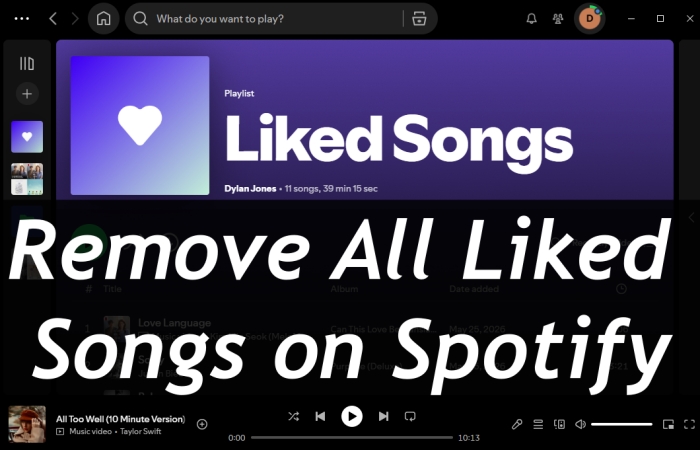
If your Spotify library has become cluttered with thousands of tracks you no longer listen to, clearing out your "Liked Songs" collection is the fastest way to refresh your account. However, Spotify's interface doesn't feature an obvious "Delete All" button, which leaves many users stuck removing songs one by one. This step-by-step covers how to remove all liked songs on Spotify quickly, along with essential tips to avoid losing your favorite music forever.
Part 1. Can You Remove All Liked Songs on Spotify?
Your "Liked Songs" collection acts as the main hub of your Spotify account. While liking songs requires only a single tap, managing thousands of saved tracks across different devices is a bit different. You can remove all liked songs on Spotify at once, but you must the Spotify desktop app on a Mac or Windows PC. Spotify's mobile app does not support bulk selecting or deleting songs.
| Platform | Bulk Selection | Quickest Solution |
|---|---|---|
| Spotify desktop app | Fully supported | Keyboard shortcuts |
| Spotify web player | Supported via range selection | Use the Shift keyboard |
| Spotify mobile app | Not supported | Turn to desktop app or web player |
However, before deleting thousands of tracks from your Liked Songs playlist, having a backup is essential. Once your app session closes, recreating your saved library track-by-track can be time-consuming. Here are two options for you to back up your Liked Songs in Spotify.
Option 1. Create a Custom Backup Playlist
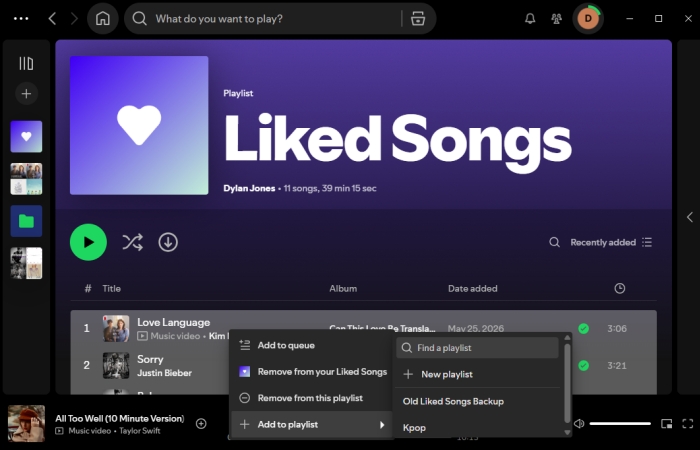
Step 1. Open the Spotify desktop app and click Liked Songs in the left side bar.
Step 2. Click on any track, then press Ctrl + A on Windows or Cmd + A on Mac to select all loaded songs.
Step 3. Right-click any highlighted track and select Add to playlist > New playlist.
Step 4. Name your backup playlist like "Liked Songs Backup".
Option 2. Save Liked Songs as Local Files
If you want to keep offline access to your saved collection independently of your Spotify account, you can convert your collection to local audio files before wiping it. TunesMake Spotify Music Converter allows you to load your Liked Songs library on a computer and download the tracks into common formats like MP3 or FLAC. This creates a permanent local backup, allowing you to access your music on any media player even after clearing your online Spotify library.

TunesMake Spotify Music Converter –
Download music from Spotify without premium
- Download Spotify songs, albums, playlists, audiobooks, and podcasts
- Losslessly convert Spotify music to MP3, FLAC, WAV, AIFF, and more
- Remove ads from Spotify music tracks even with a Free account
- Convert Spotify music at 15× faster speed in batch with ID3 tags kept
Security Verified. 100% Clean & Safe.
Part 2. How to Delete a Single Liked Song on Spotify
Unlike bulk deletion which requires desktop access, unliking an individual track is simple and can be completed across all devices, including mobile phones, desktop apps, and web browsers. Removing a song immediately updates your library across all devices logged into your account.
On Mobile
Option 1. Remove from the Liked Songs Playlist
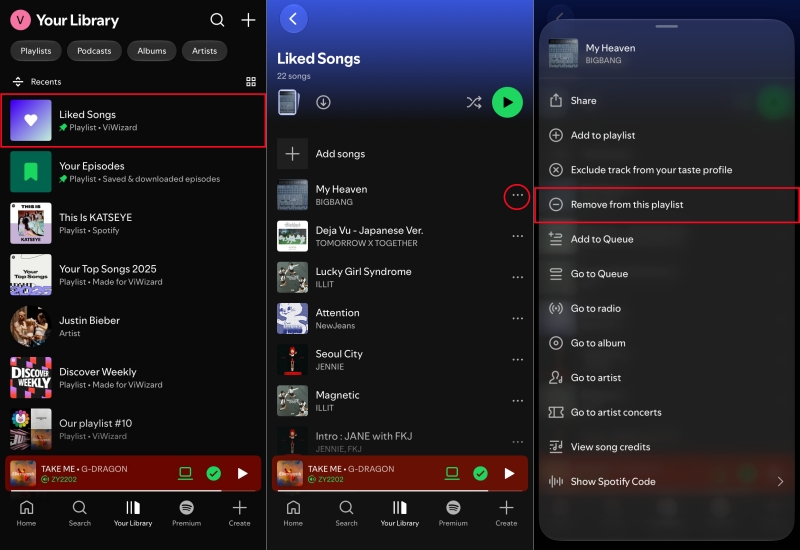
Step 1. Open the Spotify app and tap Your Library in the bottom navigation bar.
Step 2. Tap Liked Songs and use the in-playlist search bar to find the track.
Step 3. Tap the three-dot icon next to the song title.
Step 4. Tap Remove from This Playlist to remove the track instantly.
Option 2. Remove from the Now Playing View
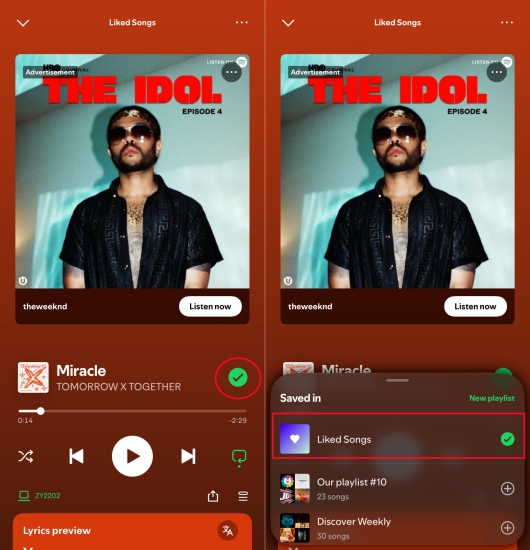
Step 1. Tap the player bar at the bottom to open the full-screen playback window.
Step 2. Tap the green checkmark icon located next to the track title.
Step 3. Select Remove to un-save the track from your library.
On Desktop
Option 1. Click the Unlike Icon to Remove
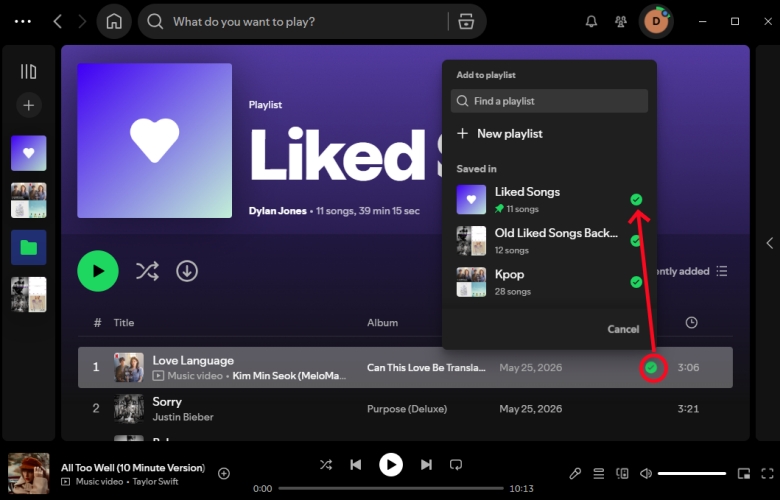
Step 1. Open Spotify on your computer and select Liked Songs from the left-hand sidebar.
Step 2. Hover over the track you want to remove.
Step 3. Click the green checkmark icon on the right side of the track row.
Option 2. Use Context Menu or Keyboard Delete
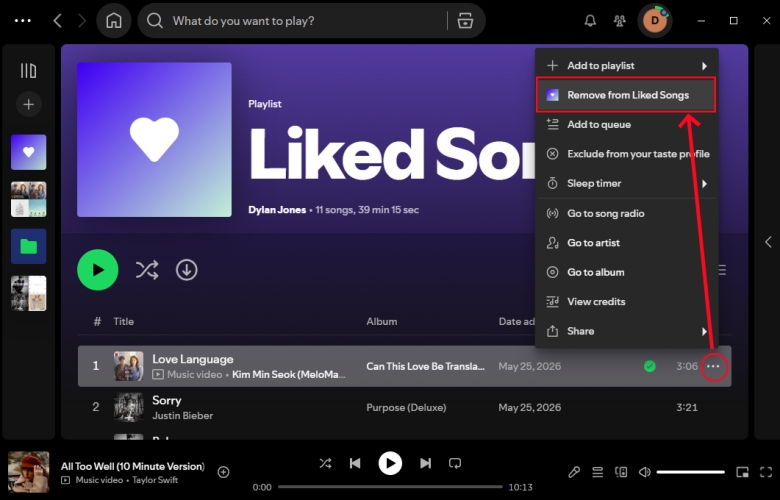
Step 1. Right-click the track in your Liked Songs list.
Step 2. Select Remove from Liked Songs.
Part 3. How to Remove All Liked Songs on Spotify
Spotify does not provide a single "Delete All" or "Clear Library" button in its settings menu. But there are still options for you to remove all liked songs on Spotify at once. Here is how to delete all liked songs on Spotify, whether you are using a computer or a mobile device.
How to Remove All Liked Songs on Spotify Desktop
The most efficient way to clear all liked songs on Spotify is by using a computer. The desktop app and web player support multi-item selection shortcuts, making bulk operations straightforward.
Method 1. Use Keyboard Shortcuts on Spotify App
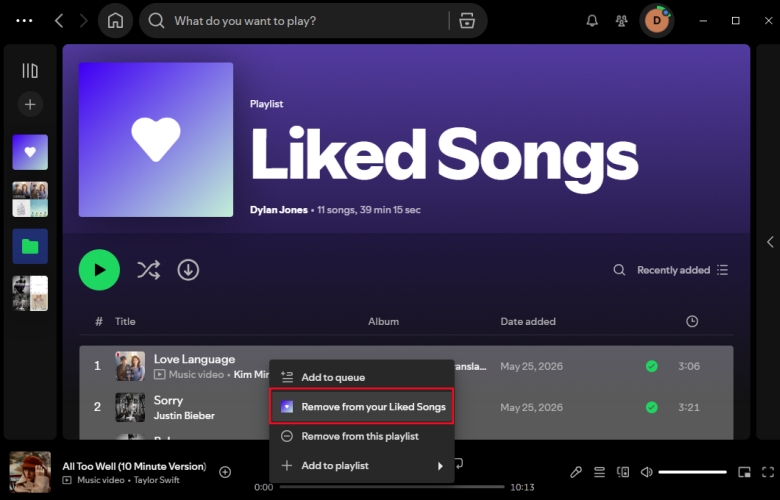
Step 1. Open the Spotify app on your Mac or Windows PC.
Step 2. Navigate to Liked Songs in the left-hand navigation menu.
Step 3. Click on any single song in the list to highlight it.
Step 4. Select all loaded tracks using Ctrl + A on Windows or Cmd + A on Mac.
Step 5. Press the Delete key on your keyboard, or right-click any highlighted track and choose Remove from your Liked Songs.
Method 2. Range Selection Using the Shift Key
Step 1. Launch the Spotify app on your Mac or Windows PC.
Step 2. Click the Liked Songs playlist in the left-hand navigation menu.
Step 3. Click on the first song in the range you want to remove.
Step 4. Scroll down to the last song in that range.
Step 5. Hold down the Shift key and click that last song.
Step 6. Right-click and choose Remove from your Liked Songs or press Delete.
How to Remove All Liked Songs on Spotify Mobile
Many users look for an option to mass delete liked songs on Spotify mobile directly through their smartphone. Unfortunately, Spotify's mobile app does not feature a multi-select mode or a bulk delete option. If you do not have access to a computer, you can use your phone's web browser to perform a bulk clear.
Step 1. Open Chrome, Safari, or your preferred mobile browser.
Step 2. Tap the browser options menu and enable Desktop Site or Request Desktop Website.
Step 3. Go to open.spotify.com and log into your account.
Step 4. Navigate to Liked Songs to browse all liked tracks.
Step 5. Select the first track and scroll to the bottom.
Step 6. Hold down the Shift key to select and remove all tracks.
Part 4. FAQs about Removing Spotify Liked Songs
Will unliking all songs reset my Spotify recommendation algorithm?
Unliking all tracks clears your library, but Spotify's recommendation algorithms rely on your overall listening history, not just your Liked Songs. To reshape your recommendations, start actively liking new music and listening to different genres.
Can I recover deleted Liked Songs if I don't have a backup?
If you deleted a custom playlist containing your songs, you can recover it via the official web recovery tool. However, if you unliked songs directly without creating a backup playlist first, they cannot be automatically restored via account settings once the app session closes.
Will unliking all songs delete them from my custom playlists?
No. Unliking a track only removes it from your "Liked Songs" library section. The song will remain intact in any custom playlists you or other users have added it to.
Can I delete all liked songs on Spotify at once on my phone?
No. The Spotify mobile app for iPhone and Android does not support batch deletion. You must log into the Spotify Desktop app or use a desktop web browser to remove all liked songs at once.
Part 5. Conclusion
Clearing out your Spotify Liked Songs collection is the most effective way to eliminate library clutter, refresh your account, and reshape your personalized music recommendations. By following the above step-by-step tips, you can delete a single track or multiple tracks in your Liked Songs playlist on your computer or mobile device. Before executing a mass deletion, consider saving a quick playlist backup or local file so you never lose your all-time favorites.
Related Articles



An experienced freelance writer at TunesMake, specializes in using various streaming services from Spotify, Apple Music, to Amazon Music, and more other platforms.
- 1
- 2
- 3
- 4
- 5
- 6
- 7
 Leave Your Comment
(0)

 Download Center


