







 Store


If you are looking to experience immersive, multi-dimensional surround sound on your favorite playlists, you might be asking: does Spotify have Dolby Atmos? With spatial audio becoming a major feature on modern smartphones, headphones, and home theater systems, music lovers expect their primary streaming platform to support object-based sound. Here is everything you need to know about Spotify's current Dolby Atmos support and how to optimize offline listening.
Part 1. Does Spotify Have Dolby Atmos?
No, Spotify does not support Dolby Atmos, Spatial Audio, or multi-channel surround sound formats. Regardless of whether you use a Free account or a Premium subscription, every track streamed on Spotify is delivered in standard 2-channel stereo audio.
While Dolby Atmos breaks music into individual audio objects placed in a 3D hemisphere around the listener, Spotify streams a traditional left-and-right channel mix. Even if you connect high-end Dolby Atmos-certified headphones or soundbars, Spotify's source signal remains standard stereo.
What High-Fidelity Audio Spotify Actually Offers?
While Spotify has not introduced Dolby Atmos, the service has focused its audio upgrades on pure, uncompressed fidelity. Spotify offers Lossless audio integrated into standard Premium plans, delivering CD-quality FLAC streams up to 24-bit / 44.1 kHz. To ensure you are getting the highest possible fidelity stream, you can enable maximum audio quality on Spotify.
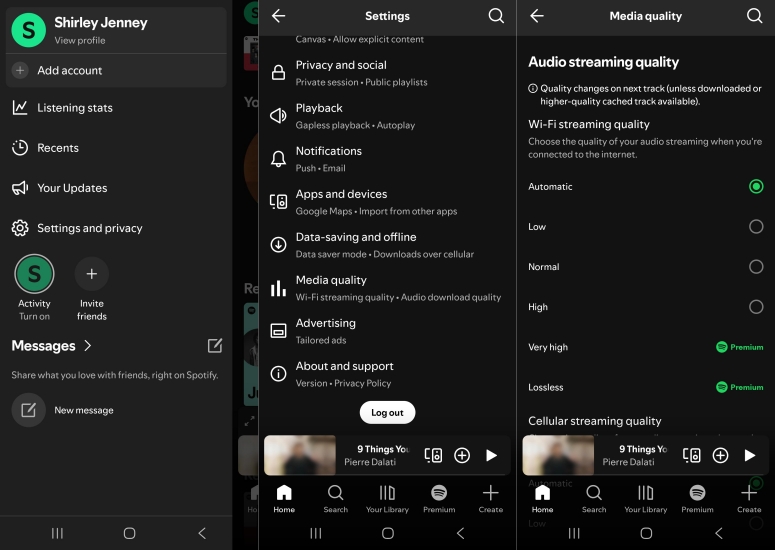
Step 1. Open the Spotify app and tap your Profile icon at the top left corner.
Step 2. Go to Settings and Privacy and scroll to Media Quality.
Step 3. Under WiFi Streaming and Cellular Streaming, select Very High or Lossless.
Step 4. Disable Auto Adjust Quality to prevent Spotify from downscaling your resolution.
Which Streaming Music Service Offer Dolby Atmos?
If Dolby Atmos playback is a non-negotiable requirement for your listening setup, several competing music services offer fully integrated spatial audio catalogs. Compared to Spotify, there are several streaming music services like Apple Music, Amazon Music, and Tidal that host and deliver Dolby Atmos.
| Feature | Spotify | Apple Music | Amazon Music Unlimited | Tidal |
|---|---|---|---|---|
| Dolby Atmos Support | ❌ | ✅ | ✅ | ✅ |
| 360 Spatial Formats | ❌ | Dolby Atmos | Dolby Atmos & 360 Reality Audio | Dolby Atmos |
| Max Audio Resolution | 24-bit / 44.1 kHz FLAC | 24-bit / 192 kHz Lossless | 24-bit / 192 kHz Ultra HD | 24-bit / 192 kHz Hi-Res FLAC |
| Hardware Integration | Spotify Connect | Apple AirPlay 2 & HomePod | Amazon Echo & Fire TV | Tidal Connect |
Part 2. How to Get Dolby Atmos on Spotify
Although Spotify does not output Dolby Atmos streams, you can use system-level hardware and software spatializers to process Spotify's stereo signal into an immersive 3D soundfield. Here is how to get Dolby Atmos on Spotify across devices.
iOS & macOS: Apple Spatialize Stereo
If you listen to Spotify on an iPhone, iPad, or Mac using supported headphones such as AirPods Pro or Beats Fit Pro, you can use Apple's built-in spatialization feature.
Step 1. Connect your AirPods or supported Beats to your iOS or macOS device.
Step 2. Open Spotify and start playing a song.
Step 3. Open Control Center by swiping down from the top-right corner of your screen.
Step 4. Press and hold the Volume Slider.
Step 5. Tap Spatialize Stereo and select Fixed or Head Tracked.
Android & Samsung Galaxy: System Dolby Atmos Toggles
Many modern Android smartphones feature built-in Dolby Atmos audio processing chips that apply virtualization over all media playback.
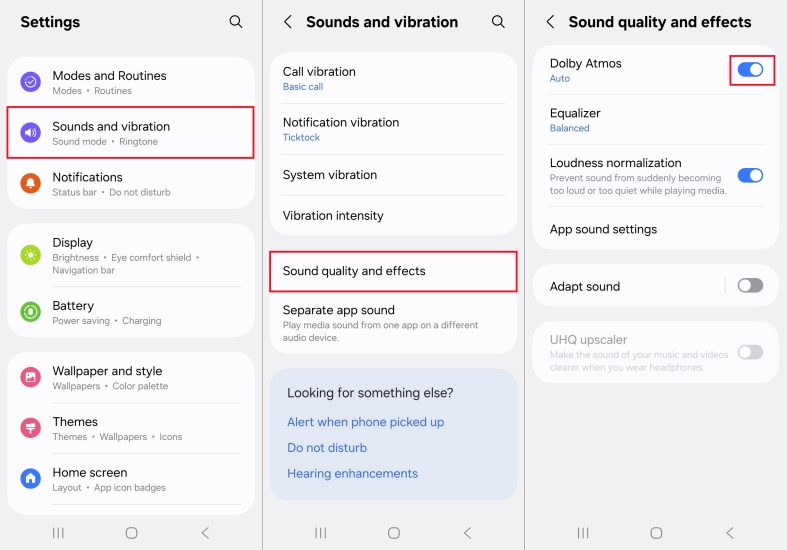
Step 1. Open your device Settings.
Step 2. Go to Sounds and Vibration > Sound Quality and Effects.
Step 3. Toggle on Dolby Atmos.
Step 4. Set the mode to Music or Auto for optimal frequency balance while listening to Spotify.
Windows & PC: Windows Sonic or Dolby Access
For desktop listeners on Windows 10 or Windows 11, you can also make some settings to the audio, then get Dolby Atmos for Spotify.
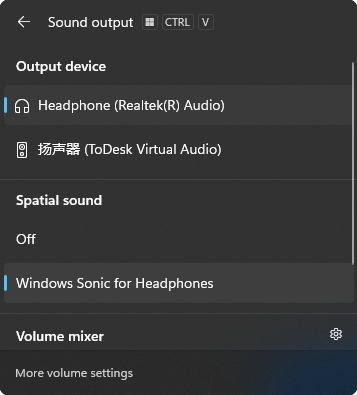
Step 1. Right-click the Speaker Icon in the system tray.
Step 2. Hover over Spatial Sound.
Step 3. Select Windows Sonic for Headphones, or select Dolby Atmos for Headphones.
Part 3. How to Get Spotify Audio for External Processing
While system-level toggles allow you to virtualize Spotify's stereo sound on mobile or desktop, streaming media over wireless connections or within the locked Spotify desktop app can limit hardware-level audio processing. If you want to apply specialized DSP spatializers, feed tracks into standalone home-theater software, or store high-fidelity local files on external drives.
TunesMake Spotify Music Converter allows you to download tracks, albums, or playlists from Spotify into open audio formats like FLAC, WAV, or MP3. By preserving the original 2-channel audio quality and metadata, local files can be passed directly through third-party spatializers, EQ suites, or external media players without streaming buffer restrictions or app compatibility roadblocks. Follow the steps below to get Spotify audio for external processing.

TunesMake Spotify Music Converter –
Download music from Spotify without premium
- Download Spotify songs, albums, playlists, audiobooks, and podcasts
- Losslessly convert Spotify music to MP3, FLAC, WAV, AIFF, and more
- Remove ads from Spotify music tracks even with a Free account
- Convert Spotify music at 15× faster speed in batch with ID3 tags kept
Security Verified. 100% Clean & Safe.
Step 1 Import Spotify Music or Playlists
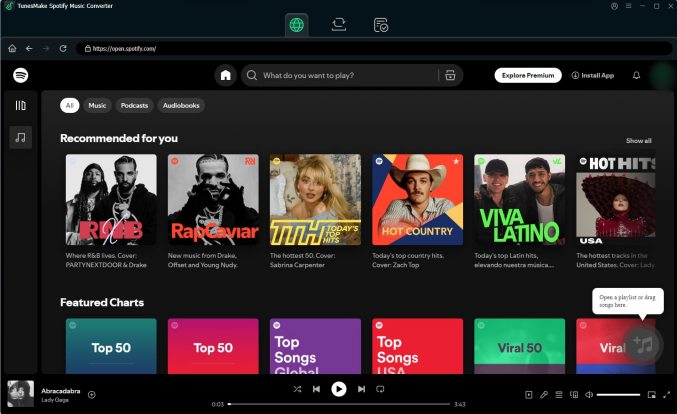
Launch TunesMake Spotify Music Converter on your computer. Using the built-in Spotify web player, sign in to your Spotify account and locate the songs, albums, or playlists you wish to download. Click the Add button to add the songs to the conversion list.
Step 2 Customize Output Audio Settings
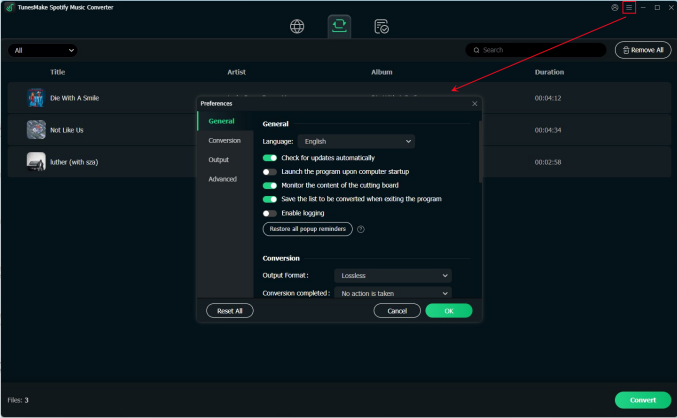
Click the Menu icon at the top of the window and open Preferences, then select the Conversion tab. Choose your preferred audio output format and adjust parameters like sample rate, bit rate, and audio channel to match your desired quality. Click OK to save your preferences.
Step 3 Download Spotify Songs Locally
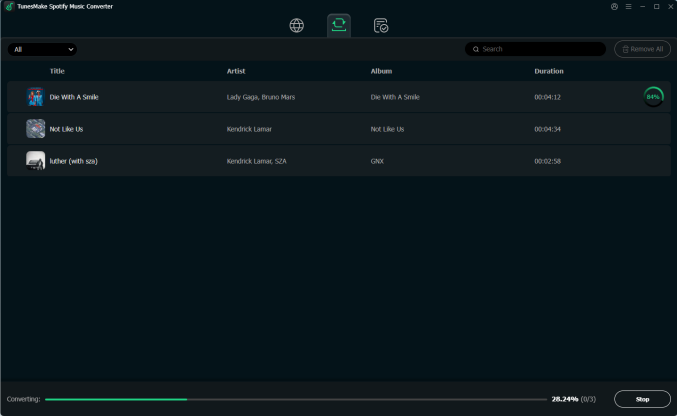
Click the Convert button to start downloading and converting your selected tracks. Once the conversion process finishes at high speed, click the Converted icon or navigate to your selected output folder to locate your audio files ready for offline playback on any device.
Part 4. FAQs about Spotify Dolby Atmos
Will Dolby Atmos come to Spotify?
A.Spotify has not officially announced plans to integrate Dolby Atmos or spatial audio formats. Their primary focus remains expanding high-bitrate Lossless FLAC playback and personalized listening features across their global user base.
Does Spotify support 5.1 or 7.1 surround sound?
A.No. Spotify only outputs 2-channel stereo signals. If you stream Spotify through an AV receiver or surround sound system, your receiver will need to use upmixing modes like Dolby Surround to distribute the audio across multiple speakers.
Do I need special headphones for simulated spatial audio on Spotify?
A.No. System-level spatializers like Samsung's Dolby Atmos toggle or Windows Sonic work with any standard pair of wired or wireless headphones. However, proprietary head-tracking features like Apple's dynamic Spatial Audio require supported hardware like AirPods or Beats.
Part 5. Conclusion
While Spotify continues to lead the music streaming industry in playlist curation, personalization, and high-fidelity 2-channel stereo audio, it does not support Dolby Atmos or spatial audio formats. The platform remains focused on stereo FLAC lossless streaming rather than object-based multi-channel mixing.
If you want to stay within the Spotify ecosystem, your best option is to optimize your playback settings to "Lossless" or "Very High" quality and use operating system spatializers to create a simulated 3D soundstage. Additionally, tools like TunesMake Spotify Music Converter allow you to export high-bitrate stereo files to local storage, giving you the freedom to process and play your music offline across any third-party media software or DAC setup.
Related Articles



A senior editor from TunesMake, dedicated to sharing professional tutorials and solutions of software, movies, and music.
- 1
- 2
- 3
- 4
- 5
- 6
- 7
 Leave Your Comment
(0)

 Download Center


