








 Store
Store


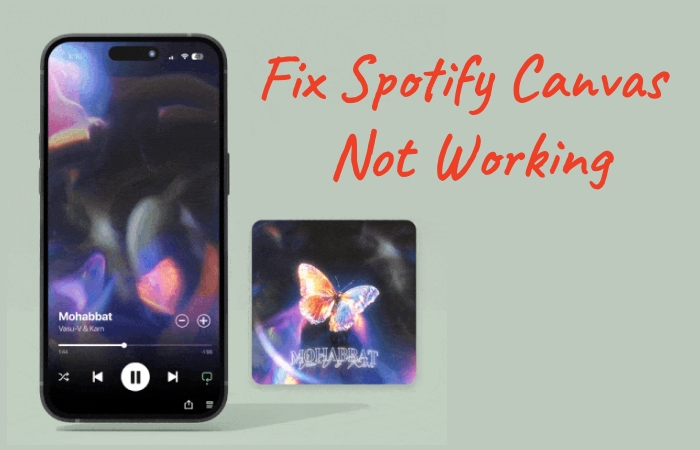
Spotify Canvas brings tracks to life by replacing static album covers with short, 3- to 8-second looping videos. However, when your Spotify Canvas is not working, the playback screen reverts to a basic static image or displays a blank space. This comprehensive guide covers everything you need to know about why Spotify Canvas is not showing up and offers target solutions to fix Spotify Canvas not working on iPad, iPhone, and Android devices.
Part 1. Why Is Spotify Canvas Not Working?
Spotify Canvas relies on a combination of specific app settings, network bandwidth, device compatibility, and artist uploads. When the loop fails to load, the issue typically stems from one of the following root causes.
1️⃣ In-App Toggle Status: The Canvas feature was disabled inside your app preferences.
2️⃣ Bandwidth Optimization: Data Saver mode active on your device automatically suppresses video playback.
3️⃣ Device Availability: Canvas is strictly designed for mobile environments and does not run on desktop clients or web browsers.
4️⃣ App Glitches: Corrupted cache files or outdated app versions disrupting video streaming.
5️⃣ External Factors: Missing media files, incorrect video specs, or regional copyright restrictions on the creator's end.
Part 2. How to Turn on Canvas on Spotify
Before starting to fix Spotify Canvas not working on your device, confirm that your platform and account support the feature. If the feature of Canvas is available on your device, follow the steps below to enable the Canvas settings in the Spotify app first.
- Mobile App Only: Canvas is designed exclusively for the Spotify app on iOS and Android.
- OS Compatibility: Your device must run iOS 12+ or Android 6.0+.
- Account Type: While Canvas is available on both Spotify Free and Premium accounts in supported regions, Spotify Kids accounts and certain regional rollouts lack Canvas support.
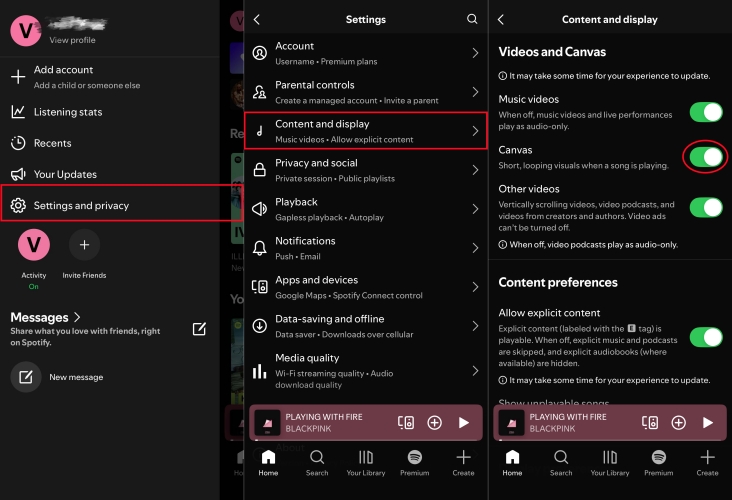
Step 1. Open the Spotify app and tap your profile icon in the top-left corner.
Step 2. Select Settings and privacy.
Step 3. Tap Content and display.
Step 4. Scroll down to Canvas and ensure the toggle is turned On.
Part 3. How to Fix Spotify Canvas Not Working
If Canvas suddenly stops showing up on your phone or still fails to work when it is active, work through these fixes in order to fix Spotify Canvas not working on iPad, iPhone, or Android devices.
Solution 1. Disable Data Saver Mode
Data Saver mode in Spotify restricts high-bandwidth data usage to conserve mobile data, which automatically turns off Canvas video loops on the device.
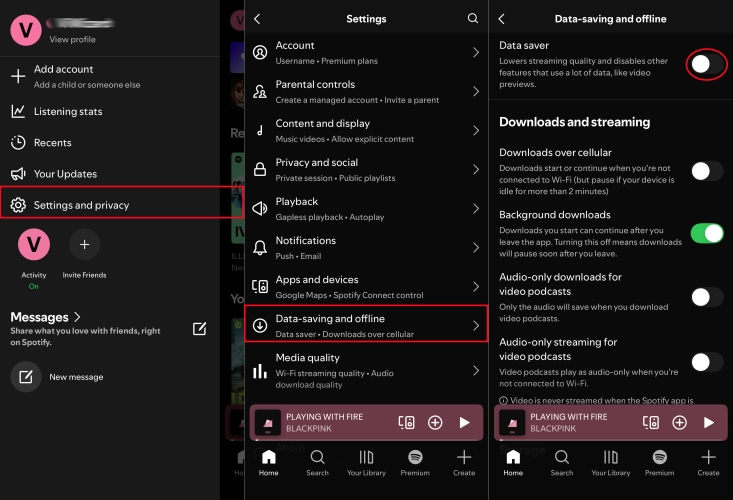
Step 1. Go to Settings and privacy in your Spotify app.
Step 2. Tap Data-saving and offline.
Step 3. Toggle off Data Saver.
Solution 2. Clear Spotify App Cache
Corrupted temporary files often prevent media loops from buffering correctly. Clearing the cache leaves your downloaded offline tracks untouched.
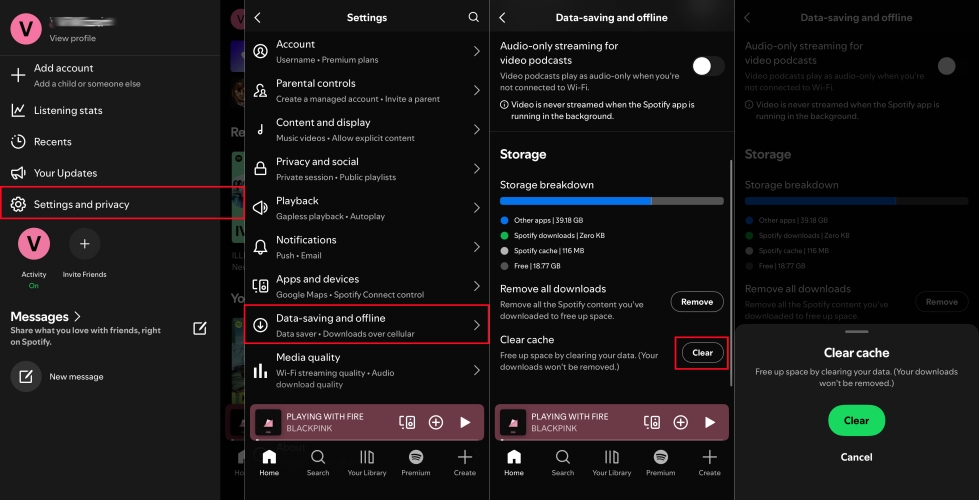
Step 1. In Spotify, open Settings and privacy.
Step 2. Select Data-saving.
Step 3. Tap Clear cache and confirm your choice.
Solution 3. Log Out and Log Back In
Logging out of Spotify refreshes your account session and forces the Spotify client to re-authenticate feature permissions with its servers.
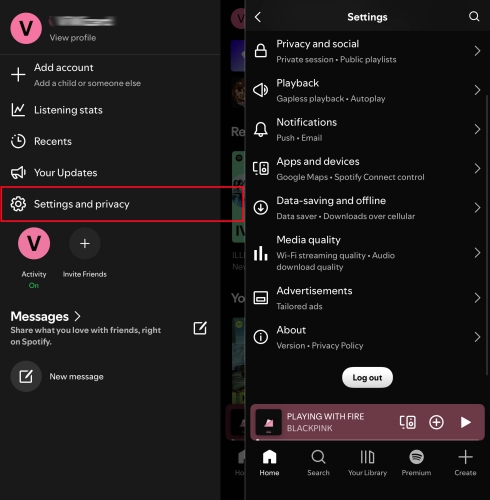
Step 1. Navigate to Settings and privacy.
Step 2. Scroll to the bottom and tap Log out.
Step 3. Restart the app and sign back in with your credentials.
Solution 4. Update the Spotify App
An outdated app build can trigger Spotify Canvas playback glitches. Make sure that the Spotify app is updated to the latest version.
On iPhone
Step 1. Go to the Apple App Store app and search for Spotify.
Step 2. Check whether there is an update, then choose to update it.
On Android
Step 1. Launch the Google Play Store app and look for Spotify.
Step 2. Choose to update Spotify when an update is available.
Solution 5. Reinstall the Spotify App
If an update of Spotify does not resolve the issue, perform a complete deletion and clean re-installation to wipe out corrupted system files.
On iPhone
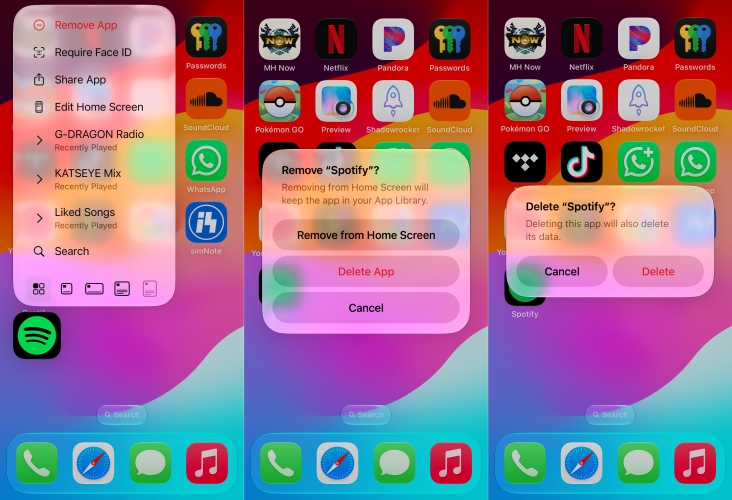
Step 1. Press the Spotify icon at the home screen.
Step 2. Tap Remove App and select Delete App.
Step 3. Tap Delete to confirm.
On Android
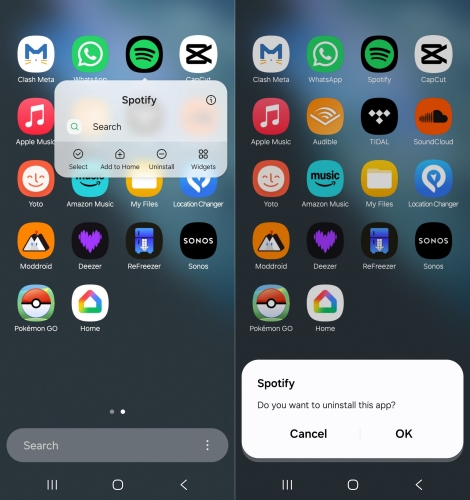
Step 1. Press the Spotify icon at the home screen.
Step 2. Select the Uninstall option.
Step 3. Tap OK to confirm.
Solution 6. Check Network Connection
Streaming video loops requires a stable internet connection. Switch between Cellular Data and Wi-Fi to test connection stability. If you use a VPN, try disabling it. VPN routing can sometimes trigger geographic restrictions that disable video features.
Solution 7. Update the Operating System
If your phone is running an outdated operating system, system-level video decoding compatibility issues can prevent Canvas loops from rendering correctly.
On iPhone
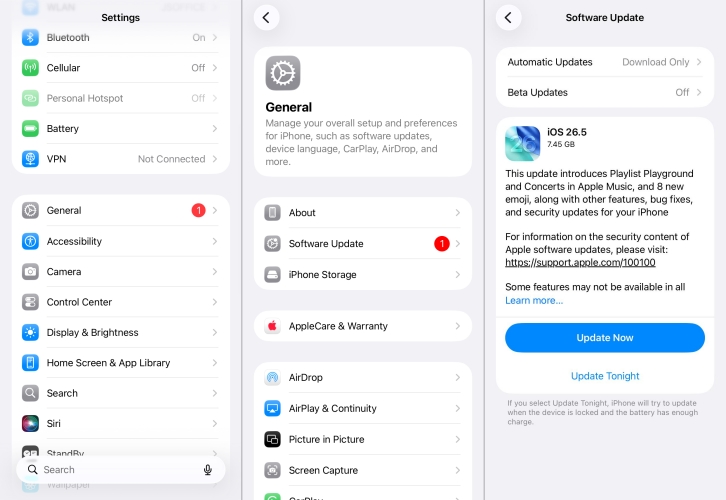
Step 1. Open Settings > General.
Step 2. Tap Software Update.
Step 3. If an update is available, tap Download and Install.
On Android
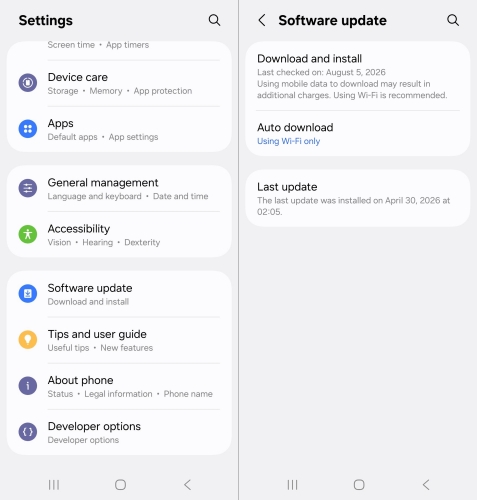
Step 1. Open Settings > System.
Step 2. Tap System Update.
Step 3. Download and install any pending updates.
Part 4. How to Play Songs Outside the Spotify App
When persistent app crashes, regional network blocks, or server glitches stop Spotify from playing music smoothly altogether, relying solely on mobile streaming can be frustrating. While third-party utilities cannot force Spotify's servers to render the visual Canvas loop, TunesMake Spotify Music Converter can resolve underlying audio streaming issues.
TunesMake downloads and converts Spotify tracks, albums, and playlists into standard local audio formats like MP3 or FLAC while preserving high audio quality and ID3 tags. By saving tracks directly to your local storage, you bypass in-app glitches, network buffering delays, and mobile data constraints entirely, ensuring uninterrupted music playback on any media player.

TunesMake Spotify Music Converter –
Download music from Spotify without premium
- Download Spotify songs, albums, playlists, audiobooks, and podcasts
- Losslessly convert Spotify music to MP3, FLAC, WAV, AIFF, and more
- Remove ads from Spotify music tracks even with a Free account
- Convert Spotify music at 15× faster speed in batch with ID3 tags kept
Security Verified. 100% Clean & Safe.
Step 1 Choose Spotify Music to Download
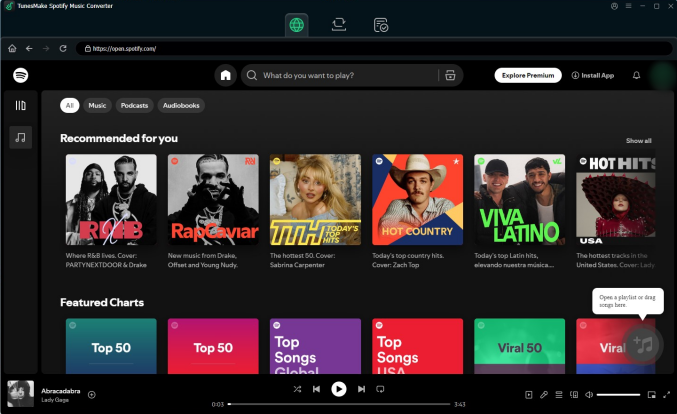
Launch TunesMake Spotify Music Converter, and it will open the built-in Spotify Web Player at the same time. Then you can log in to your Spotify account and find the music you want to download. Simply click the + button to add it to the conversion list.
Step 2 Set MP3 as the Output Audio Format
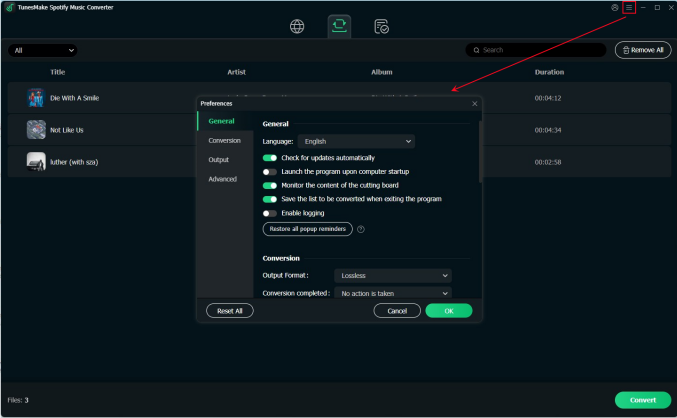
Click the menu icon at the top right corner and choose Preferences. In the pop-up window, switch to the Convert tab. Then choose MP3 as the output format as MP3. If you want, you can also change other settings, like channel, bit rate, and sample rate.
Step 3 Start to Download Spotify Music
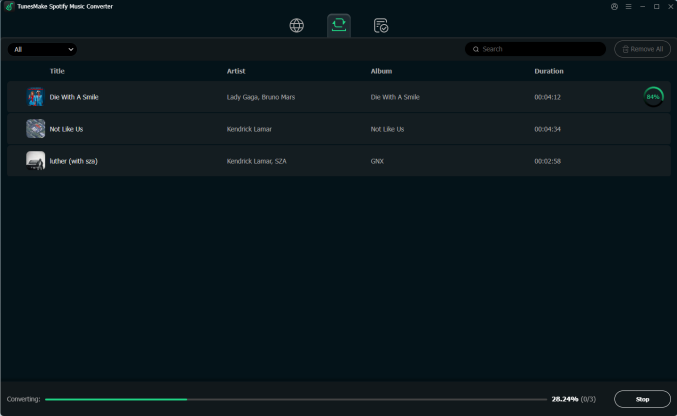
Whenever you are ready, you can click the Convert button to start the download and conversion process. Wait for a while and you can find the downloaded Spotify files on your computer by hitting the Converted icon.
Part 5. Conclusion
Restoring your Spotify Canvas usually comes down to checking a few basic settings. In most cases, turning off Data Saver mode, or clearing out corrupted app cache will instantly bring your visual loops back to life. When in-app fixes and system updates fail due to persistent software bugs or regional restrictions, TunesMake Spotify Music Converter offers a reliable backup to keep your playlist streaming smoothly. Work through these steps sequentially, and you'll have your music experience fully restored in no time.
Related Articles

An experienced freelance writer at TunesMake, specializes in using various streaming services from Spotify, Apple Music, to Amazon Music, and more other platforms.
- 1
- 2
- 3
- 4
- 5
- 6
- 7
 Leave Your Comment
(0)
Leave Your Comment
(0)

 Download Center

