








 Store
Store


Songs cutting off early constantly. My songs on any option ie daylist, my playlists any choice cut off sometimes only halfway through. This happens almost every song. It is so frustrating and has only just started to happen in the last couple of months. I play spotify through my laptop onto my bose sound touch speakers throughout the house and it happens on all appliances.
-- User from Spotify CommunityMusic is meant to be an immersive and uninterrupted experience. It is annoying that a song that abruptly ends just as the bridge hits, or a track that skips the first thirty seconds of an iconic intro. Recently, many users have found the issue of Spotify cutting off songs and have no idea how to fix it effectively. If you are facing the same issue, don’t worry. This comprehensive guide will break down the specific reasons why your Spotify music is stuttering and provide practical, step-by-step solutions to ensure your playlist stays fluid. Without further ado, let’s dive into all the details.

Part 1. Why Does Spotify Cut Off Songs?
It is quite normal encountering a playback issue when streaming Spotify music. The Spotify cutting off songs issue usually fall into three categories: songs cutting off at the beginning, in the middle, or at the end. Each of them points toward a different underlying cause.
- Cutting at the beginning: This often manifests as skipping the first seconds when the song starts. The most likely culprit is Crossfade. Once you enable this feature and set the duration too high, Spotify will intentionally skip part of the beginning of the next track to create a seamless transition effect.
- Cutting in the middle: If your Spotify songs keep cutting in the middle, it is usually a sign of a buffering failure or device performance. The most common reason is an unstable network connection. Also, it can be related to the data saving settings or background restrictions on your device system. The Spotify app’s temporary cache files can lead to glitches as well.
- Cutting at the end: When Spotify skips the last few seconds of a song, it’s often a configuration issue within the app itself. Some Spotify features, like Crossfade and Automix, can trim the end of one track for a smoother listening flow.
Immediate Fixes to Spotify Cutting Off Songs
Whatever scenario you are facing, you can try some quick fixes before diving into deep settings. Here are the immediate fixes that resolve the issue in minutes.
1. Check Internet Connection: Streaming continuity heavily depends on connection stability. You should check your Internet connection and test stability by switching between Wi-Fi and mobile data. When there is an Internet issue, consider moving your device closer to your router or restarting your router.
2. Check Spotify Server Status: Another important thing to check is whether Spotify is down. Sometime, the issue isn’t on your end. When Spotify servers are experiencing outrages or slowdowns, you can do nothing but wait for the support team to resolve the issues. You can check both the Downdetector or social media updates from Spotify to get the latest news.
3. Check Storage Space: To ensure Spotify’s smooth operation on your device, your device should have at least 1GB to 2GB of free space. If your device is running low on space, it can lead to glitches and playback issues.
Part 2. How to Fix Spotify Cuttings Off Songs
If the quick fixes don’t do the trick, we should turn to specific solutions. This part is intended for users experiencing the Spotify song-cutting issue at the beginning or end of songs.
2.1 Solutions to Spotify Cuts Beginning of Song
Check Your Spotify Subscription
It is known that the playback features behave differently between Spotify 9Free and Premium accounts. If your Premium subscription recently lapsed, the app may fail to transition from Ad-free mode back to Ad-supported mode, causing skips at the beginning of songs. Make sure your subscription is active and functioning properly.
Fix Account Sync
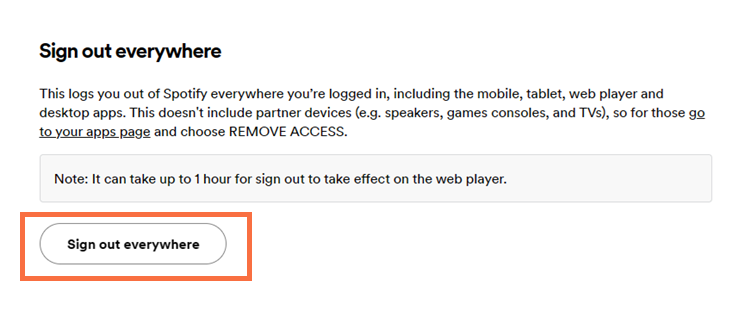
For users who use Spotify across multiple devices, the sync issue between Spotify and your device can cause playback issues. To reset the syncing issue that may affect playback, you can go to your Spotify account page on a web browser and select Sign Out Everywhere at the bottom. Then, log back in on your main device.
Update Spotify and Your Device
One of the most common reasons why you encounter all kinds of issues on Spotify is the outdated software. It’s always a good idea to update both the Spotify app and your system software to the latest version.
Turn off Audio Normalization
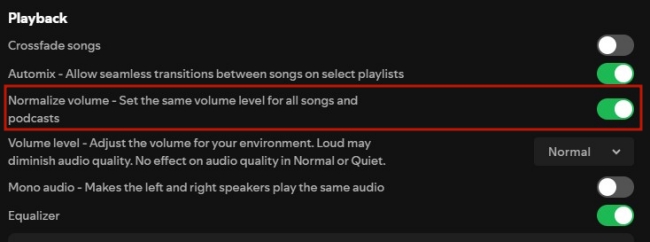
The audio normalization feature attempts to keep all songs at the same volume, but it sometimes can interfere with playback timing. If you encounter the Spotify cutting songs issue, you can try to disable audio normalization by going to Settings > Playback > Normalize Volume and toggle it off.
2.2 Solutions to Spotify Cuts End of Song
Adjust Crossfade Settings
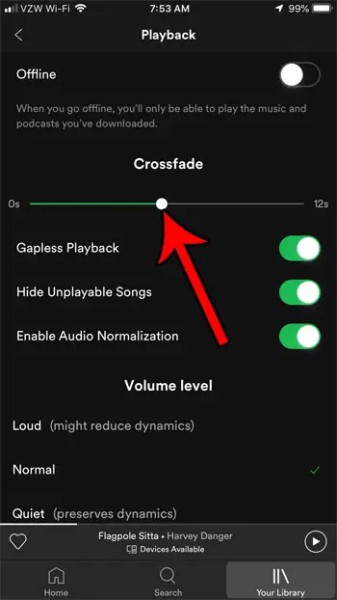
Crossfade blends the end of one song into the next. If you set it too high, it can feel like the song is being cut off. To adjust the Crossfade settings, you can open the Spotify Settings section and then go to Playback > Crossfade. Here, it’s better to slide it to 0 or a low number like 1 or 2 seconds.
Turn off Automix
Automix is a similar feature that is used to enrich your listening experience. Disabling it can also be helpful to fix the Spotify cutting off songs issue. You should open the Spotify app installed on your device. Then, head to Settings > Playback, and you can turn off the Automix feature. This ensures each track plays fully without interference.
Part 3. How to Fix Spotify Keeps Cutting Out
When the app keeps cutting out entirely or stuttering every few minutes, the issue is usually related to the system restrictions or app issues. We have summarized them below and found some useful solutions to help you resolve the issue effectively.
Solution 1. Listen to Spotify Songs Offline
Talking about preventing cutting out, the most effective and reliable method is to remove the steaming variable entirely. You can download your favorite Spotify songs and listen to them offline. This is especially helpful when your network connection is not that stable.
For Premium Users:
If you have an active Premium subscription, you can utilize the official Offline Mode on Spotify to enjoy your music seamlessly. But you should know that the downloaded content is protected and limited within the Spotify app. Here’s how to download Spotify content and enable the Offline Mode:
On Android/iOS:
Step 1. Find the playlist or album you want to listen to offline and enter its detailed page. Tap the top download icon to save all the songs offline.
Step 2. Tap your profile icon to enter the Settings and privacy section.
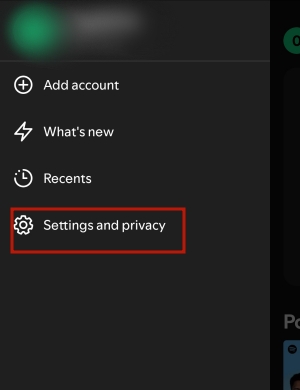
Step 3. Scroll down to the Playback section. In the next view, select and toggle the Offline option to enable it.
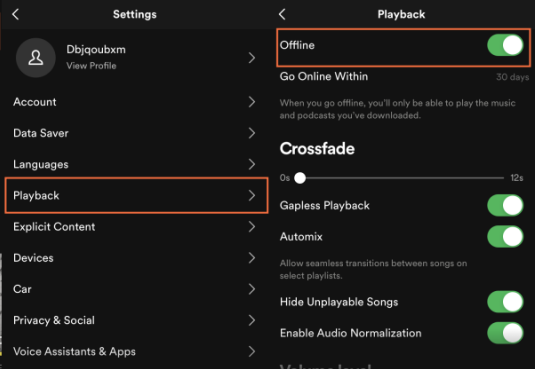
Step 4. Now your downloaded songs on Spotify can be accessed and listened to offline without hassle.
On PC/Mac:
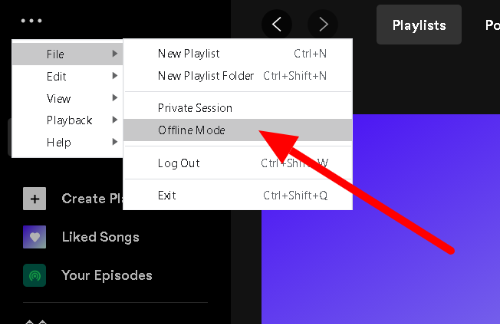
Step 1. Open the Spotify desktop app on your computer, and then enter the detailed page of your favorite playlist/album. Click the Add icon under the playlist/album name to download it.
Step 2. Click the three-dot icon at the upper-left corner of the screen.
Step 3. In the drop-down menu, select File > Offline Mode to listen to Spotify downloads offline.
For Free Users:
Downloading Spotify songs and listen to them offline can resolve the cutting off issue easily. However, the Offline Mode and downloading feature is only available for Premium. If you only have a Free account, you will need the help of a professional Spotify music downloader - TunesMake Spotify Music Converter.
TunesMake Spotify Music Converter is a dedicated Spotify music downloader designed for all Spotify users. Even if you don’t have a Spotify subscription, you can use it to download Spotify songs, playlists, albums, and podcasts to your local computer without a quality loss. More importantly, the TunesMake tool’s decryption technology allows you to save your favorite Spotify content as common audio files in multiple formats, including MP3, M4A, M4B, WAV, FLAC, and AIFF. What counts most is that you will get full control over your favorite Spotify songs after downloading them via the TunesMake tool. You can import them to other media players or devices without an Internet connection and the Spotify app, ensuring a seamless and uninterrupted music experience without hassles.

TunesMake Spotify Music Converter –
Download Spotify Songs to Local Music Files
- Unlimitedly download Spotify songs, playlists, and podcasts
- Losslessly convert Spotify music to FLAC, MP3, WAV, AIFF, etc.
- Remove ads from Spotify music tracks even with Free accounts
- Convert Spotify songs at 12X faster speed with ID3 tags kept
Security Verified. 100% Clean & Safe.
Solution 2. Toggle Off Data Saver
There is a Data Saver setting on iPhone that decides and controls the amount of internet data you can use. This setting can be applied to both Wi-Fi connections and cellular data. After setting this limit, you may find that Spotify keeps cutting out on your device due to low data mode. You can turn it off by following the steps below.
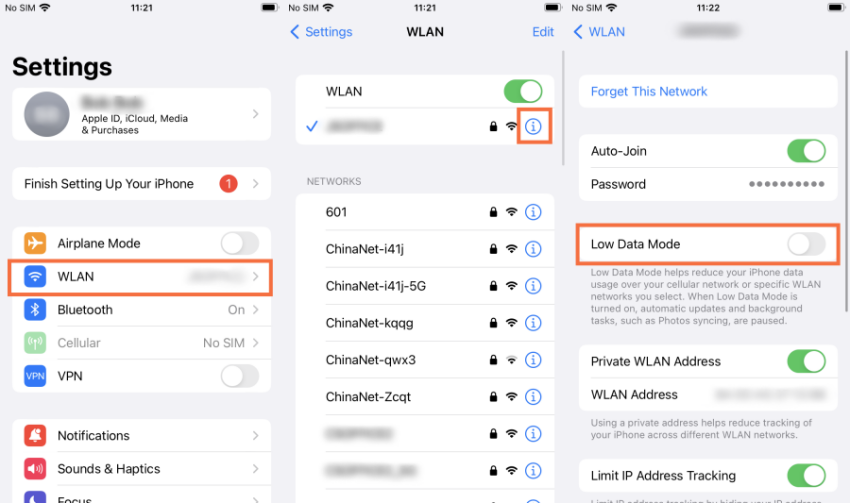
Step 1. Go to Settings > Wi-Fi on your phone. Tap the info icon next to your Wi-Fi network and turn off the switch next to Low Data Mode.
Step 2. If you’re using mobile data, go to Settings > Mobile Data. Tap on Mobile Data Options and turn off Data Saver Mode.
Solution 3. Turn Off Low Power Mode
You may notice that when your electricity is lower than a certain percentage, your device will automatically go to Low Power mode. You may set it yourself or by default. It does save battery power when it is low; however, it prevents some apps from working to conserve electricity. It may stop Spotify from playing in the background. In this case, you can check over and disable the mode on your device.
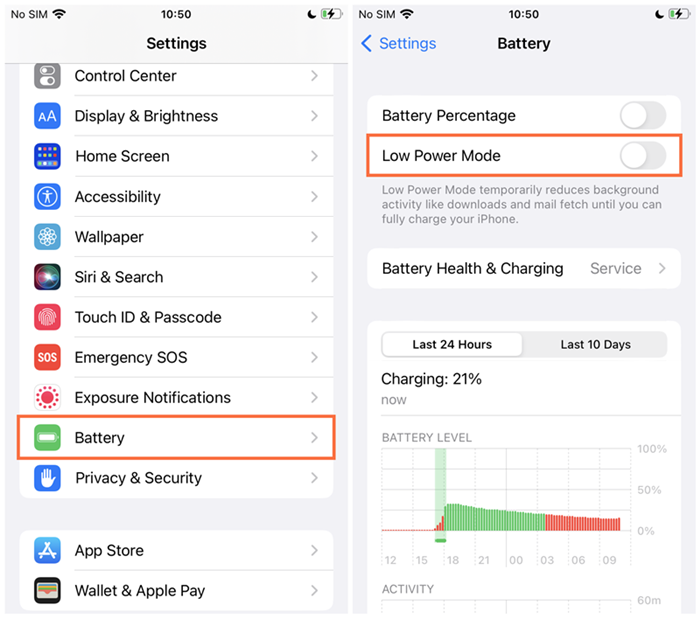
On iPhone: go to Settings > Battery, then tap the button next to Low Power Mode to deactivate.
On Samsung devices: go to Settings > Apps > Spotify > Battery. Next select one from the following available options: Unrestricted(preferred); Optimized and Restricted.
On Pixel devices: open the Settings app on your phone and tap Battery > Advanced Preferences, then toggle the Adaptive Battery option on. Once turned on the Adaptive Battery, go to Settings > Apps > See all apps > tap Spotify app > Battery. Under Manage battery usage, select Unrestricted (preferred), or Optimized.
Solution 4. Clear the App Cache
Spotify store cache files to perform faster and smoother. But over time, these cache files can be corrupted or overwhelming. In such a case, you should clear the app cache. Just go to Spotify Settings > Storage > Clear Cache. If you don’t find this option, you can read the post below for more detailed steps.
Solution 5. Disable Hardware Acceleration
There is a specific setting on your Spotify desktop app that is named Hardware Acceleration. It is used to solve graphic issues by disabling the use of a graphics processor (GPU) in your computer. But it will make the application work more slowly when redrawing the screen. Disabling the feature might be helpful for the cutting-off issue.
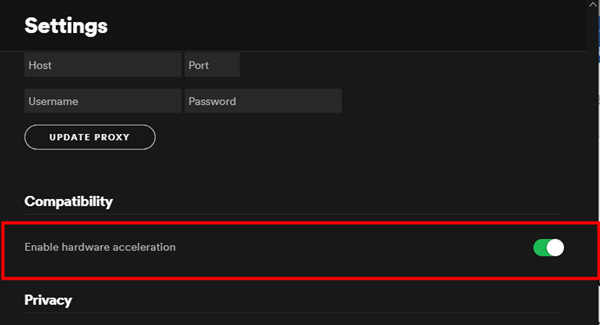
Step 1. Open the Spotify desktop app. In the top-left corner, click the three dots to open the drop-down menu.
Step 2. Select Edit and click Preferences.
Step 3. In the Settings window, scroll to the bottom.
Step 4. In the Compatibility section, toggle off the slider next to Hardware acceleration.
Step 5. Restart Spotify to enable this setup to work.
Part 4. Conclusion
If you are experiencing Spotify cutting off songs, we have dropped the powerful solutions above. Check them and apply them to fix them. For anyone who wants to download songs from Spotify for listening offline, TunesMake Spotify Music Converter must be your first choice. Later on, no matter what kind of not-working or not-connecting issue happens to your Spotify app, you can listen to them via other players with ease.
Related Articles

A professional writer at TunesMake, crafts in-depth tutorials, practical tips and expert advice focusing on streaming music, technology, and more.
- 1
- 2
- 3
- 4
- 5
- 6
- 7
 Leave Your Comment
(0)
Leave Your Comment
(0)

 Download Center

