








 Store
Store


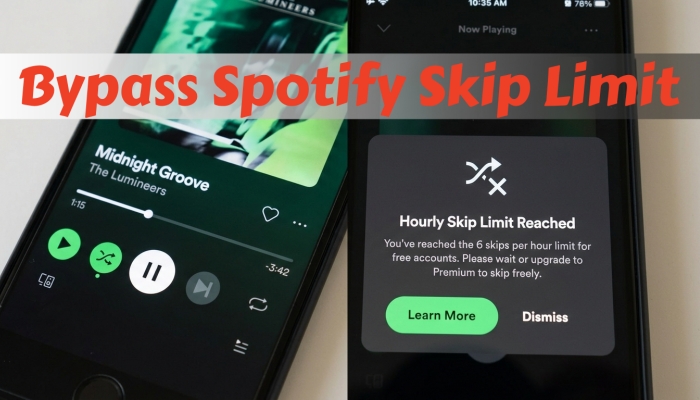
I'll hit the skip button once, and Spotify will sometimes start skipping repeatedly. The number of skipped songs varies, from around 50 to hundreds. This happens both with and without shuffle on, and it's been occurring multiple times a day for several days.
-- User from the Spotify CommunityListening to music becomes one of our lifestyles in entertainment, and Spotify is the popular music streaming platform we use. My friends and I usually listen to millions of songs on Spotify too. However, sometimes, the listening experience is not always that pleasant. We may encounter the Spotify keeps skipping songs issue occasionally. That’s annoying, and it distracts us from enjoying Spotify music. So, we write this post to help you who are in the same trouble as us. Now don’t hesitate to read below and find all the effective solutions that ensure your smooth Spotify music listening experience.
Part 1. Why Does Spotify Keep Skipping Songs?
It’s quite common to encounter issues while streaming Spotify music on your device. Many of you may wonder why Spotify keep skipping songs every 10 seconds. Below are some of the most common reasons. Understanding them can help you apply the right solution faster.
1. Issues caused by the Spotify server. The server may fail to work properly when it receives many inputs. In this case, you can do nothing but wait for the Spotify team to fix them.
2. Unstable or weak Internet connection. As a streaming platform, Spotify relies heavily on a stable network connection to stream music. If your Wi-Fi is slow or frequently disconnects, Spotify may skip songs randomly since it can’t buffer in time.
3. Corrupted cache or app data. Over time, the Spotify temporary files, also known as cache files, may become corrupted, causing Spotify fail to skip or stop playing music.
4. Incorrect playback or video settings. Certain incorrect Spotify settings can trigger skipping behaviour.
5. Account or subscription problems. If you only have a free account, Spotify may restrict playback or skip songs due to account validation issues.
6. Device system bugs. Outdated operating systems or unsupported devices can cause Spotify to behave abnormally, including random song skipping.
Part 2. Common Fixes to Solve Spotify Keeps Skipping Songs
Though the issue of Spotify skipping songs happens a lot, Spotify does not offer official solutions. Don’t worry. We have collected some common solutions to help you fix it easily. You can try them one by one. Or, you can jump to Part 3 to utilize the ultimate method to fix the issue once and for all.
Fix 1. Check Your Internet Connection
The first thing you need to do is to check your internet connection. Sometimes, your network is not stable or accessible to the internet. In this case, you cannot access Internet resources. And the player may skip one by one and only play the song you’ve listened to before, or save it as a cache in your device. To solve it, just change to a safe and stable Wi-Fi connection instead of the original one. If necessary, you can restart your router.
Fix 2. Check the Audio Output Settings
Another important thing you need to check is your audio output settings. Make sure the Spotify app is mapped to a valid audio device on your Windows or Mac computer. Here, we will take Windows as an example:
Step 1. Find the speaker icon in the system tray and right-click on it.
Step 2. Then, choose Open volume mixer.
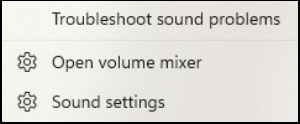
Step 3. In the new window, you can see a list of apps. Find Spotify and click on the small arrow on the right.
Step 4. Once you expand the input and output devices, you can change the output device to the correct one.

Step 5. If you are using Windows 10, you need to select App volume and device preferences instead. Then, change the output device to the right one.
Fix 3. Restart Spotify and Your Device
If Spotify keeps skipping songs without an obvious reason, a simple restart can often fix the issue. Temporary glitches and problems may prevent Spotify from loading or playing tracks properly. In this case, a restart can clear temporary data and re-establish a clean connection between your system and Spotify. If restarting the Spotify app doesn’t work, you can try to reboot your device as well. This step helps refresh system resources and reset its playback state.
Fix 4. Log out of Your Spotify Account and Log Back in
Another possible reason for Spotify skipping songs is that your account session may be out of sync. In this case, logging out and logging back in can force Spotify to refresh your account credentials, licenses, and more. This is a quick and highly effective fix, especially for Premium users.
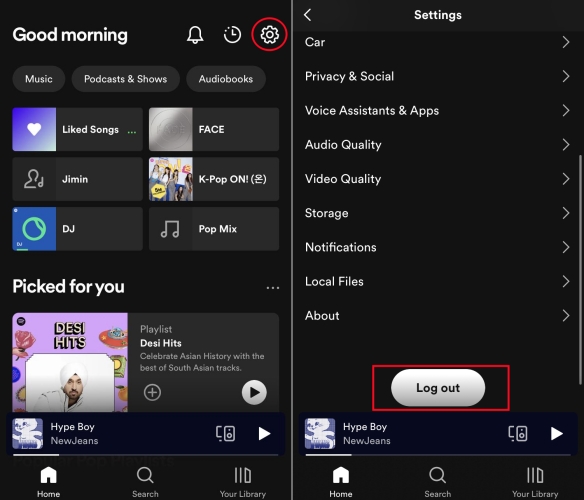
On mobile phone: Go to the Spotify Settings section, and then you can tap the Log out option at the bottom.
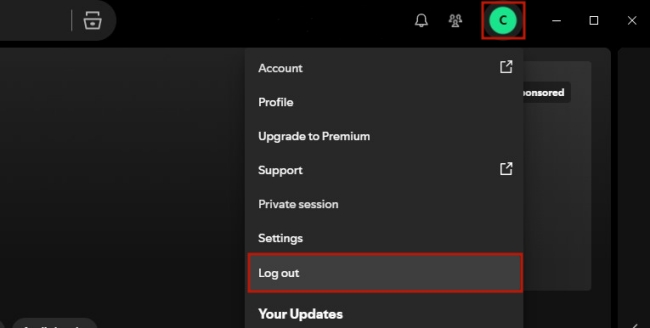
On Desktop: If you are using Spotify on your desktop, you just need to click your profile icon. Then, select Log out.
Fix 5. Delete and Reinstall the Spotify App
If logging out and logging back in to your Spotify account won’t fix the playback issue, the app itself may be corrupted or outdated. Under these circumstances, you can simply delete and reinstall Spotify. This step can remove broken files, outdated components, and hidden bugs that may cause persistent playback issues. What’s more, you can try to download the official Spotify app from another source after deleting Spotify.
Fix 6. Clear Spotify Cache
Do you know that every time you open Spotify and use it, the data that occurs in this process will all be saved on your phone? Yes, don’t ignore that. They take up much storage space and can be corrupted over time. So, if your songs keep skipping on Spotify, why don’t you try to clear the cache data on Spotify? By doing so, you can remove these problematic files without affecting your playlists or account data. Check the post below to clear Spotify cache on different devices.

Do you need help figuring out how to clear Spotify cache and free up Spotify storage? This article enables you to know all the answers.
Part 3. Advanced Solutions to Fix Spotify Keeps Skipping Songs
Now you have tried all the common solutions. Do they fix the problem? If not, the problem may be related to system-level configurations or components. That’s when you need to utilize the advanced solutions. The advanced solutions below target deeper causes that commonly lead to Spotify skipping songs on desktop and web player, especially for Windows users.
Solution 1. Clear Hosts File
Sometimes, an edited or corrupted hosts file may cause playback issues, including the issue of Spotify keeps skipping songs. If this is the case, clearing the Spotify hosts file is worth trying. Here’s how to do so:
On Window:
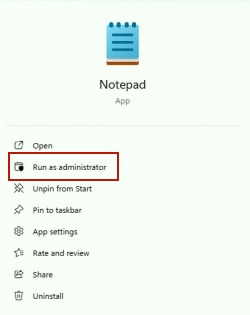
Step 1. First of all, you need to find Notepad on your computer, and then open it as an administrator.
Step 2. Then, select the top File > Open. In the pop-up window, you should navigate to C:/Windows/System32/drivers/etc.
Step 3. Move your cursor to the lower right corner, and then open the drop-down list next to the file name box. Here, you should select All Files.
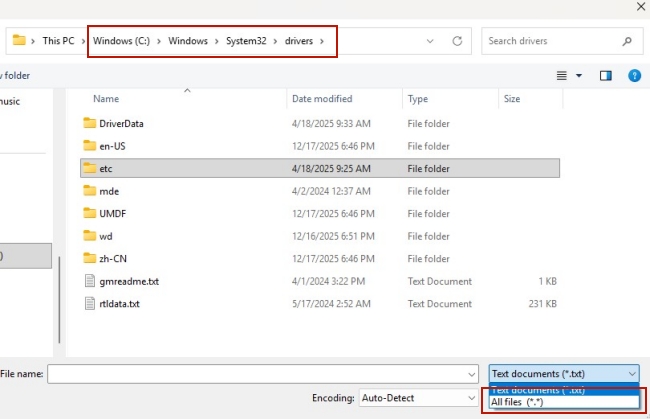
Step 4. Once done, you will see a lot of files. Scroll down to find hosts and choose Open.
Step 5. When this file is open, you can see a handful of lines which begin with #.
Step 6. Check for any line with spotify or fastly in the address. For example, 0.0.0.0 weblb-wg.gslb.spotify.com or 0.0.0.0 prod.b.ssl.us-eu.fastlylb.net.
Step 7. Delete these lines. After that, save your changes and restart the Spotify desktop app to see if the issue is fixed.
On Mac:
Step 1. Open Finder on your computer. Select Go > Go to Folder in the menu bar.
Step 2. Type this location in the box: /private/etc/hosts. Then, press Return.
Step 3. Once done, a new Finder window will pop up. You can see that the hosts file is selected. Simply drag and drop it to your desktop.
Step 4. Next, double-click it, and it will display the contents in TextEdit.
Step 5. Find any lines with spotify and remove them.
Step 6. When you are done, save your changes and reboot Spotify.
Solution 2. Update or Reinstall Audio Drivers [Windows]
The audio driver is a crucial part of your music streaming process. If your device system fails to process sound output correctly, Spotify may keep skipping songs. This can happen after Windows updates or hardware changes. Updating or reinstalling your audio drivers can ensure there are no compatibility issues between your device and Spotify.
Step 1. Right-click the Start menu at the bottom of your desktop, and then select Device Manager.
Step 2. In the pop-up window, find the Sound, video and game controllers category. Click the little arrow icon next to it.
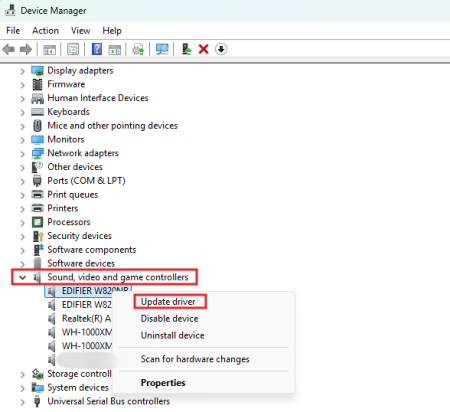
Step 3. Once done, multiple devices will be listed. You should find your audio device and right-click on it.
Step 4. Select Update driver > Search automatically for drivers.
Solution 3. Remove All Spotify Downloads
This method is proven practical by a user on the Spotify Community. If your downloaded Spotify songs are damaged files, Spotify may skip them automatically - even during online playback. So, you can try to delete all the downloads first.
On Desktop:
Step 1. Launch the Spotify app on your computer. Click your profile icon at the top right corner.
Step 2. Then, select Settings.
Step 3. Scroll down to the Storage section. Click the Remove all downloads button next to Downloads.
On iOS/Android:
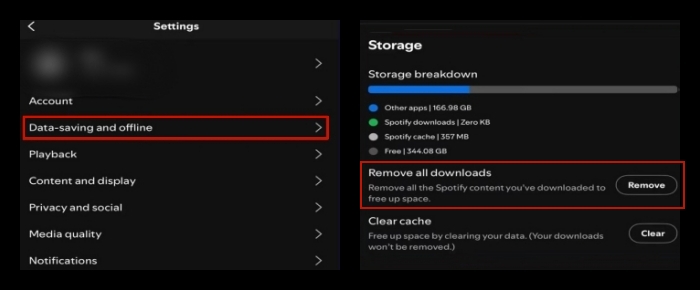
Step 1. Open the Spotify app on your mobile device and head to Settings and privacy by tapping your profile icon on the Home screen.
Step 2. Select Data-saving and offline.
Step 3. Then, scroll down to the Storage section. Tap the Remove button next to Remove all downloads, and you are done.
Solution 4. Disabled Hardware Acceleration
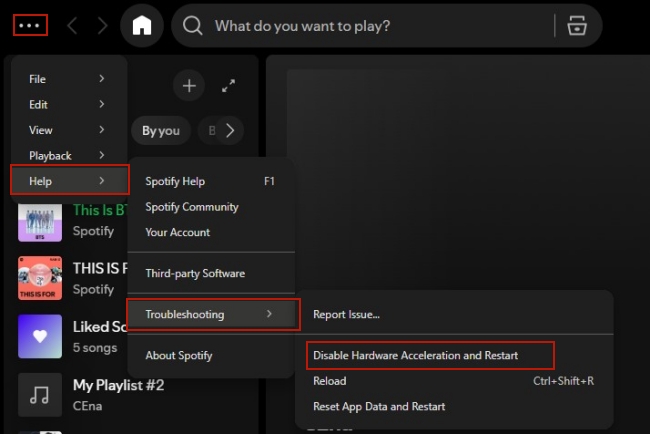
The hardware acceleration feature allows Spotify 9to offload processing tasks to your GPU, but it can cause playback instability on some systems. Try disabling hardware acceleration so that Spotify will use standard system processing, causing a more stable playback. To disable this feature, you just need to click the three dots icon at the top left corner of your Spotify app. Then, select Help > Troubleshooting > Disable Hardware Acceleration and Restart.
Solution 5. Disable Ad Blockers and Extensions [Web Player]
The Spotify keeps skipping songs issue may happen when you are using the Spotify web player. You should pay attention to the browser extensions, especially ad blockers, since they can interfere with Spotify’s playback engine, causing songs to skip or fail to load. The solution is very easy - just disable all your extensions temporarily or using Spotify web player in an incognito window. After that, your Spotify music usually restores normal playback.
Solution 6. Install the Latest Version of the Widevine Plugin [Web Player]
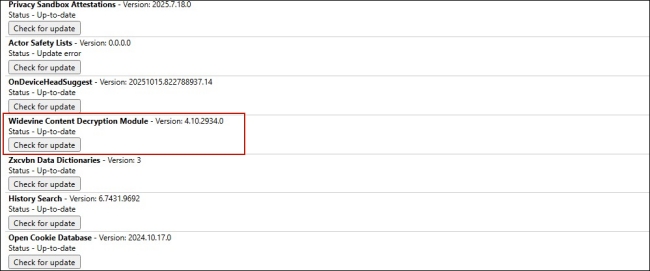
If disabling your extensions doesn’t help, a better method to fix your issue is to update the Widevine CDM plugin. Spotify Web Player relies on the Widevine Content Decryption Module to play protected audio content. If this plugin is outdated or corrupted, Spotify may skip songs because it can’t properly decrypt or authorize playback.
On Chrome/Edge:
Step 1. Type chrome://components in the URL bar and press ENTER on your keyboard.
Step 2. In the Components page, scroll down to find Widevine Content Decryption Module. Then, click the Check for update button.
On Firefox:
Step 1. Go to the Settings section. Then, select Extensions and Themes at the bottom left.
Step 2. Click Plugins. Next, find Widevine Content Decryption Module and set updates to On.
Part 4. How to Prevent Spotify from Skipping Songs Forever
Fixing Spotify skipping issues is only half the battle—preventing them from happening again is what really matters. Spotify often skips songs or has diverse playback issues, which are really annoying. If you want to have a seamless and uninterrupted music listening experience, the once-and-for-all method is to download Spotify songs to local files. Therefore, you can play Spotify songs on other media players when the Spotify app itself is down. To achieve this goal, all you need is a professional Spotify downloader - TunesMake Spotify Music Converter.
TunesMake Spotify Music Converter is designed to remove the DRM protection of Spotify content. Whether you have a Premium subscription or not, you can use it to download your favourite Spotify songs, playlists, albums, and podcasts to local music files. According to your personal needs, you can choose to save them in different formats, including MP3, M4A, M4B, WAV, FLAC, and AIFF. Once downloaded, it’s a piece of cake to play your Spotify music files on any other media players or devices without skipping issues. What’s better, the TunesMake smartly keeps the sound quality and ID3 tags of your Spotify tunes, ensuring your offline music experience.

TunesMake Spotify Music Converter –
Download Spotify Playlists and Songs to Local Audio Files
- Unlimitedly download Spotify songs, playlists, and podcasts
- Losslessly convert Spotify music to MP3, FLAC, WAV, AIFF, etc.
- Remove ads from Spotify music tracks even with Free accounts
- Convert Spotify songs at 12X faster speed with ID3 tags kept
Security Verified. 100% Clean & Safe.
Step 1
Import Spotify Music to the Program
Click the Free Download button above, and you can get the TunesMake Spotify Music Converter on your Windows or Mac computer. Then, launch it and sign in to your Spotify account on its interface. Next, you can browse and find the playlists or albums you like. To import songs to the TunesMake program, you should select the playlist/album and click the lower Add icon > Add to List.

Step 2
Set the Output Audio Format
The TunesMake program can help you convert Spotify music to MP3 and other 5 audio formats. You can set the output audio format by clicking the top Menu icon > Preferences > Conversion. We’ve set MP3 as the default because it can be played on multiple devices or platforms. You can also change other parameters in this window, such as channel, sample rate, and bit rate. When you finish, click OK to save your preferences.

Step 3
Convert Spotify Music to MP3
After setting the formats, you can click the Convert button to start converting Spotify music to MP3. It’s no problem to convert a batch of music files. You only need to wait for a short time till it is finished. When the conversion is over, you can access the converted music files easily in your local folder by clicking the top Converted icon.

Now you can play Spotify on multiple devices offline forever without a premium. You can transfer or upload to the devices you like. Or you can play it on the local music player. Therefore, the Spotify keeps skipping songs problem can be solved.
Part 5. Bottom Line
When listening to Spotify music, it’s annoying that Spotify keeps skipping songs. Still, the experts cannot speak out about the reason. So, we’ve collected some workable methods in the above discussion to fix the issue. Also, there is the best alternative way, which is to convert Spotify to MP3 and other audio formats via TunesMake Spotify Music Converter. Then you can listen to Spotify on multiple devices you like without limitations. And the skipping problem can be solved. I hope this post can be helpful for you. If you have more tips for today’s topic, you can share them in the comment area below.
Related Articles


A senior editor from TunesMake, dedicated to sharing professional tutorials and solutions of software, movies, and music.
- 1
- 2
- 3
- 4
- 5
- 6
- 7
 Leave Your Comment
(0)
Leave Your Comment
(0)

 Download Center

