








 Store
Store


Few things are as frustrating as putting together a 500-song playlist, hitting shuffle, and hearing the same 20 tracks every single day. If you have noticed that your Spotify shuffle is not random, you are not imagining things. Spotify's playback system does not select tracks by pure chance, which often leads to repetitive loops, favored artists, and predictable queues. This guide explains the causes of Spotify Shuffle not random and walks through step-by-step solutions to restore variety to your music.
Part 1. Why Is Spotify Shuffle Not Random?
Several technical features and user settings can cause Spotify's pseudo-random algorithm to loop through a narrow selection of songs. Here are the main causes of Spotify Shuffle not random.
Algorithmic Preferences & User History Impact:
Spotify's engine favors tracks you regularly stream or rarely skip, giving them higher priority in the pseudo-random queue.
Smart Shuffle & Recommendation Injections:
Spotify's Smart Shuffle feature automatically inserts recommended tracks into your existing playlists, overriding your playlist's natural track balance.
Cached Playback Loops:
Spotify saves temporary cache files locally to ensure instant playback. Corrupted cache files can lock your player into repeating the same track sequence.
Automix Constraints:
Features like Automix transition between tracks with matching tempos and keys, causing the engine to favor songs that blend well together.
Part 2. Quick Fixes to Spotify Shuffle Not Random
If you need an immediate fix to Spotify Shuffle play not random without digging deep into app settings, try these quick actions to reset your active playback queue.
Disable Smart Shuffle:
Tap the shuffle button on the Now Playing screen until the small spark icon disappears, leaving a simple green shuffle icon.
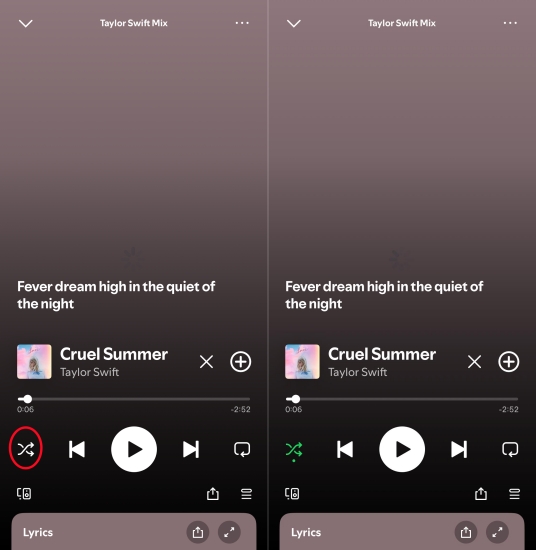
Clear the Active Queue:
Open your current queue, tap Clear Queue, select a new song manually, and restart playback from a newly selected song.
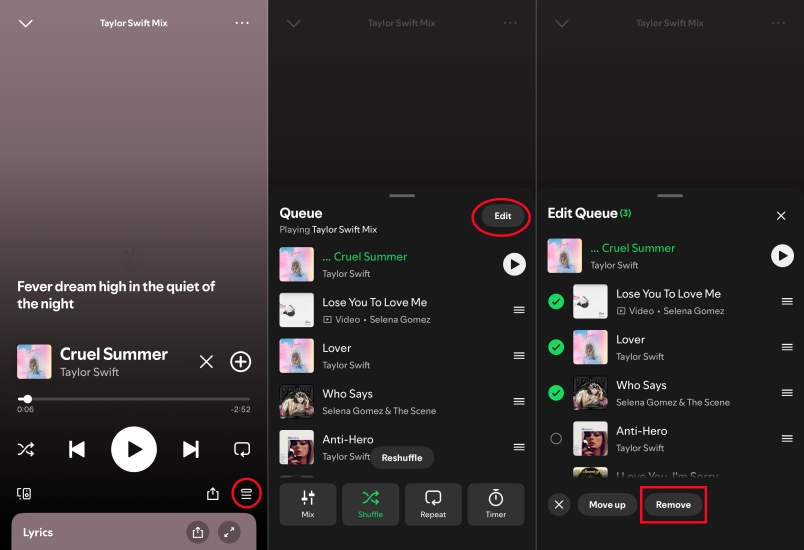
Force Close and Relaunch:
Fully close the Spotify app on your phone or computer. Then wait five seconds and relaunch it to start your shuffle play again.
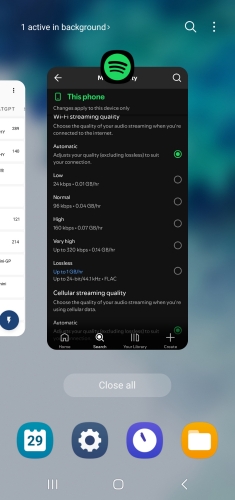
Toggle Shuffle Off and On:
Turn shuffle off in the Spotify app on your device, play the first track of your playlist sequentially, and then tap shuffle again.
Part 3. How to Fix Spotify Shuffle Play Not Random
Still find that Spotify Shuffle play is not random? Follow these device-agnostic solutions to clear playback memory and force Spotify to randomize your playlist properly.
Fix 1. Disable Automix and Crossfade
Turning off smooth transition settings like Automix and Crossfade prevents the player from grouping songs with similar beats or tempos.
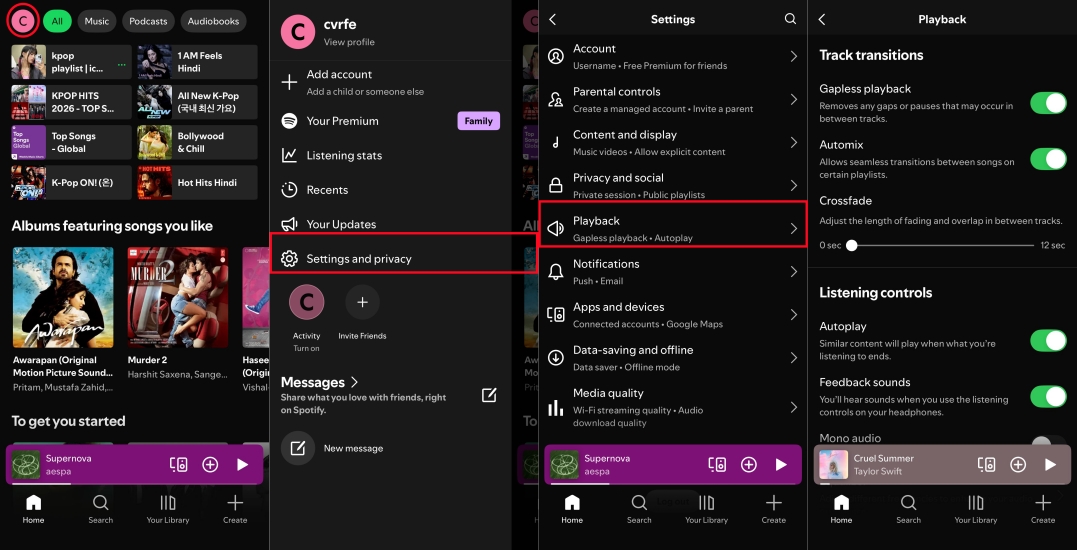
Step 1. Tap your profile image at the top left corner.
Step 2. Select Settings & Privacy and tap Playback.
Step 3. Toggle Automix to Off and set Crossfade to 0 seconds.
Fix 2. Clear Spotify's Local Cache
Clearing cached data removes saved queue sequences without deleting your downloaded songs or saved playlists on your phone or computer.
On iOS and Android:
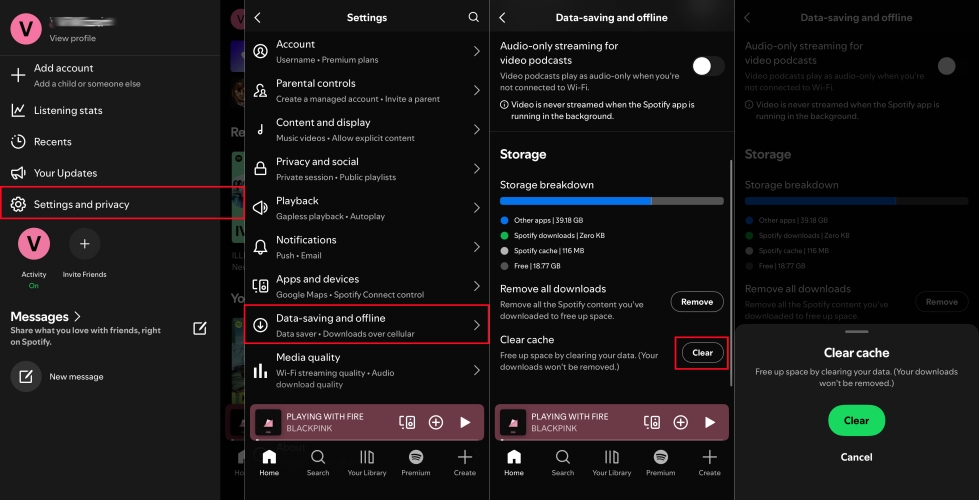
Step 1. Tap your Profile Picture in the top corner.
Step 2. Navigate to Settings and Privacy.
Step 3. Scroll down to Storage.
Step 4. Tap Clear Cache and confirm your choice.
On Windows and Mac:
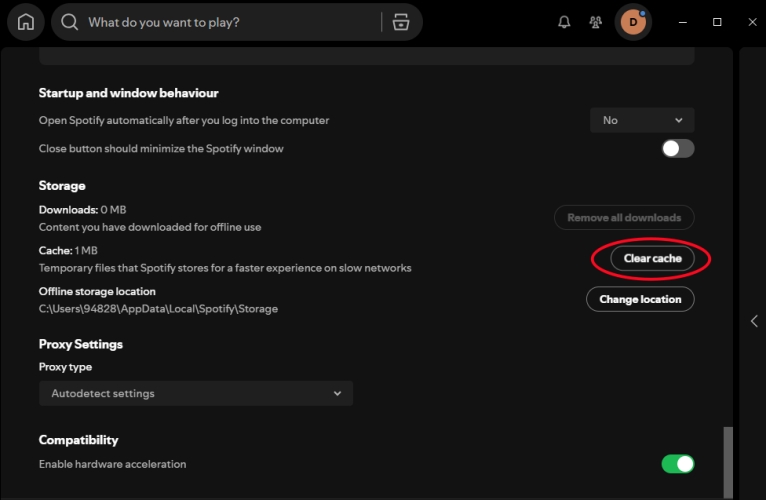
Step 1. Click your Profile Picture at the top right and open Settings.
Step 2. Scroll down to the Storage section.
Step 3. Click Clear cache next to the storage breakdown bar.
Fix 3. Sort and Shuffle Playlists Manually
Changing the base sort order resets how the algorithm views the starting list. Manually sorting and shuffling the playlist can fix the issue sometimes.
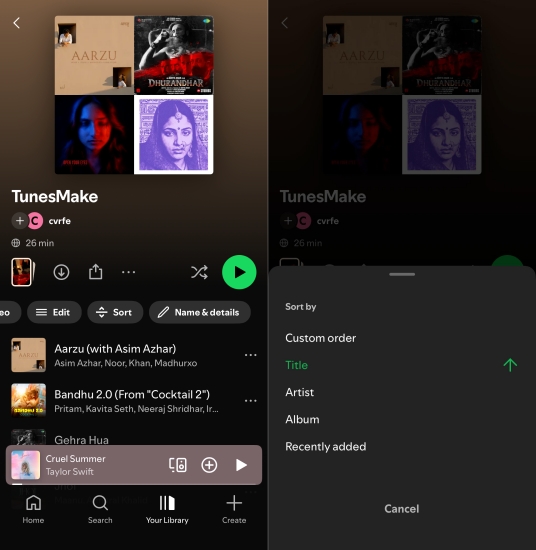
Step 1. Open your target playlist and pull down to reveal the search and sort controls.
Step 2. Tap Sort and change the order by Title or Artist.
Step 3. Open your current queue and tap Clear Queue.
Step 4. Manually select a song and re-enable Shuffle.
Fix 4. Go Offline to Strip Algorithmic Injections
Going offline forces the Spotify app to rely purely on local file indexing rather than cloud-based algorithmic suggestions from servers.
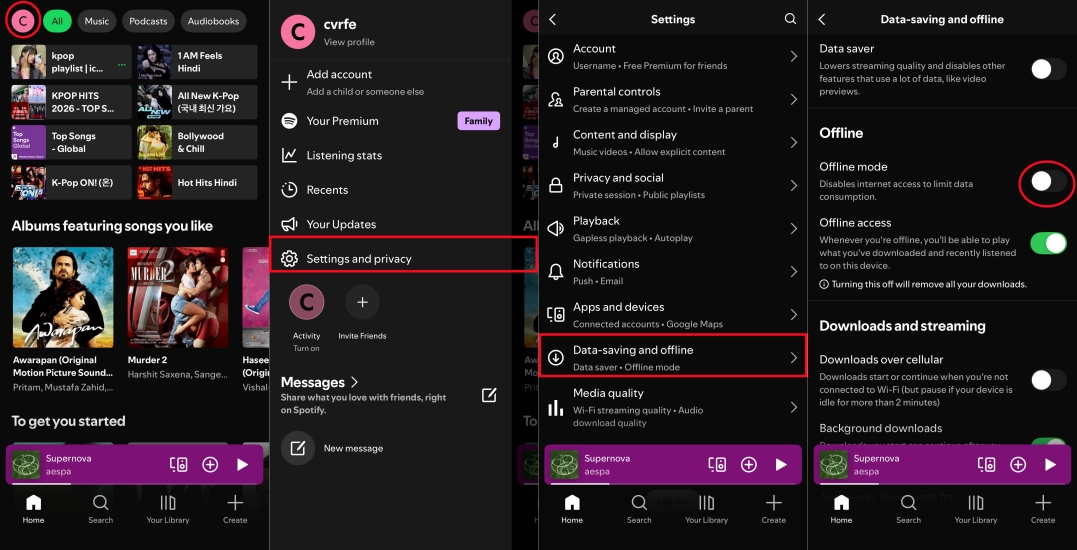
Step 1. Ensure your playlist is downloaded to your device.
Step 2. Go to Settings and Privacy > Data-saving and offline.
Step 3. Toggle Offline Mode to On.
Step 4. Start playback on your downloaded playlist.
Fix 5. Perform an Account Session Reset
If your queue state is synced across multiple devices such as smart speakers, consoles, or laptops via Spotify Connect, stale session data can freeze your shuffle queue.
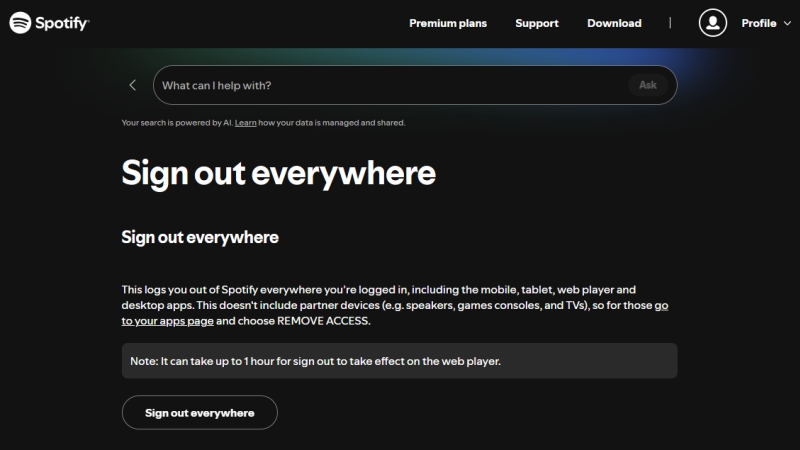
Step 1. Open a web browser and sign into account.spotify.com.
Step 2. Scroll down on the Security and privacy tab.
Step 3. Click the Sign out everywhere button.
Step 4. Log back into your main device and start a fresh listening session.
Fix 6. Convert Spotify Music Tracks as Local Files
Because Spotify rely on cloud-based recommendation servers, the in-app playback can still lean on listening history even when shuffle is toggled. A direct way to bypass Spotify's playback engine entirely is to download your playlists as local audio files and play them using a local media player like VLC, Foobar2000, or Media Player that supports true mathematical shuffle. This is where a dedicated converter utility like TunesMake Spotify Music Converter can be useful.
TunesMake Spotify Music Converter allows both Free and Premium users to convert entire Spotify playlists or albums into standard audio formats like MP3, FLAC, or WAV. Once saved as local audio files on your computer or phone, you can load the tracks into any media player and use its unweighted random shuffle. It is completely detached from Spotify's server-side algorithms, cached preferences, or connection limits.

TunesMake Spotify Music Converter –
Download music from Spotify without premium
- Download Spotify songs, albums, playlists, audiobooks, and podcasts
- Losslessly convert Spotify music to MP3, FLAC, WAV, AIFF, and more
- Remove ads from Spotify music tracks even with a Free account
- Convert Spotify music at 15× faster speed in batch with ID3 tags kept
Security Verified. 100% Clean & Safe.
Part 4. Alternative Ways to Get True Spotify Shuffle
If you still find Spotify's built-in algorithm too restrictive, several external tools and manual tricks can give you pure mathematical randomness.
Use Third-Party Playlist Shufflers:
Web tools like SpotShuffle or Randomify connect via Spotify's official API to take an existing playlist, apply a true mathematical shuffle to the track order, and export it as a brand-new, completely randomized playlist.
Duplicate and Re-order Playlists:
Select all tracks in a large playlist by pressing Ctrl+A on a PC or Cmd+A on a Mac, copy them into a new playlist, and sort them randomly before pressing play.
Segment Massive Playlists:
Playlists containing over 1,000 songs often trigger aggressive caching limiters. Splitting large music collections into 200-to-300 track playlists helps the playback engine cycle through content more evenly.
Part 5. FAQs about Spotify Shuffle
Does Spotify Shuffle play every song before repeating?
No. Spotify's distributive shuffle algorithm prioritizes artist variety and listening preferences rather than guaranteeing every single song is played before a track repeats.
Why does Spotify Smart Shuffle keep turning itself on?
Spotify frequently promotes Smart Shuffle as a default discovery feature. Tapping the shuffle button multiple times cycles through Off, Standard Shuffle, and Smart Shuffle. Be sure to stop tapping once the simple green shuffle icon appears.
Why does Spotify Connect repeat songs on smart speakers?
When casting audio via Spotify Connect to devices like Alexa, Sonos, or Google Nest, queue management handshakes can lag. Resetting your connection or clearing the active queue on your mobile app usually resolves speaker-specific repetition.
Part 6. Conclusion
Hearing the same handpicked tracks loop through a massive playlist can quickly ruin your listening experience. While Spotify's switch to a pseudo-random, "balanced" algorithm was designed to prevent artist clustering, features like Smart Shuffle, Automix, and localized cache limits often trap your queue in a repetitive cycle.
Fortunately, you do not have to settle for predictable queues. By turning off Smart Shuffle, clearing your local cache, disabling Automix, and resetting your queue across devices, you can force Spotify back into a broader rotation. For listeners who want complete freedom from cloud-based recommendation biases, exporting tracks to local offline media players using TunesMake Spotify Music Converter or utilizing third-party API shufflers provides pure, unweighted mathematical randomness. Apply these fixes today and take back full control over your music library.
Related Articles



An experienced freelance writer at TunesMake, specializes in using various streaming services from Spotify, Apple Music, to Amazon Music, and more other platforms.
- 1
- 2
- 3
- 4
- 5
- 6
- 7
 Leave Your Comment
(0)
Leave Your Comment
(0)

 Download Center

