








 Store
Store


I have been upload local files to Spotfiy through the Local Files feature with no problems up until recently. But My Spotify app cannot play my local files and it doesn’t sync any local file that I have added to my music library through my desktop. Please help!”
— From RedditSpotify, now one of the most popular and giant music streaming services, is still outperforming other competitors by bringing new features and adding new songs to the catalog. Though as well-established as Spotify, there are still some drawbacks and inconveniences when using it. Such problems as Spotify local files not syncing, local files not showing up on Spotify, or Spotify not playing local files have remained unresolved. If you are also facing such issues, look no further. In this article, we are going to introduce several efficient methods to help you get rid of these issues and introduce the best alternative that lets you enjoy Spotify Music and local files together without hassles. Check the methods below.
Part 1. Why Aren’t My Local Files Showing/Syncing?
Spotify allows you to upload your own local music files, so you don’t need to switch between different music media players. However, compared to professional media players, Spotify doesn’t offer many features to help you manage your local files. Many users wonder why Spotify won’t show or sync their local files. Here are some of the most common causes:
Unsupported File Format: Not all formats are compatible with Spotify and can be uploaded successfully. You need to make sure that your local files are in a supported format.
Network Connection Issues: When your Wi-Fi connection is poor, your local files may fail to show or sync.
Incorrect Folder Location: You must tell the Spotify desktop app where exactly your local music library resides. If the designated folder is moved or deleted, Spotify will lose track.
Account Issues: Sometimes, the syncing issue can be caused by your account or setting mismatches. You’d better check and ensure that you have logged into the same Spotify account on both your devices.
Corrupted Cache: It is one of the most common reasons that causes Spotify to fail to show or sync your local music. You’d better clear corrupted cache files regularly.
App or System Glitches: When temporary glitches and bugs pop up, whether within the Spotify app itself or your device system, Spotify won’t work properly to show or sync your local music files.
Part 2. How to Fix Spotify Local Files Not Showing
Now that you have an understanding of why Spotify local files are not showing and syncing, it’s time to identify the cause and solve this problem on your device. Here are the initial fixes you can try one by one. If you want to save time and resolve this issue once and for all, you can jump to Part 4, where we introduce the best alternative way that lets you enjoy Spotify music tracks with your local music files without hassles.
Fix 1. Check the Format of Local Files
As we mentioned above, not all audio formats are compatible with Spotify. If your music files are in a format that Spotify cannot read, they will not show up. You should check the file format and make sure it belongs to any of these: MP3, WAV, FLAC, or AIFF. Otherwise, you need to convert unsupported files to compatible formats.
Fix 2. Re-enable the Show Local File Option
One of the quickest and most effective troubleshooting steps is to re-enable the Show Local File button on the Spotify app. By doing so, you can force the Spotify app to re-index your designated local file folders and show your local files. In most cases, this step can solve minor glitches that prevent your songs from appearing or syncing.
Step 1. Head to the Spotify app installed on your desktop.
Step 2. Then, select your profile icon and head to Settings.
Step 3. Scroll down to the Your Library section, and toggle off the Show Local File option.
Step 4. Restart the Spotify app. Then, enable the Show Local File button again to see if your local music files are showing.
Fix 3. Restart the Spotify App
If you haven’t tried this fundamental troubleshooting step, you should not miss it. Restarting the app may sound basic, but it can instantly fix minor glitches in the application’s memory. Make sure that you fully close Spotify instead of minimizing it. Then, you should wait a few seconds before reopening the app.
Fix 4. Clear Spotify Cache
It is known that Spotify will have cached files to help speed up loading and reduce bandwidth use. But over time, this data can become corrupted, leading to failures in recognizing new files. Thus, it’s always a good idea to clear Spotify cache from time to time.
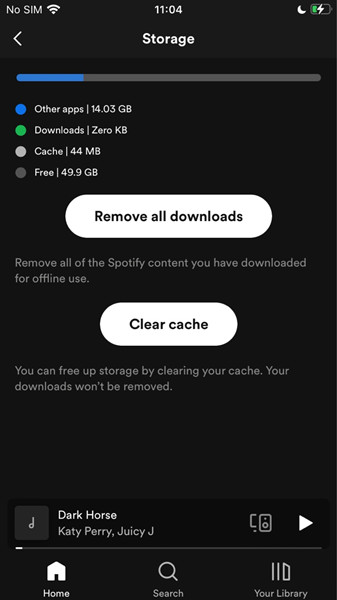
Step 1. If you are using the Spotify app on your mobile phone, you can head to Home > Privacy and Settings.
Step 2. Then, select Storage > Clear Cache.
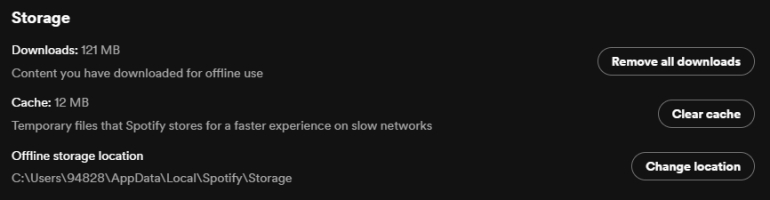
Step 3. For users who are using Spotify on the desktop, the process should be clicking the profile icon > Settings > Storage > Clear Cache.
Fix 5. Remove Local Files to Other Available Folders
Another important thing you should check is that your local music files are stored in a folder that Spotify can access. If your music files were moved or stored in restricted locations, like external drives, the local files may not be detected. To fix this, you can try to create a new folder and move your local music files to the new folder.
Step 1. Go to the File Explorer or Finder app on your computer. Then, create a new folder.
Step 2. Move your local music files to the new folder.
Step 3. After that, open Spotify and head to Settings > Show songs from > Add a source. When the new window pops up, you should select the new folder to load the local files to Spotify.

Fix 6. Delete index.dat File [Desktop]
Spotify has a small Internet database file - index.dat file. It helps the app keep track of cached data and indexed content. Spotify uses this file as an index to map cached audio chunks. If it is corrupted, you can try deleting it. Once done, Spotify may rebuild the cache, helping your local files to show again.
Step 1. First of all, you need to quit the Spotify app on your computer. Make sure it is not running in the background.
Step 2. Basically, this file is stored on Windows C:/Users/Your User Name/AppData/Local/Spotify/Storage or Data. If you are using a Mac, you can find them in Users/Your User Name/Library/Application Support/Spotify.
Step 3. Then, you can open the File Explorer or Finder to find the Spotify index.dat file and delete it.
Part 3. How to Fix Spotify Local Files Not Syncing to iPhone/Android
If your local files are showing on your desktop correctly, but they won’t sync to your mobile phone. This problem may lie in the connection between the two devices. Here are some possible troubleshooting tips. Let’s explore them below.
Solution 1. Verify Your Network Connection and Account Status
To sync your local files between two devices, you need to ensure that both devices are on the same Wi-Fi network and logged into the same Spotify account at the same time. In addition, check your Wi-Fi and make sure there is no lagging issues.
Solution 2. Create New Playlists to Sync Spotify Local Files to Phone
If you fail to sync local music files from your computer to your mobile phone, you can try creating a new playlist to store them. This step is helpful when the existing playlists get corrupted or fail to trigger the sync command.
Step 1. Launch Spotify on your computer, then go to upload your local files.
Step 2. After importing local files, click Create playlist or folder.
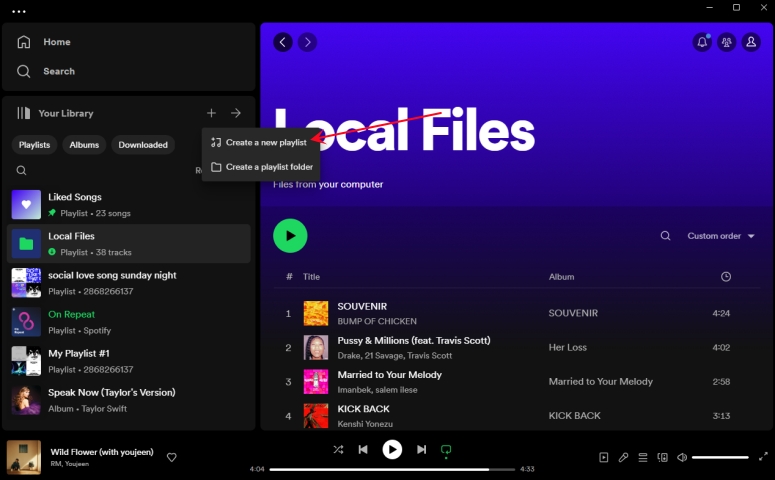
Step 3. Head to Local Files and select your local files, then click Add to Playlist.
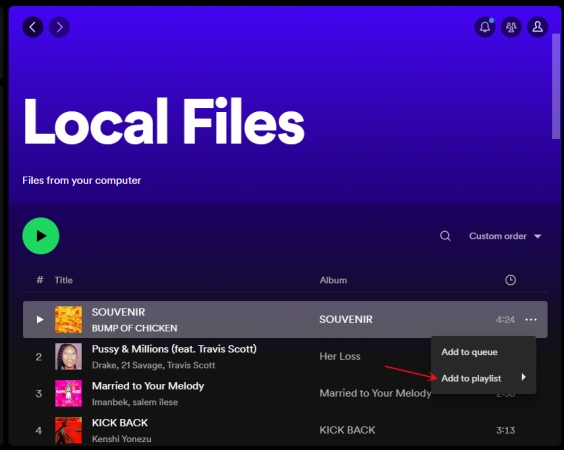
Now you can find your local files in Spotify on your phone, but you can’t play them directly. You need to tap the download icon in this playlist to save the local files to your phone.
Solution 3. Tune off Offline Mode
In Offline Mode, you’re only allowed to listen to your downloaded Spotify music. Once you switch Offline Mode on, only the downloaded music and local files show in your library. You should first turn it off so that Spotify can sync the playlist between different devices.
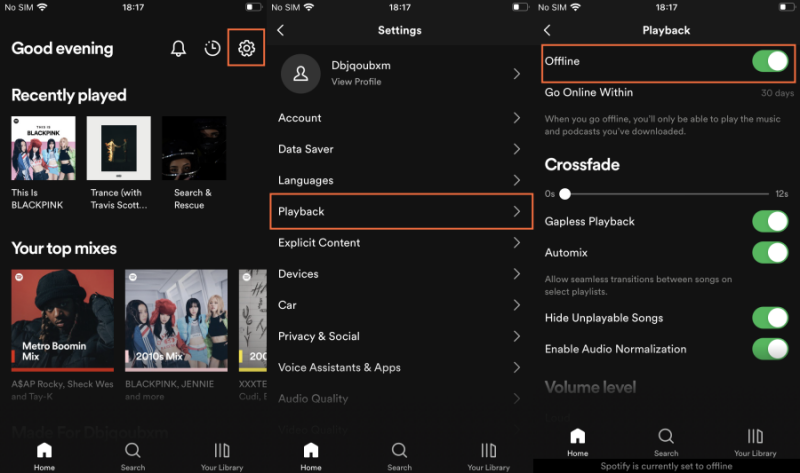
Step 1. Open Spotify on your mobile phone and tap the gear icon.
Step 2. Under Settings, scroll to Playback and switch Offline Mode off.
Solution 4. Log Out and Log Back in Spotify
Sometimes, there is a problem with your Spotify account. You may need to sign out of your Spotify account and log back. This can help you refresh your music library to resolve Spotify not sync library. To log out and log back into Spotify, you can follow the simple steps.
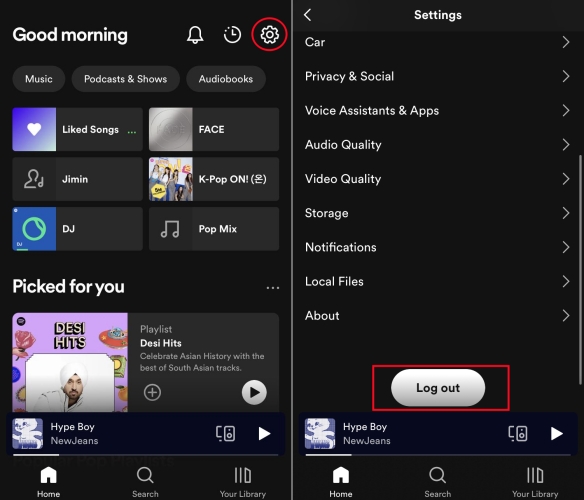
Step 1. In Spotify, tap the gear icon and scroll down to the bottom.
Step 2. Tap Log out to confirm that you want to log out of your Spotify account.
Step 3. Go to enter your Spotify account details. Then you can check your music library.
Solution 5. Delete and Reinstall Spotify
You can try this method if the above methods are not workable. You can uninstall the Spotify app on your device, and then perform a clean and fresh installation. A clean reinstall can remove all the corruption of the software because the latter installation is a completely new application.
On Android
Step 1. Touch and press the Spotify app, then tap OK to delete the app.
Step 2. Go to the Google Play Store and find Spotify to install it again.
On iOS
Step 1. Touch and hold the Spotify app, then tap Remove App.
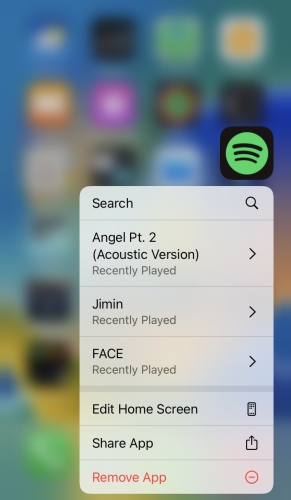
Step 2. Search for Spotify in the App Store and reinstall it.
Part 4. Bonus: How to Save Spotify Music Together with Local Files
Utilize the solutions above, and you can make Spotify’s local file syncing work again. However, it’s not always stable. The syncing process depends on the network connections, your device status, and app behaviour. Therefore, we recommend you use a better alternative method to manage your local files and streaming music. That is to keep your Spotify music and local files together permanently by downloading Spotify tracks into standard audio files via the TunesMake Spotify Music Converter.
TunesMake Spotify Music Converter is designed to remove DRM protection from Spotify and convert Spotify music into several plain audio formats so that Spotify music can be played on other compatible devices. TunesMake software supports six popular audio formats to meet your different kinds of needs, including MP3, M4A, M4B, WAV, FLAC, and AIFF. Moreover, it ensures your listening experience by retaining the original sound quality and ID3 tags. You can even change audio parameters as you wish. After conversion, you can save your favorite Spotify tracks as local files and listen to them offline on any other device you like.

TunesMake Spotify Music Converter –
Download Spotify Songs as Local Files
- Unlimitedly download Spotify songs, playlists, and podcasts
- Losslessly convert Spotify music to MP3, FLAC, WAV, AIFF, etc.
- Remove ads from Spotify music tracks even with Free accounts
- Convert Spotify songs at 12X faster speed with ID3 tags kept
Security Verified. 100% Clean & Safe.
Step 1
Import Spotify Music to Download
According to your computer system, you can download the TunesMake Spotify Music Converter on your desktop by clicking the Free Download button above. When you launch the TunesMake tool, the Spotify web player will automatically run at the same time. You have to select the playlist you like and enter its detailed page. Then, click the Add icon at the lower right button. After finding the target songs, you can load them to the conversion list by clicking Add to List.

Step 2
Select the Output Audio Format
TunesMake software supports personalizing the output audio parameter. You can click the menu bar and select the Preferences option to open the settings window. To make your downloaded Spotify music compatible with other devices or platforms, you’d better choose MP3 as the output format. Also, you can reset the bit rate, sample rate, and channel.

Step 3
Save Spotify Music as Local Files
After setting the output format, you can click the Convert button to start the conversion. It’s no problem to convert a batch of music files. You only need to wait for a short time till it is finished. When the conversion is over, you can access the converted Spotify music files easily in your local folder by clicking the Converted icon at the top.

Now you can play your Spotify songs on multiple devices offline forever without a Premium. You can transfer them to any device you like. Or you can play them on the local default music player. And you don’t need to worry about the Spotify local files not syncing problem anymore.
Bottom Line
Regarding the Spotify local files not syncing issue, we have illustrated several workable methods above. No matter whether you are experiencing the problem or have had it before, just try the fixes in this post to resolve it. Moreover, for the best and ultimate, you can save Spotify music as local files, and then use an audio player to play and manage your local files and Spotify local files together. TunesMake Spotify Music Converter is an intelligent tool that enables you to gather all your songs for offline listening forever without any limits.
Related Articles


A senior editor from TunesMake, dedicated to sharing professional tutorials and solutions of software, movies, and music.
- 1
- 2
- 3
- 4
- 5
- 6
- 7
 Leave Your Comment
(0)
Leave Your Comment
(0)

 Download Center

