








 Store
Store


Unlike PS4 and PS5, the Xbox Game Bar is the customizable gaming overplay built into Windows 10 and Windows 11. It can work well with nearly all PC games, enabling you to have instant access to widgets for controlling your music, finding new teammates with Looking for Group, and chatting with Xbox friends across Xbox console, mobile, and PC – all without leaving your game.
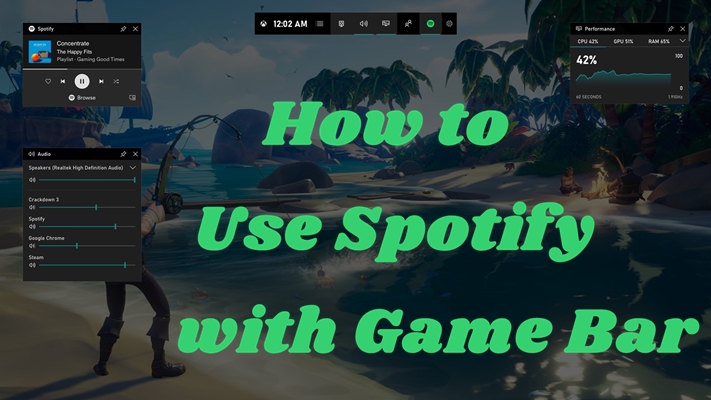
And yet, like many of you, music is a very important part of gameplay. With the Xbox Game Bar Spotify widget, you can easily rock your games with your favorite songs from Spotify. In this guide, we’re going to tell you how to link Spotify to Xbox Game Bar, as well as how to fix Xbox Game Bar Spotify not working.
Part 1. How to Link Spotify to Xbox Game Bar on PC
Since Spotify offers its service to Xbox Game Bar, you can get quick access to Spotify while playing a game on your Windows computer. With the Microsoft Game Bar integration, you can change your music soundtrack or choose your gaming podcast without having to minimize or exit your game. To set up Spotify in Xbox Game Bar, prepare the Spotify PC app with your account signed in first and then follow the below steps:
1) Press both the Windows logo and G keys at the same time to access the Xbox Game Bar.
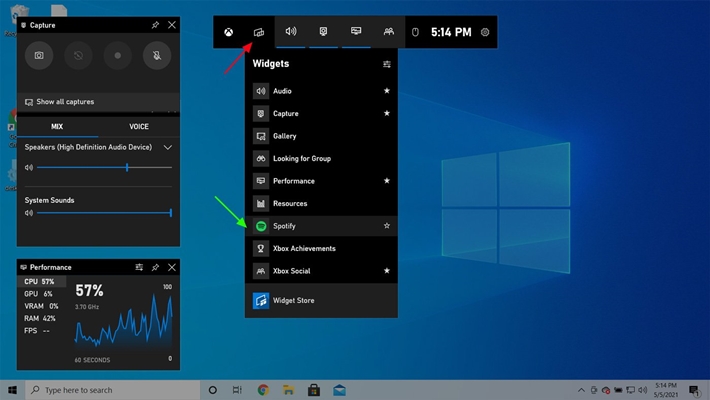
2) Click on Widget Menu and select the Xbox Game Bar Spotify widget from the dropdown menu.
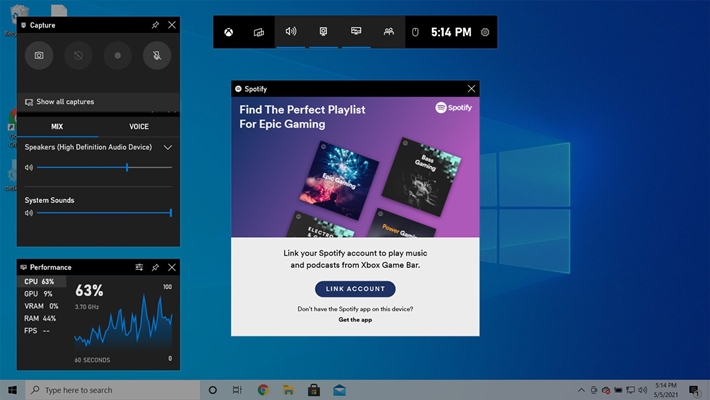
3) Click on LINK ACCOUNT to link Spotify to Xbox Game Bar.
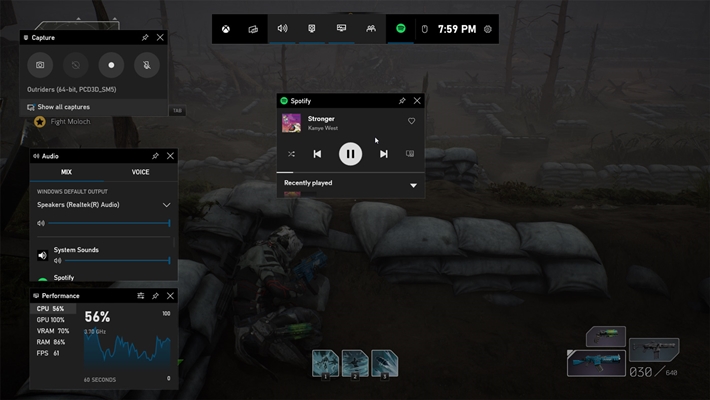
4) After signing into your Spotify account, select Start Listening and you can listen to Spotify while playing games.
Part 2. How to Play Spotify on Xbox Game Bar Offline Unlimitedly
Although Spotify and Xbox are making it easy for you to play music inside Xbox Game Bar, you may have found that the Spotify widget and the irremovable issue impact your gaming experience. With a stable internet connection, Spotify can play your favorite songs while playing a game. But if your network is poor, the playback of Spotify inside Game Bar would be unstable. What’s more, the Spotify not working on Xbox Game Bar issue happens frequently.
So, the best method is to download Spotify music to your computer. Then try to use Windows Media Player to play your offline Spotify songs while gaming. To download and import Spotify songs to Windows Media Player, you need the help of TunesMake Spotify Music Converter.
With TunesMake Spotify Music Converter, you are able to easily download and convert music from Spotify to MP3, M4A, M4B, WAV, FLAC, and AIFF. As TunesMake removes Spotify DRM in the conversion, you can directly use the WMP overlay to play Spotify music even without the Game Bar. Additionally, TunesMake does a lot to ensure your listening experience, such as retaining the sound quality and ID3 tags, allowing you to customize the audio settings freely, etc. After using this tool to download Spotify songs, playlists, albums, or podcasts, you can get full control over your favorite Spotify content.

TunesMake Spotify Music Converter –
Best Spotify to Windows Game Bar Downloader
- Unlimitedly download Spotify songs, playlists, and podcasts
- Losslessly convert Spotify music to MP3, FLAC, WAV, AIFF, etc.
- Remove ads from Spotify music tracks even with Free accounts
- Convert Spotify songs at 12X faster speed with ID3 tags kept
Security Verified. 100% Clean & Safe.
Step 1
Add Spotify music to TunesMake

Open TunesMake Spotify Music Converter on your computer then it will load Spotify immediately. On Spotify, search for or locate the song you wish to download. Then, add it to the converter by dragging and dropping it to the Add icon. For loading multiple songs, you can select a playlist or album, and then click the lower Add icon > Add to List.
Step 2
Set up the output audio parameters

Once your songs have been added, you can go to customize the output audio format by clicking the menu bar and selecting the Preferences option. In the Conversion window, you can modify the output format, bit rate, sample rate, and channel. After doing so, don’t forget to click OK.
Step 3
Begin downloading music from Spotify

Now that you’re all set, click the Convert button in the bottom right corner of the interface. The converter will immediately download and convert Spotify songs to MP3 or other formats you specify to your computer. After conversion, go to the Converted list to view all your converted Spotify music by clicking its icon. You can use the file icon next to each song to locate its location in your local drive.
Step 4
Get the WMP Overlay to Play Spotify while Gaming
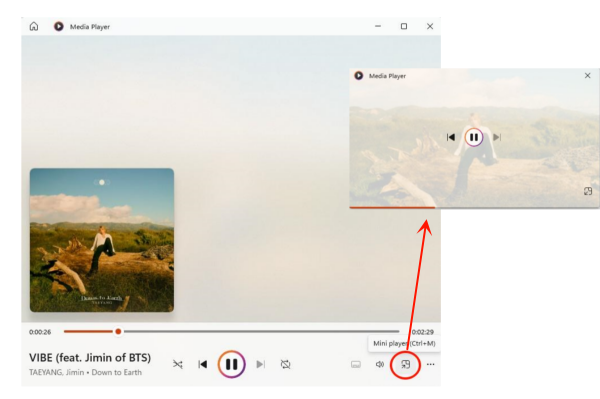
After getting the Spotify music files, it’s easy to sync them to Windows Media Player for playing. The most important part is that WMP boasts a mini-player so you can continue what you’re playing while gaming.
1. Launch Windows Media Player on your computer.
2. Select Music Library > Add Folder to import all converted Spotify songs to your WMP library.
3. Start to play Spotify music within WMP and click on Mini player from the Now Playing bar.
4. Now, you get the Spotify mini-player on your PC which works well with your gameplay.
Part 3. How to Fix Spotify Not Working on xbox game bar
While the Spotify widget is useful in playing your favorite music from Spotify, it does run into issues from time to time. More and more users complained that the Xbox Game Bar Spotify is not working, so they cannot get the Spotify widget for listening. This time, the following steps may help you out.
Solution 1. Change the Region for Windows
According to some users, the issue was miraculously solved by changing the region for Windows PC. That is, you have to make sure your Windows region is the same as the region registered on your Spotify account.
- First, go to the Spotify account page and select Edit Profile to view the region for Spotify.
- Open Windows Settings from the Windows menu.
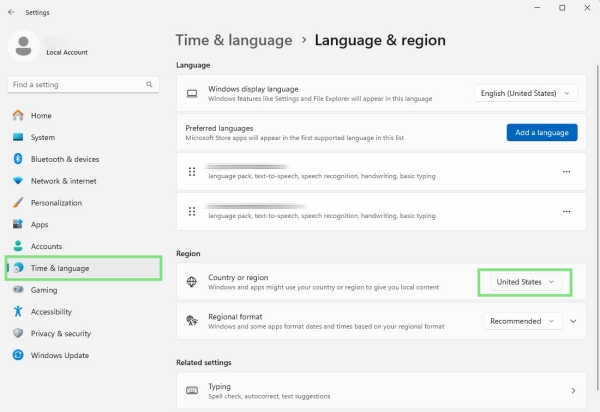
- In the left sidebar, choose Time & language > Language & region.
- If the region is different from Spotify’s, change it to the same.
Solution 2. Perform A Clean Uninstall for Spotify
Occasionally, Xbox Game Bar Spotify not working might be with the Spotify app itself. And this issue often affects users who get the Spotify app from the Microsoft Store. Hence, reinstalling is the necessary step to fix this woe.
- Uninstall the Spotify from Windows Settings > Apps > Installed Apps > Spotify > Uninstall.
- Install the Spotify app from Spotify official site and finish the installation.
- Now, check whether you are able to control Spotify in Game Bar.
Solution 3. Unhide Spotify from Widget Menu
If the Spotify widget cannot show in Game Bar, then you can consider pulling it out of the hidden widgets.
- Open Xbox Game Bar by pressing Windows + G on your keyboard.
- Hit on Settings from the top toolbar.
- Select Widget menu and click + next to Spotify from the HIDDEN menu.

Solution 4. Repair and Reset Xbox Game Bar
Xbox gives fixes to Game Bar Spotify not working – repair the Xbox Game Bar. This will solve this issue if it is caused by the Game Bar.
- On the bottom search bar of your PC, search for Xbox Game Bar.
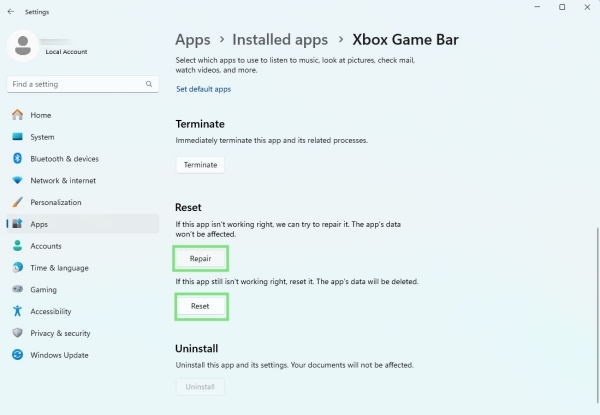
- Select App Settings and scroll down to hit on Repair.
- If this step doesn’t work to show the Spotify widget in Game Bar, click on Reset under the Repair option.
If none of the above ways works to address Xbox Game Bar Spotify not working, it is likely that Xbox Game Bar has removed the Spotify widget forever. You can reach out to support to fix this issue or get Spotify back.
Part 4. Conclusion
This post aims to help you link Spotify to Xbox Game Bar. With the Xbox Game Bar Spotify widget, you can easily control Spotify without interruption. Also, if you run into the Game Bar Spotify not working issue, just try the above solutions. Or you could use TunesMake Spotify Music Converter to download Spotify music, and then you can enjoy offline Spotify music with Window Media Player mini player while gaming.
Related Articles



A senior editor from TunesMake, dedicated to sharing professional tutorials and solutions of software, movies, and music.
- 1
- 2
- 3
- 4
- 5
- 6
- 7
 Leave Your Comment
(0)
Leave Your Comment
(0)

 Download Center

