








 Store
Store


Listening to your favorite playlists while gaming makes every session better. Whether you're grinding through an open-world RPG, building cars in Gran Turismo 7, or warming up for competitive Call of Duty matches, setting custom background music enhances the experience. Fortunately, PlayStation 5 features full Spotify integration that allows you to stream background audio directly without closing your games. This step-by-step guide covers how to set up and play Spotify on PS5 and troubleshoot common playback issues.

Part 1. How to Download and Connect Spotify to PS5
Getting Spotify running on your console takes less than two minutes. Follow these simple steps to download the app and link your account.
Step 1: Install the Spotify App on PS5
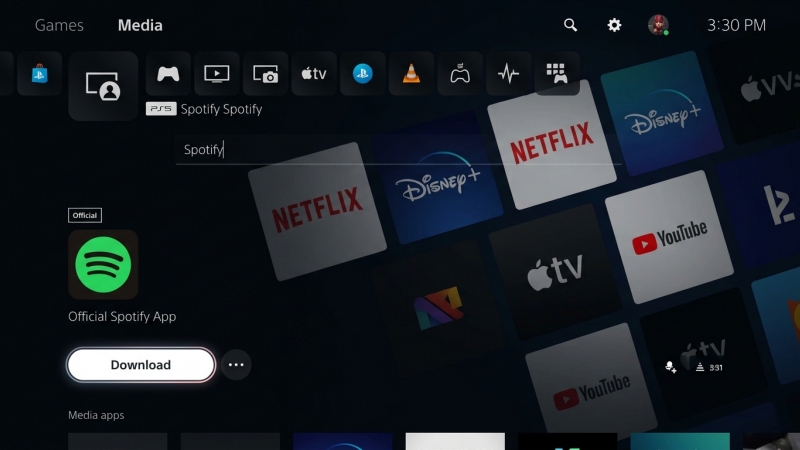
1. Turn on your PS5 and navigate to the Media tab at the top of the home screen.
2. Select All Apps or click the Search icon.
3. Type Spotify into the search bar and select the app from the results.
4. Click Download to install the app onto your console.
Step 2: Link a Spotify Account to PS5
Once installed, open Spotify on your PS5. You can log in using one of three quick methods.
-
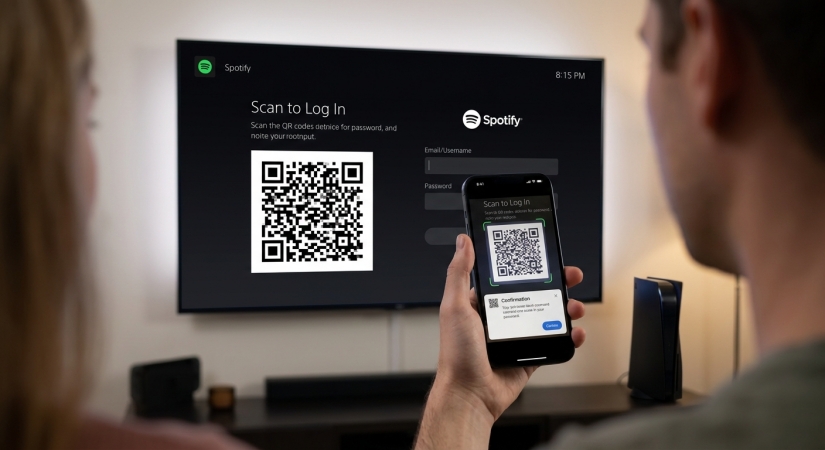
QR Code: Scan the QR code displayed on your TV screen using your smartphone camera and follow the prompt to log in.
-
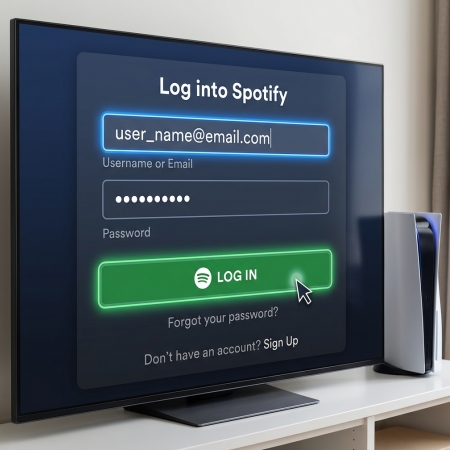
Manual Login: Enter your Spotify email address and password directly on your console using the DualSense controller.
Using the DualSense controller to search for specific tracks mid-game can slow you down. By using Spotify Connect, your mobile device becomes a wireless remote control for your PS5.
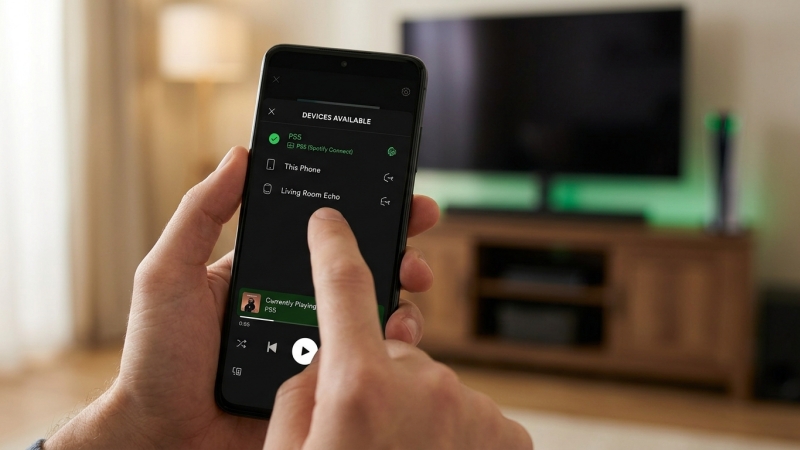
1. Ensure your phone and PS5 are connected to the same Wi-Fi network.
2. Open the Spotify app on your phone.
3. Start playing any song, playlist, or podcast.
4. Tap the Devices icon and select your PS5 from the device list.
Now, any track you search, select, or skip on your phone plays instantly through your PS5 headset or TV speakers without interrupting your gaming session.
Part 2. How to Listen to Spotify on PS5 While Gaming
The best feature of Spotify on PS5 is its background playback capability. You don't need to keep the Spotify app open while playing your favorite titles.
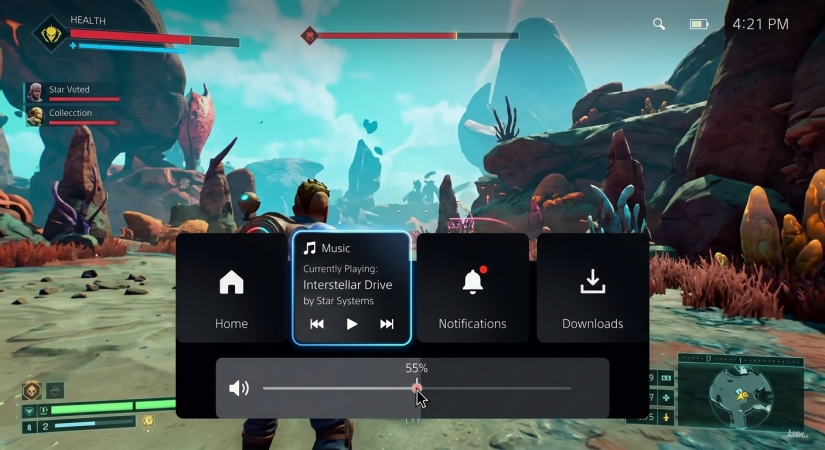
Control Playback via the DualSense PS Button
Step 1. Launch any game on your PS5.
Step 2. Press the PS Button to open the Control Center menu.
Step 3. Select the Music card.
Step 4. Play, pause, skip tracks, switch playlists, or choose recently played albums.
Balance Game Audio and Spotify Volume
Step 1. Open the Control Center by pressing the PS Button.
Step 2. Select the Music card and open the Spotify Volume slider.
Step 3. Adjust the slider to balance Spotify background music against your game sound effects.
Pro Tip:
Go into your game's internal Audio Settings menu and lower or turn off Music Volume while keeping Sound Effects and Dialogue turned up.
Part 3. Alternative Way to Get Offline Spotify on PS5
If you experience network lag, want to conserve bandwidth while playing online multiplayer games, or don't have a Spotify Premium subscription for offline streaming, playing local audio files from a USB drive is an ideal workaround. PS5 supports local playback of standard formats like MP3, FLAC, and AAC directly from the Control Center.
To play Spotify playlists offline via a USB drive on PS5, the files must first be saved in an open format like MP3. Spotify downloads remain encrypted within the Spotify app and cannot be read directly by the PS5 Media Player. If you want to move your Spotify playlists onto a USB drive for console playback, TunesMake Spotify Music Converter can help.
TunesMake Spotify Music Converter can convert Spotify tracks, albums, and podcasts into standard MP3, FLAC, or WAV formats while preserving original audio quality and metadata. Once converted on your PC or Mac, these local files can be saved directly onto a flash drive for offline gaming session soundtracks.

TunesMake Spotify Music Converter –
Download music from Spotify without premium
- Download Spotify songs, albums, playlists, audiobooks, and podcasts
- Losslessly convert Spotify music to MP3, FLAC, WAV, AIFF, and more
- Remove ads from Spotify music tracks even with a Free account
- Convert Spotify music at 15× faster speed in batch with ID3 tags kept
Security Verified. 100% Clean & Safe.
Step 1 Select Spotify Music to Download
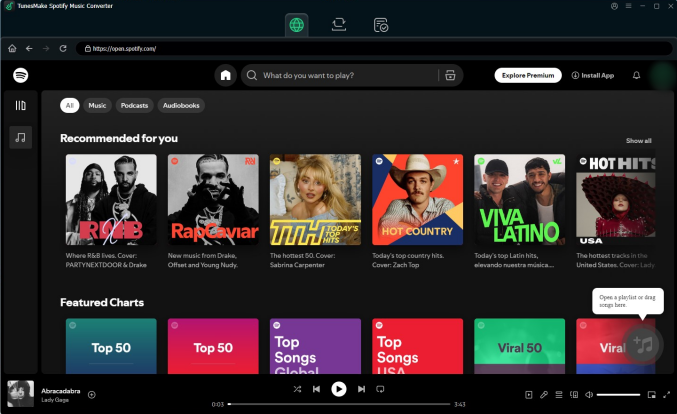
First thing first, launch TunesMake Spotify Music Converter on your computer, then the built-in Spotify web player will automatically load. Next, navigate to your library and browse the music you want to download. If you've selected your preferred music, just click the + button to add them into the conversion list.
Step 2 Choose the Download Quality
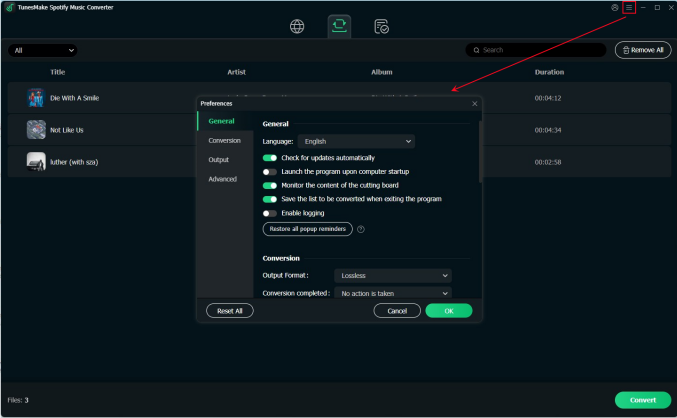
TunesMake offers several audio parameters for setting: format, bit rate, sample rate, and channel. You can click the menu bar and select the Preference option to set the output parameter. In this window, you can select the MP3 option from the list of audio formats. You can also set the bit rate, sample rate, and channel. Once you're satisfied with your settings, click the OK button.
Step 3 Download Music from Spotify
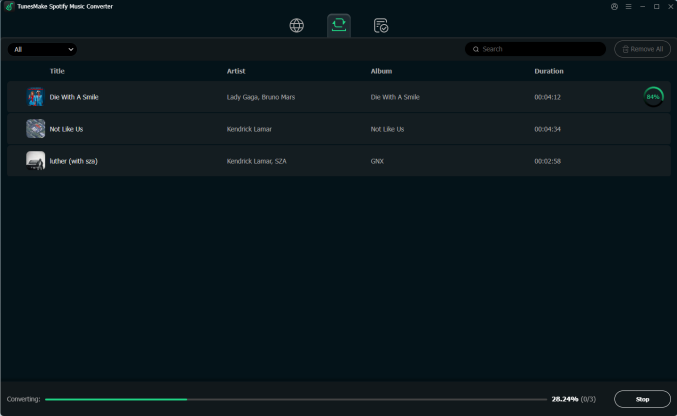
To download Spotify music, click the Convert button in the bottom right corner. TunesMake lets you specify which storage location you want for downloads, but it defaults to the storage folder if you don't specify in advance. Once downloaded, all Spotify content will appear in the Converted section. Then click the Converted icon to browse your downloaded playlist.
Step 4 Go to Play Spotify Music on PS5
After completing the downloading, you could prepare to save your downloaded Spotify music to your USB flash drive and play Spotify music on PlayStation 5 offline.
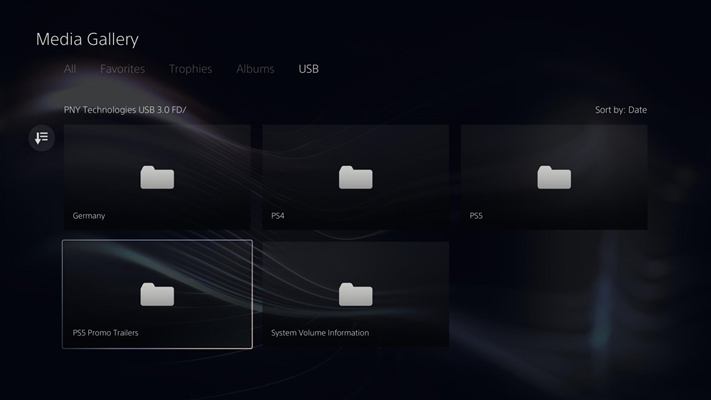
1. Insert a USB flash drive into your PC or Mac.
2. Create a folder named Music in the root directory of the USB drive.
3. Copy your MP3, FLAC, or WAV files into the Music folder.
4. Plug the USB drive into one of the USB ports on your PS5.
5. Press the PS Button on your controller to open the Control Center.
6. Select Music, then USB Music Player in the content area.
7. Select your tracks or folder to start background audio playback during gameplay.
Part 4. Troubleshooting Spotify Not Working on PS5
If Spotify is stuck, crashing, or refusing to play on your PS5, working through troubleshooting steps systematically will resolve the issue.
Solution 1. Force Close the Spotify App
A frozen app or endless loading screen often requires a quick app restart to fix the issues.
Step 1. Return to the PS5 Home Screen and select the Media tab.
Step 2. Highlight Spotify and press the Options button on your controller.
Step 3. Select Close App.
Step 4. Wait 10–15 seconds, then relaunch Spotify.
Solution 2. Unlink and Relink Spotify
Account sync errors between PlayStation and Spotify cause common playback and login glitches.
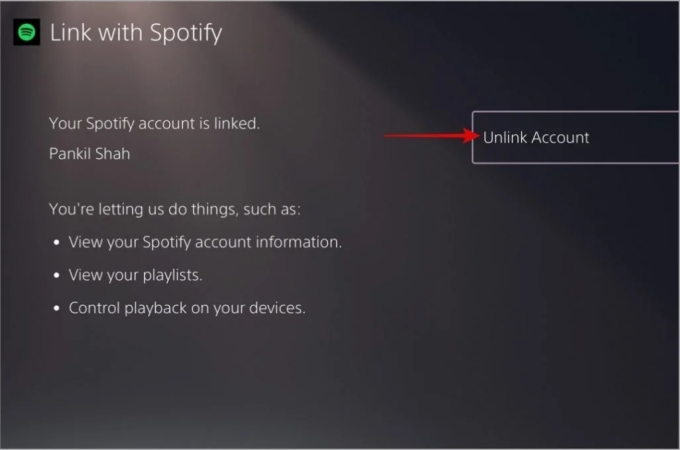
Step 1. Go to Settings on your PS5.
Step 2. Select Users and Accounts > Linked Services.
Step 3. Choose Spotify and select Unlink.
Step 4. Restart your PS5.
Step 5. Go back to Linked Services or open Spotify to sign back in.
Solution 3. Reinstall the Spotify App
If app files are corrupted, deleting and reinstalling Spotify clears the app cache completely.
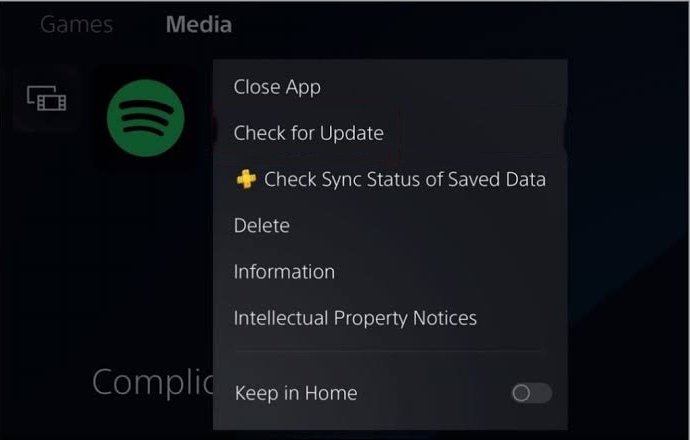
Step 1. Go to Settings > Storage > Console Storage > Games and Apps.
Step 2. Find Spotify, select it, and choose Delete.
Step 3. Turn off your PS5 completely.
Step 4. Unplug the power cable for 30 seconds to flush temporary cache files.
Step 5. Reconnect power and turn on the console.
Step 6. Download Spotify from the PlayStation Store, and log in.
Solution 4. Update Console System Software
Outdated system software can trigger compatibility conflicts with media apps.
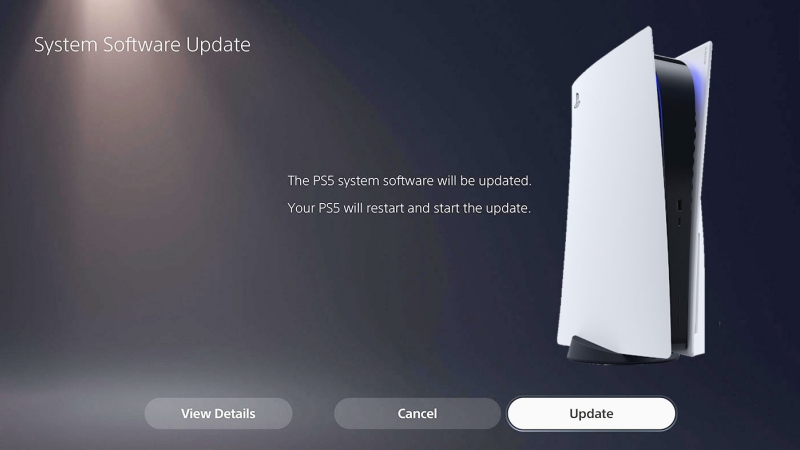
Step 1. Go to Settings > System > System Software.
Step 2. Select System Software Update and Settings.
Step 3. Select Update System Software if a new version is available.
Solution 5. Reset Your PlayStation Console
Resetting the system software can help eliminate any remaining bugs or errors.
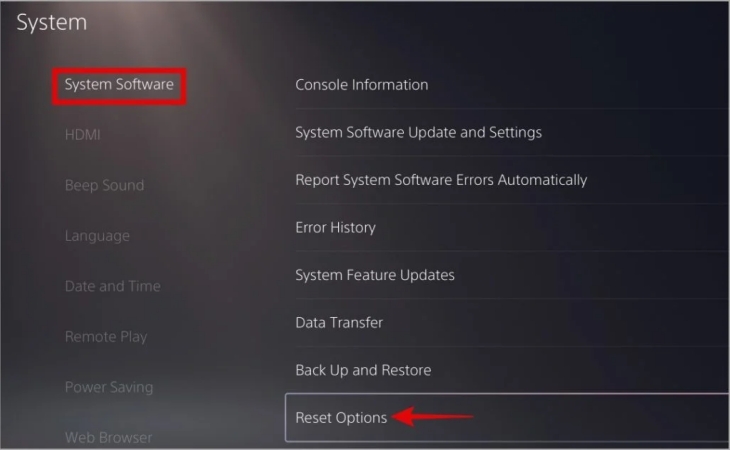
Step 1. Open your PS5 console and go to Settings.
Step 2. Scroll down to choose System.
Step 3. Choose System Software > Reset Options > Reset Your Console.
Part 5. FAQs about Spotify on PS5
Does Spotify on PS5 have ads?
Yes, Spotify on PS5 has ads if you use a Spotify Free account. Audio advertisements play every 15–30 minutes between tracks. These ads play through your headset or TV speakers, even while you are actively playing a game in the background. With Spotify Premium, streaming on PS5 is completely ad-free.
How to unlink Spotify from PS5?
Unlinking Spotify from your PlayStation 5 takes less than a minute, whether you do it directly on your console or through a web browser.
Method 1: Directly on the PS5
Step 1. Go to Settings in the top-right corner of the PS5 home screen.
Step 2. Select Users and Accounts.
Step 3. Choose Linked Services.
Step 4. Select Spotify from the list.
Step 5. Click Unlink Account and confirm by selecting Yes, Unlink.
Method 2: Remotely via Web Browser
Step 1. Go to spotify.com/account on a phone or computer and sign in.
Step 2. Navigate to Manage Apps or Apps.
Step 3. Find PlayStation and click Remove Access.
How to make Spotify louder on PS5?
To make Spotify louder on your PS5, you can drag the volume slider in the PS5 specifically for background music. If the console slider is maxed out and the music still feels quiet, control it directly from your mobile device.
Part 6. Conclusion
Streaming Spotify on your PlayStation 5 is one of the easiest ways to elevate your gaming setup. Whether you link your account via the Media tab, control playback on the fly using Spotify Connect on your phone, or fine-tune the DualSense volume mixer to match your game's sound effects, setting up custom audio takes only a couple of minutes. For players who want to save bandwidth or enjoy offline music during network outages, save Spotify music to a USB drive using TunesMake offers a dependable alternative. Configure your setup today and enjoy the ultimate background soundtrack for every gaming session!
Related Articles



A senior editor from TunesMake, dedicated to sharing professional tutorials and solutions of software, movies, and music.
- 1
- 2
- 3
- 4
- 5
- 6
- 7
 Leave Your Comment
(0)
Leave Your Comment
(0)

 Download Center

