








 Store
Store


I’m using Samsung Smart TV UA32N4300 and Spotify app worked fine on my TV but since the last update (26 May 2021) Spotify not working properly on my TV. When I go onto it, it just freezes on a screen with the Spotify logo or nothing loads. The other app worked so fine on my TV, just Spotify that have issue. Might anyone know how to solve??
-- From RedditIn catering to the public’s needs, Spotify has now integrated with many devices such as smart TVs, smart watches, Bluetooth speakers, and so on. You’re not limited to enjoying them only on your phone or computer. It’s more convenient to play Spotify on larger screens like a Samsung Smart TV. However, many people have complained about the issue of Spotify not working on Samsung TV, just like the situation I shared above. If you’re going through this issue right now, then read this post carefully as I’ll share the best and most effective 10 solutions to help. Besides, you will learn the ultimate method to enjoy your favorite Spotify music offline on any device without hassle. Let’s explore them together.
Part 1. Why Is Spotify Not Working on Samsung TV?
When the problem arises, people will certainly ask what caused Spotify not to work on Samsung smart TVs. The reason why this happens is various. To fix this issue quickly, you’d better understand the primary reasons why it occurs. Based on our experience troubleshooting smart device issues, the causes can be grouped into three main categories:
1. Network and Connectivity Problems
Spotify is a streaming service, which means it requires a strong and stable network connection. If there is an unstable Wi-Fi signal or router glitch, your TV may not maintain the data flow needed for music streaming.
2. App or TV System Problems
A corrupted cache or date within the Spotify app or your Samsung TV can both cause the app to freeze, crash, or loop. Also, the outdated Spotify app version or the outdated Samsung TV firmware can easily to cause compatibility conflicts.
3. Account or Login Errors
Instead of the hardware and the network, sometimes the issue lies with the specific account. If you hit the Spotify limit of simultaneous streams, the TV app may fail to play music. Additionally, a temporary error in the login token or password credentials saved on the TV can prevent the app from working properly.
Part 2. How to Fix Spotify Not Working on Samsung TV
Now that you understand the root causes, it's time to apply the necessary fixes. These solutions are arranged logically, starting with the simplest checks and progressing to more involved troubleshooting steps. Try them one by one to get your Spotify up and running again. If you want to save time and fix this issue once and for all, we recommend you jump to the next part and try the ultimate fix directly.
Solution 1. Verify Your Internet Connection
Poor Internet connection is the most frequent cause of Spotify not working on Samsung TV, so it’s always a good idea to check your network connection first. You can check the run a network test on your Samsung TV’s Settings > General > Network > Network Status. If the connection is unstable, try restarting your router or connecting via Ethernet.
Solution 2. Check the Spotify Server Status
In rare cases, the problem isn’t your end. If Spotify is down, you won’t be able to use the app for music streaming on any device. To see if Spotify is down, you can check its official X or Facebook accounts or utilize third-party websites like DownDetector. When the server is down, you just simply need to wait until Spotify’s engineering team fixes it.
Solution 3. Check The Subscription Status of Your Spotify Account
If you are using Spotify Premium, ensure your subscription is active, and there is nothing wrong with your payment on the account. Once it expires or is downgraded to free, it may stop you from using Spotify on Samsung TV. And there’s one thing that many people ignored - the billing status of your subscription to Spotify. Therefore, you must ensure that Spotify has deducted the subscription fee from your billing account. The process to subscribe to Spotify is not successful until this payment was made. To check it, you’ll need a computer, then do as follows:
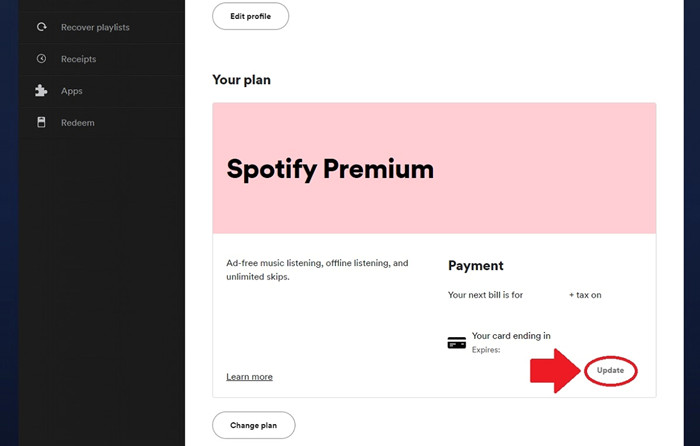
1. Visit open.spotify.com from any browser and log into your subscription account.
2. Once logged in, click on Profile at the top-right corner.
3. From the drop-down menu, select Account to enter the Spotify account settings.
4. Scroll down and find Your Plan details. Here you can see if your subscription fee is deducted or not.
5. If you’d like to change the billing information, you can click Update from the current page, then enter your account details. After that, scroll down and click on Change Payment Details to confirm your action.
Solution 4. Check All Your Spotify-logged Devices
We all know that Spotify allows you to play tracks on multiple devices and you can also connect and control your playback on other devices. But remember, you cannot play the same song on more than one device. When you find that your Spotify app not working on your Samsung TV, then go and check your devices on Spotify. Here’re the steps:
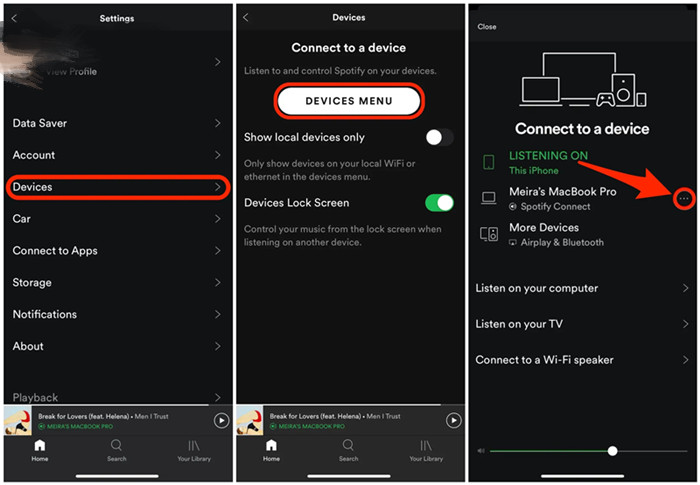
1. Launch the Spotify app on your iPhone or Android phone.
2. Log into your account and go to Settings at the top right corner.
3. From the list of options, select Devices.
4. Tap on the Device Menu option and select the device that you want to remove from the Other Devices list.
5. Select the three dots next to the device name and then tap on Forget Device to remove.
Solution 5. Update the Spotify App
Another important thing is that you should keep an eye on the Spotify update and stay updated to avoid similar mistakes or bugs appearing. A simple way to enable the apps on Samsung TV to the latest version is to set them to update automatically. In this way will Samsung TV detect the software and download the newly-released version for the apps and you don’t need to worry about the updates anymore. To set so, do as follows:
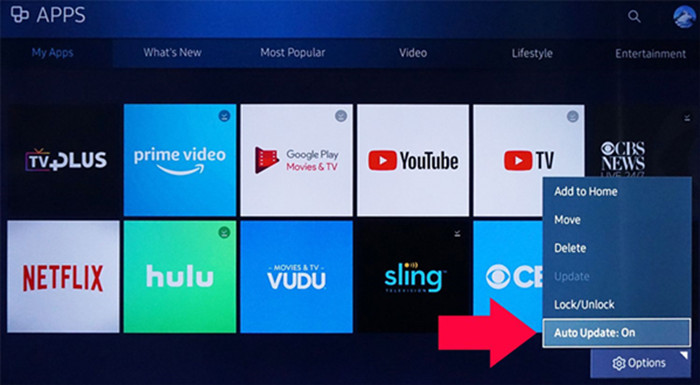
1. Press the Home button or Smart Hub on your remote control.
2. Select Apps from the menu and go to My Apps.
3. Navigate to Options and find the Auto Update option.
4. Toggle the switch button on to enable them to update automatically.
And now if you haven’t updated the app for a long time, you may need to update it manually. Go to My Apps as above and look to the top menu. You can see an update box with several apps inside from Options. Click it and you’ll enter the update box. Here you can select Spotify to allow your TV to update if there is one available.
Solution 6. Uninstall and Reinstall Spotify on Samsung TV
It’s surprising how a simple reinstall will do such a difference on your device or app. As the software system or app are all well-established and fully tested before release, this is rare to meet tricky problems which stop you from using it. Even though, there are still some bugs or mistakes that come out while using Spotify on Samsung TV. In this case, a quick fix is to just reinstall it. To restart your Spotify app, check the below steps:
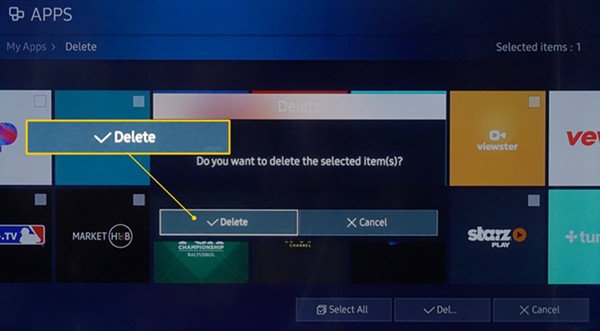
1. Go to the Home screen on your Samsung TV and go to the Apps section
2. Select the Spotify app under My Apps and select Uninstall/Delete to delete the app.
3. Go to Samsung Apps and search for “Spotify”. You’ll also find it under search-friendly categories, such as Lifestyle or Music.
4. Locate the Spotify app and select Download.
Solution 7. Update the Samsung TV Software
Besides updating the Spotify app, it’s necessary to check the system update on your Samsung TV, too. And some features will need such an update to resolve the performance issues and errors. Most importantly, you need to update to the latest version of your TV, otherwise, you won’t get access to the brand-new Smart Hub, which is required to update certain apps including Spotify. Luckily, most Samsung TV models allow you to get updated from the TV online. Here’s a simple guide below.
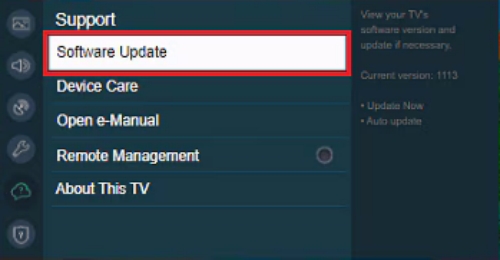
1. Turn on your TV and select Settings.
2. Select Support > Software Update.
3. Select “Update Now” if there is an update available.
After getting updated for your Spotify app and Samsung TV, the integration of Spotify Samsung TV will work well as usual.
Solution 8. Clear Spotify App Cache
Clearing app caches is also a good way to help the Spotify app work well and better on Samsung TVs. Since the procedures on Samsung Smart TV varies from model to model, here I just show you how to clear the app cache on the Samsung TV produced in 2020 or above.
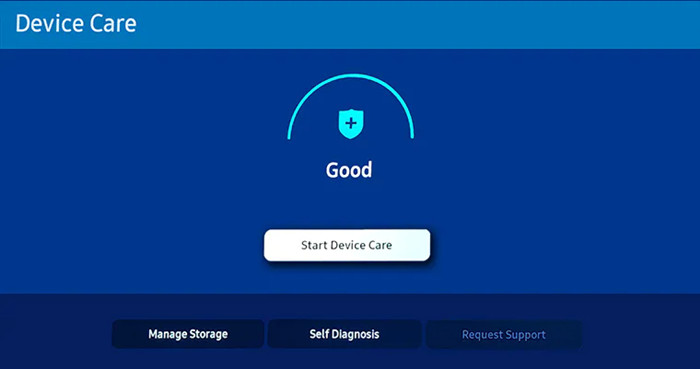
1. Turn on your Samsung TV and press the Home button on the remote control.
2. Go to Settings > Device Care and select Manage Storage.
3. Now select the Spotify app and choose View Details > Clear Cache.
4. Once cleaned up, select Close.
Now you’ve cleared all your Spotify caches, the possible issuing factors are all deleted within the files.
Solution 9. Cold Boot Your Samsung TV
A cold boot, often called a hard reset, can clear the TV’s short-term memory, refresh the TV system, and fix lingering software glitches.
1. Turn off your Samsung TV via your remote control.
2. Then, unplug the TV from the wall outlet or surge protector. You should keep it unplugged for at least 30 seconds.
3. Now, plug it back in and open your TV to check whether Spotify is working.
Part 3. Ultimate Fix: Play Spotify on Samsung TV Offline via USB
The methods I listed above are indeed good workarounds for you to solve your problems, but they work temporarily, which means Spotify not working on the Samsung issue may happen next time. Thus, we recommend you use a once-and-for-all method to remove the troubles and clear these unexpected errors away. That is to download Spotify songs as local files and play them on your Samsung TV via a USB drive. Through doing so, you can enjoy your Spotify music anytime, even without the Spotify app. TunesMake Spotify Music Converter is your best helper to do so.
TunesMake Spotify Music Converter is a professional and effective software that aims to bring convenience for people to enjoy Spotify music everywhere. It helps you remove the DRM protection format on Spotify music and download tracks from Spotify to MP3, FLAC, WAV, etc. Plus, the original music quality and ID3 tags will be lossless retained, which means you can enjoy the same streaming quality as on the Spotify app. Meanwhile, after the conversion, you can stream them on any compatible device without limits.

TunesMake Spotify Music Converter –
Download and Convert Spotify Songs to Local Files
- Unlimitedly download Spotify songs, playlists, and podcasts
- Losslessly convert Spotify music to FLAC, MP3, WAV, AIFF, etc.
- Remove ads from Spotify music tracks even with Free accounts
- Convert Spotify songs at 12X faster speed with ID3 tags kept
Security Verified. 100% Clean & Safe.
In Conclusion
When you come down with the issue of Spotify not working Samsung TV, don’t panic. This post offers several effective methods listed above. And to enable you to get rid of these errors forever, TunesMake Spotify Music Converter is recommended! Click the download link above and save your favorite music locally for unlimited offline playback. I dare say it is worthy enough. If you find this article helpful, share it with your friends.
Related Articles



A senior editor from TunesMake, dedicated to sharing professional tutorials and solutions of software, movies, and music.
- 1
- 2
- 3
- 4
- 5
- 6
- 7
 Leave Your Comment
(0)
Leave Your Comment
(0)

 Download Center

