








 Store
Store


Listening to your favorite playlists, podcasts, and albums through your Samsung Smart TV turns your living room into a complete audio hub. Whether you want background music for hosting friends or want to browse custom TV-optimized interfaces on a bigger display, setting up Spotify on Samsung TV takes only a few minutes. This complete guide walks you through every method to play Spotify on Samsung TV, alternative streaming solutions for older models, and instant fixes if your app freezes or refuses to load.

Part 1. How to Download and Play Spotify to Samsung TV
The most convenient way to enjoy music is by downloading the Spotify app directly to your Smart TV. Like other TV integration, you can easily get the Spotify app from the Samsung TV screen to access your music library. Most modern Samsung TVs support the Spotify app, but availability depends on your TV's operating system and production year.
-
Supported Models (2015 and Newer): All Samsung Smart TVs powered by Tizen OS support the official Spotify app available in the Samsung App Store.
-
Older Models (2012–2014): Samsung Smart TVs running older Orsay OS software no longer support updates for the Spotify app.
If your Samsung TV was purchased after 2015, you can install the official Spotify app directly from your TV's app hub. If you have an older model, you can still easily cast or stream Spotify using alternative methods detailed below. Now follow the simple steps below to install and use the Spotify app on a Samsung smart TV.
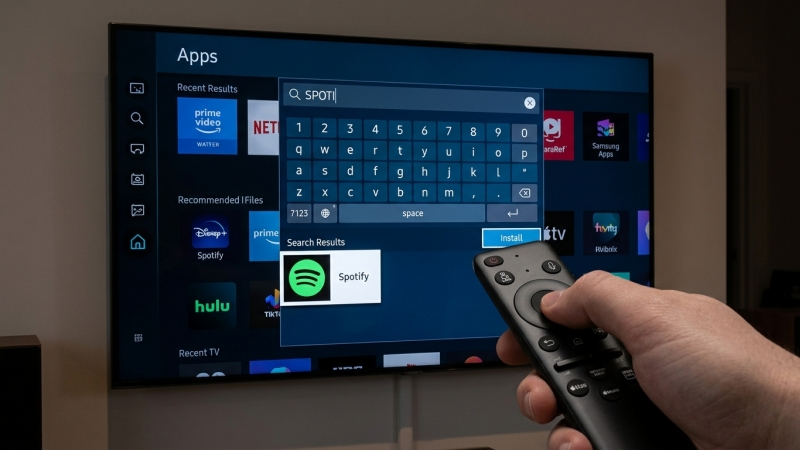
Step 1. Press the Home or Smart Hub button on your Samsung TV remote.
Step 2. Navigate to and select Apps represented by a four-tile icon.
Step 3. Select the Search icon in the top-right corner.
Step 4. Type Spotify into the search bar.
Step 5. Select the official Spotify app from the results and click Install.
Once installed, you can open the the Spotify app on your Samsung smart TV. Spotify offers two simple logging-in options.
Option 1: Web Activation Code
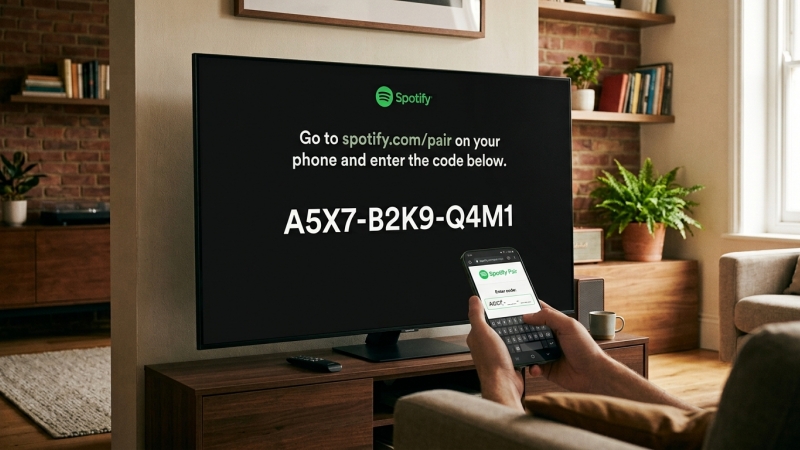
Step 1. Select Log in with PIN on your TV screen to generate a unique activation code.
Step 2. Open a web browser on your phone or PC and visit spotify.com/pair.
Step 3. Sign in to your Spotify account and enter the code displayed on your TV screen.
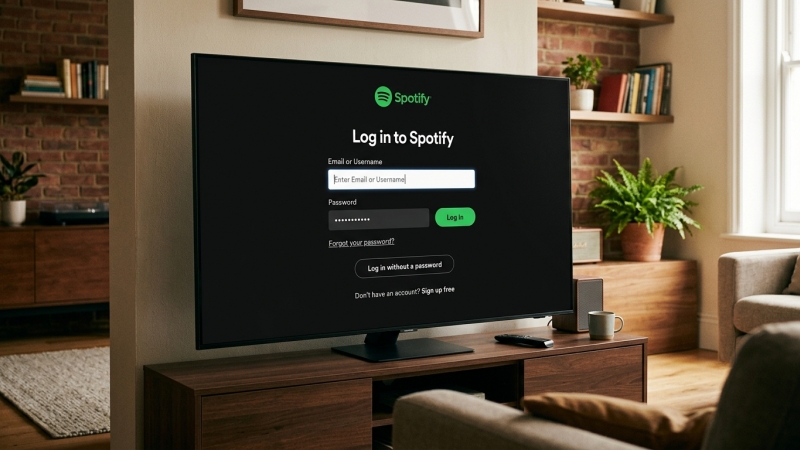
Option 2: Manual Login
Select Log In on your TV screen and use your remote to enter your Spotify account email and password directly.
Part 2. How to Cast Spotify to Samsung TV without the App
If your Samsung TV is an older model, or if you prefer controlling playback from your mobile device without navigating TV menus, you can stream audio wirelessly. Here’s how to cast Spotify to Samsung TV without installing the Spotify app.
Option 1. Use Spotify Connect (All Devices)
Spotify Connect is a unique feature that works over WiFi. It is compatible with all Game Consoles, smart watches, smart TVs, and much more, so you can cast Spotify music to those devices.
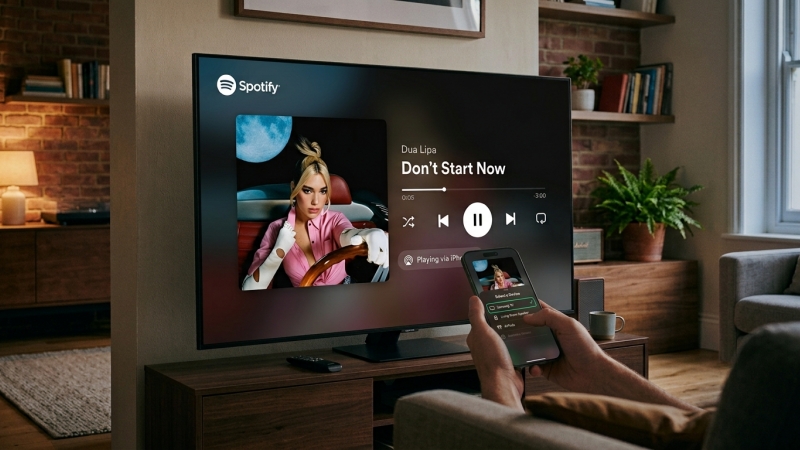
Step 1. Open the Spotify app on your device connected to the same Wi-Fi network as your TV.
Step 2. Start playing any track.
Step 3. Tap the Devices icon in the lower-left corner of the screen.
Step 4. Select your Samsung TV from the list of available devices.
Option 2. Use Apple AirPlay 2 (Apple Devices)
Modern Samsung TVs released from 2018 and onward support Apple AirPlay 2. Apple AirPlay enables you to cast Spotify music played on your iPhone, iPad, or Mac to a Samsung smart TV.
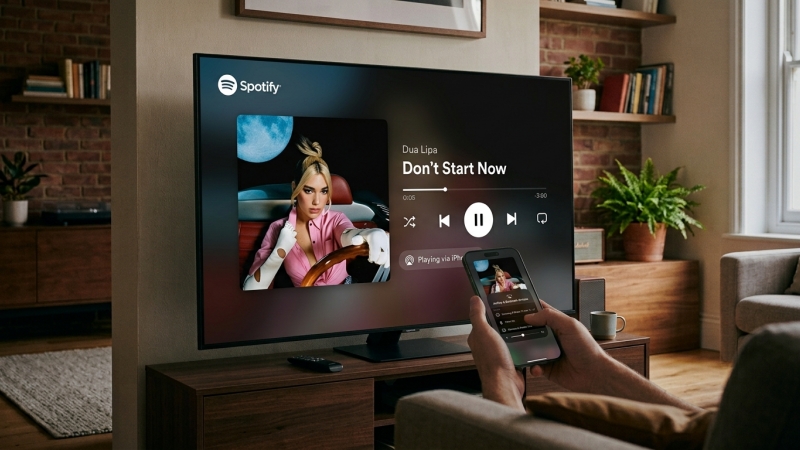
Step 1. Ensure both your Apple device and Samsung TV are on the same Wi-Fi network.
Step 2. Open Spotify on your iOS device and start playing audio.
Step 3. Tap the Devices icon and select AirPlay or Bluetooth devices.
Step 4. Choose your Samsung TV from the menu.
Option 3. Use Google Chromecast (Desktop Devices)
Most Samsung smart TVs, especially models from 2020 and onward, support Chromecast. If your Samsung TV has a built-in Chromecast, you can cast Spotify music directly from your device.
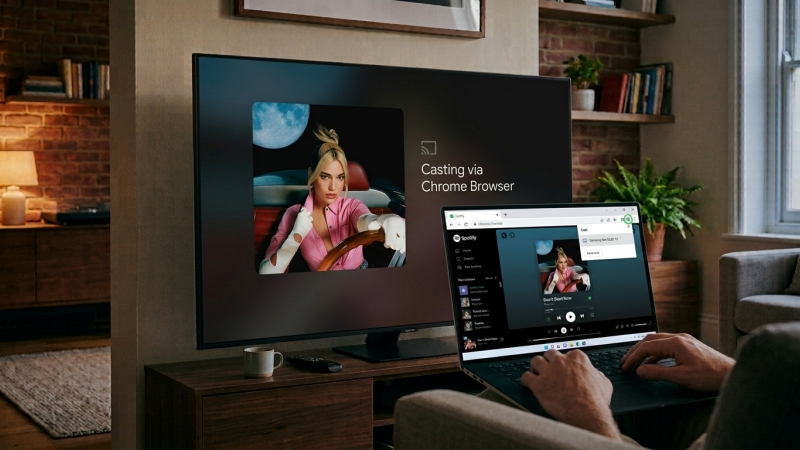
Step 1. Make sure that both your computer and Samsung TV are connected to the same WiFi network.
Step 2. Open a Chrome browser on your computer and navigate to the Spotify web player.
Step 3. Pick a song, an album, or a playlist you like to play.
Step 4. Click the three dots icon in the upper right and select Cast.
Step 5. Choose your Samsung TV from the available devices list.
Option 4. Use Screen Mirror (Android Devices)
Screen mirroring your Android device to a Samsung smart TV is another feasible way. This feature casts the Spotify content from your Android device to the TV in real time.
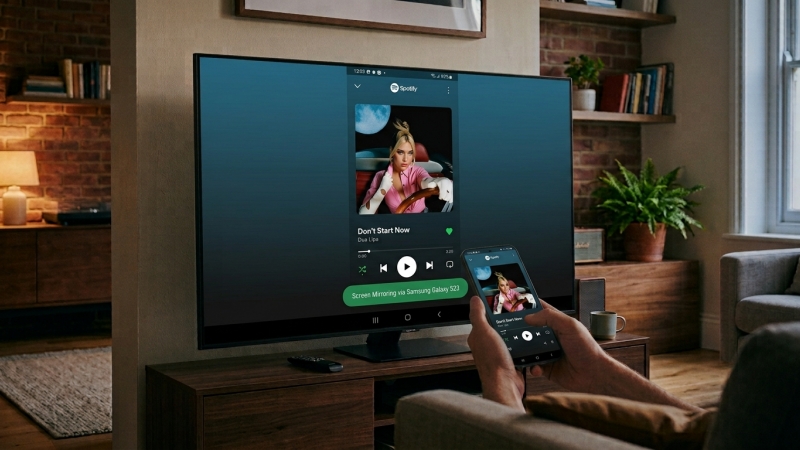
Step 1. Swipe down on your Android smartphone to access the Quick Settings panel.
Step 2. Tap Smart View or Screen Mirroring depending on your phone brand.
Step 3. Select your Samsung TV to mirror your phone screen.
Step 4. Open the Spotify app and sign in to your account.
Step 5. Play a song, an album, or a playlist from your music library.
Part 3. Best Way to Get Offline Spotify on Samsung Smart TV
If your Samsung smart TV lacks internet connectivity, suffers from weak Wi-Fi signals, or runs an unsupported operating system, downloading and installing the Spotify app may not be feasible. In these scenarios, playing local audio files directly from a USB drive via your TV’s built-in media player provides a reliable offline alternative.
Because Spotify streams encrypted OGG Vorbis audio that cannot be directly saved to a USB drive for TV playback, TunesMake Spotify Music Converter can help break the limitation. It is a professional and trustworthy converting tool for all Spotify users. With it, you can remove Spotify DRM and download Spotify Music in MP3, AIFF, WAV, FLAC, M4A, and M4B, making it possible to stream Spotify music whenever and wherever you want.

TunesMake Spotify Music Converter –
Download music from Spotify without premium
- Download Spotify songs, albums, playlists, audiobooks, and podcasts
- Losslessly convert Spotify music to MP3, FLAC, WAV, AIFF, and more
- Remove ads from Spotify music tracks even with a Free account
- Convert Spotify music at 15× faster speed in batch with ID3 tags kept
Security Verified. 100% Clean & Safe.
Step 1 Select and Add Spotify Music to Download
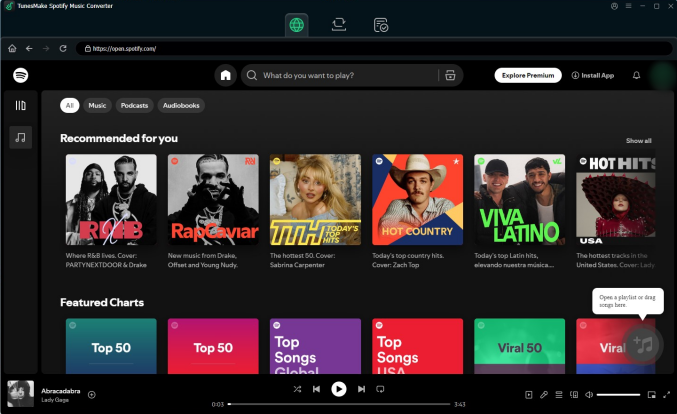
Launch TunesMake Spotify Music Converter on your computer and wait for the built-in Spotify web player to open. Then go to your Library in Spotify and find the music that you want to play on your Samsung TV. Click the + button to add them into the conversion list or drag and drop them into the conversion window.
Step 2 Set the Parameters for Spotify Music
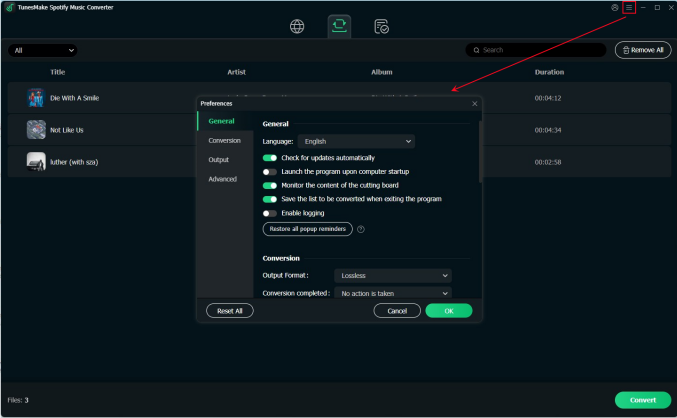
Now feel free to customize your parameters. Navigate to the menu option > Preferences > Conversion and then set your preferences as desired. These include the bit rate, output format, sample rate, and channel. To put Spotify music on your Samsung TV for listening, just leave the default MP3 format.
Step 3 Convert Spotify Music for Samsung TV
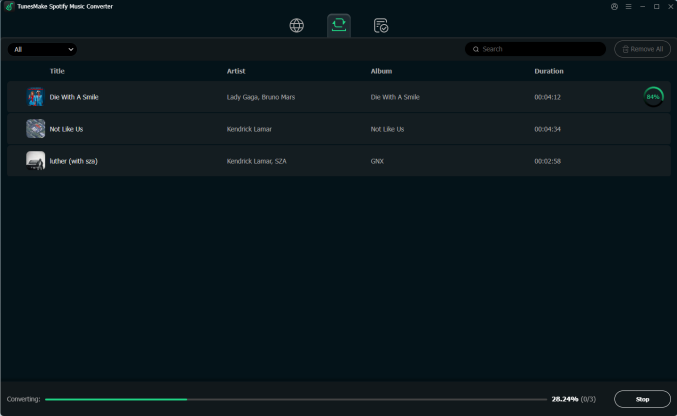
At this point, your parameters have to be on point. If so, click the Convert button at the bottom right corner. All your selected Spotify music will immediately be saved in local MP3 files. Simply browse the converted Spotify music in the history folder by clicking the Converted button and locate the folder for saving Spotify music.
Step 4 Listen to Spotify on Samsung TV
To listen to your local audio files on your Samsung TV, you have to move all converted Spotify music to a USB drive from the computer first. Then let your TV read the USB flash drive, and you can play local audio files stored in the drive on your TV.
1) Connect a USB drive to your computer and move the Spotify music files to the USB storage.
2) Once the transfer is done, plug the USB drive into the TV's USB port.
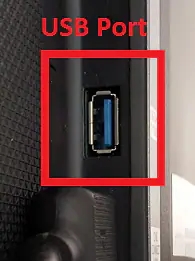
3) Press the Home button on your remote and navigate to Source.
4) Select USB Drive on the screen and browse files stored on your USB drive.
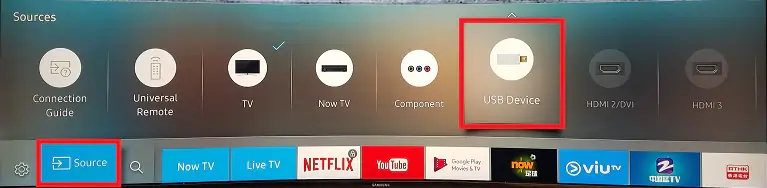
5) Select the music file you want to play on your TV.
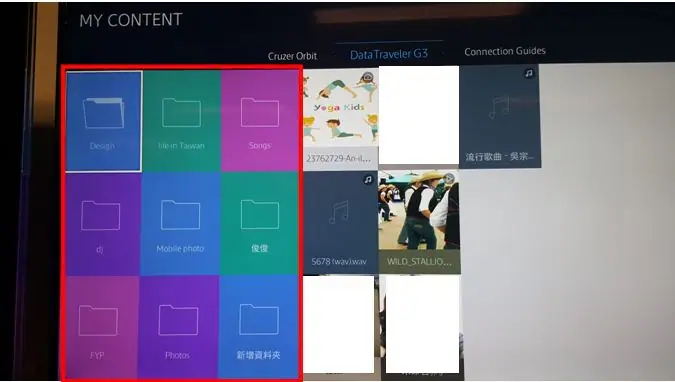
6) Press the Enter button to open the control panel for controlling the playback.

Part 4. Troubleshooting Spotify Not Working on Samsung TV
If the Spotify app gets stuck on a black loading screen, crashes, or produces no sound, you can use these proven troubleshooting steps.
Fix 1: Perform a Hard Reset on a Samsung TV
-
Use the Remote: Press and hold the Power button on your Samsung TV remote for about 5 seconds until the TV turns off and turns back on with the Samsung logo screen.
-
Unplug Method: Unplug your Samsung TV from the wall outlet, wait 60 seconds, and plug it back in.
Fix 2: Clear Spotify App Cache and Data
Step 1. Press the Home button on your remote and go to Settings.
Step 2. Go to Support > Device Care > Manage Storage.
Step 3. Locate the Spotify app, press View Details, and select Clear Cache and Clear Data.
Fix 3: Reinstall the Spotify App
Step 1. Go to Apps > Settings.
Step 2. Find Spotify, select it, and click Delete.
Step 3. Turn off your TV and turn it on again.
Step 4. Re-open the Apps store and reinstall Spotify.
Fix 4: Update Samsung TV Firmware
Step 1. Go to Settings > Support > Software Update.
Step 2. Select Update Now to install available Tizen OS updates.
Fix 5: Reset Samsung Smart Hub Settings
Step 1. Navigate to Settings > Support > Device Care > Self Diagnosis.
Step 2. Select Reset Smart Hub.
Step 3. Enter your TV PIN and complete the network reset.
Part 5. FAQs about Spotify and Samsung TV
Is Spotify free on Samsung Smart TV?
Yes, Spotify is completely free to install and use on Samsung Smart TVs. Free users can listen to ad-supported music and playlists, while Premium subscribers enjoy ad-free playback, unlimited skips, and higher audio quality.
Can I play Spotify on Samsung TV in the background?
No, Tizen OS does not support multi-tasking audio for third-party music apps. Closing the Spotify app or opening another app on your Samsung TV will pause audio playback.
Why is Spotify not showing up in my Samsung TV App Store?
If Spotify does not appear in your app search, your TV model year may be pre-2015, your region/country setting in Smart Hub might be restricted, or your TV OS requires a system update.
Part 6. Conclusion
Playing Spotify on your Samsung TV transforms your home setup into a versatile audio hub, whether you are hosting a party or relaxing with your favorite playlists. Modern Tizen OS models make setup effortless via the Smart Hub app and convenient login features like Spotify Connect or web activation.
Even if you own an older Samsung TV or encounter a weak network connection, workaround solutions such as AirPlay 2 or playing local Spotify MP3 files via a USB drive, ensure you never miss a beat. Should the app freeze or fail to load, quick troubleshooting steps like a TV Cold Boot or clearing the app cache will get your playback back on track in minutes. Pick the method that fits your TV model and start enjoying high-quality music on the big screen today!
Related Articles

A senior editor from TunesMake, dedicated to sharing professional tutorials and solutions of software, movies, and music.
- 1
- 2
- 3
- 4
- 5
- 6
- 7
 Leave Your Comment
(0)
Leave Your Comment
(0)

 Download Center

