








 Store
Store


Few things are more frustrating than your audio unexpectedly taking over. Whether Spotify keeps queuing up random songs after your favorite album ends, automatically blasts music the moment you start your car, or boots up silently on your computer, unwanted auto-play disrupts your listening experience and drains both mobile data and battery life. This comprehensive guide walks you through every verified method to stop Spotify from automatically playing across iPhone, Android, Windows, Mac, Apple CarPlay, and Android Auto.
Part 1. Why Does Spotify Keep Automatically Playing?
It is a common scenario: you finish listening to your favorite album, and Spotify immediately begins streaming unwanted, random tracks. Spotify usually plays music unexpectedly due to three distinct reasons.
Reason 1. In-App Autoplay Feature
Spotify includes a built-in feature called "Autoplay" designed to keep audio streaming continuously by playing recommended tracks once your chosen playlist, album, or queue ends.
Reason 2. Hardware & Bluetooth Auto-Resume Signals
Many Bluetooth headphones, car head units, and receiver systems automatically issue an electronic "Play" command the moment a connection is established.
Reason 3. Startup & Boot Launch Settings
Desktop applications are frequently configured by default to launch upon logging into Windows or macOS, initiating background sessions automatically.
Part 2. How to Turn Off In-App Spotify Autoplay across Devices
Spotify features a built-in setting called Autoplay. When enabled, Spotify's recommendation algorithm automatically streams similar tracks indefinitely once your selected album, playlist, or single finishes. Disabling this setting directly inside the Spotify app stops endless background streaming. Here is how to turn off Autoplay on Spotify across devices.
How to Turn Off Autoplay on Mobile (iPhone & Android)
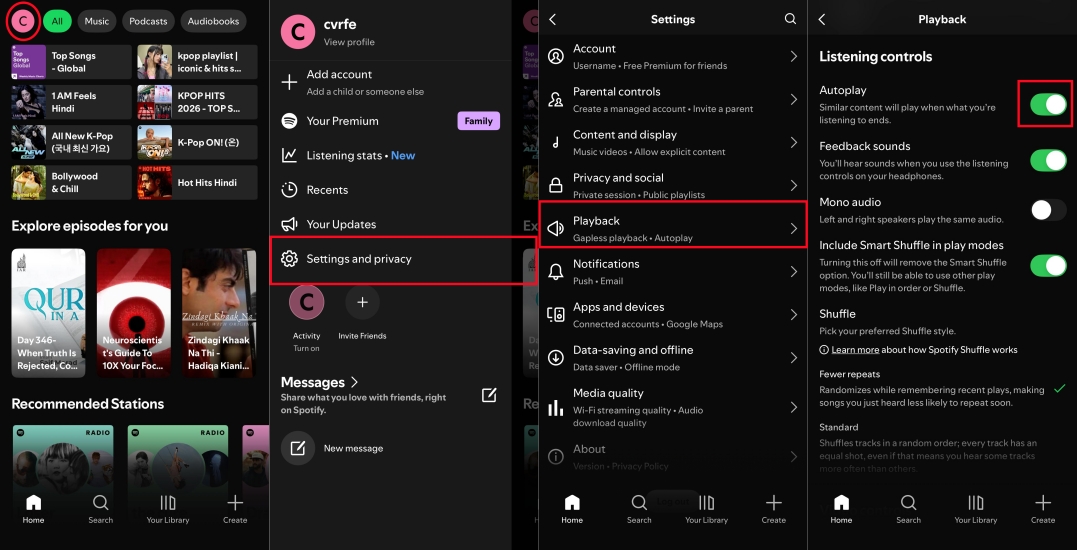
Step 1. Open the Spotify app on your mobile device.
Step 2. Tap your profile picture or the Gear icon in the top left corner.
Step 3. Tap Settings and privacy, then select Playback from the menu options.
Step 4. Scroll down to find Autoplay and toggle the switch to the OFF position.
How to Turn Off Autoplay on Desktop (Windows & Mac)
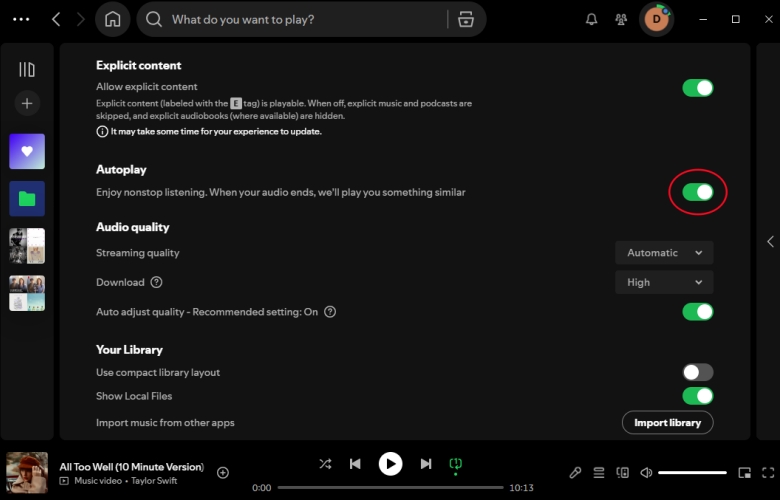
Step 1. Launch the Spotify app on your Windows PC or Mac.
Step 2. Click your profile picture in the top right corner and select Settings.
Step 3. Scroll down until you see the Autoplay section.
Step 4. Toggle the switch to Autoplay OFF.
Alternative Fix: Play Local Audio Files to Bypass Autoplay Glitches Completely
In some cases, app updates or server sync glitches cause Spotify to ignore the in-app Autoplay toggle and continuously force recommended streams. If you want complete control over your music library without relying on Spotify's cloud streaming player, converting your favorite Spotify tracks into DRM-free local files provides a reliable workaround.
Using a utility like TunesMake Spotify Music Converter, you can download playlists, albums, or podcasts into standard audio formats like MP3, FLAC, or WAV. Converted Spotify songs can be played through standard media players like Apple Music, VLC, or Windows Media Player that do not feature algorithmic auto-queuing.

TunesMake Spotify Music Converter –
Download music from Spotify without premium
- Download Spotify songs, albums, playlists, audiobooks, and podcasts
- Losslessly convert Spotify music to MP3, FLAC, WAV, AIFF, and more
- Remove ads from Spotify music tracks even with a Free account
- Convert Spotify music at 15× faster speed in batch with ID3 tags kept
Security Verified. 100% Clean & Safe.
Part 3. How to Stop Spotify from Automatically Playing in Car & Bluetooth
Even with in-app Autoplay disabled, many users report that Spotify automatically starts playing music the instant their phone connects to Bluetooth headphones or a car audio system. This happens because vehicle head units and Bluetooth devices send a hardware "Play" command upon establishing a connection.
Stop Spotify Auto-Play on Apple CarPlay & iOS Bluetooth
iOS does not feature a single toggle to prevent Bluetooth audio auto-resume, but you can prevent automatic Spotify playback using three effective workarounds.
Method 1. Turn Off Background App Refresh for Spotify
Preventing Spotify from running in the background stops it from reacting instantly to Bluetooth triggers. Go to turn off Background App Refresh for Spotify on iOS devices.
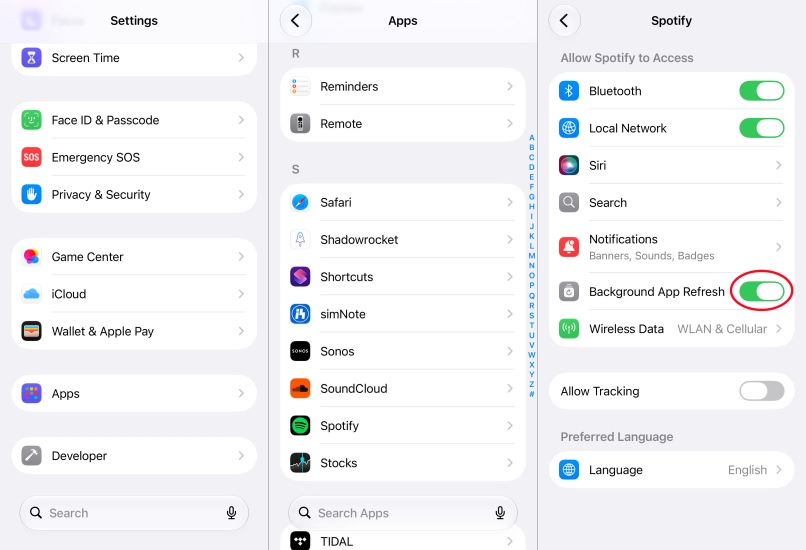
Step 1. Open the Settings app and tap Apps.
Step 2. Scroll down to find and tap Spotify.
Step 3. Toggle the switch next to Background App Refresh to OFF.
Method 2. Create an iOS Shortcut Automation
You can set up an automated rule in iOS to immediately pause media whenever your iPhone connects to your vehicle.
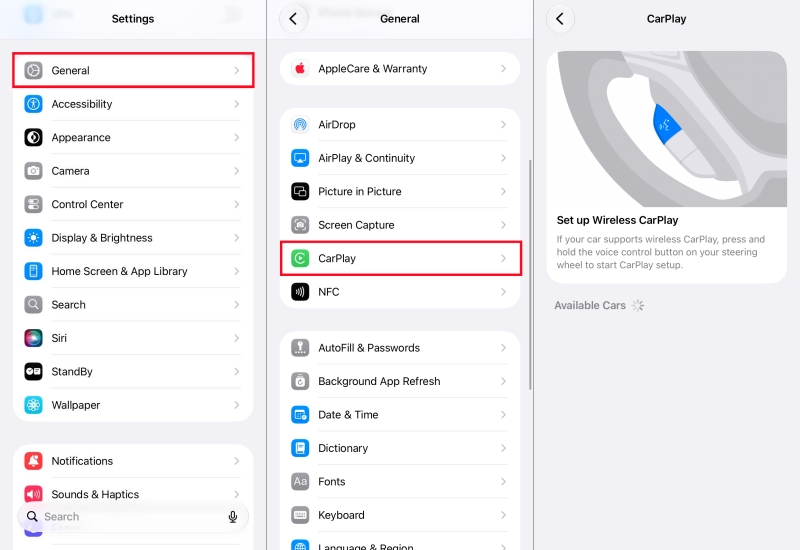
Step 1. Open the Shortcuts app on your iPhone and select the Automation tab at the bottom.
Step 2. Tap + or Create Personal Automation and select Bluetooth.
Step 3. Choose your vehicle's Bluetooth device and tap Done > Next.
Step 4. Add the action Play/Pause and set it to Pause.
Step 5. Turn off Ask Before Running and tap Done.
Method 3. Disable Automatic Car Play Settings
If you use Apple CarPlay to play your favorite music from Spotify in your car, you can disable automatic car play settings to stop Spotify autoplay in the car.
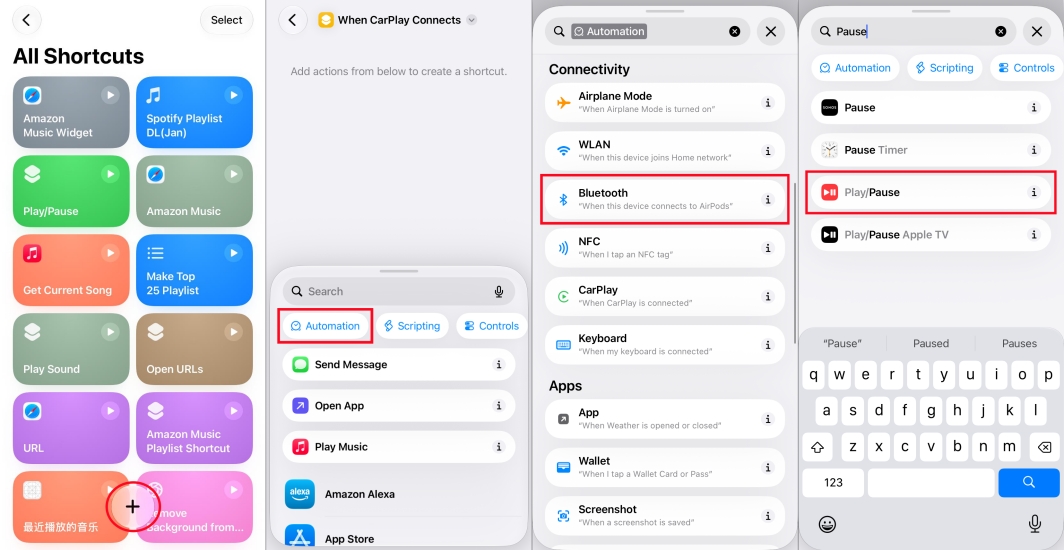
Step 1. Navigate to Settings > General > CarPlay on your iPhone.
Step 2. Select your vehicle.
Step 3. Ensure driving customizations do not auto-launch media apps.
Stop Spotify Auto-Play on Android Auto & Media Resumption
Android provides system-level options to halt auto-resume commands from Bluetooth devices and car systems.
Method 1. Disable Android Auto Auto-Start
Like Apple CarPlay, Android Auto is another option for Spotify users to play music in the car. To stop Spotify from automatically playing in the car, disable start music automatically.
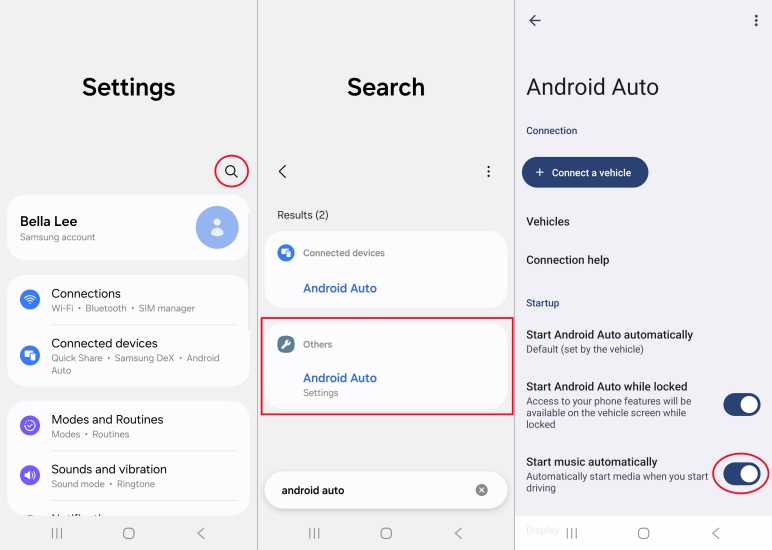
Step 1. Open your phone's Settings and search for Android Auto.
Step 2. Scroll down to the General section.
Step 3. Locate Start music automatically and toggle it OFF.
Method 2. Disable Media Resumption (Android 11+)
Disabling Resume Media can prevent Android from automatically reviving your last active media session when audio hardware connects.
Step 1. Open Settings > Sound & vibration or Media.
Step 2. Tap Media and disable Pin media-player or Resume media.
Method 3. Restrict Spotify Background Battery Usage
Restricting Background Battery Usage for Spotify can prevent Android from keeping it active in the background when not actively in use.
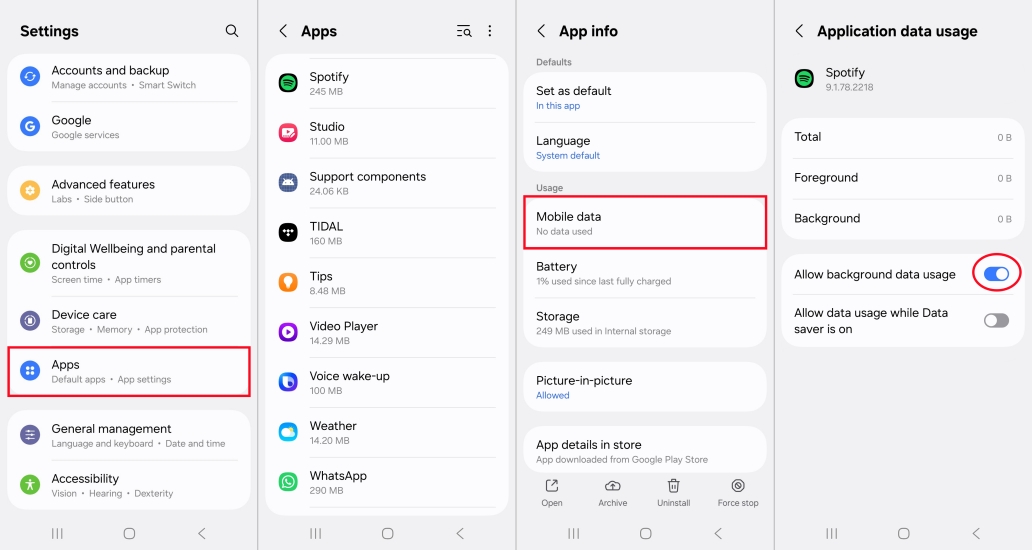
Step 1. Navigate to Settings > Apps > Spotify.
Step 2. Tap Battery and select Restricted.
Part 4. How to Stop Spotify from Auto-Starting on Computer Startup
When installed on Windows or macOS, Spotify defaults to launching automatically during system startup. This can slow down boot time and initiate silent background playback. To stop Spotify from automatically starting when the computer starts, you can perform the following steps.
On Windows:
Option 1. Change Spotify In-App Settings
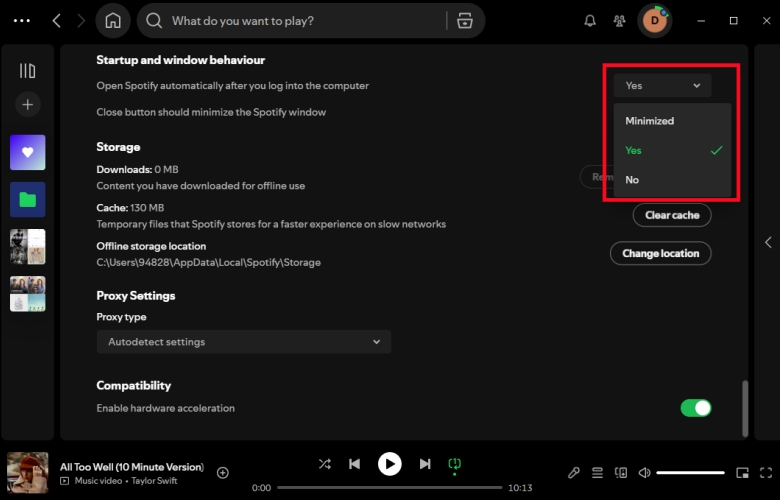
Step 1. Open the Spotify app and click the profile picture.
Step 2. Click Settings and scroll down to Startup and windows behavior.
Step 3. Next to Open Spotify automatically, click the drop-down menu and select No.
Option 2. Use Windows Task Manager
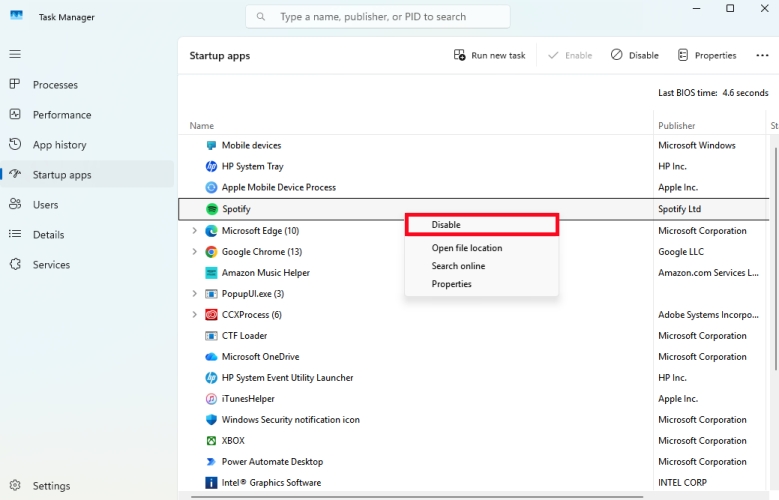
Step 1. Press Ctrl + Shift + Esc to open Task Manager.
Step 2. Navigate to the Startup apps tab or Startup.
Step 3. Right-click Spotify and select Disable.
On Mac:
Step 1. Open System Settings on your Mac.
Step 2. Click General > Login Items.
Step 3. Under Open at Login, locate Spotify.
Step 4. Select Spotify and click the minus button at the bottom of the list to remove it from startup items.
Part 5. Conclusion
Unexpected playback can quickly disrupt your day, consume precious mobile data, and drain your battery. As outlined in this guide, resolving Spotify's auto-play behavior requires identifying the exact trigger, whether it's Spotify’s built-in recommendation algorithm, hardware Bluetooth auto-resume signals, or startup login settings. By disabling in-app Autoplay, tweaking background permissions, or converting your tracks for local offline listening, you can regain complete control over your media playback across all your devices.
Related Articles



A senior editor from TunesMake, dedicated to sharing professional tutorials and solutions of software, movies, and music.
- 1
- 2
- 3
- 4
- 5
- 6
- 7
 Leave Your Comment
(0)
Leave Your Comment
(0)

 Download Center

