








 Store
Store


For music lovers, especially those who have a big digital collection, it’s hard to make a choice between the massive convenience of streaming platforms like Spotify and the robust, high-fidelity playback capabilities of local media players like VLC media player. Since VLC can handle almost any file and possesses diverse advanced features, one great solution is to play Spotify on VLC media player. In this guide, we will explore the best method to download and transfer songs from Spotify to the VLC media player for seamless playback. Now, let’s explore all the detailed information together and begin your excellent music journey.
Part 1. What Is VLC Media Player?
As a free and open-source, portable, cross-platform media player software and streaming media server developed by the VideoLAN project, VLC Media Player was been put into use in handling multiple types of audio files with different formats. You only need to download it to a compatible device, like Windows, macOS, Linux, or Android, and carry on with playing your video and audio. Furthermore, it comes packed with useful tools to help you attain quality playback. VLC Media Player plays an important role in compressing audio and video files. It can stream media over computer networks.
One of the biggest highlights of the VLC media player is that it supports diverse file formats and can play almost all audio files without requiring extra codecs. Here are the formats that VLC supports:
Video format: MPEG-1/2, DivX® (1/2/3/4/5/6), MPEG-4 ASP, XviD, 3ivX D4, H.261, H.263 / H.263i, H.264 / MPEG-4 AVC, Cinepak, Theora, Dirac / VC-2, MJPEG (A/B), WMV 1/2, WMV 3 / WMV-9 / VC-1, Sorenson 1/3, DV, On2 VP3/VP5/VP6, Indeo Video v3 (IV32), Real Video (1/2/3/4).
Audio format. MPEG Layer 1/2, MP3 – MPEG Layer 3, AAC – MPEG-4 part3, Vorbis, AC3 – A/52, E-AC-3, MLP / TrueHD>3, DTS, WMA 1/2, WMA 3, FLAC, ALAC, Speex, Musepack / MPC, ATRAC 3, Wavpack, Mod, TrueAudio, APE, Real Audio, Alaw/µlaw, AMR (3GPP), MIDI, LPCM, ADPCM, QCELP, DV Audio, QDM2/QDMC, MACE.
Part 2. Can You Play Spotify Music on VLC Media Player?
After knowing the potent functionalities of VLC media player, many users wonder if it is possible to download Spotify songs and play them on VLC. Well, the short answer is no, not directly.
Spotify offers different plans for its users. If you subscribe to Premium, you will have the ability to download millions of songs, playlists, and other exclusive content for offline playback. However, you should notice that all the downloads are encrypted cache files (Ogg Vorbis format), which means you have no chance to stream Spotify downloads outside its application. Although VLC almost supports all types of audio files, the DRM-protected files are not included. On the other hand, while VLC can technically play network URLs, Spotify’s API is closed. You can not simply copy and paste a Spotify URL to VLC and expect it to play, as VLC can’t authenticate your Spotify account or bypass the encryption.
But don’t worry. There is still a solution - downloading and converting Spotify songs to a standard audio file format. Therefore, you can import the downloaded Spotify files to VLC for playing. VLC will treat it just like any other local audio file on your hard drive, allowing you to use all of VLC's advanced features.
To do so, you will need a professional music downloader - TunesMake Spotify Music Converter. With the help of its decryption technology, you can easily download and convert Spotify songs, playlists, albums, and podcasts to normal audio formats, such as MP3, M4A, M4B, WAV, FLAC, and AIFF. Whether you have a Premium subscription or not, you can install this tool on your computer and save any Spotify content you like. What counts most is that there is no quality loss during the conversion. So, you can have the same great listening experience as online.

TunesMake Spotify Music Converter –
Best Spotify to VLC Media Player Downloader
- Unlimitedly download Spotify songs, playlists, and podcasts
- Losslessly convert Spotify music to MP3, FLAC, WAV, AIFF, etc.
- Remove ads from Spotify music tracks even with Free accounts
- Convert Spotify songs at 12X faster speed with ID3 tags kept
Security Verified. 100% Clean & Safe.
Part 3. How to Download Spotify Music for VLC
TunesMake Spotify Music Converter works well on both Windows and Mac computers. So, you can install the right version that is compatible with your device’s operating system via the Free Download button. When the program is installed successfully, you can follow these steps to download Spotify music to MP3 or other plain audio formats.
Step 1
Add Spotify music to the conversion list

Find the TunesMake Spotify Music Converter icon on your computer, and then double-click it to launch this program. As soon as you open it, you will be navigated to the Spotify web player. Here, you can log in to your account and find the songs you want to download. To load songs from Spotify to TunesMake’s conversion list, you can either drag and drop one song to the lower Add icon or select a playlist/album, and then click the Add icon > Add to List.
Step 2
Set the output parameters for Spotify

Once your selected songs have been loaded into the TunesMake app, it’s time to set the parameters. Head to the Menu option and click on the Preferences category to customize the preferences. The bit rate, sample rate, and output format are among the preferences you can set. Once you are satisfied with the setups, click the OK button and go back to the interface.
Step 3
Download and convert Spotify music

After finishing the output settings, you can begin the downloading and conversion process by clicking the Convert button. Your songs will then be saved as normal audio files and saved in the local folder on your computer. To find their location, just click the Converted icon at the top. Now, you actually own these Spotify songs and can play them anytime and anywhere you want.
Part 4. How to Transfer Spotify to VLC for Offline Playback
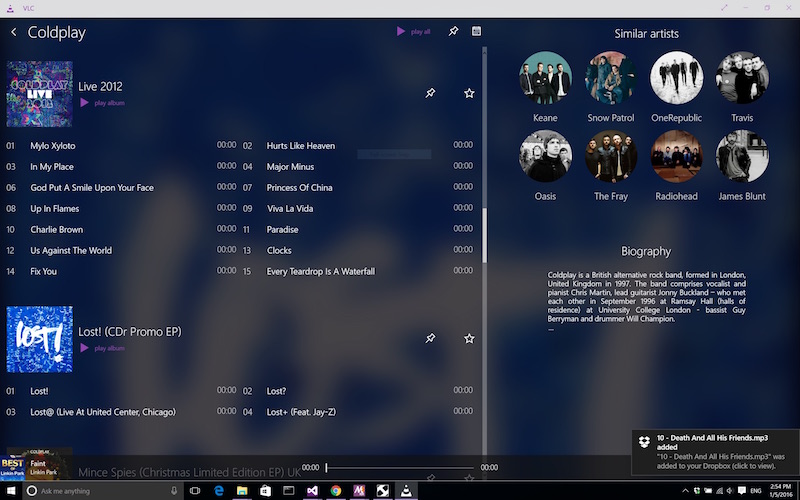
Once you have successfully downloaded your Spotify music as local files, the final step is importing them into VLC. In this part, we will break down the process of using VLC media player to play Spotify music. You can use VLC's full suite of tools to enhance your listening experience.
Step 1
Download and Install VLC Media Player
Visit the VLC website and click the Download button. Then install the media player on your computer. The whole process is pretty easy, and you can simply follow the laid-down instructions for a successful installation.
Step 2
Locate Music Files on VLC Media Player
Next, launch VLC media player and then drag and drop Spotify music files into the program. Alternatively, you can click the Media Library button, move your mouse cursor over Open Media, and then select Open Folder to go to the folder containing your Spotify music files.
Step 3
Use Video Controls on VLC Media Player
VLC media player has video controls, thus enhancing your listening. You can pause and resume your music as desired. You can also adjust the sound by using the sliders to achieve the best quality. Besides, you can synchronize your audio to your VLC media player.
Bottomline
Being an open-source and free media player, VLC media player is compatible with most operating systems. It doesn’t matter which device you are using, and it cuts across all platforms. However, when you want to stream Spotify music on VLC media player, you are bound to face challenges. The post has you the easiest way to download Spotify with TunesMake Spotify Music Converter in simple steps. Then you can enjoy your music on your media player like never before.
Related Articles

A senior editor from TunesMake, dedicated to sharing professional tutorials and solutions of software, movies, and music.
- 1
- 2
- 3
- 4
- 5
- 6
- 7
 Leave Your Comment
(0)
Leave Your Comment
(0)

 Download Center

