








 Store
Store


As parents, we love the Yoto Player for its ability to give our kids independence over their audio without handing them a glowing screen. But if your family is firmly rooted in the Spotify ecosystem, you have likely run into a common frustration: how do you get your favorite Spotify bedtime playlists, audiobooks, or dance tracks onto a Yoto?
If you have searched through the Yoto app looking for a direct "Connect to Spotify" button, you've probably discovered that the process isn't as straightforward as connecting Spotify to a smart speaker. No matter, the good news is that there are still ways to listen to Spotify content alongside your Yoto setup. Today, we will break down why direct Spotify to Yoto isn't built-in and the best practical workarounds to play Spotify through Yoto.
Part 1. Can You Play Spotify through Yoto?
No, you cannot link a Spotify directly to a Yoto Player or link a live Spotify stream to a Make Your Own (MYO) card. Unlike smart speakers that allow you to log into Spotify directly, Yoto does not support connecting a Spotify account or importing Spotify playlists into the Yoto ecosystem. This means you cannot:
❌ Log into Spotify through Yoto.
❌ Link your Spotify account to the Yoto app.
❌ Import Spotify playlists directly to Yoto cards.
❌ Download Spotify playlists straight onto a Yoto Player.
The limitation of Spotify not working with Yoto mainly comes down to licensing and content ownership. Spotify is a rental streaming service where you pay for access to their library, but you don't own the actual audio files. Yoto's system requires physical or cloud-hosted digital audio files like MP3 or M4A to permanently build playlists for their physical cards.
However, that doesn't mean you're completely out of options. Depending on whether you want a quick fix or a truly screen-free experience, there are alternative methods that can help you enjoy Spotify content with your Yoto device. You can use either Make Your Own Card or Bluetooth Mode. Before diving into the step-by-step setups, it helps to understand your options.
| Feature | MYO Card | Bluetooth Mode |
|---|---|---|
| Setup Time | 15-30 Minutes | 1 Minute |
| Screen-Free Content | Yes (100% independent for kids) | No (Require a tablet or smartphone) |
| Ongoing Cost | Require a third-party tool and a blank MYO card | Free |
| Control Interface | Controlled by physical card and dials | Controlled via smartphone |
| Best For | Independent bedtime routines & travel | Quick dance parties & casual listening |
Part 2. Best Way to Get Spotify on Yoto Player (No Premium)
For users who want a card-based listening experience rather than Bluetooth streaming, the best approach is to prepare audio files that can be managed outside the Spotify app and then upload them to Yoto's Make Your Own system. This lets your toddler or child independently play their favorite Spotify music without handing them a smartphone or tablet.
Best Tool to Get Spotify Songs on Yoto Player
One tool that is commonly mentioned for this purpose is TunesMake Spotify Music Converter. It is designed to download and convert Spotify tracks, albums, playlists, podcasts, and audiobooks into standard audio formats such as MP3, WAV, FLAC, and M4A. Once audio is available in a format compatible with your Yoto Player, it can be organized into playlists and uploaded to Yoto's Make Your Own card system.

TunesMake Spotify Music Converter –
Download music from Spotify without premium
- Download Spotify songs, albums, playlists, audiobooks, and podcasts
- Losslessly convert Spotify music to MP3, FLAC, WAV, AIFF, and more
- Remove ads from Spotify music tracks even with a Free account
- Convert Spotify music at 15× faster speed in batch with ID3 tags kept
Security Verified. 100% Clean & Safe.
How to Download Spotify Songs for Yoto Player
Now download and install TunesMake Spotify Music Converter to get child-liking songs, podcasts, or audiobooks from Spotify without a premium subscription.
Step 1 Select Spotify Content to Play on Yoto Player
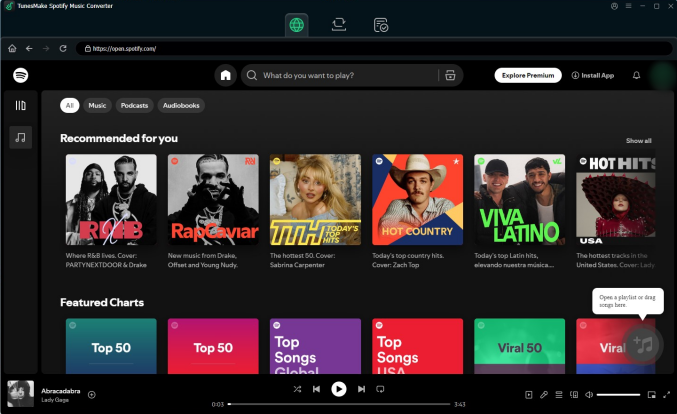
Start by launching TunesMake Spotify Music Converter on your computer, then wait for the Spotify web player to open automatically. In the built-in Spotify web player, select songs, albums, playlists, audiobooks, or podcasts to download. Then just click the + button to browse the content and add them to the conversion list.
Step 2 Set Spotify Music to Yoto Supported Formats
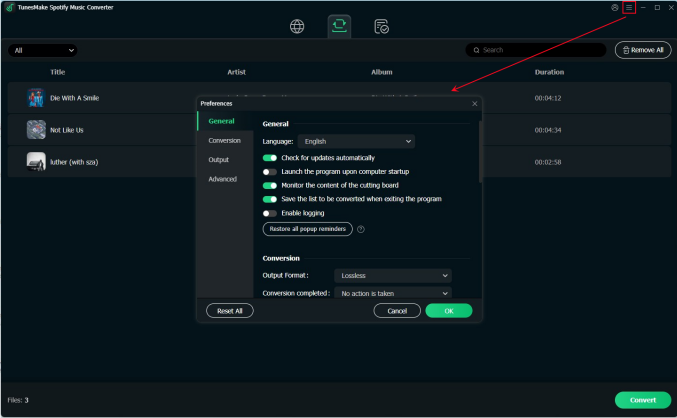
Next, go to set the output audio parameters for Spotify music. Click the menu bar, choose the Preferences option, and switch to the Convert window. From there, you can set the output format, bit rate, sample rate, and channel for better audio quality. To upload Spotify music to Yoto, you'd better choose MP3, FLAC, or M4A. Then click OK to save the settings.
Step 3 Download Spotify Music as Unprotected Files
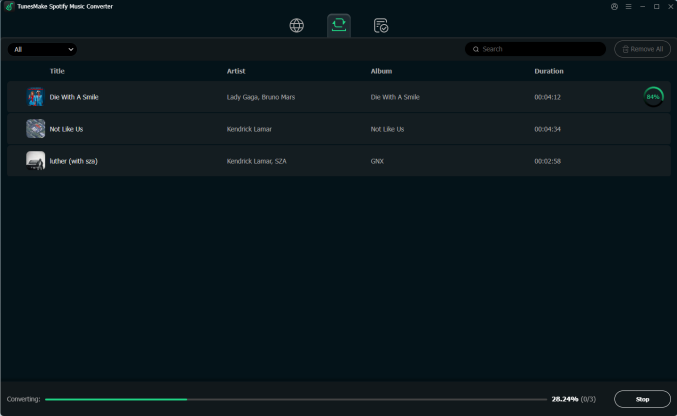
Click the Convert button at the bottom right corner, and your selected Spotify content will begin downloading. After the conversion is complete, you can browse all the downloads in the converted list by clicking the Converted icon. You can also use the search icon to locate the converted audios in the local folder.
Part 3. How to Make Your Own Yoto Card from Spotify
Because Yoto requires local audio files like MP3 or M4A, you can utilize TunesMake Spotify Music Converter to legally extract your Spotify music into offline audio files. After converting with TunesMake, you can upload Spotify music to your Yoto Player, then make your Own Yoto Card from your uploaded Spotify music.
How to Put Spotify Songs on Yoto Player
Now that you have the physical Spotify MP3 files sitting on your computer, you need to hand them over to Yoto's ecosystem. Following are the steps to put Spotify songs on a Yoto Player through a computer or a smartphone.
On a Computer
Step 1. Open a web browser on your computer and log into the Yoto Space Creator Dashboard.
Step 2. Click Create New Playlist and give it a title like Benny's Bedtime Jams.
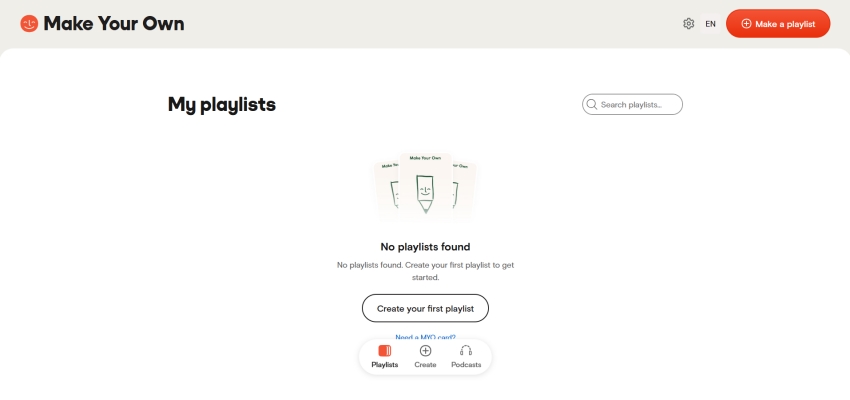
Step 3. Drag and drop your downloaded MP3 tracks into the playlist creator.
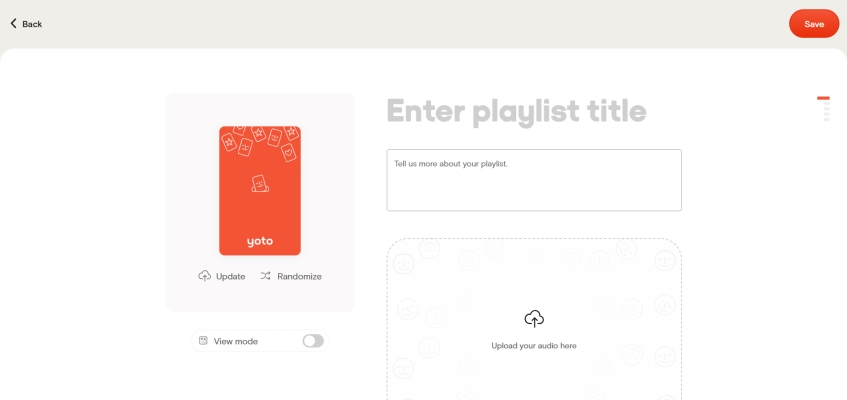
Step 4. Click Create to save the newly created playlist, then find it in
On a Smartphone
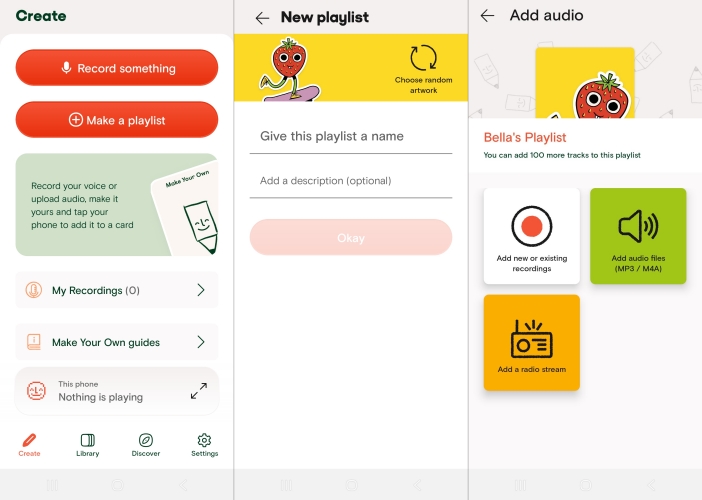
Step 1. Open the Yoto app on your smartphone and go to Create > Make a playlist.
Step 2. Give this playlist a name and tap Okay.
Step 3. Tap Add audio files to browse the converted Spotify music files on your device.
Step 4. Select the Spotify music files and tap Done to save this playlist.
Note
For Android users, you can directly connect your device to your computer, then transfer the converted Spotify music files to the device. If you are using an iPhone, you can use iTunes or Finder to sync the converted Spotify music files to your device.
How to Make Your Own Yoto Card from Spotify
Once your playlist is saved in your digital Yoto library, it's time to link it to physical plastic. Before building your Spotify playlist, keep Yoto's digital boundaries in mind:
- Max Tracks: 100 tracks per card.
- Max Single Track Size: 100 MB or 60 minutes.
- Max Total Card Size: 5 hours of total audio.
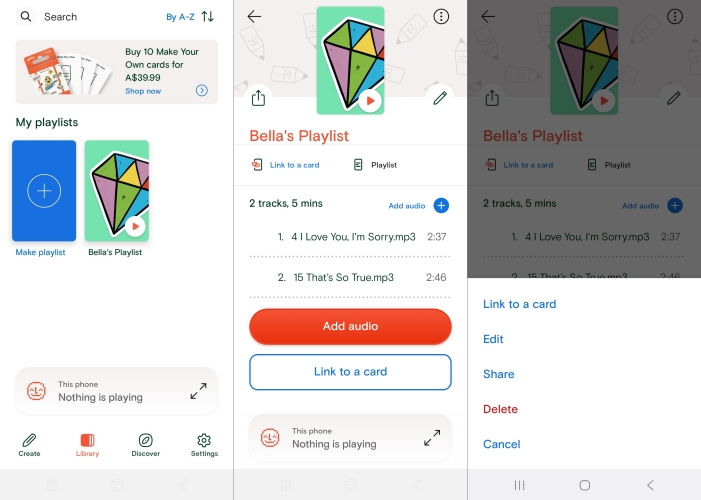
Step 1. In the Yoto App on your phone, tap Library > Playlists.
Step 2. Select your newly created Spotify playlist.
Step 3. Tap the three dots to select Link to a Card.
Step 4. Tap the physical MYO card against the back of your phone.
Part 4. Alternative Way to Stream Spotify to Yoto Player
If your child wants to hear a specific song right this second, or you want to control a bedtime playlist from your phone across the room, using your Yoto Player as a Bluetooth speaker is the easiest option. This is a fast, free, and effortless way to stream Spotify playlist to Yoto right now.
When to Use:
-
You want to stream Spotify music instantly without a tedious setup.
-
You want to use Spotify features like daily mixes or podcasts that update constantly.
-
You don't mind your phone being actively involved in the playback.
Step 1 Enable Bluetooth in the App
Open your Yoto App on your smartphone. Navigate to Players, select your device, and go to Settings > Advanced. Ensure the toggle for Bluetooth Pairing is turned ON.
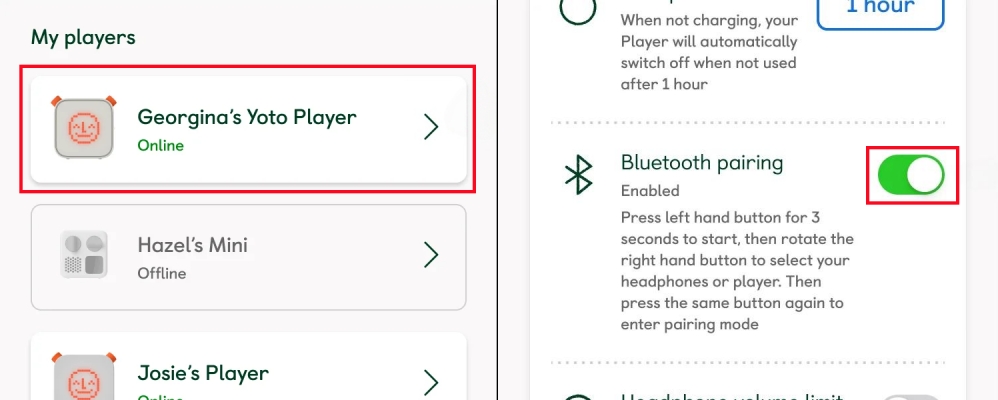
Step 2 Put Yoto Player in Pairing Mode
For the Yoto Player (3rd Gen): Press and hold the left-hand orange button for about 3 seconds until a Bluetooth icon appears on the pixel display.
For the Yoto Mini: Press the right-hand button multiple times to cycle through the menu until you see the Bluetooth speaker icon, then select it.
Step 3 Connect Your Phone to Yoto Player
Open your smartphone or tablet's Bluetooth settings. Look for your Yoto Player in the list of available devices and tap to connect.
Step 4 Start Playing Spotify through Yoto Player
Open your Spotify app, hit play on your child's favorite playlist, and the audio will seamlessly stream directly out of the Yoto Player!
-
😀 Pros
- No file conversion required
- Access to your entire Spotify library
- Work with playlists, podcasts, and albums
- Quick and easy setup
-
☹️ Cons
- Require a connected device
- Not as child-friendly as using physical Yoto cards
- Rely on Bluetooth connection and connection quality
Part 5. FAQs about Spotify to Yoto
Can I import Spotify playlists into Yoto cards?
No. Spotify playlists cannot be imported directly into Make Your Own cards as Yoto currently does not provide direct Spotify integration.
Can I use Spotify Premium with Yoto?
Spotify Premium allows offline listening within Spotify, but it does not enable direct transfer of Spotify content to Yoto cards.
Does Bluetooth allow Spotify playback on Yoto?
Yes. Bluetooth is currently one of the most practical ways to listen to Spotify through a Yoto device.
Are Make Your Own cards a Spotify replacement?
Not exactly. Make Your Own cards allow custom audio playback, but they do not provide direct Spotify access.
Will Spotify integration come to Yoto in the future?
There is currently no guarantee of future Spotify integration. Users should check official Yoto announcements for updates.
Part 6. Conclusion
The decision between Bluetooth streaming and custom MYO cards ultimately depends on how your child uses the device. If your Yoto Player primarily sits on a shelf and functions as a bedroom speaker managed by a parent, Bluetooth Mode saves you time and gives you instant access to Spotify's massive catalog.
However, if you bought the Yoto to foster independence, reduce screen reliance, and let your toddler manage their own routines, taking the time to convert your top Spotify tracks onto Make Your Own Cards is well worth the effort. It transforms your digital subscription into a tangible, child-friendly library.
Related Articles

A senior editor from TunesMake, dedicated to sharing professional tutorials and solutions of software, movies, and music.
- 1
- 2
- 3
- 4
- 5
- 6
- 7
 Leave Your Comment
(0)
Leave Your Comment
(0)

 Download Center

