








 Store
Store


As a leading company for producing music streaming, Spotify has never stopped itself to improve its services and products. With constant efforts has been paid, it now has built partnerships with multiple devices which across wide ranges, including smart watches, Bluetooth speakers, intelligent cars, smart digital TVs, etc. Spotify music service covers almost every aspect of your life. When it comes to streaming Spotify music on smart TVs, many people reported that they don’t know how to get Spotify on Roku TV.
Never mind, here in this post we’ll walk you through several efficient methods to play Spotify on your Roku device. Keep reading to find out the answers!
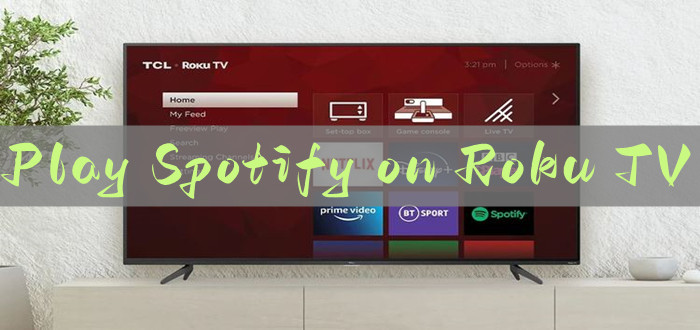
Part 1. How to Play Spotify on Roku TV via Its App
Generally, all Roku TVs and Roku streaming devices with a model number of 3600 or higher are compatible with the Spotify app. If your device’s software version is Roku OS 8.2 or higher, the Spotify app may be preinstalled on your device. But if you’re using it for the first time, you’re supposed to add it to your Roku channels. There are three methods to install the Spotify app on your Roku device. You can pick the one that meets your requirements.
Option 1. Install the Spotify App on Roku TV Directly
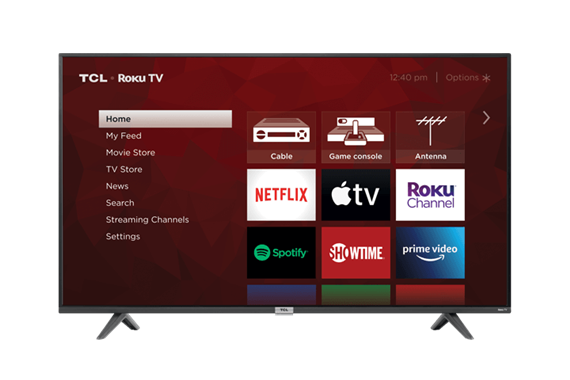
1. On your Roku remote, press the Home button.
2. Next, navigate to the Search section on the TV’s main screen.
3. Type in Spotify to search for the app.
4. You can see a Spotify Roku app appear in the results, select it and select Add Channel.
5. If you’ve set the Roku PIN, here you may be asked to enter the passcode to your Roku TV.
6. Then you can add the Spotify app to your Roku device.
7. When finished, click OK to save the settings. Then press the Home button again, and you’ll find the Spotify app showing up on the main screen.
Option 2. Get Spotify on Roku TV via Roku App
You can also use the Roku mobile app to install Spotify. Any changes you make from the mobile app will automatically show up on your TV home screen. Here’s how to do it on iOS or Android devices:
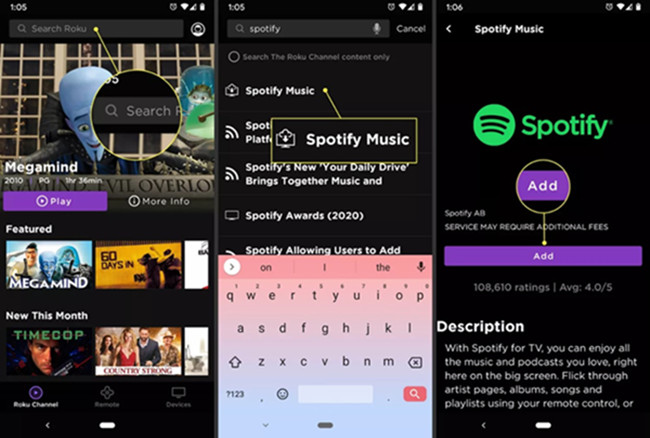
1. Open the Roku app on your mobile devices.
2. Go to the Home screen and type in ‘Spotify’ in the search bar.
3. Select the Spotify app when it appears and tap Add Channel from the details page.
4. If you’ve set your Roku PIN, enter your PIN to install the app.
5. Once finished, go back to the home page on your TV and you’ll find the Spotify app here.
You can now find Spotify in the channel list on the mobile app and on the homepage of the Roku player.
If the app doesn’t show up on your home page after installing it from your phone, check to see if your Roku device requires an update. To check for an update, go to Settings > System > System update.
Option 3. Add Spotify to Roku via Roku Website
If the Roku TV is not around you now, you can go to the Roku website and add the Spotify channel from Roku Channel Store instead. Here’re some simple steps:
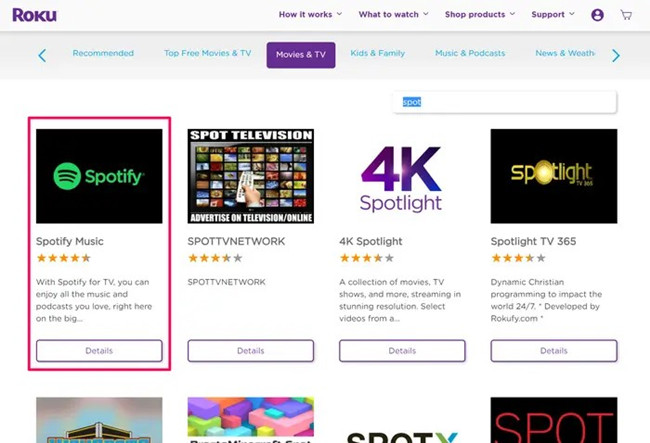
1. Go to the Roku.com site and sign in to your Roku account.
2. Click the What to watch option at the top of the page, and navigate to the Channel Store section.
3. In the Search channels field at the top of the page, type “Spotify” and press Enter.
4. Click the Add channel selection on the Spotify Music page.
5. After a moment, the app will be added to your Roku player. Then it will show up on the homepage of your TV.
Part 2. How to Play Spotify on Roku TV Offline and Ad-Free
Sometimes, you may encounter the issue of Spotify not working on your Roku device. If you don’t want to waste too much time on trying multiple solutions, you can try a more reliable way to play Spotify on Roku TV. That is to download Spotify songs locally and play them your Roku TV offline.
Through this method, you can have an ad-free and uninterrupted listening experience. However, we must admit that the only deciding part which prevents us from streaming Spotify in other places is the copyright restrictions. So, we just need to remove the DRM format on these music files to achieve what we want. In this case, what you need is the TunesMake Spotify Music Converter.
TunesMake Spotify Music Converter is designed to remove copyright restrictions so that Spotify music can be played on other compatible devices. With TunesMake, you can download Spotify songs, artists, playlists, albums, and podcasts easily and keep them as local files so that you can play Spotify on any other device without switching from or getting a subscription. And TunesMake supports 6 popular audio formats to meet your different kinds of needs. After conversion, you can keep the converted music files as local files and play them on any other compatible devices you like. The tutorial is as follows:

TunesMake Spotify Music Converter –
Best Spotify to Roku TV Downloader
- Unlimitedly download Spotify songs, playlists, and podcasts
- Losslessly convert Spotify music to MP3, FLAC, WAV, AIFF, etc.
- Remove ads from Spotify music tracks even with Free accounts
- Convert Spotify songs at 12X faster speed with ID3 tags kept
Security Verified. 100% Clean & Safe.
Step 1
Import Spotify music to the program
Install and launch the TunesMake Spotify Music Converter on your computer. Then, you will be led to the Spotify web player. You can then choose any playlist or album and load all the songs to the TunesMake program by selecting the lower Add icon > Add to List.

Step 2
Choose the Output Format and Parameters
Once the files are loaded, you can select the output format and parameters in the three-line icon on the top right of the main screen. In the pop-up menu, choose Preferences > Conversion to set sample rate, bit rate, channel, and archive according to your needs. The conversion will be done in 12x speed as the default, so you won't wait too long.

Step 3
Convert Spotify to MP3
After setting the formats, you can click the Convert button to start the conversion. It’s no problem to convert a batch of music files. You only need to wait for a short time till it is finished. When the conversion is over, you can access the converted music files easily in your local folder by clicking the Converted icon.

Step 4
Listen to Spotify on Roku TV
Now you’ve saved the downloaded Spotify music files in local folders on your computer. All you need is to move all the converted Amazon Music songs to your USB drive, and then plug it into the USB port on your Roku TV. The Roku Media Player enabled on the TV will sync the songs automatically. You can follow the steps below.
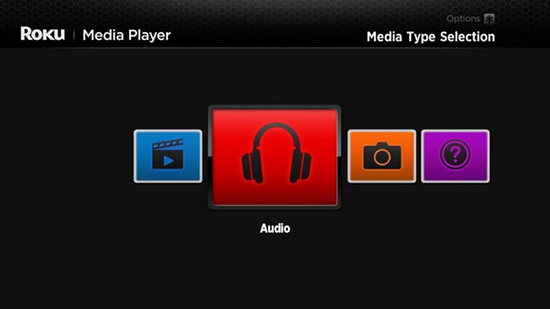
1. Launch Roku Media Player and select the icon for All, Video, Audio, or Photo.
2. Then select Audio to access all Amazon Music files stored on the USB drive.
3. Next, select your USB device from the menu and locate the music files that you want to play.
4. Start playing your Amazon Music songs. After that, you can stream Amazon Music on Roku offline with ease.
Part 3. Troubleshoot: Spotify Not Working on Roku
Although the integration between Spotify and Roku is seamless, users occasionally encounter the issue of Spotify app not working - ranging from the app freezing to the app stays unresponsive. If you find that the Spotify app not working on your Roku TV due to different reasons, don’t panic. You can try several solutions.
1. The first way you can try to check your Internet connection. Spotify requires a stable Internet connection to stream music. If your Roku device has an unstable Wi-Fi connection, Spotify may fail to load and play songs.
2. Sometimes, a simple restart can resolve temporary glitches. So, you can to force close your Roku device, and wait for at least 30 seconds before restarting to see if it works
3. You can also try to update your Roku device or clear the corrupt cache on Roku devices to enable it to work again.
For details, you can check the post below. We’ve explored 9 methods in this post and share the ultimate fix to free of these errors.
In Conclusion
With the simple steps and detailed guide shared above, you can stream Spotify on Roku TV with ease. If you find your Roku TV doesn’t support the Spotify app or the app is not working on your Roku device, it doesn’t matter. TunesMake Spotify Music Converter can be the best option to fix that.
Related Articles




A senior editor from TunesMake, dedicated to sharing professional tutorials and solutions of software, movies, and music.
- 1
- 2
- 3
- 4
- 5
- 6
- 7
 Leave Your Comment
(0)
Leave Your Comment
(0)

 Download Center

