








 Store
Store


When choosing music streaming services online, there are many choices available, such as the popular ones Spotify, Deezer, Apple Music, etc. Among them, Qobuz is not as famous as them, but what makes it special is that it offers the best streaming sound quality for its users. And it is still the only one which provides Hi-res audio quality in the marketplace. Therefore, some people who use Spotify would like to know how to switch to Qobuz for streaming. Today in this article, we’re going to introduce a great tool to help you transfer Spotify playlist to Qobuz. Let’s get started!
Part 1. Best Tool to Transfer Spotify to Qobuz
When it comes to transferring Spotify playlist to Qobuz, the truth is you cannot import your Spotify audio files to Qobuz directly. Why? The reason is quite simple. As we all know, Spotify Premium allows its users to download songs as offline playback, but you’ll always remember that these songs are not saved locally, but only temporary caches on your device. Since they’re usually encoded with special formats and should follow the principles of DRM copyright agreement, it is not allowed to stream Spotify songs on any other devices or apps except its own app. Thus, if you wonder how to transfer Spotify playlist to Qobuz, you must need a professional tool to help you out.
TunesMake Spotify Music Converter is the tool you mustn’t miss. As I stated above, you cannot play Spotify songs on unauthorized apps or devices and there is no official link between Spotify and Qobuz for your transfer. To remove the limits and switch from Spotify to Qobuz, you can use TunesMake Spotify Music Converter to remove the DRM from Spotify and download the songs as local files in your folders forever.
TunesMake Spotify Music Converter is a professional music downloader especially designed to download songs, albums, and playlists from Spotify and convert them to MP3 and other popular audio formats so that you can keep them offline playable on any device with ease. TunesMake is designated to make Spotify music streaming easier and more convenient for people. You don’t have to worry about the music quality as the conversion won’t destroy it. You can keep the original high-quality music offline and import it to any device you want.

TunesMake Spotify Music Converter –
Download Spotify Music Locally for Qobuz
- Unlimitedly download Spotify songs, playlists, and podcasts
- Losslessly convert Spotify music to MP3, FLAC, WAV, AIFF, etc.
- Remove ads from Spotify music tracks even with Free accounts
- Convert Spotify songs at 12X faster speed with ID3 tags kept
Security Verified. 100% Clean & Safe.
Part 2. How to Transfer Music from Spotify to Qobuz [No Songs Lost]
TunesMake Spotify Music Converter is an efficient yet easy-to-use software. You’ll only need four simple steps to download Spotify music and transfer it to Qobuz. Now Qobuz supports common audio formats like MP3, FLAC, WAV, etc. So, make sure to convert Spotify audio files to these formats so as to play on Qobuz. Here’s the how-to guide:
Step 1
Add Spotify Music to TunesMake Software

To get started, you’re supposed to install TunesMake Spotify Music Converter on your Windows or Mac computer in advance. Then, launch it, and you will be led to the Spotify web player. Here, you can sign in to your Free or Premium account. Select one playlist or album you like to transfer to Qobuz, and then click the lower Add icon. Wait for a while, all the songs in this playlist/album will be listed. You can load all of them to the conversion list by selecting the Add to List button.
Step 2
Configure the Output Audio Parameters

TunesMake supports 6 common and popular output audio formats, including MP3, M4A, M4B, WAV, FLAC, and AIFF. To make your playlist compatible with Qobuz, you’d better choose MP3 or other Qobuz-supported audio formats to convert to. You can go to the menu icon (top right of the interface) and select Preferences > Conversion to adjust audio parameters.
Step 3
Convert Spotify Playlist to Qobuz

After all of the settings were done, just click the Convert button to start the conversion. The conversion speed is 13x as default, so you don’t need to wait for too long. Once finished, click the Converted icon at the top to locate them in your local drive.
Step 4
Play Spotify Playlist on Qobuz
Now, you have exported the Spotify playlist you like and saved them locally at the same time. Later, you can stream Spotify playlists on any device at any time you want. Now launch Qobuz and directly select the Spotify files, then export them to Qobuz. Then you can listen to Spotify offline on Qobuz at any time.
Part 3. How to Transfer Spotify Playlist to Qobuz Online
In addition to downloading Spotify songs via TunesMake Spotify Music Converter, there are several methods you can apply to transfer playlist from Spotify to Qobuz.
Option 1. Soundiiz
Founded in 2013, Soundiiz provides automated transfer of playlists, as well as manages and synchronizes music data between music streaming sites, such as Deezer, Apple Music, and SoundCloud, as well as others. In April 2015, Tidal partnered with Soundiiz. Therefore, this site becomes more popular and has been widely accepted. Below are the working procedures:
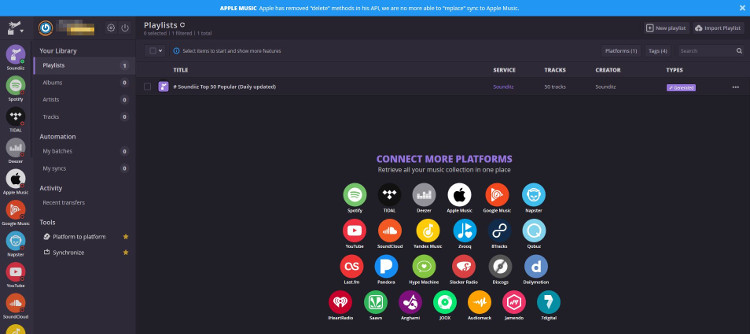
1) Go to the Soundiiz website and click on the Start now button to start the transfer.
2) Sign in to your Spotify music account and click Connect to enter your Qobuz account.
3) Browse your music library and select a playlist you want to transfer from Spotify.
4) Click on the Convert button in the top toolbar and then select Qobuz as the destination.
Option 2. FreeYourMusic
If you don’t mind installing an extra app, here is another option for you. Have a try with FreeYourMusic. FreeYourMusic enables you to transfer playlists between multiple platforms. And it is compatible with Windows, macOS, and Linux, you can download it from App Store or Google Play Store. Here’re the steps:
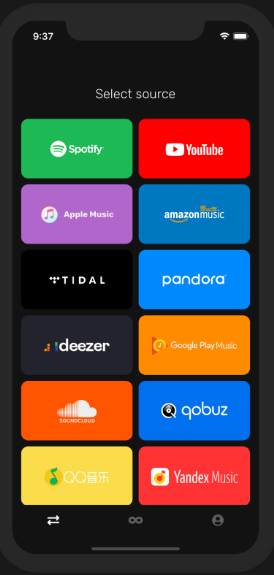
1) Download and install the FreeYourMusic app on your device.
2) Select Spotify as the source and start moving your playlists.
3) Select Qobuz as the destination.
4) Once synced with your Spotify songs or playlists, select one to transfer.
5) Confirm your action and complete the transfer process.
Option 3. MusConv
MusConv is another efficient tool that can easily import your music library from one streaming music service to another one. With MusConv, you can import Spotify playlist to Qobuz.
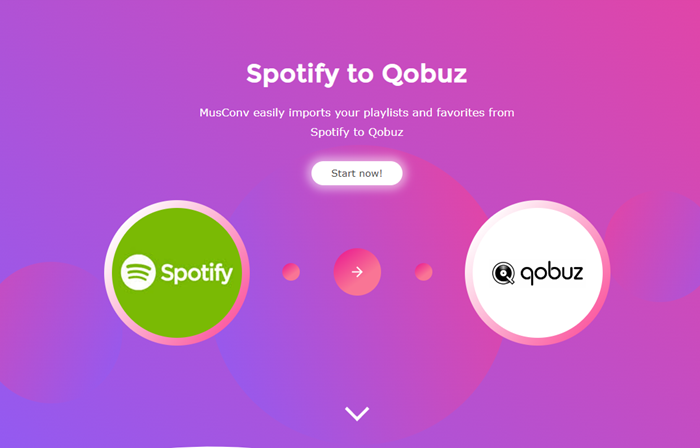
1) Go to the MusConv website from any browser and click Start Now.
2) To transfer Spotify to Qobuz, you need to select Spotify as the source.
3) Next, it will ask you to log in to your Spotify account.
4) Once logged in, choose your Spotify playlist or songs you’d like to transfer.
5) Select Qobuz as the destination service.
Bottom Line
To conclude, you can’t transfer Spotify playlists to Qobuz directly in an official way. But you still have many alternatives there. Though online websites can achieve the target, they cannot promise audio quality and your personal data safety. Even some of them are not working properly or stably. Therefore, you’d better choose our great tool: TunesMake Spotify Music Converter. This intelligent software enables you to get DRM-free Spotify songs and stream them on multiple devices without restrictions. After conversion, you can play Spotify playlists on Qobuz for sure.
Related Articles

A senior editor from TunesMake, dedicated to sharing professional tutorials and solutions of software, movies, and music.
- 1
- 2
- 3
- 4
- 5
- 6
- 7
 Leave Your Comment
(0)
Leave Your Comment
(0)

 Download Center

