








 Store
Store


Listening to our favorite music is quite a pleasure in our daily life. Music lovers would not want to miss the great chance to stream music on more devices like bigger screens or louder speakers. And now it did develop maturely in the music streaming market that now you can stream online streaming audio on many more smart devices, including wearables, smart TVs, and so on. The Tidal app is now a popular music streaming service provider that is being praised for its superior audio quality. Many people are wondering if this is possible to get Tidal on Samsung TV.
It is expected to have these two entertainment services together for a long time. Tidal subscribers who own Samsung TVs would like to appreciate it. Well, the exciting news for you is that you can get Tidal music on Samsung TV with ease. In this article, we’ll tell you how to install and stream Tidal on Samsung TV and bring you many more extra tips for streaming Tidal songs anywhere you want. Now let’s get started!
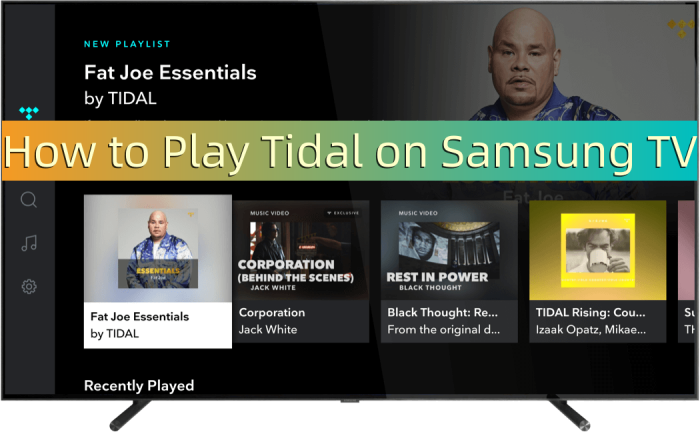
Part 1. How to Install the Tidal App for Samsung TV
Fortunately, the Tidal app has been integrated with smart devices including the smart TV in the Samsung brand. And the process to access and listen to Tidal music on Samsung TV is quite simple. All you need is to follow the below easy steps to install and sign in Tidal account on your TV first.
Note
To enable Samsung TV Tidal app to work, ensure that your Samsung TV models are in the 2017 version and newer. Otherwise, it won’t work.
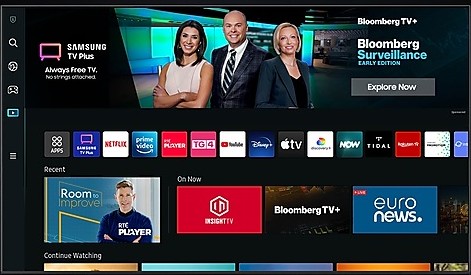
Step 1. Power up your Samsung TV and go to Samsung Apps from the Home screen.
Step 2. Search for the Tidal app and install it from the shown-up result.
Step 3. Go to link.tidal.com on your mobile phone, computer, or other devices and sign in to your Tidal account.
Step 4. Pair your smartphone with your Samsung TV by entering the code displayed on your phone on the TV.
Step 5. Once done, you have connected Tidal to Samsung TV, and you can listen to Tidal music on Samsung TV without hassle.
Part 2. How to Play Tidal Music on Samsung TV Offline
Streaming your Tidal music on your Samsung smart TV via its official app is straightforward and easy. However, it is likely that you’ll encounter many troubles or issues like buffering, keep stopping, or not connecting when you try to play music from Tidal on your TV online. Luckily, we have your back! Here I’d like to recommend you a great tool to enable you to listen to Tidal music on multiple devices offline. That is TunesMake Tidal Music Converter.
Do you know the DRM copyright agreement? That is a special technology to restrict the streaming audio from playing on any unsupported devices. It deploys encryption codes on music tracks to restrict them playable only on Tidal official platforms. Therefore, if you want to play Tidal on more devices without premium and break the limit, you should try TunesMake software.
TunesMake Tidal Music Converter is specially designed for all Tidal users to stream Tidal Music on multiple devices without limits. With advanced and innovative technology, TunesMake allows you to remove the DRM format from Tidal and download them to local audio files. TunesMake program supports FLAC, MP3, AIFF, WAV, M4A, and WAV. And it can handle the conversion of Tidal songs at a 22× faster speed. What’s more, it can keep the original sound quality and ID3 tags. Here is the tutorial you can follow:

TunesMake Tidal Music Converter –
Download and Convert Tidal Songs to Local Files
- Download any Tidal content, including songs, albums, playlists, and artists
- Convert Tidal music to MP3, FLAC, AIFF, WAV, M4A, and M4B
- Preserve a whole set of ID3 tag information in the downloaded Tidal songs
- Handle the conversion of Tidal music up to 22X faster speed and in batch
Security Verified. 100% Clean & Safe.
Step 1
Add Tidal Tracks to TunesMake Program
Click the Free Download button above to install the TunesMake Tidal Music Converter on your desktop. Then, launch it, and you will be led to the offcial Tidal web player. Here, you can sign in and look for your perferred playlist or album. Select the playlist/album, and then click the Add icon, which is in the lower-right corner. After that, choose Add to List to load all the songs to the conversion list on the TunesMake tool.

Step 2
Select the Output Audio Parameters
Once imported, the next thing you should do is to set the output audio parameters to your personal needs. Click the menu bar at the top right corner and select the Preferences option, then switch to the Conversion section. Here you can set up the output format, bit rate, sample rate, and channel as you want. Here, we suggest you set MP3 as the output format due to its compatibility.

Step 3
Download DRM-free Tidal Tracks Offline
Now, confirm your settings above and click the Convert button to start the conversion of Tidal music to MP3. The converted Tidal music will be saved to the default folder or the folder you require. Finally, you can click the Converted icon to open the history list where you can browse the converted Tidal music.

Part 3. FAQs about Tidal Samsung TV
In the above paragraphs, we got to know the methods to get Tidal music for streaming on Samsung TV. Apart from the procedures, many people still have doubts about this integration. For example, what type of audio files can I get from Tidal on Samsung TV? What if the Tidal Samsung TV app not working? Here’re the answers!
How do I revert changes made to a screenshot?
If you cannot find the Tidal app on your Samsung TV, you should first check your TV compatibility. Tidal is now available on Samsung Smart TV released in recent years, normally models from 2017 or later running Tizen OS 3.0 and above. In addition, you need to make sure that you logged in to your Tidal account in a region where Tidal is officially supported.
Why is the Tidal app not appearing in the Samsung App Store?
The music streaming quality of Tidal music on Samsung TV is one of the most-concerned questions that people would consider. Is there any difference between streaming on apps and on TV? Of course, there are. On apps, it depends on your subscription plans. You can enjoy up to Hi-resolution or master quality Tidal tracks on applications. While on TV, you can only stream 320 kbps audio quality. But I think that is enough for us to enjoy the beautiful music.
How to fix Tidal not working on Samsung TV?
1# Power Cycle Your TV. Just unplug your TV’s power cord from the wall outlet or surge protector. Wait for a minute and plug your TV back and turn it on. This will be a simple but efficient fix.
2# Update the TV Software. Press the Home button on your TV remote control and go to Settings. Then navigate to Software Update > Update Now. Just updating to the latest version can fix this.
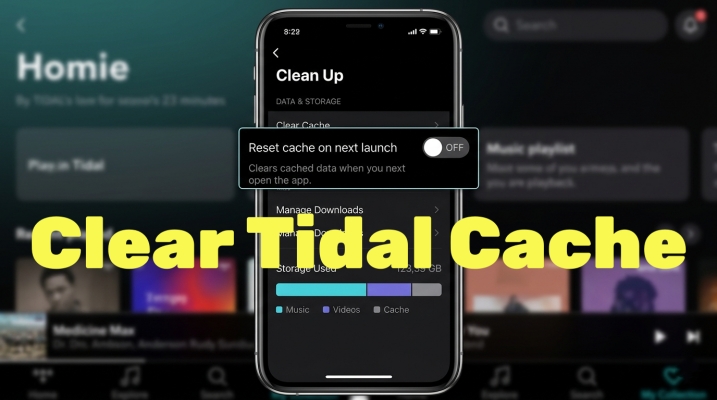
3# Clear Tidal Cache or Reinstall Tidal. On your Samsung TV, go to Settings > Apps > System Apps > Tidal > Clear Cache, then select OK to apply. To perform a clean reinstall, find the Tidal app in the same way and select Delete to remove the app, and then download it again from the app store on your TV.
4# Download Tidal Music by TunesMake. As I shared the method above, you can make use of this tool to download the Tidal tracks offline so that you won’t meet issues like not working. Besides, it will back up your Tidal music for playing offline forever without premium.
In Conclusion
In summary, there is an official way to install and get Tidal on Samsung TV with the easy setup guide above. But you’re possible to encounter some not working issues when streaming Tidal on a bigger screen. TunesMake Tidal Music Converter is the one you need. It can help you break the download limit on Tidal music and listen to them on many more devices with ease. Click the link below to try TunesMake free trial version!
Related Articles


A senior editor from TunesMake, dedicated to sharing professional tutorials and solutions of software, movies, and music.
- 1
- 2
- 3
- 4
- 5
- 6
- 7
 Leave Your Comment
(0)
Leave Your Comment
(0)

 Download Center

