








 Store
Store


Nothing ruins a great workout or commute faster than your music suddenly cutting out. If YouTube Music keeps stopping, pausing when your screen turns off, or freezing between songs, you are not alone. This frustrating issue usually boils down to aggressive battery saver settings, background data restrictions, audio conflicts with other apps, or corrupted cache. This comprehensive guide walks you through the quickest and most effective solutions to fix YouTube Music keeps stopping.
Part 1. Why Does YouTube Music Keep Stopping?
When YouTube Music keeps stopping, freezing, or pausing randomly, the issue usually falls into one of a few categories. The following are the main causes of YouTube Music keeping stopping.
Reason 1. Account & Subscription Limitations
-
Free Account Limits: YouTube Music does not support background or screen-off playback for free users on mobile devices. If you switch apps or lock your phone, the stream automatically stops by design.
-
Multi-Device Streaming Conflict: YouTube accounts generally permit active music streaming on only one device at a time. If someone else plays music on your account via a tablet, web browser, or smart speaker, your phone stream will pause instantly.
-
Un-synced Premium Membership: Right after subscribing or updating the YouTube Music app, your credential may temporarily fail to sync on your device.
Reason 2. Aggressive Battery & Power Management
Modern smartphones actively put background apps to sleep to save battery life, which often kills active audio playback when the screen turns off.
Reason 3. Audio Focus Hijacking by Other Apps
When you open platforms like TikTok, auto-playing videos in your feed temporarily claim primary control of your phone's audio output. This automatically forces YouTube Music to pause.
Reason 4. Network & Streaming Settings
-
Stream via Wi-Fi only: If this toggle is active and you leave a Wi-Fi area, YouTube Music stops buffering the moment it switches to mobile data.
-
Data Saver Mode: System data-saving modes block continuous background streaming. Disable Data Saver in your phone's network settings.
Reason 5. Corrupted Cache or Downloaded Tracks
If the YouTube Music app stops at the exact same spot on a playlist or track, local temporary data or offline index files may be corrupted.
Part 2. How to Fix YouTube Music Keeps Stopping Android/iPhone
If your subscription to YouTube Music is active, these solutions resolve roughly 80% of playback interruption issues whether you are using YouTube Music on an Android device or iPhone.
Solution 1. Turn Off Battery Saver Mode
Both iOS and Android feature aggressive battery saver tools that limit background network requests and process execution to extend battery life.
On iPhone
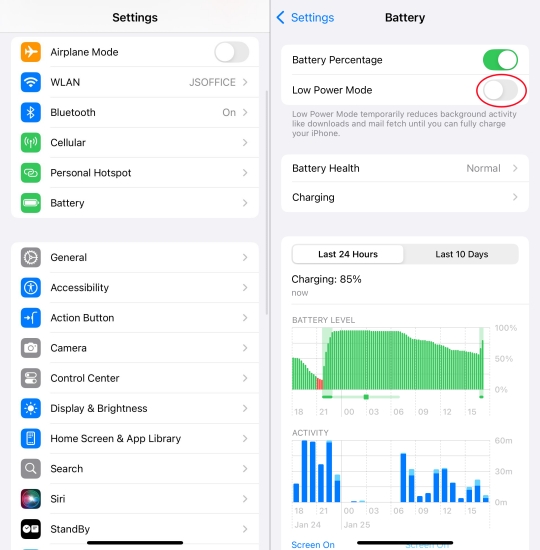
Step 1. Go to Settings > Battery.
Step 2. Toggle off Low Power Mode.
On Android
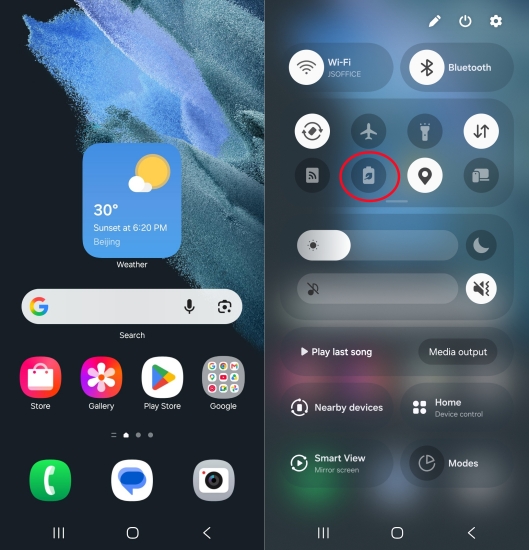
Step 1. Swipe down to open Quick Settings.
Step 2. Disable Battery Saver.
Solution 2. Set Background Battery Usage (Android)
Android devices feature deep battery optimization tools that put unused foreground apps to sleep the moment the screen turns off.
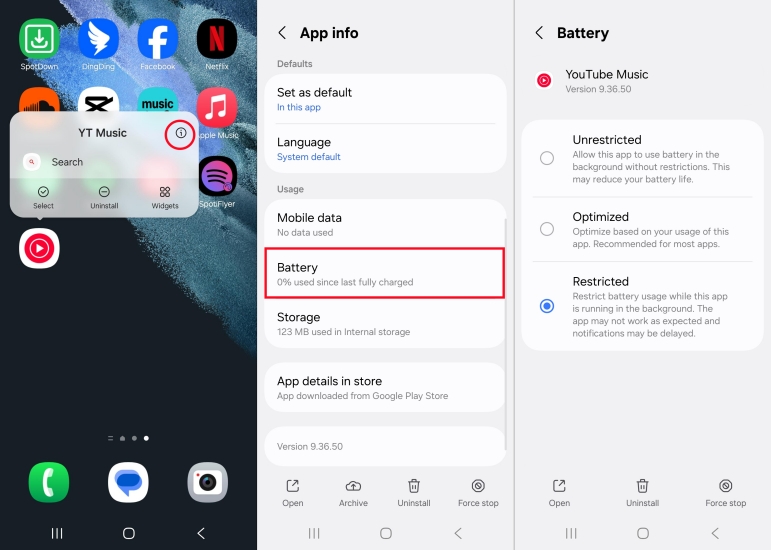
Step 1. Long-press the YouTube Music icon and tap App info (i).
Step 2. Tap App battery usage and set to Unrestricted.
Solution 3. Enable Background App Refresh (iOS)
On iPhone and iPad, disabling Background App Refresh throttles background networking and app operations, frequently causing YouTube Music to stop playing when the screen turns off.
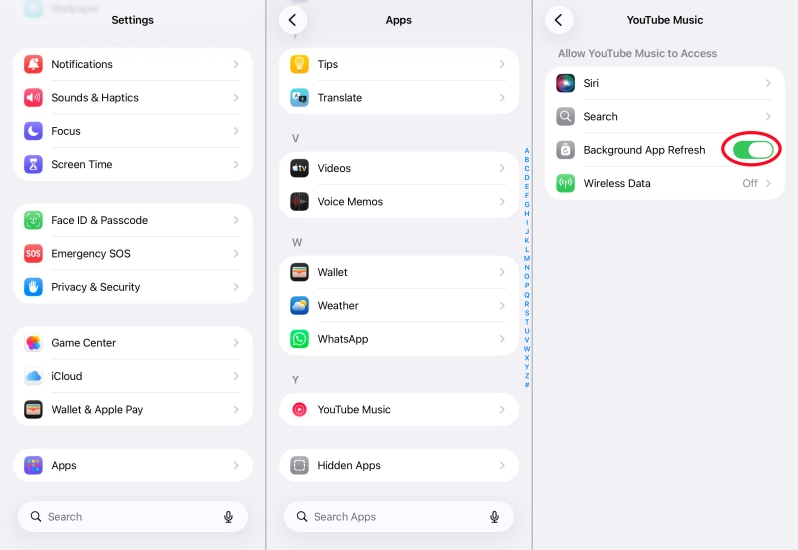
Step 1. Go to Settings > Apps and select YouTube Music.
Step 2. Switch the toggle next to Background App Refresh to ON.
Solution 4. Disable "Stream via Wi-Fi Only"
If you leave a Wi-Fi network while walking or driving, YouTube Music will stop instantly if cellular streaming is restricted in the app settings.
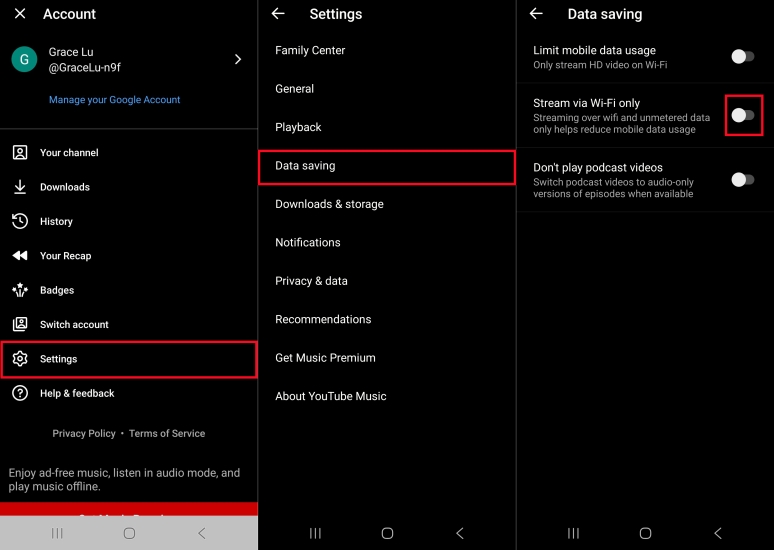
Step 1. Open YouTube Music.
Step 2. Tap your Profile Picture in the top right corner.
Step 3. Select Settings > Data savings.
Step 4. Turn off Stream via Wi-Fi only.
Solution 5. Set System Data Saver Modes
Both Android and iOS feature system-level data saver options that cut off background data usage for streaming services like YouTube Music.
On iPhone
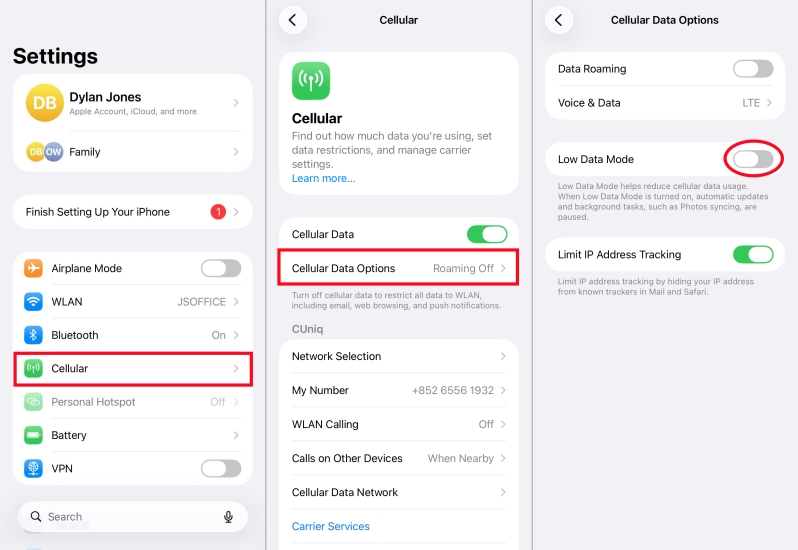
Step 1. Go to Settings > Cellular > Cellular Data Options.
Step 2. Turn off Low Data Mode.
On Android
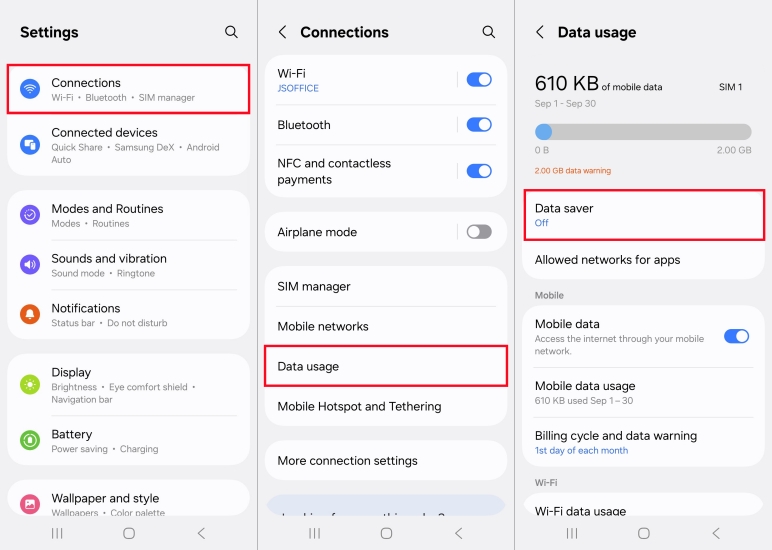
Step 1. Go to Settings > Network & internet > Data Saver.
Step 2. Either turn it off or tap Unrestricted data and toggle on YouTube Music.
Solution 6. Stop Background Social Apps
When you scroll through apps like Instagram, TikTok, Reddit, or Facebook, auto-playing videos seize your device's primary audio channel known as "Audio Focus". This causes YouTube Music to pause automatically.
Solution 7. Fix Corrupted Offline Downloads
When YouTube Music auto-switches from live streaming to play a downloaded track off your local storage, corrupted cache files can cause the player to freeze or skip entire playlists.
Step 1. Open YouTube Music and tap Library > Downloads.
Step 2. Tap the gear icon or menu on your downloaded playlists.
Step 3. Select Remove download.
Step 4. Re-download your playlists on a stable Wi-Fi network.
Solution 8. Resolve Bluetooth Headphone Glitches
Modern wireless earbuds such as AirPods or Galaxy Buds feature automatic wear detection. Dusty proximity sensors or loose fitting tips can mislead your phone into thinking you removed your earbuds, causing playback to pause immediately.
Step 1. Clean the proximity sensors on your wireless earbuds.
Step 2. Temporarily disable In-Ear Detection or Automatic Ear Detection.
Step 3. Turn off Conversation Detect features on modern headphones.
Solution 9. Clear Corrupted App Cache
Clearing the temporary app cache in the YouTube Music app resolves glitchy behavior without deleting your saved playlists or account settings.
On iPhone
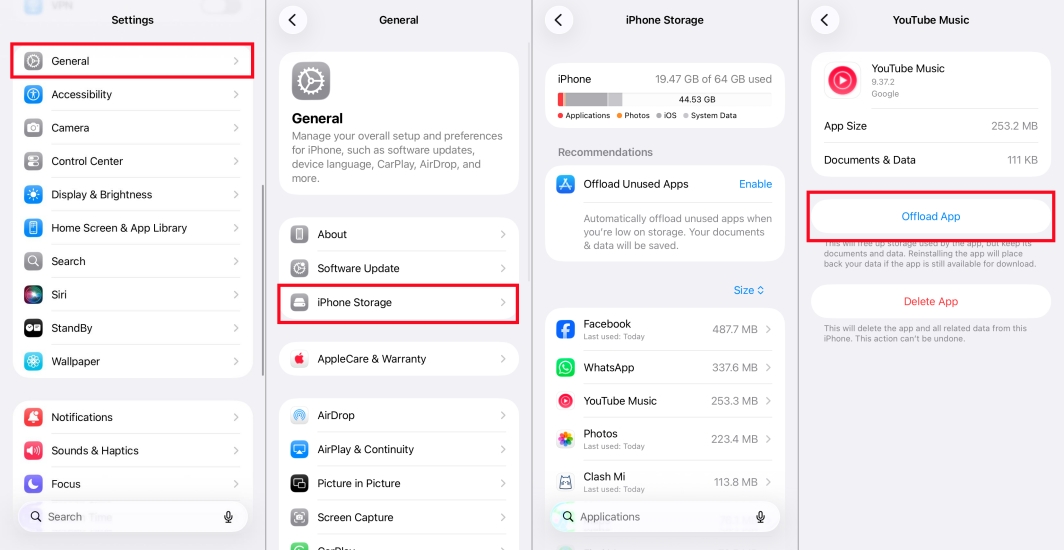
Step 1. Open Settings and tap General > iPhone Storage.
Step 2. Find YouTube Music and tap Offload App.
On Android
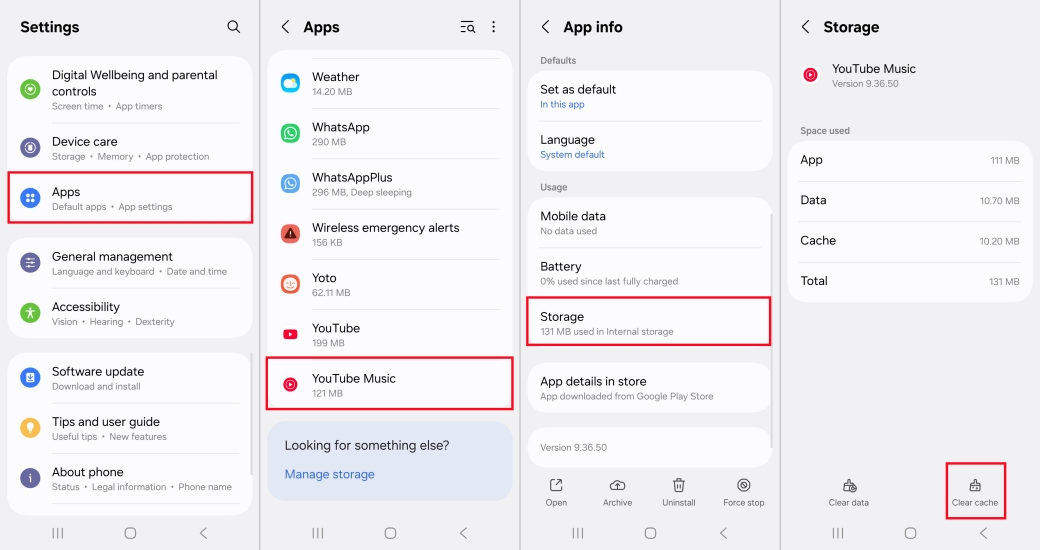
Step 1. Go to Settings > Apps and select YouTube Music.
Step 2. Tap Storage and select Clear Cache.
Part 3. Ultimate Solution to YouTube Music Keeps Stopping
If the YouTube Music app continues to pause randomly due to persistent system bugs, OS battery constraints, or background network drops, bypassing the app entirely is an effective workaround. Using TunesMake YouTube Music Converter, you can download and save YouTube Music tracks, albums, or playlists as standard local audio files in the format of MP3 or FLAC.
By converting YouTube Music tracks into local files, you can play them through your phone's default system media player like Apple Music, Samsung Music, or VLC. Because local players are not bound by background streaming permissions, battery optimization restrictions, or streaming network handoffs, your music continues playing smoothly even when your screen is locked.

Streaming Audio Recorder –
Download YouTube Music tracks for playing anywhere
- Download songs, albums, and playlists from YouTube Music
- Convert YouTube Music to MP3, M4A, M4B, WAV, FLAC, and AIFF
- Remove DRM protection from YouTube Music completely and safely
- Preserve the original audio quality and ID3 tags for management
- Support downloading music from over 10 popular streaming platforms
Security Verified. 100% Clean & Safe.
Step 1 Select YouTube Music Tracks to Download
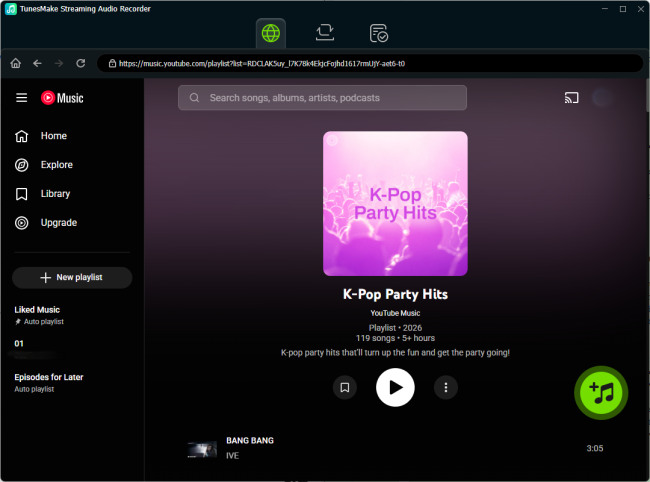
Launch TunesMake Streaming Audio Recorder on your computer. Open the YouTube Music web player directly through the YouTube Music selection inside TunesMake. Locate the tracks, playlists, or albums you want to download and click the + button to add them into the conversion list.
Step 2 Customize Output Audio Parameters
Before starting your downloading, open the settings menu to select your preferred target audio format such as MP3, AIFF, FLAC, or WAV. You can also adjust audio parameters like bit rate, sample rate, and channels to ensure high sound quality.

Step 3 Save Converted YouTube Music Files
After clicking the Convert button at the bottom right corner, Tunesmake will process the download task, save the converted tracks, and preserve the original ID3 tags. Click to open the output destination folder to access your saved local music files for offline playback on any device.

Part 4. Conclusion
Dealing with YouTube Music stopping unexpectedly usually comes down to aggressive background battery restrictions, cellular data limits, or audio conflicts with social media apps. By following the above solutions, you can quickly fix YouTube Music keeps stopping on your device. If app-level bugs or OS memory management continue to interrupt your streams, playing offline converted files through local system media players provides a reliable permanent workaround.
Related Articles

A passionate writer specialized in creating engaging content about music and entertainment, covering everything from the latest music trends and entertainment news to practical tutorials.
- 1
- 2
- 3
- 4
- 5
- 6
- 7
 Leave Your Comment
(0)
Leave Your Comment
(0)

 Download Center

