








 Store
Store


Listening to your favorite songs or playlists on YouTube Music is great until you lock your phone or switch to a messaging app, and the audio instantly cuts off. By default, Google restricts background playback on YouTube Music to its paid Premium subscribers. If you are looking for ways to play YouTube Music in the background without your stream stopping every time your screen goes dark, you have come to the right place. This comprehensive guide covers how to make YouTube Music play in the background with or without Premium.
Part 1. Can YouTube Music Play in the Background?
Official background playback in YouTube Music is a feature restricted to YouTube Music Premium subscribers. If you are using a free account with YouTube Music, you can only play in the background:
-
Podcasts: All users can stream podcasts in the background or with the screen turned off for free inside the official app.
-
Web Browsers: If you open music.youtube.com in a computer browser like Chrome, Safari, or Edge, music continues playing in the background while you open other tabs or windows.
However, it doesn't means that you cannot make YouTube Music play in the background when you are using a free account. If you want screen-off listening without paying for Premium, these alternative methods work. Here are all the methods to play YouTube Music in the background.
| Method | Screen-Off Playback | Ad-Free | Offline Listening | Setup Effort |
|---|---|---|---|---|
| YouTube Music Premium | Full | ✅ | ❌ | None |
| Mobile Browser Desktop Mode | Intermittent | ❌ | ❌ | Low |
| Black-Screen Overlay Apps | Simulated | ❌ | ❌ | Low |
| Open-Source Clients | Full | ✅ | ✅ | Moderate |
| Local File Conversion | Full | ✅ | ✅ | Moderate |
Part 2. Official Way to Play YouTube Music in the Background
The standard and most seamless way to listen to YouTube Music with your screen off is through an official subscription. When you don't have a Premium subscription, you can still stream podcasts from YouTube Music in the background.
Play YouTube Music in the Background with Premium
Subscribing to YouTube Music Premium or YouTube Premium instantly unlocks features like background play, Picture-in-Picture mode, ad-free listening, and offline downloads directly inside the official app.
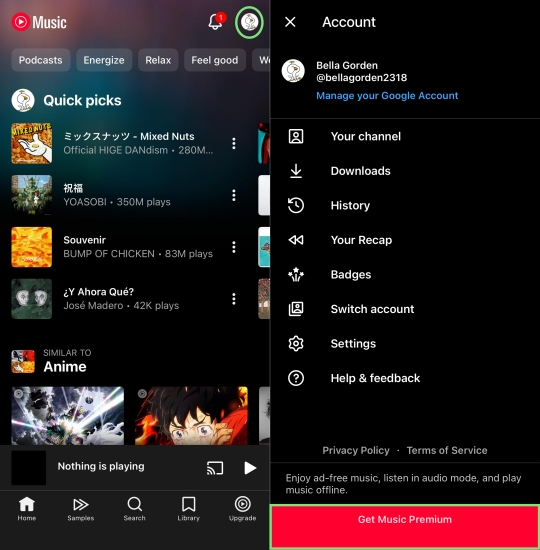
Step 1. Open the YouTube Music app on your device.
Step 2. Tap your profile picture in the top-right corner.
Step 3. Select Get Music Premium.
Step 4. Choose a individual, family, or student plan and complete the signup process.
Step 5. Start your playback of YouTube Music in the background on your device.
Stream YouTube Music Podcasts in the Background for Free
Google allows users to listen to podcasts on YouTube Music in the background for free without a Premium subscription. You can lock your screen or switch apps, and the audio will continue playing seamlessly.
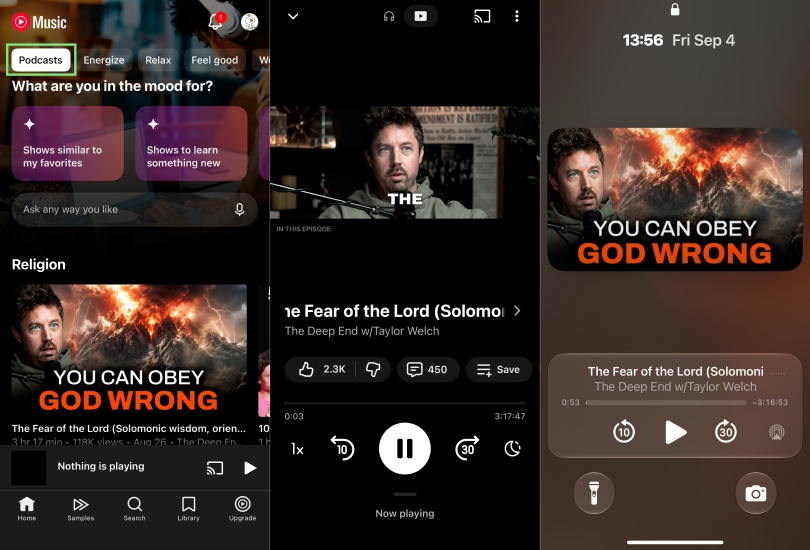
Step 1. Launch the YouTube Music app.
Step 2. Navigate to the Podcasts tab at the top of the home screen.
Step 3. Select any podcast episode and start playback.
Part 3. How to Play YouTube Music in the Background without Premium
Subscribing to YouTube Music Premium provides the official, full-featured method to listen with your screen off. Fortunately, there are still some alternative workarounds for you to make YouTube Music play in the background without a premium subscription.
Method 1. Use Mobile Browser Desktop Mode Trick (iOS & Android)
If you do not want to pay for a subscription, mobile web browsers offer a quick workaround by simulating a desktop browser experience. In the desktop browser environment, you can make YouTube Music play in the background on your iPhone or Android phone.
Play YouTube Music in the Background via Safari on iPhone
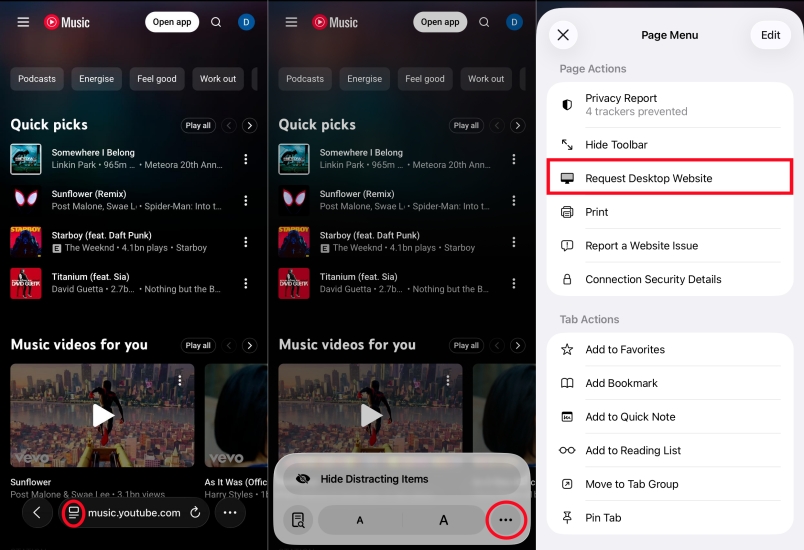
Step 1. Open the Safari app on your iPhone and navigate to music.youtube.com.
Step 2. Tap the aA or Page Settings icon on the left side of the address bar.
Step 3. Tap Request Desktop Website.
Step 4. Search for your target track or playlist and tap Play.
Step 5. Swipe up to return to your Home Screen or press the Power button to lock your device.
Step 6. Open the Control Center or wake your Lock Screen.
Step 7. Tap the Play button on the media control widget to resume playback with your screen off.
Android Devices
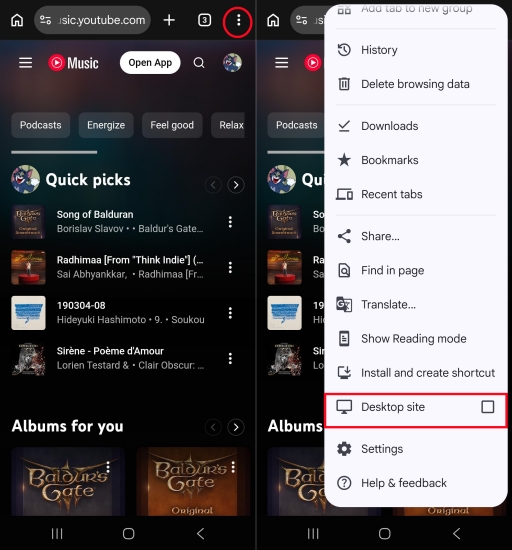
Step 1. Launch Google Chrome on your Android device and head to music.youtube.com.
Step 2. Tap the three vertical dots in the top-right corner of Chrome.
Step 3. Check the box next to Desktop site.
Step 4. Start playing your desired song.
Step 5. Exit to your Android home screen or lock your device.
Step 6. Swipe down from the top of your screen to expand the Notification Panel.
Step 7. Tap Play on the browser media player notification card to keep the audio running in the background.
Method 2. Utilize Black-Screen Overlay Apps (iOS & Android)
Another alternative is to use utility apps that dim or turn off display pixels while keeping the YouTube Music mobile app running in the foreground. Apps like Black Screen or ScreenVeil display an all-black digital overlay on top of active applications. This simulates a screen-off state and saves battery while keeping the YouTube Music app running uninterrupted.
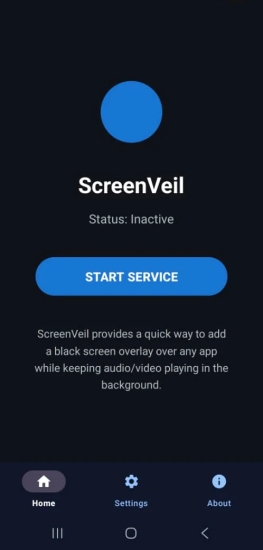
Step 1. Download and install ScreenVeil on your device.
Step 2. Open the ScreenVeil app and tap Start Service.
Step 3. Drag the floating icon button anywhere along the edge of your screen.
Step 4. Open the official YouTube Music app.
Step 5. Choose your song, album, or playlist and press Play.
Step 6. Tap the floating ScreenVeil icon on your screen.
Method 3. Use Open-Source Alternative Clients (Android)
Using open-source media clients or local media players can offer additional background controls. Lightweight open-source media players like NewPipe parse video and audio streams directly from web sources and include built-in background playback modes. With such tool, you can listen to YouTube Music in the background on your Android phone without a premium subscription.
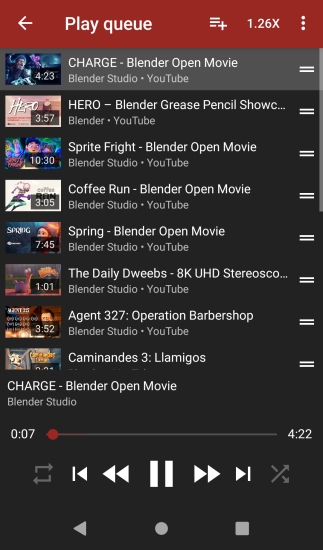
Step 1. Open your browser on Android and visit the official website of NewPipe.
Step 2. Download the APK file and then install it on your Android phone.
Step 3. Launch NewPipe and search for the song, playlist, or artist.
Step 4. Tap on the video or track from the search results.
Step 5. On the player panel below the video window, tap the Background button.
Method 4. Download YouTube Music as Local Files
If you want to bypass subscription fees entirely and enjoy uninterrupted background play on any device, converting YouTube Music tracks into local MP3 files is the most reliable long-term fix. By converting YouTube Music tracks to standard open formats, you can play them using media players like Apple Music, Samsung Music, or VLC that support full screen-off playback without restrictions or ads on your device.
TunesMake YouTube Music Converter is an easy-to-use yet professional audio converting tool that allows you to download and convert tracks from YouTube Music into six standard formats like MP3, FLAC, WAV, AIFF, M4A, and M4B. It preserves lossless audio quality and original ID3 tags like artist name, album title, track number and more, making it simple to organize your offline music library with any media player on your device.

Streaming Audio Recorder –
Download YouTube Music tracks for playing anytime
- Download songs, albums, and playlists from YouTube Music
- Convert YouTube Music to MP3, M4A, M4B, WAV, FLAC, and AIFF
- Remove DRM protection from YouTube Music completely and safely
- Preserve the original audio quality and ID3 tags for management
- Support downloading music from over 10 popular streaming platforms
Security Verified. 100% Clean & Safe.
Step 1 Select YouTube Music Tracks to Download
Download and install TunesMake Streaming Audio Recorder on your computer. Open the program, and you will a list of accessible streaming music platforms on the main interface. Click YouTube Music and log into with your account credentials. Then select any content you want to play and click the + button to add them into the conversion list.
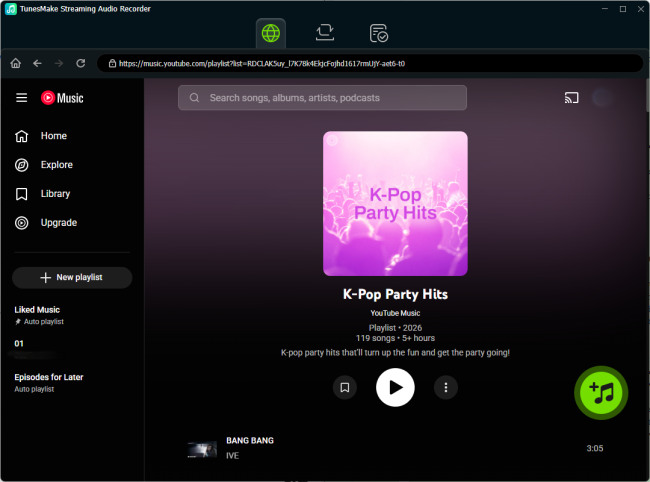
Step 2 Configure the Output Audio Format to MP3
Click the Settings icon at the bottom-left corner of the interface and switch to the Preferences tab. Set the target audio output format to MP3. You can also adjust audio parameters such as bit rate, sample rate, and channel according to your preference. Then go back to the YouTube Music web player in the program.

Step 3 Convert and Save YouTube Music to MP3
Now you can click the Convert button at the bottom-right corner of the interface. TunesMake will automatically download and convert YouTube Music tracks to MP3 audio files. All the converted audio files will be saved to the default folder on your computer or the folder you've designated before conversion.

Step 4 Transfer YouTube Music MP3 Files to Mobile
Once conversion finishes, you can connect your iPhone or plug in your Android phone via a USB cable to transfer the converted songs directly to your device's music storage. You can now use any local player on your phone to listen to YouTube Music in the background for free with the screen completely turned off.
Part 4. Conclusion
Whether you choose to upgrade to a YouTube Music Premium subscription or any alternative way, you keep your YouTube Music playing in the background on your device. For permanent background listening, you can download and convert YouTube Music tracks as local MP3 files with TunesMake YouTube Music Converter. Then you can listen to YouTube Music with any media player on your device without restrictions or ads.
Related Articles



A professional writer at TunesMake, crafts in-depth tutorials, practical tips and expert advice focusing on streaming music, technology, and more.
- 1
- 2
- 3
- 4
- 5
- 6
- 7
 Leave Your Comment
(0)
Leave Your Comment
(0)

 Download Center

