








 Store
Store


Music streaming service users love looking back at their listening habits, discovering their top artists of the season, total minutes played, and favorite tracks. While Spotify users have long enjoyed in-depth listening analytics, tracking your YouTube Music stats requires knowing where to look and how to set up continuous tracking. Whether you want to check your official seasonal or annual YouTube Music stats, this comprehensive guide covers everything you need to know.
Part 1. Does YouTube Music Have Stats Like Spotify?
Yes, YouTube Music has listening statistics that function similarly to Spotify Wrapped. The YouTube Music feature is called Recap. Here are the main differences between YouTube Music Recap and Spotifyt Wrapped.
| Feature | YouTube Music | Spotify |
|---|---|---|
| Official Frequency | Seasonal & Annual | Annual |
| Minimum Play Hours | Up to 10 hours for Annual Stats or 4 hours for Seasonal Stats | Up to 30 hours or 60 tracks |
| Daily Stats | ❌ | ❌ |
| Third-Party Live Tracking | ✅ Yes (via Last.fm and Scrobblers) | ✅ Yes (via Stats.fm, Last.fm, and more) |
| Video Playback Inclusion | ✅ Yes (Official music videos count) | ❌ No (Only audio content focused) |
Part 2. Official Way to Check Stats for YouTube Music
YouTube Music provides listening statistics through its Recap feature. Designed to give users a snapshot of their top tracks, artists, genres, and listening duration, Recap is updated both seasonally and annually. Before checking your YouTube Music stats, make sure you have met the system requirements.
Requirements for YouTube Music Stats
-
Minimum Listening Hours: You must listen to at least 10 hours of music on YouTube Music for an annual Recap, or approximately 4 hours within a specific season for seasonal stats.
-
Watch History Enabled: Your YouTube Watch History must remain turned on. If watch history was paused during the tracking period, data cannot be logged.
-
Account Age Restrictions: Supervised accounts, child accounts under 13, and brand accounts are currently ineligible for YouTube Music Recap features.
How to Check YouTube Music Stats Seasonally or Annually
Accessing your YouTube Music stats on a mobile device or in a web browser on a computer takes only a few taps. Start with the following steps.
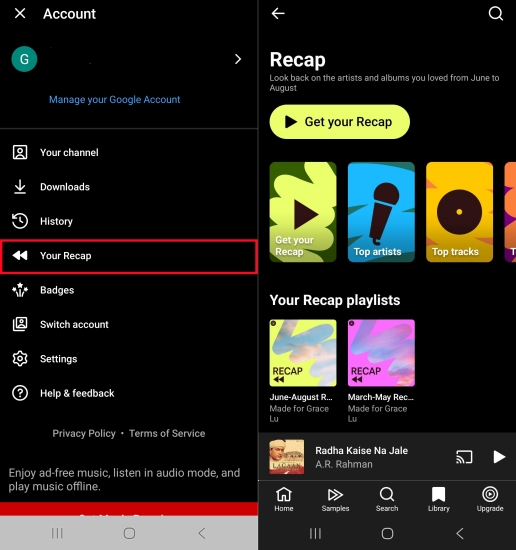
Step 1. Open the YouTube Music app on your phone or go to YouTube Music Recap in a web browser on your computer.
Step 2. Tap your profile picture in the upper right-hand corner of the screen.
Step 3. Select Your Recap from the drop-down menu.
Step 4. Tap Get your Recap to view your interactive story card slideshow, or scroll down to browse your personalized Recap playlists.
Stats Included in Your YouTube Music Recap
When you open your YouTube Music Recap, the platform presents several stats summarizing your listening activity in YouTube Music.
-
Total Listening Time: The exact number of minutes you spent listening to music on the platform during the tracking window.
-
Top Artists & Songs: A ranked list of your most-played performers and tracks, complete with play counts for your top choices.
-
Top Genres: A breakdown of your primary musical genres and sub-genres.
-
Custom Stats Cards: Shareable visual cards featuring distinct colors, top stats, and integrated photo memories from Google Photos.
Part 3. How to Check YouTube Music Stats via Third-Party Tools
The official YouTube Music Recap only offers occasional snapshots rather than a live, continuously updating stats dashboard. Fortunately, you can track your YouTube Music play counts and listening habits in real time 360 days a year using third-party tools.
Method 1. Set Up Last.fm Scrobbling (Continuous Real-Time Tracking)
"Scrobbling" refers to automatically logging the tracks you play to an external stats database. By linking YouTube Music to Last.fm, you can track play counts, top albums, daily trends, and overall stats in real time on your computer or Android device.
Web Browsers (Chrome, Firefox, Edge, Brave)
Step 1. Install the Web Scrobbler browser extension from your browser's official extension store.
Step 2. Connect Web Scrobbler to your Last.fm account.
Step 3. Open YouTube Music on the web and start listening. Web Scrobbler automatically detects the track title and logs it to your profile.
Android Devices
Step 1. Download a background scrobbler like Pano Scrobbler from the Google Play Store.
Step 2. Grant notification access so the app can detect media playing from YouTube Music.
Step 3. Link the app to Last.fm to begin logging every mobile stream automatically.
Method 2. Export via Google Takeout (Deep Historical Dive)
For users who want deep analytics or wish to inspect raw playback history without using third-party live tracking apps, you can make use of Google Takeout. With Google Takeout, you can download the archive to inspect your full JSON file of raw watch and listening entries.
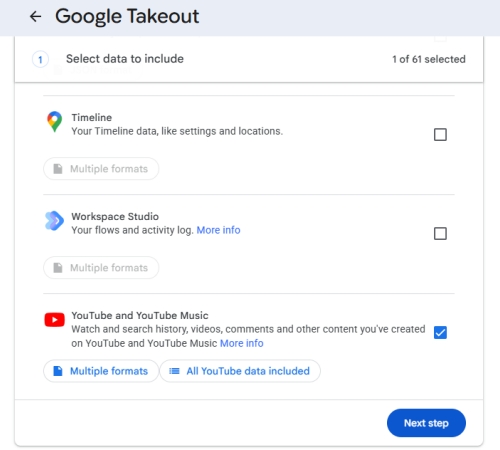
Step 1. Navigate to Visit Google Takeout.
Step 2. Deselect all items, then check YouTube and YouTube Music.
Step 3. Click Next Step and choose file type, frequency, and destination.
Step 4. Click Create export to request the export.
Part 4. How to Save Music in YouTube Music Stats Locally
If you want to keep permanent offline backups of your annual Recap playlists or analyze your local listening history using third-party media managers like MusicBee or Foobar2000, you can save your tracks locally using TunesMake YouTube Music Converter. It downloads YouTube Music playlists into plain audio formats like MP3 or FLAC while keeping full ID3 metadata intact, making it easier to organize and track local audio play counts across different media players.

Streaming Audio Recorder –
Download YouTube Music tracks for playing anytime
- Download songs, albums, and playlists from YouTube Music
- Convert YouTube Music to MP3, M4A, M4B, WAV, FLAC, and AIFF
- Remove DRM protection from YouTube Music completely and safely
- Preserve the original audio quality and ID3 tags for management
- Support downloading music from over 10 popular streaming platforms
Security Verified. 100% Clean & Safe.
Step 1 Select Your YouTube Music Recap Playlist
Launch TunesMake Streaming Audio Recorder on your computer. Select YouTube Music from the software’s main interface to open the integrated web player. Navigate to Your Recap section, and open the specific Recap playlist you wish to save. Click the + icon to import the playlist tracks into the TunesMake conversion list.
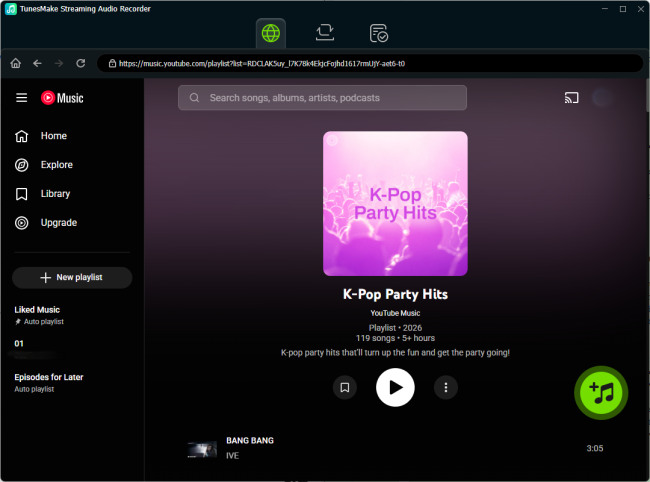
Step 2 Set Output Parameters for YouTube Music
Click the Menu icon at the bottom left corner of the software, select Preferences, and switch to the Convert tab. Choose MP3, FLAC, WAV, M4B, AIFF, or M4A as your target format. Customize the bit rate, sample rate, and target output folder where your local Recap files will be saved. Click OK to save your settings.

Step 3 Batch Save YouTube Music Tracks Locally
Review the loaded YouTube Music tracks, then click the Convert button to start downloading. TunesMake will process and save your YouTube Music Recap tracks into local MP3 files at high speed while retaining original ID3 tags. Once completed, click the History tab to locate your offline music files.

Part 5. FAQs about YouTube Music Stats
How often do YouTube Music stats update?
Official seasonal YouTube Music Recaps update roughly every three months, while the main Annual Recap arrives late in the year, typically in late November or early December. For daily or real-time play counts, you must use a scrobbler tool like Last.fm.
Does listening on YouTube web count toward YouTube Music stats?
Yes. As long as you are signed into the same Google account and play official music tracks or videos on either YouTube or YouTube Music, the playback counts toward your official statistics.
Can I see my all-time top artist on YouTube Music?
YouTube Music only displays stats for recent seasons and the current year's Recap. To view all-time listening totals across multiple years, you need to track your plays via Last.fm or export your historical data using Google Takeout.
Part 6. Conclusion
Whether you want to relive your top seasonal jams or track your listening habits 365 days a year, getting your YouTube Music stats is simple once you know where to look. Official in-app Recaps provide a slick, shareable summary of your top artists, total minutes, and favorite genres. Meanwhile, third-party tools like Last.fm scrobblers and Google Takeout allow power users to maintain continuous, year-round stats dashboards and offline metadata logs. If you want to download music in your YouTube Music stats locally, TunesMake Streaming Audio Recorder is a great tool for you.
Related Articles




A professional writer at TunesMake, crafts in-depth tutorials, practical tips and expert advice focusing on streaming music, technology, and more.
- 1
- 2
- 3
- 4
- 5
- 6
- 7
 Leave Your Comment
(0)
Leave Your Comment
(0)

 Download Center

