








 Store
Store


Listening to your favorite tracks shouldn't depend on a stable internet connection. Whether you are prepping for a long flight, a remote hike, or simply trying to save on mobile data, knowing how to download music from Amazon Music is a must-have skill. However, many users find themselves frustrated when the "Download" button seems to disappear. The trick lies in understanding your specific subscription tier and the device you are using. This guide breaks down how to download music from Amazon Music across devices. Know more details now!
Part 1. Can You Download Music from Amazon Music?
With an Amazon Prime account or an Amazon Music Unlimited subscription, you can download music from Amazon Music to a phone or computer. But before you start clicking the Download icon, you need to know what your specific plan allows. Amazon changed its music structure significantly, and your access depends on your plan as follows.
| Feature | Amazon Music Free | Amazon Music Prime | Amazon Music Unlimited | Purchased Music (MP3s) |
|---|---|---|---|---|
| Download Access | ❌ | All-Access Playlists only | Total catalog | Purchased music |
| On-Demand Choice | ❌ | ❌ | ✅ | ✅ |
| Audio Quality | SD | SD/HD | HD/Ultra HD/Spatial | High-Quality MP3 |
Amazon Music uses Digital Rights Management (DRM) for its streaming catalog, which behaves differently than permanent MP3 purchases. This means that the Amazon Music Offline Mode feature is only available for both Prime members and Unlimited subscribers. No matter, Amazon Music Free users can still download songs from Amazon Music using an Amazon Music downloader - a permanent download for keeping music forever.
Part 2. How to Download Music from Amazon Music (Prime & Unlimited)
If you are an Amazon Music Unlimited subscriber or an Amazon Prime member, your downloads live within the Amazon Music app environment. Here is the details of downloading songs from Amazon Music in the app on both computer and phone.
Download Amazon Music Songs to Phone (iOS & Android)
The mobile app is the most common way to enjoy music offline. Follow these steps to download songs in the Amazon Music app on a mobile device.
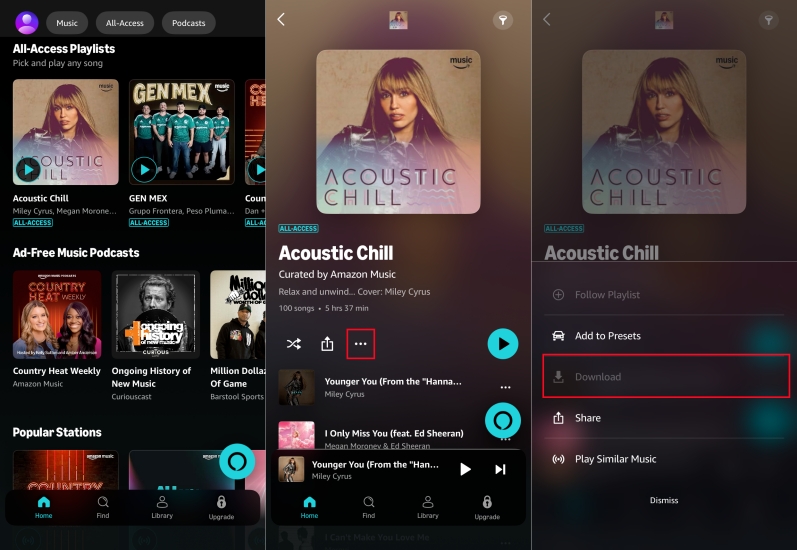
Step 1. Open the Amazon Music app and sign into your active account.
Step 2. Use the search bar or go to Library to find the album or playlist you want.
Step 3. Tap the More Options icon next to the track or album title.
Step 4. Tap the Download button. A blue arrow will appear after the download.
Step 5. Go to Library > Downloaded to see all your offline content.
Download Amazon Music Songs to Computer (PC & Mac)
To listen offline on a computer, you must use the Amazon Music desktop app. Note that the web player does not support downloading streaming content for offline use.
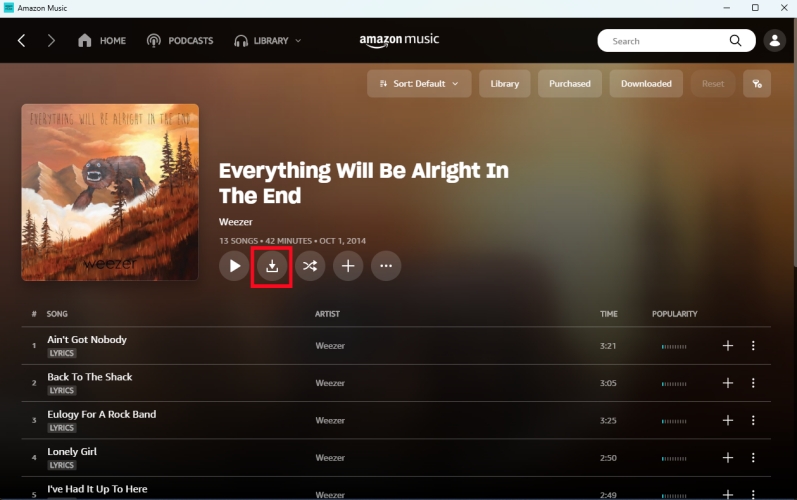
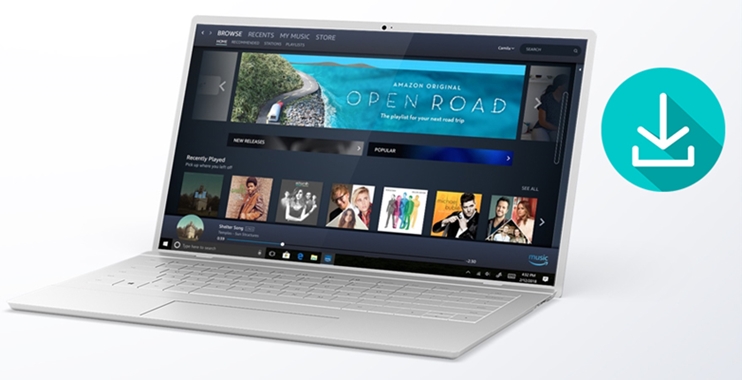
Step 1. Download and open the Amazon Music app for Windows or macOS.
Step 2. Navigate to your Library or search for a specific album.
Step 3. Click the Download icon next to songs and albums.
Step 4. Click the Downloaded filter in your library sidebar to ensure the process is complete.
Note for Prime Members:
If you don't see the download button for a specific song, it's likely because Prime members can only download All-Access Playlists. To download any song, album, or playlist on-demand, you'll need an Amazon Music Unlimited subscription or an Amazon Music downloader.
Part 3. How to Download Amazon Music Songs (Permanent Downloads)
While the official apps are great for mobile use, they store music in an encrypted format that can only be played within the Amazon Music app. If your goal is to play your music on an older MP3 player, a car stereo via USB, or keep a local backup that doesn't expire, a third-party tool like TunesMake Amazon Music Converter can help. It bridges the gap between streaming and local storage by converting Amazon Music tracks into MP3, FLAC, or WAV files, while preserving the original audio quality and full meta information. This is particularly useful for users who find the official app's 30-day re-authorization rule inconvenient for long-term offline use.

Streaming Audio Recorder –
Download music from Amazon Music unlimitedly
- Download songs, albums, and playlists from Amazon Music
- Convert Amazon Music to MP3, M4A, M4B, WAV, FLAC, and AIFF
- Remove DRM protection from Amazon Music completely and safely
- Preserve the original audio quality and ID3 tags for management
- Support downloading music from 10 popular streaming platforms
Security Verified. 100% Clean & Safe.
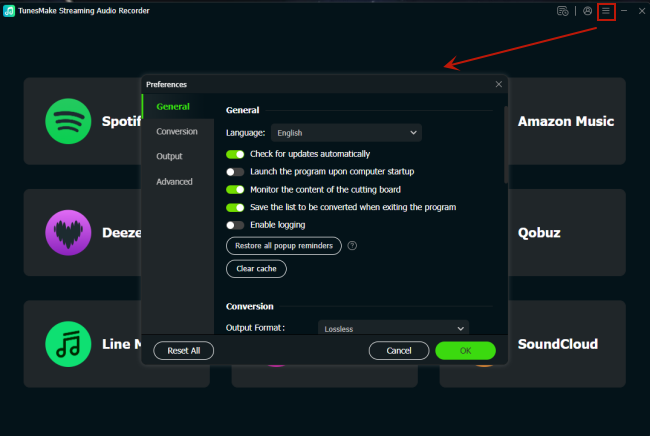
Step 1 Set the Parameters for Amazon Music
Launch TunesMake Amazon Music Converter, then go to set the output audio parameter by clicking the menu bar > Preferences. In the Preferences window, you can choose MP3 or other five common formats as the output format. For better audio quality, you need to adjust the bit rate, sample rate, and channel. Remember to click OK to save the settings.
Step 2 Select Your Favorite Tunes on Amazon Music
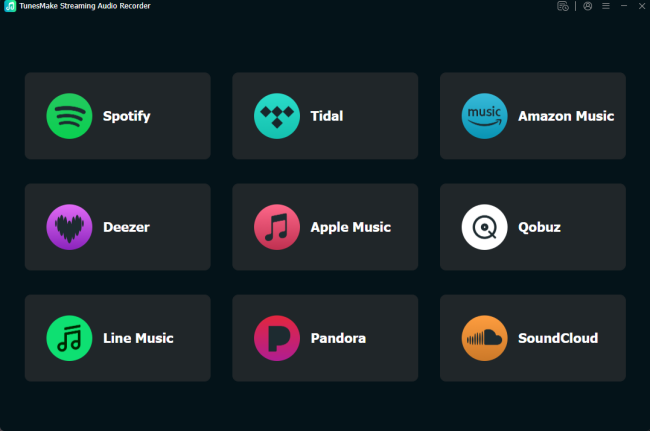
Go back to the main interface and select Amazon Music. Log into your Amazon account and navigate to your music library. When viewing a curated playlist you want to download, just open it and click the Add to List button at the bottom right corner. The program will list all songs immediately into the Conversion window.
Step 3 Start to Download the Songs You Like
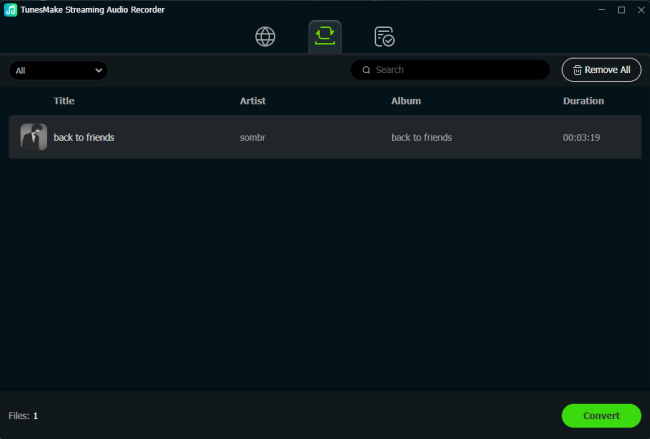
To download the songs you chose, you just need to click the Convert button to start downloading, but keep in mind that it may take a little while depending on the size of the playlist and the speed of the internet. Once saved, the tracks will be accessible from your computer. Then you can click the Converted icon on the top of the convert to browse all the converted tracks.
Part 4. How to Download Purchased Music from Amazon
If you prefer not to use third-party software, you can still get DRM-free files by purchasing them directly. Unlike streaming downloads, which are encrypted files that only work inside the Amazon Music app, purchased music can be downloaded as DRM-free MP3s. These are yours to keep and can be moved to any device or media player for playing.
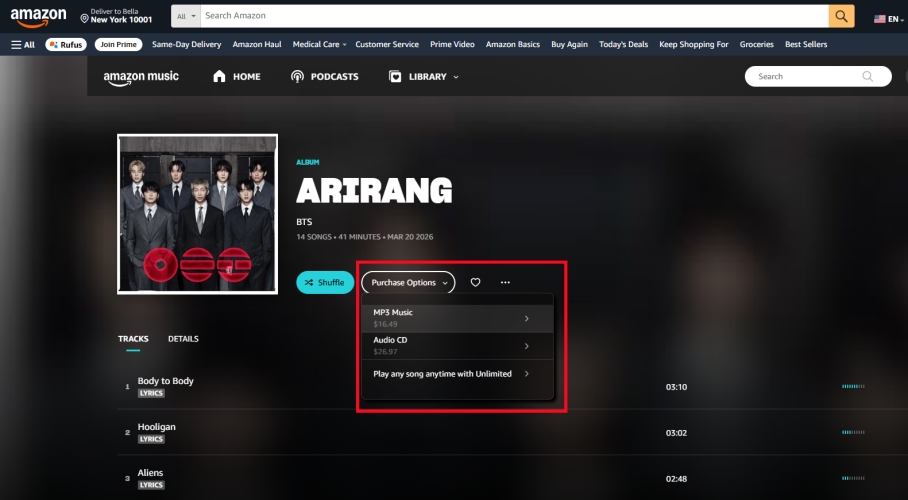
Step 1. Open the Amazon Music app or visit the Amazon website on your web browser.
Step 2. Go to Library > Music > Purchased.
Step 3. Next to the song or album, click the download button.
If using a computer, you may be asked to Save File. These MP3s are typically saved to your computer's Music or Downloads folder. In the Chrome browser, you can click the three-dot icon > Downloads to open the Downloads folder. Then you can find all the downloaded files.
Part 5. FAQs about Downloading Music from Amazon
Can you download music from Amazon Music for free?
You can download curated All-Access Playlists if you have an Amazon Prime account. If you have a strictly Free account, downloading is generally restricted to specific promotional content or playlists. Or you can use an Amazon Music downloader to get free Amazon Music download.
Where does Amazon Music download to?
Streaming downloads are cached files that are hidden, encrypted files only used inside the Amazon Music app. You cannot find the physical downloads and move these to a different player.
Can I download Amazon Music to an MP3 player?
Yes, you can download Amazon Music to an MP3 player. All songs purchased from Amazon Music can be downloaded as MP3 files for playing on an MP3 player or other player for playing. For those streaming contents, you need an Amazon Music converter to complete the conversion of Amazon Music to MP3 players.
Part 6. Conclusion
Downloading music from Amazon Music is simple once you recognize the limits of your plan. For the best experience, Amazon Music Unlimited is the way to go for on-demand offline access. If you just need a few favorites for the road, stick to your All-Access Playlists or buy the MP3s directly for total control. A better download is to use TunesMake Amazon Music Converter that helps you to save and convert Amazon Music songs for keeping lifetime and playing anywhere.
Related Articles



A professional writer at TunesMake, crafts in-depth tutorials, practical tips and expert advice focusing on streaming music, technology, and more.
- 1
- 2
- 3
- 4
- 5
- 6
- 7
 Leave Your Comment
(0)
Leave Your Comment
(0)

 Download Center

