








 Store
Store


Having quick control over your music playback without switching back and forth between apps makes listening seamless. A Spotify widget provides direct access to play, pause, skip tracks, and view recently played albums directly from your Home Screen, Lock Screen, or desktop overlay. Whether you are configuring an iPhone, Android phone, Windows PC, Mac, or embedding a music player on a website or Notion workspace, this guide covers every method step-by-step.
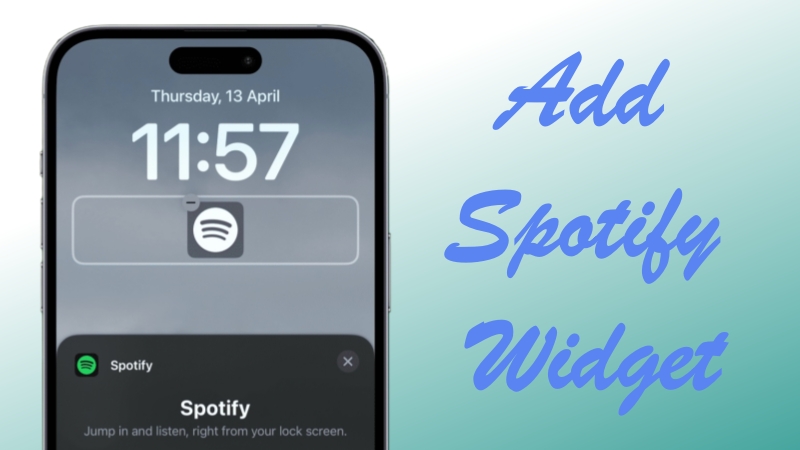
Part 1. How to Add Spotify Widget on iPhone & iPad
Apple devices like iPhone and iPad supports Spotify widgets on both your main Home Screen and your Lock Screen, giving you instant playback controls and quick access to recently played tracks.
Add Spotify Widget to iPhone Home Screen
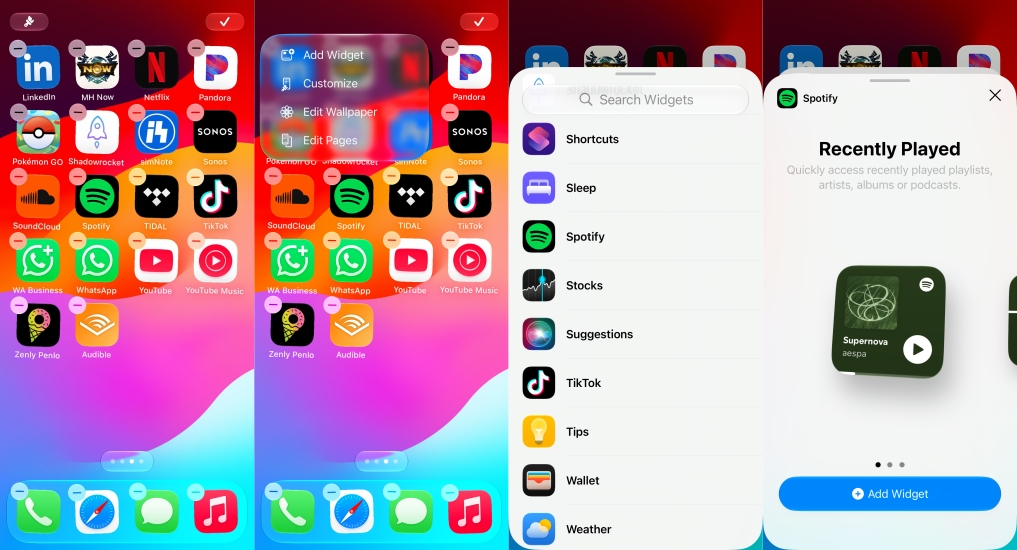
Step 1. Touch and hold any empty area on your Home Screen until the apps start to jiggle.
Step 2. Tap the + button located in the top-left or top-right corner of the screen.
Step 3. Scroll down or type Spotify into the search bar at the top.
Step 4. Swipe horizontally to choose between available widget sizes.
Step 5. Tap Add Widget, then drag it to your desired position on the screen.
Step 6. Tap Done in the top-right corner to lock the position.
Add Spotify Widget to iPhone Lock Screen
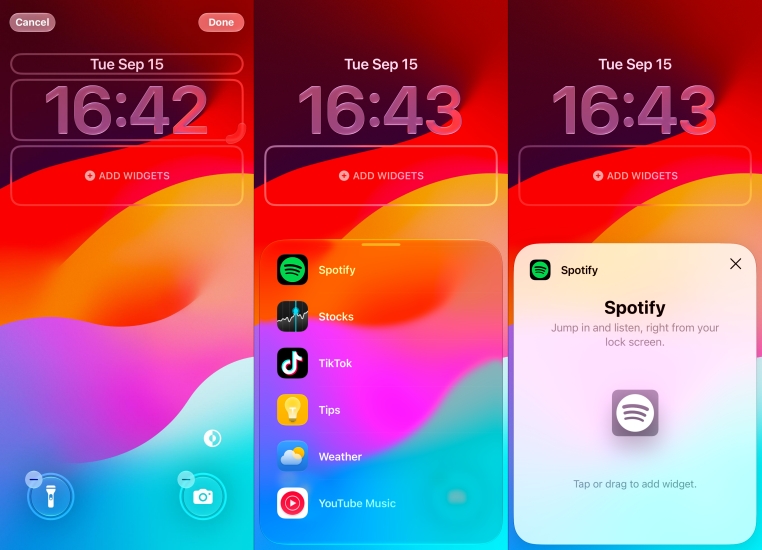
Step 1. Touch and hold your Lock Screen until the Customize button appears at the bottom.
Step 2. Select Lock Screen.
Step 3. Tap the widget box located directly below the digital clock.
Step 4. Scroll through the app list and select Spotify.
Step 5. Tap or drag the Spotify widget to place it in the Lock Screen bar.
Step 6. Tap Done in the top-right corner to save your changes.
Part 2. How to Add Spotify Widget on Android Devices
Android gives you flexible home screen arrangements, allowing you to place and resize Spotify playback controls across Google Pixel, Samsung Galaxy, and other Android launcher interfaces.
Add Spotify Widget to Android Home Screen
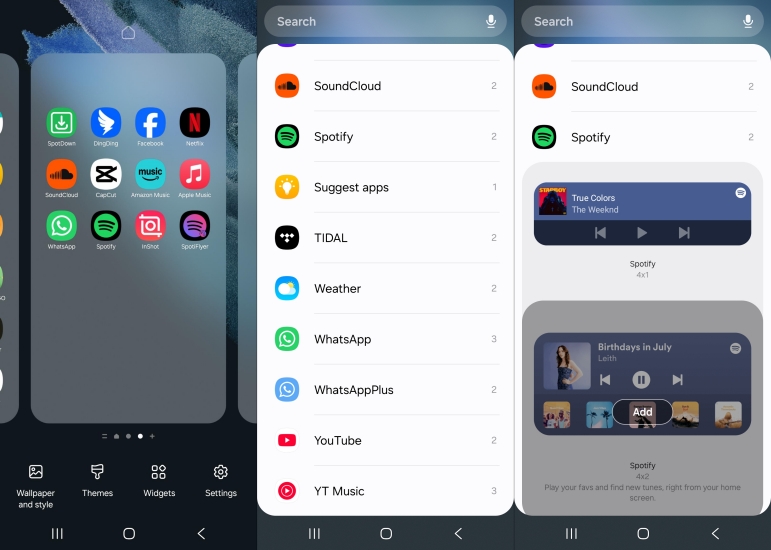
Step 1. Go to your Home Screen and touch and hold an empty space.
Step 2. Tap Widgets from the menu options that pop up at the bottom.
Step 3. Scroll down to locate Spotify and tap to expand its menu.
Step 4. Touch and hold the Spotify player widget, then drag it onto your Home Screen.
Step 5. Release your finger to place the widget.
Resize and Customize Spotify Widget for Android
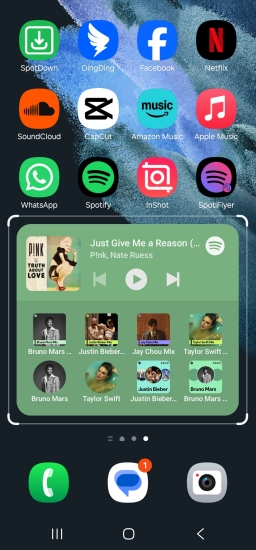
Step 1. Touch and hold the newly placed Spotify widget until a highlighted border appears.
Step 2. Drag the circular bounding handles on the edges left, right, up, or down to scale the size.
Step 3. Tap anywhere outside the bounding box to lock the custom dimensions.
Part 3. How to Add Spotify Widget on Mac, PC, and Web
You can also add interactive Spotify widgets to desktop operating systems and web productivity suites for desktop listening.
Windows 10/11: Use the Xbox Game Bar Spotify Overlay
Windows features an integrated Spotify overlay through the built-in Xbox Game Bar system that can be pinned directly over full-screen applications or games.
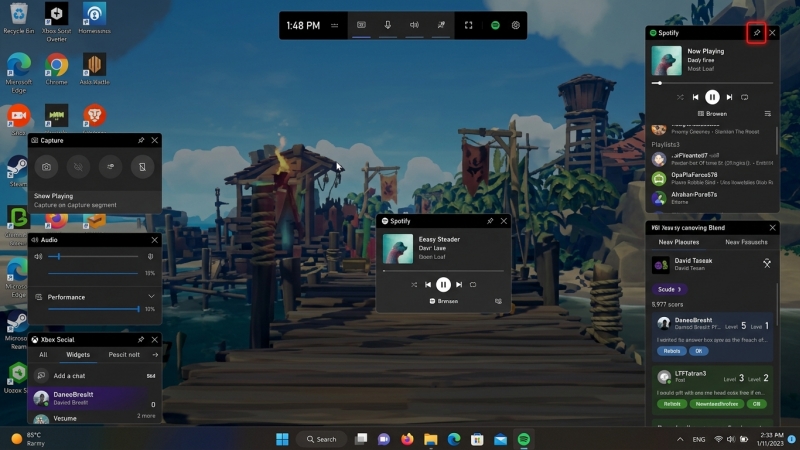
Step 1. Open the Spotify app on your Windows PC and sign in.
Step 2. Press the Win + G keys simultaneously to open the Xbox Game Bar overlay.
Step 3. Click the Widget Menu icon on the top bar.
Step 4. Select Spotify from the drop-down list to activate the floating widget.
Step 5. Click the Pin icon on the top-right corner of the Spotify widget overlay to keep it permanently visible over other windows or games.
macOS: Add Spotify Widget on Mac Home Screen
On macOS Sonoma, Sequoia, and later releases, Spotify widgets can be placed directly on your Mac desktop canvas for controlling the music playback.
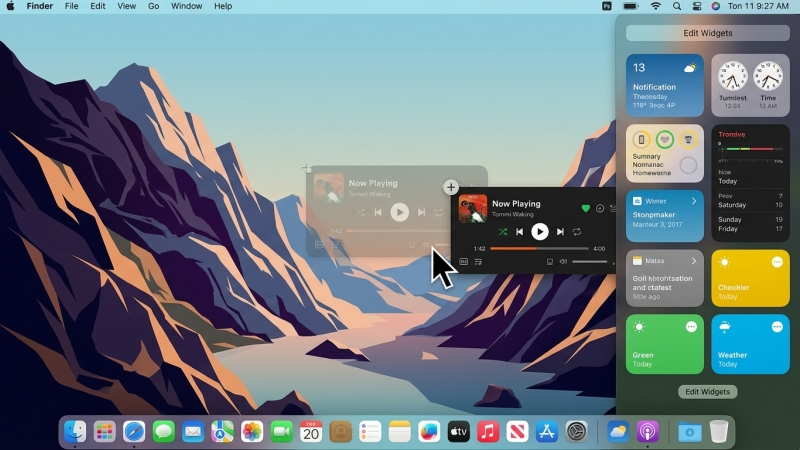
Step 1. Right-click any open area on your Mac and select Edit Widgets.
Step 2. Search for Spotify in the widget library sidebar.
Step 3. Click or drag the Spotify widget to your preferred location on your desktop canvas.
Step 4. Click Done in the bottom corner to exit editing mode.
Websites: Embed a Spotify Widget on Websites
Content creators, developers, and productivity power users can embed active, interactive Spotify players directly into websites, blogs, or Notion dashboards.
Embed a Spotify Player in WordPress
Step 1. Open the Spotify desktop app or web browser player.
Step 2. Go to the track, album, or playlist you want to embed.
Step 3. Click the three-dot icon and hover over Share.
Step 4. Select Embed track or Embed playlist.
Step 5. Customize the player height and theme color, then click Copy.
Step 6. Insert a Custom HTML block inside the Gutenberg editor and paste your embed code.
Add a Spotify Player to Notion Pages
Step 1. Open Spotify, click the three-dot icon next to any song or playlist.
Step 2. Navigate to Share and click Copy Link.
Step 3. Open your page inside Notion.
Step 4. Embed on a blank line and hit Enter.
Step 5. Paste the copied Spotify link into the input field and click Embed Link.
Step 6. Use the side handles to resize the inline player box to match your dashboard design.
Part 4. How to Fix Spotify Widget Not Working or Missing
When the Spotify widget goes blank, fails to update track information, or disappears from your widget picker entirely, it is almost always caused by background performance restrictions, cached data corruption, or missing OS permissions. Try these fixes to fix Spotify widget not working.
Solution 1. Force Restart the Spotify App
A frozen widget usually means the background communication between your operating system and Spotify broke down. Completely close the Spotify app in the background.
Solution 2. Enable Background App Refresh
Ensure Spotify has permission to run in the background. Go to Settings > Apps > Spotify and turn on Background Refresh on the iPhone. Or go to Settings > Apps > Spotify > Battery on the Android device and set to Unrestricted or Optimized.
Solution 3. Remove and Re-Add the Widget
Long-press the broken Spotify widget and tap Remove Widget or Remove to delete the widget. Then restart your phone and follow the setup steps again to re-add it.
Solution 4. Update Spotify to the Latest Version
An outdated app version can cause compatibility issues with system widgets. Update Spotify via the Apple App Store on the iPhone or Google Play Store on the Android device.
Solution 5. Bypass Web Embed 30-Second Limits
If you embedded a Spotify widget on a website or Notion page and it stops after 30 seconds, this is a licensing restriction. Users must log into Spotify in their browser to access the full content. Alternatively, if you need Spotify offline playback without forcing visitors to log in, you can convert Spotify tracks to local MP3 audio files using TunesMake Spotify Music Converter to host them directly on the server.

TunesMake Spotify Music Converter –
Download music from Spotify without premium
- Download Spotify songs, albums, playlists, audiobooks, and podcasts
- Losslessly convert Spotify music to MP3, FLAC, WAV, AIFF, and more
- Remove ads from Spotify music tracks even with a Free account
- Convert Spotify music at 15× faster speed in batch with ID3 tags kept
Security Verified. 100% Clean & Safe.
Part 5. FAQs about Spotify Widget
Can I control playback directly from the Spotify widget?
Yes, most Spotify widgets include basic media controls like play, pause, and skip. However, some compact Spotify lock screen widgets for iOS act primarily as quick shortcuts to open the playing track inside the app due to system limits.
Is the Spotify widget available for Spotify Free users?
Yes, Spotify widgets are available for both Free and Premium account holders on mobile, desktop, and web platforms.
Does using a Spotify widget drain more battery?
Spotify widgets consume minimal system resources because they only fetch track data when playback changes or when you interact with the controls.
Part 6. Conclusion
Adding a Spotify widget to your Home Screen, Lock Screen, or desktop overlay is one of the quickest ways to streamline your daily listening. Whether you need fast playback controls while on the move, a pinned widget during PC gaming sessions, or an embedded player inside a Notion workspace, setting it up takes only a few taps. If your widget ever stops responding, basic background permission adjustments or re-adding the player will usually get your music controls working seamlessly again.
Related Articles



An experienced freelance writer at TunesMake, specializes in using various streaming services from Spotify, Apple Music, to Amazon Music, and more other platforms.
- 1
- 2
- 3
- 4
- 5
- 6
- 7
 Leave Your Comment
(0)
Leave Your Comment
(0)

 Download Center

