








 Store
Store


It’s often easy to cut music with the help of various good editing programs. However, it’s a bit difficult to find music resources for you to cut. Most of your favorite tracks are collected by music streaming platforms like Spotify. Spotify is a good place for you to discover all kinds of music resources around the world, but all content from Spotify comes with DRM protection. So, can you cut songs on Spotify and how to cut a song from Spotify? After reading this post, you’ll get answers.

Part 1. Can You Trim Songs on Spotify?
Indeed, the answer is no. There isn’t a functionality for users to edit song length Spotify. And if you try to input downloaded Spotify songs into audio editors, you will find the downloads are not allowed for use outside of the Spotify app. That is because Spotify encrypts DRM to protect the whole music catalog. So, is no way to cut music from Spotify? I would argue that the answer is no. If that’s the case, consider removing DRM from Spotify and converting Spotify songs to local music files. Then everything gets easy.
What You Need to Cut Music from Spotify?
To remove the DRM protection on Spotify music, you will need a professional music converter adopting a decryption technology. Here, we recommend TunesMake Spotify Music Converter. It can help you download Spotify songs and convert them to several common audio formats, like MP3, M4A, M4B, WAV, FLAC, and AIFF. Furthermore, the TunesMake program automatically retains all original sound quality and ID3 tags to ensure your listening experience. When the conversion process is finished, you will get the local files of your favorite Spotify songs and import them to other apps for cutting and editing.

TunesMake Spotify Music Converter –
Download Spotify Songs to Local Files
- Unlimitedly download Spotify songs, playlists, and podcasts
- Losslessly convert Spotify music to MP3, FLAC, WAV, AIFF, etc.
- Remove ads from Spotify music tracks even with Free accounts
- Convert Spotify songs at 12X faster speed with ID3 tags kept
Security Verified. 100% Clean & Safe.
Part 2. How to Download Spotify Songs Locally for Editing
Now, install TunesMake Spotify Music Converter on your PC or Mac, and the TunesMake program will automatically download unprotected Spotify songs for you. All songs will be saved with lossless quality and original metadata tags so you can better edit them.
After that, you can easily apply your preferred audio editor to trim Spotify songs. Surely, we also recommend free editing tools for computer and mobile in Part 3 and Part 4 so you can cut Spotify songs directly. Now, let’s turn DRM-protected Spotify songs into DRM-free songs.
Step 1
Select songs you want to cut from Spotify

Start by launching TunesMake Spotify Music Converter on your computer. Then, the Spotify web player will open automatically. You can sign in to your account and select the playlist or album you want to download. To load your target songs to the conversion list, you should click the Add icon > Add to List.
Step 2
Adjust the audio parameters

Next, go to set the output audio parameters for Spotify songs. To do this, click the Menu bar, choose the Preferences option, and switch to the Conversion window. From there, you can set the output format from MP3, M4A, M4B, WAV, FLAC, and AIFF. We suggest you keep the default MP3 format. Besides, you could also adjust the bit rate, sample rate, and channel for better audio quality.
Step 3
Start to download Spotify music

Now click the Convert button at the bottom right of the interface, and your selected content will begin downloading automatically. After the conversion is complete, you can browse your downloads in the converted list by clicking the top Converted icon. Then don’t forget to locate them in the local drive by hitting the search icon.
Now, go to the following parts to learn how to trim a song on Spotify.
Part 3. How to Cut Spotify Songs on Desktop
Once downloaded, your Spotify songs will be accessible from other apps on your device. There are lots of editing programs on the market developed for cutting music, and here we will take iTunes as an example.
As a well-known media player, iTunes not only stores your entire media collection but also boasts multiple features like equalizer, editor, and more. Whether you are a Windows or Mac user, iTunes is a great choice if you are eager to know how to cut songs on Spotify. Here’s how.
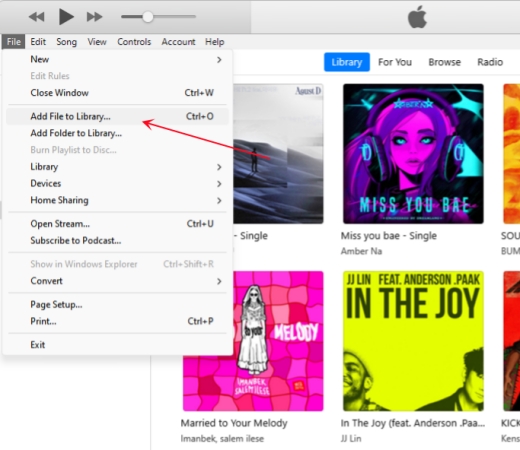
1. Open iTunes and click File > Add File to Library to import the DRM-free Spotify songs to your iTunes Library.
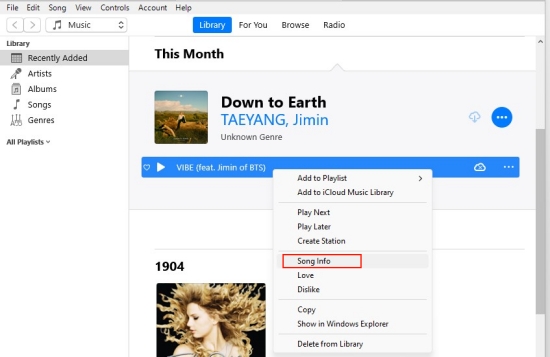
2. Then Spotify songs will appear in the Recently Added tab.
3. Right-click the song you want to cut and select Song Info.
4. Go to Options from the top bar.
5. Check the start and stop boxes and type the length you want.
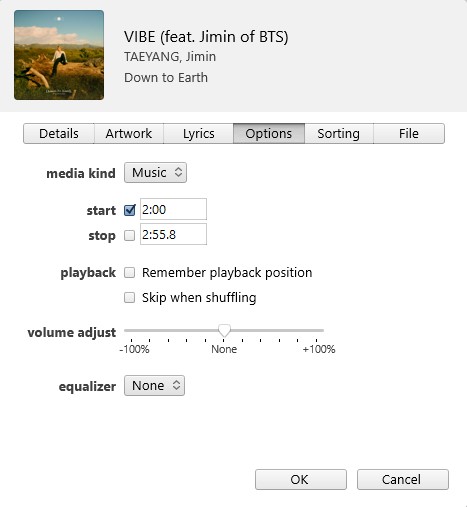
6. After clicking OK, the song will be shortened as you set.
Part 4. How to Cut Spotify Songs on Mobile Devices
To trim Spotify songs on a smartphone, you also need third-party applications to help you do so. Let’s see how.
Option 1. GarageBand (iOS)
As one of the leading production programs released by Apple company, GarageBand could also be a good music editing software suitable for most Mac and iOS users. It allows you to create and edit your own songs with a variety of special effects with ease.
1. First, open the iTunes or Music app to sync your converted music files to your iPhone.
2. Launch GarageBand and open up the GarageBand Keyboard project.
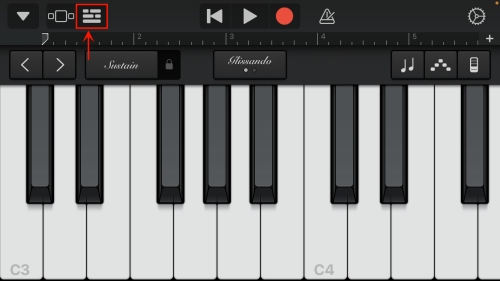
3. Then tap on the Stacked Bars icon and then the Loop icon.
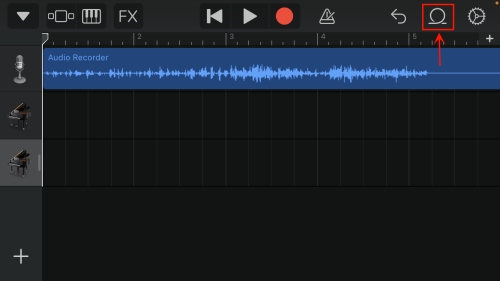
4. Switch to Files here and select Browser items from the Files app.
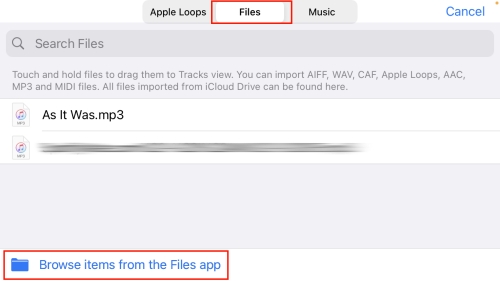
5. After locating the Spotify music, directly hold and drag it to the workspace.
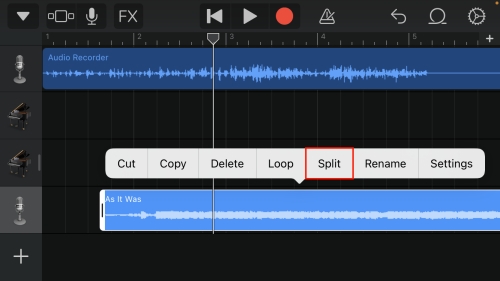
6. Now, you can tap the track where you want to make the split. Then tap the Split option from the pop-up menu.
Option 2. MP3 Cutter (Android)
MP3 Cutter is an app available on Google Play Store. It’s easy to use for trimming and mixing music. You could import audio from your local library and accurately cut out the best part of the music. Furthermore, this is the perfect way to make music ringtones if you wish to make Spotify ringtones.
1. With a USB cable, you can easily transfer your converted Spotify music files from your computer to Android.
2. Get MP3 Cutter from Google Play Store on your Android device and start it.
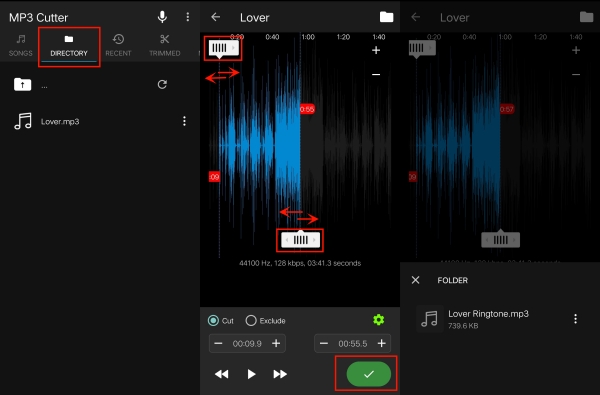
3. From the top menu, select Directory to quickly access your converted Spotify music files.
4. Tap on the track you want to cut right now.
5. Just move the sliders to select the length of the music you want.
6. To save the trimmed Spotify music, just touch the green tick button.
Conclusion
With the help of TunesMake Spotify Music Converter, you will have the ability to cut music from Spotify. After downloading music from Spotify to your device, try any or all of these music editing apps for cutting Spotify music. Then you will create your own music with special effects or cut your Spotify music into different clips.
Related Articles




A senior editor from TunesMake, dedicated to sharing professional tutorials and solutions of software, movies, and music.
- 1
- 2
- 3
- 4
- 5
- 6
- 7
 Leave Your Comment
(0)
Leave Your Comment
(0)

 Download Center

