








 Store
Store


When streaming music online, Spotify is always the first option for people to think of. With access to millions of music songs, podcasts, radios, and audiobooks, you can enhance your pursuit of enjoying great songs. Except for music diversity, Spotify’s compatibility with other smart devices makes it a great choice for music lovers. However, you may encounter some issues while playing Spotify on other devices. One of the most frequent complaints from users is that Alexa not playing Spotify. This instability of Spotify Alexa integration is not a rare case. If you are also experiencing it, you have come to the right place. In this post, we will analyze the reason and explore the feasible solutions. Keep reading, and you will find the answer to how to fix it.
Part 1. Why Is My Alexa Not Playing Spotify?
When you’re trying to play some of your favorite songs or playlists through Alexa devices, you find that Alexa is not playing music from Spotify. And even if you said voice commands like “Alexa, play my playlist” or “Alexa, play Spotify”, Alexa makes no response or remains silent. It seems that Amazon Alexa or Spotify malfunctions or their connection fails; the reasons can be various here. I just summarize some common factors below for your reference.
Reason 1. Streaming music needs a good and stable Wi-Fi or cellular network, especially when you’re connecting Spotify to Amazon Alexa, or the connection can’t be established.
Reason 2. If you haven’t checked updates for your Amazon Alexa app or Spotify app, you might use the older version, which can lead to the Alexa won’t play Spotify issue.
Reason 3. The device you use to stream Spotify music is running out of storage space. To run an app like Spotify, you’ll need to leave enough space for operating and processing.
Reason 4. Your voice commands are not accurate or understandable, so Amazon Alexa can’t read your requests correctly.
Reason 5. There are some unexpected errors or mistakes on both two apps or your device.
Part 2. How to Fix Spotify Not Playing on Alexa
After brainstorming, we found why Alexa’s Spotify is not working well. So, if you’re now experiencing this issue or have met this before, don’t fret! You can try the following troubleshooting steps to solve it. If you want to save time and solve this issue once and for all, there is an ultimate method that works 100%. You can find more detailed information and steps in Part 3.
General Fixes You Can Try First
Before applying the helpful solutions below, try these general fixes and quick steps first. It reminds you not to miss some basic settings that may fix your issue quickly.
#1 Check Your Internet Connection
The first thing you should check is the network connection. You’re supposed to connect Alexa to Spotify under a good and stable Wi-Fi network. And the network your Alexa and Spotify apps are connected to should be the same. When there is a lag or other issues, try to restart your router or switch to another Wi-Fi connection.
#2 Keep Your Device and the App Updated
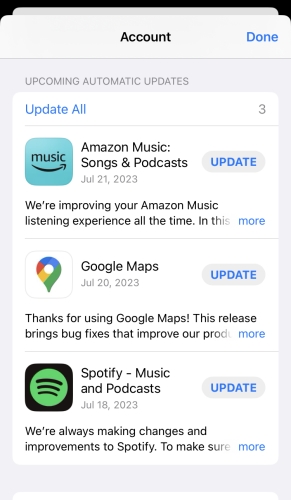
When Spotify is not playing on Alexa, you should check the version of the Spotify app and your device’s. As they are working and handling problems by providing you with updates, it’s always a good idea to keep your device system and app updated. If you haven’t updated them and have been using the older version for a long time, issues are more likely to happen.
#3 Check the Speaker Volume Settings
When Alexa is playing Spotify but with no sound, please go check the volume settings on both the Alexa and Spotify app, ensuring everything is fine. You can increase the volume if it is not loud enough to hear.
#4 Confirm Your Spotify Account
It is common for users to have more than two Spotify accounts. In this case, please confirm your Spotify account. Make sure you use the same account to connect Alexa to Spotify. To check if your account is signed in successfully, you can open the Alexa app and head to Settings > Preferences > Music & Podcast > Spotify.
Solution 1. Restart the Alexa Device
If the quick fixes above don’t resolve this issue, you can try some advanced methods. The simplest and often most effective first step is a restart on your Alexa device. This step is helpful in clearing temporary data and re-establishing a clean connection to Spotify. Unplugging your Alexa device from the power outlet and waiting for about 10 seconds can restart your device successfully. In addition, you can go to the Alexa app on your smartphone, and select Devices > your device > Settings > Restart.Solution 2. Disconnect and Reconnect Alexa to Spotify
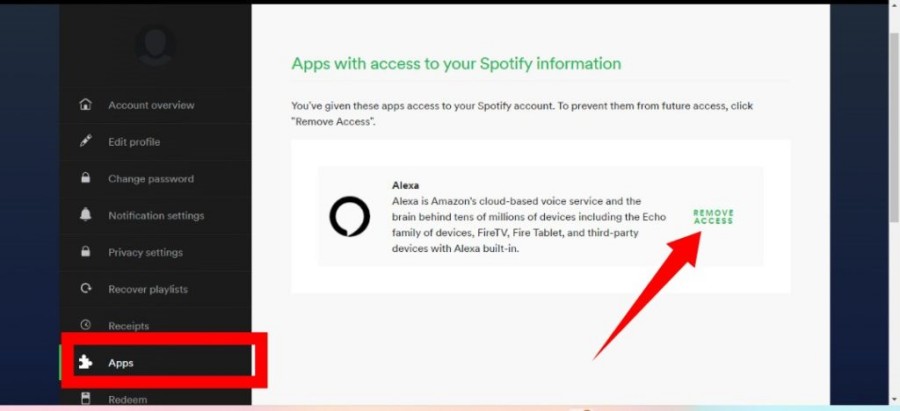
If you have logged into both accounts on these two apps, you can try to disconnect and reconnect them to fix the connection failure. You can disconnect Alexa to Spotify from the Spotify website. Here are the steps:
Step 1. Open the Alexa app on your phone and tap the More section at the bottom-right corner.
Step 2. Tap the menu to enter the Settings page.
Step 3. Under Music & Podcast section, select Spotify on the list.
Step 4. Tap the Disable Skill option and confirm it.
Solution 3. Set Spotify as the Default Music Service
One possible situation happens a lot - Alexa plays music from other music streaming services, like Amazon Music, when you haven’t specifically mentioned “on Spotify”. If so, setting Spotify as the default music player can solve the issue of Alexa not playing Spotify music.
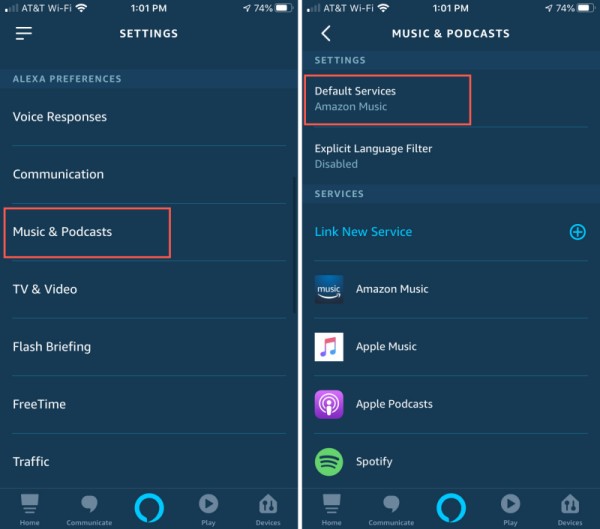
Step 1. Open the Amazon Alexa app and click on Menu.
Step 2. Go to Settings and select Music & Podcasts.
Step 3. Tap Default Services.
Step 4. Select Spotify from the available service list.
Solution 4. Clear Spotify App Cache & Device Storage
Cache files are the temporary files stored in your device as default. Every time you open the app and stream, it stores caches automatically. Therefore, you’ll have to clean them up from time to time to ensure a smooth experience. Here shows how to clear the cache on your Spotify app and your mobile devices.
How to clear Spotify Cache:
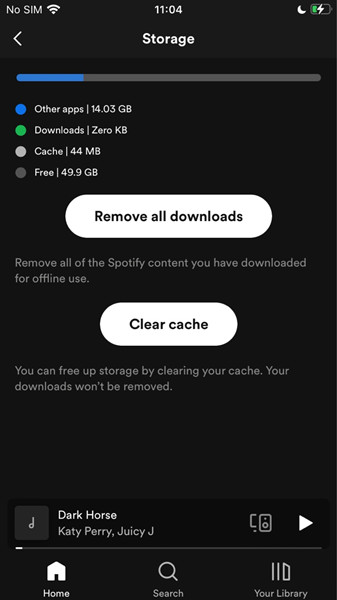
Step 1. Launch the Spotify app and tap Settings at the upper-right corner of the Home Screen.
Step 2. In the Settings page, scroll to Storage > tap Clear Cache.
Note
On an Android device, you have to confirm once you tap the Clear Cache button.
How to clear smartphone storage:
Clearing the unnecessary files on your current devices is essential to free up more storage space. So that to allow apps working well.
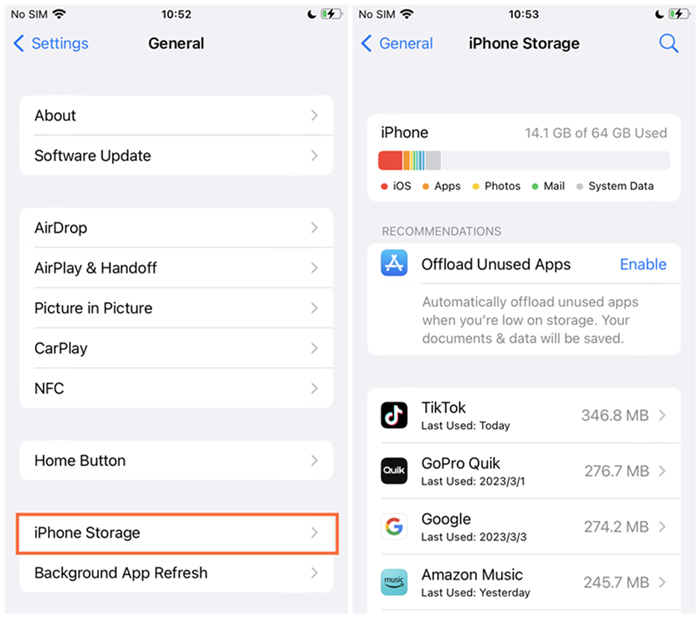
On iPhone: Open Settings and navigate to General > iPhone Storage. Here you can see all your downloads and apps, as well as how much space you have left. Verify if you have enough space to run Spotify. If not, delete some videos, files or etc that you don’t need to free up more space.
On Android: Go to Settings and select Storage. On the next page, you can see your space clearly. Make sure you have enough space to run the Spotify app. If not, delete some.
Solution 5. Control Music Playback with Correct Commands
This is likely to happen when you have several Alexa devices in your house. Since they are all named Alexa, and when you say, “Alexa, play Spotify”. All these Alexa-based devices may be confused about which one you’re commanding and where you want to use the Alexa smart speaker. In such cases, I have an alternative method to fix it.
You can change the name of each device as per your location, then give her command with the name of the song, playlist, artist, album, etc. For example, you can say: “Alexa, Play Daily Top Hits in My Living Room Echo Dot Spotify”. Alexa will respond to such clear commands.
Also, when you are asking Alexa to play some songs that are cooperated by more than one author, just say the song name and one of the included authors. For example, you can say: “Alexa, play XX from XX”, which is enough.
Solution 6. Reinstall the Alexa App
If you have tested your device and the Spotify app, but the issue persists, then the problem may lie in a deeply corrupted cache or data file within the Alexa app itself. A fresh installation of the Alexa app can often resolve it easily, since it forces a clean re-synchronization. The process to do so is pretty simple - press and hold the Alexa app icon until the menu appears. Then, select Uninstall/ Delete App. After that, you can go to the application store to install the app again.
Note
Before reinstalling, make sure you know your account login credentials, as you will need to sign back in.
Solution 7. Re-enable the Spotify Skill in the Alexa App
There is a “skill” feature in the Alexa app. It is the bridge that allows your Alexa device to communicate with your Spotify account. Over time, it can become corrupted or lose authentication. Thus, you can try disabling this skill and re-enabling it to force a clean authorization. Here’s how to:
Step 1. Go to the Alexa app installed on your smartphone. Then, select the More option at the bottom.
Step 2. Go to Settings > Music & Podcasts > Spotify.
Step 3. In the detailed page, tap DISABLE SKILL and make a confirmation.
Step 4. Restart the app. Then, you can re-enable this skill by selecting ENABLE TO USE.
Step 5. After that, you can follow the on-screen instructions to link your Spotify account again.
Solution 8. Turn Off the Profanity Filter
Sometimes, you may fail to play some specific albums or playlists. This issue may be related to the profanity filter function of your Alexa device. When it is enabled, it restricts tracks with explicit content. Just turn this filter off, and you can stream any Spotify song on your Alexa device without hassles.
Step 1. Open the Alexa app and go to the Settings section.
Step 2. Select Music & Podcasts, and scroll down to find Profanity Filter.
Step 3. Toggle the Profanity Filter off, and you are done. Restart the app and try playing Spotify music again.
Solution 9. Turn Off Spotify Shuffle Mode
If you enabled the Spotify shuffle mode last time streaming, it may interfere with the connection of Alexa to Spotify this time. You might turn off the shuffle mode to try to fix it. A small group of people has proven this way is truly helpful to solve the problem on their devices.
Now please follow the below steps to disable the Shuffle mode on Spotify:
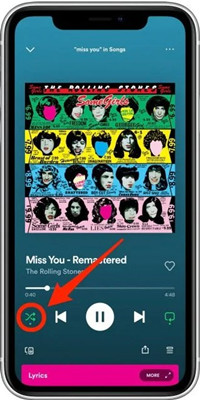
Step 1. Launch the Spotify app on your mobile phone and select the song you like to play.
Step 2. Go to the Now Playing view and find the shuffle mode icon to turn it off. (When Spotify Shuffle mode is enabled, it shows up as a green icon.)
Step 3. Once done, you can see the Shuffle mode icon turned grey.
Solution 10. Factory Reset the Alexa Devices
If the above methods are not workable for your problem, the final resort for you is to reset the Amazon Alexa device. Please note that after resetting, your Alexa Echo device will resume to the formal default settings, which means all the settings and configurations set by you are going to be deleted. You’ll need to reconnect your Alexa to Spotify and set Spotify as the default music service again. To setup, follow these procedures:
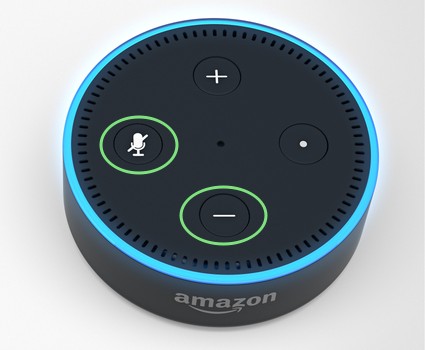
Step 1. Press the volume down and microphone button on Alexa Echo simultaneously and hold for 30 seconds.
Step 2. Press and hold the buttons till you see the orange ring around the Echo device.
Step 3. Now connect the Echo device to your mobile phone again to listen to music via Alexa.
Part 3. Ultimate Fix: Play Spotify Songs on Alexa as Local Files
In most cases, the above solutions can solve your problem. However, if you have exhausted all the previous troubleshooting steps and Alexa still won’t play your Spotify reliably, consider using the ultimate fix to resolve the issue once and for all. That is to bypass the streaming connection entirely by downloading your Spotify playlists to MP3, and then listening to them on your Alexa device as local files.
The biggest obstruction to doing so is the DRM protection Spotify applies to all its music tracks. Even with a Premium account, the songs you download are encrypted in the OGG format, which limits you to only accessing the downloaded songs through the official Spotify app. You are not able to get the raw audio files to save them to your device or transfer them to other players for offline playback. Fortunately, you can turn to TunesMake Spotify Music Converter for help.
TunesMake Spotify Music Converteris a professional music downloader and converter, helping users to download songs, playlists, albums, and podcasts from Spotify to MP3, M4A, M4B, WAV, FLAC, and AIFF. In other words, it can remove Spotify DRM protection and save your favorite tunes as local files. Once done, you can transfer them to other devices and have a smooth offline playback. What’s more, it ensures your music experience by retaining the original sound quality and ID3 tags. Depending on your personal requirements, you can select the output settings, including music formats, music quality, bit rate, sample rate, and so on.

TunesMake Spotify Music Converter –
Save Spotify Playlists Offline for Unlimited Playback
- Unlimitedly download Spotify songs, playlists, and podcasts
- Losslessly convert Spotify music to FLAC, MP3, WAV, AIFF, etc.
- Remove ads from Spotify music tracks even with Free accounts
- Convert Spotify songs at 12X faster speed with ID3 tags kept
Security Verified. 100% Clean & Safe.
Part 4. Conclusion
Is your Alexa not playing Spotify? No worries. Although the connection errors between Alexa and Spotify are frustrating, you can resolve them with the helpful troubleshooting tips in this post. If traditional solutions fail to create a stable connection, the ultimate fix gets you back. You can save your favorite Spotify playlists as local music files via the TunesMake Spotify Music Converter. Once done, it’s easy to enjoy Spotify on your Alexa devices and others.
Related Articles


A senior editor from TunesMake, dedicated to sharing professional tutorials and solutions of software, movies, and music.
- 1
- 2
- 3
- 4
- 5
- 6
- 7
 Leave Your Comment
(0)
Leave Your Comment
(0)

 Download Center

