








 Store
Store


For audiophiles and media center enthusiasts, integrating Spotify into Kodi is the ultimate way to centralize your home entertainment. Whether you want to browse your Discover Weekly on a massive TV screen or route your favorite tracks through a high-end home theater audio system, combining these two platforms makes perfect sense.
However, because there is no official Spotify app in the native Kodi repository, users often face a dilemma: Should you stream directly through community-developed add-ons, or is it better to sync your music for local, offline playback? This comprehensive guide breaks down the two best strategies to get Spotify on Kodi, helping you choose the method that perfectly fits your home media setup.

Part 1. How to Install Spotify on Kodi via Kodi Spotify Add-on
If you want the true Spotify experience on Kodi, including complete with dynamic searching, accessing your saved playlists, and viewing album art live on your screen, installing a community-maintained Kodi Spotify add-on is a great path. Following are the steps to install a Kodi Spotify add-on for accessing Spotify on Kodi.
What You Need Before Installing Spotify on Kodi
Before diving into the installation process, there are two critical requirements you must meet to ensure a smooth setup.
A Spotify Premium Account
Due to Spotify's strict API architecture and digital rights management (DRM), third-party implementations and external media center add-ons require a Spotify Premium subscription. Free accounts cannot authenticate through third-party APIs because they cannot bypass ad-injection and streaming restrictions on non-official devices.
Enable Unknown Sources in Kodi
Because the best-working Spotify add-ons are community-maintained, they live in external repositories. You need to allow Kodi to install add-ons from these sources.
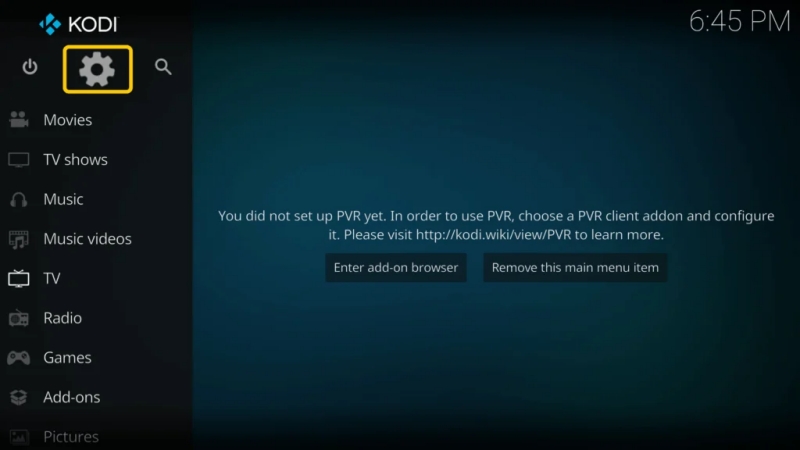
Step 1. Open Kodi and click on the Settings at the top left.
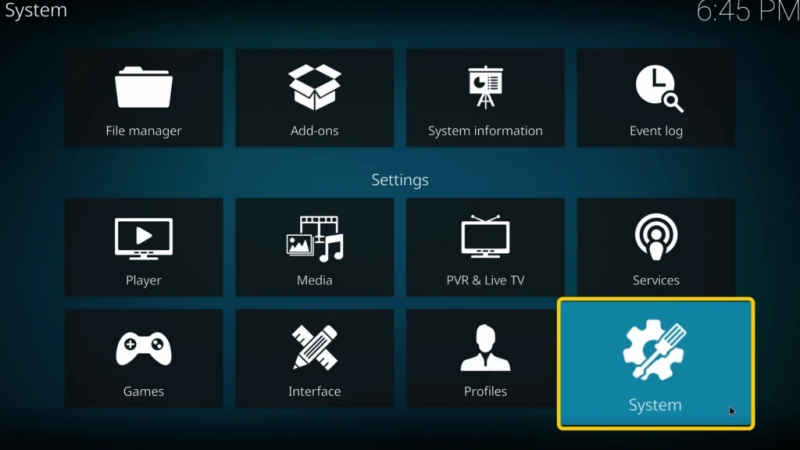
Step 2. Select System and hover over the Add-ons menu item on the left sidebar.
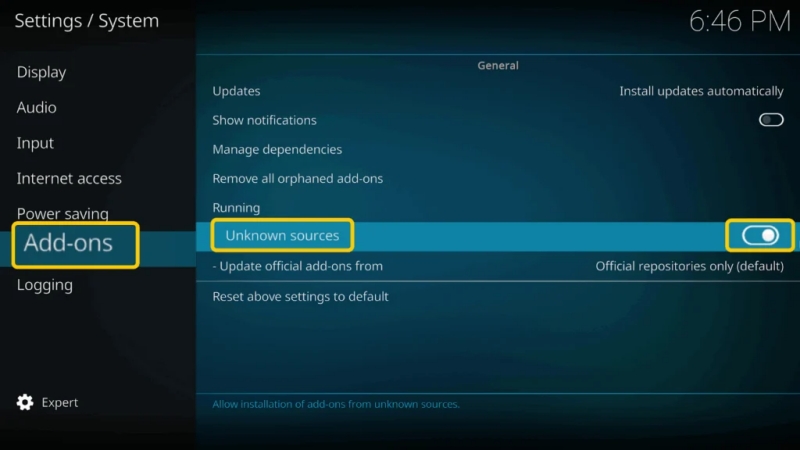
Step 3. Toggle the switch next to Unknown sources to the On position.
Step 4. Click Yes when the warning prompt appears.
Steps to Install a Kodi Spotify Add-on
After granting Kodi permission to install an external Spotify add-on, you can follow the steps below to get a Spotify Kodi plugin installed.
Step 1 Add the File Manager Source
To download the repository files, you must point Kodi to the correct server path.
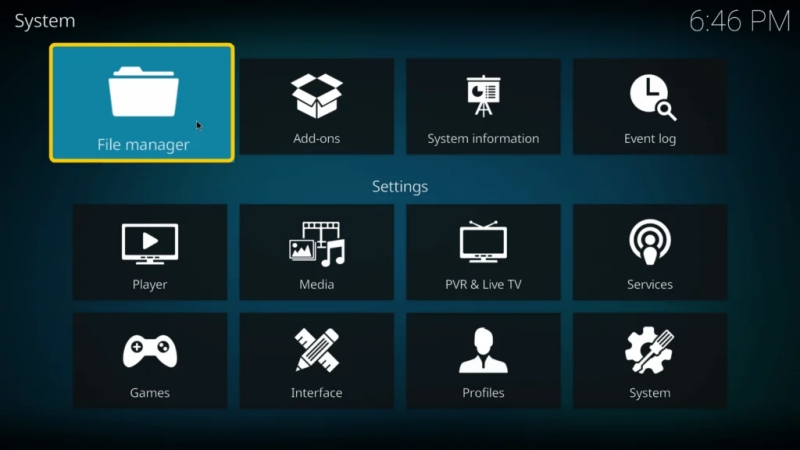
1) Go back to the main Settings menu and click on File Manager.
2) Double-click on Add source.
3) Click on
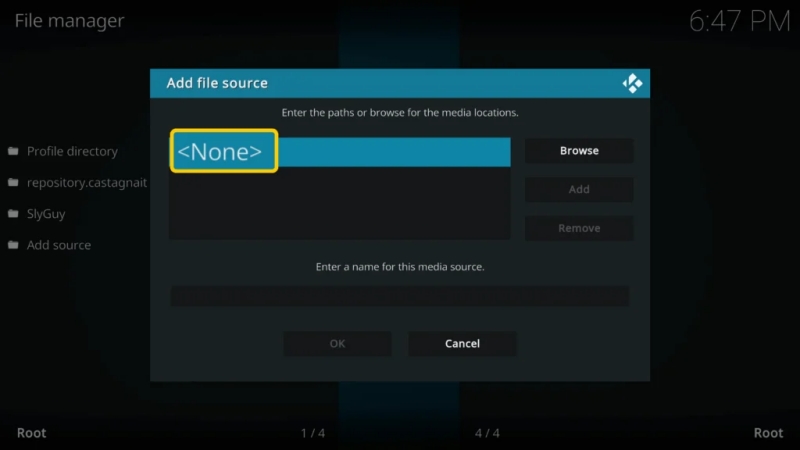
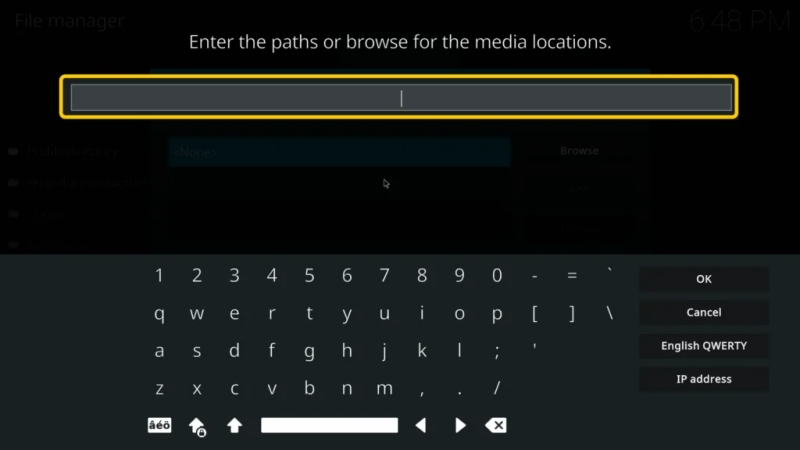
4) Type the repository URL exactly as follows: https://glk1001.github.io/ and select OK.
5) Under Enter a name for this media source, type a memorable name like glk1001 and click OK.
Step 2 Install the Repository Zip File
Now that the path is saved, you need to install the repository package itself.
1) Return to the Kodi home screen and click on Add-ons in the left sidebar.
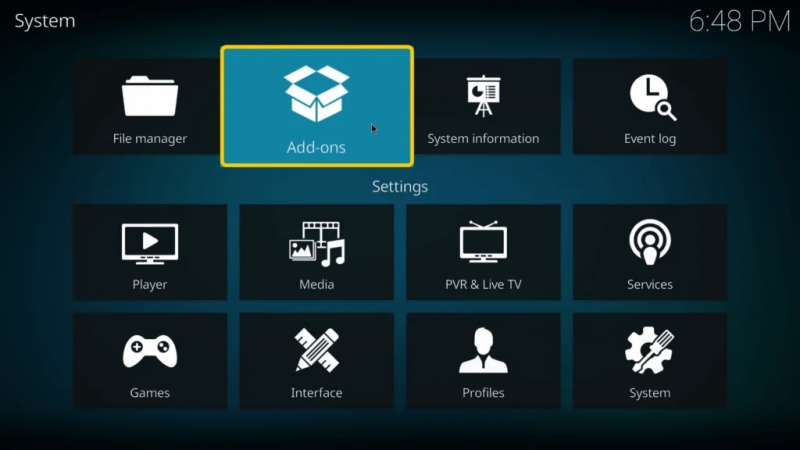
2) Click the Box Icon in the upper-left corner.
3) Select Install from zip file.
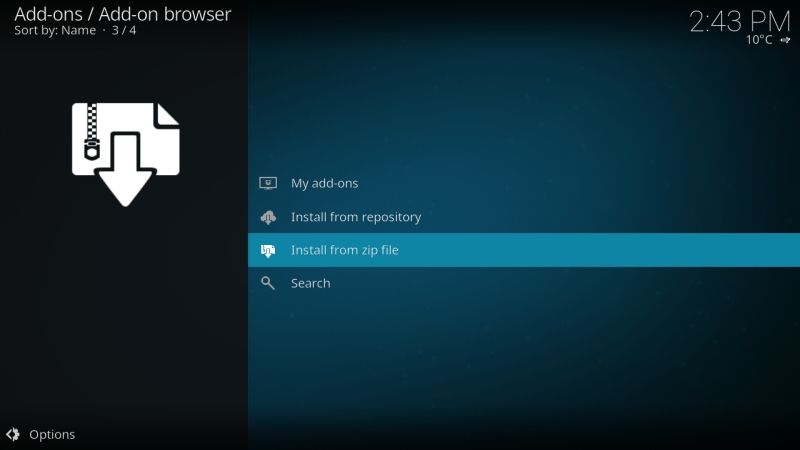
4) If a warning about manual updates appears, click Yes.
5) Select the source name you created earlier.
6) Click on the .zip file inside the directory.
7) Wait a moment until you see an "Add-on installed" notification in the top right corner.
Step 3 Install the Repository and Spotify Add-on
With the repository active, you can now pull the actual music plugin.
1) On the same Add-on Browser screen, click Install from repository.
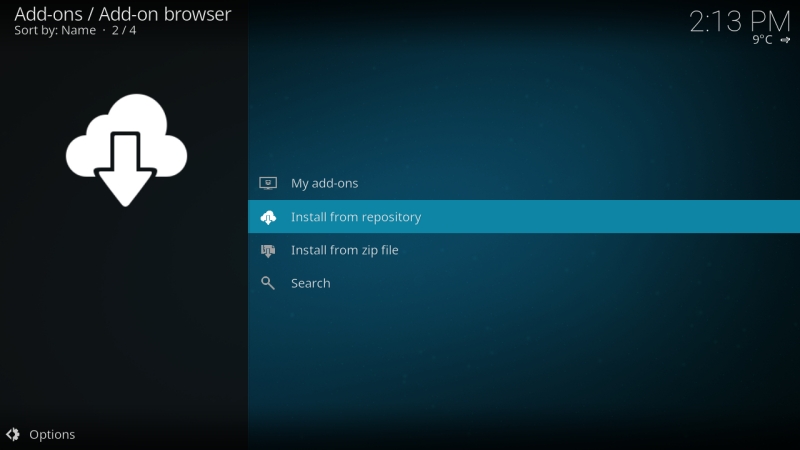
2) Select the glk1001 repository.
3) Open the Music add-ons category and click on Spotify.
4) Click Install at the bottom right and accept any required dependencies by clicking OK.
Step 4 Link Your Account via Local Network Connection
Instead of typing complex developer API keys or your password into Kodi, this modern add-on uses a local network handshake.
1) Open the Spotify add-on from your Music add-ons section.
2) Open the official Spotify app on your device while connected to the same Wi-Fi network.
3) Play any song on your mobile device and tap the Devices Available icon.
4) Select your Kodi device from the list.
The add-on will automatically authorize, sync your account details, and allow you to manage your music directly through the Kodi screen interface.
Part 2. How to Get Spotify on Kodi via Local Offline Playback
If you use a Spotify Free account, have an unstable internet connection, or want to prevent your setup from breaking when third-party add-ons go down, the local library method is the most reliable approach. By converting your Spotify tracks into standard audio formats, you can import them straight into Kodi's local database.
To achieve this without losing sound fidelity, a dedicated converter like TunesMake Spotify Music Converter is highly effective. It acts as a bridge, allowing you to download Spotify playlists, albums, or podcasts locally while retaining their original Hi-Fi quality. Here is how to download and save Spotify music as local files for playing on Kodi through the TunesMake software.

TunesMake Spotify Music Converter –
Download music from Spotify without premium
- Download Spotify songs, albums, playlists, audiobooks, and podcasts
- Losslessly convert Spotify music to MP3, FLAC, WAV, AIFF, and more
- Remove ads from Spotify music tracks even with a Free account
- Convert Spotify music at 15× faster speed in batch with ID3 tags kept
Security Verified. 100% Clean & Safe.
Step 1 Select Spotify Music to Download

Download and install TunesMake Spotify Music Converter, then run it on your computer and log into the built-in Spotify web player with your account credentials. Go to select an album or a playlist to download in your Spotify library. Just open the target item, click the + button, and browse the songs to download.
Step 2 Adjust the Output Audio Format

TunesMake supports you to personalize the output audio parameters. You can click the three-line menu button on the top right of the screen and select Preferences. In the Conversion window, you can set the parameters including the output format, sample rate, bite rate, and channel. To play Spotify on Kodi, you can convert them to MP3 files.
Step 3 Save Spotify Music as Local MP3 Files

Now click the Convert button to start the conversion of Spotify music to MP3. Just wait for a while till it is finished. Once finished, you can see the storage location from the Converted panel at the top of the converter. After that, you can locate them on your computer and move then to Kodi Media Player for playing.
Step 4 Source the Local Music Folder in Kodi
Once your Spotify music files are downloaded onto your computer or home network storage, you need to point Kodi to them.
1) On the Kodi home screen, select Music from the left-hand menu.
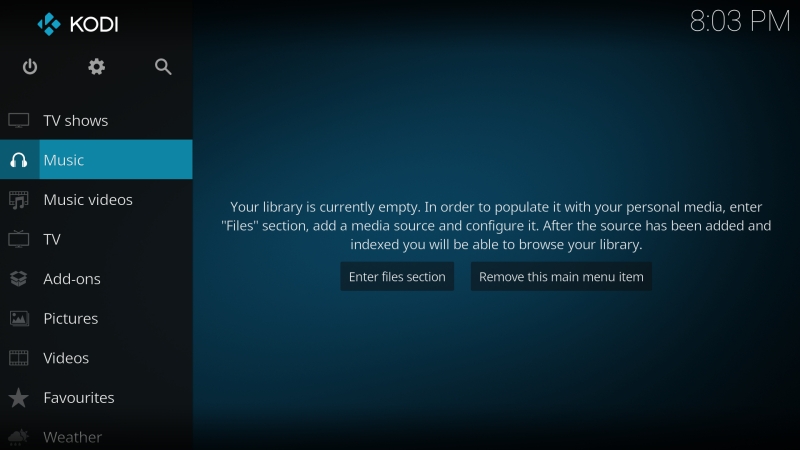
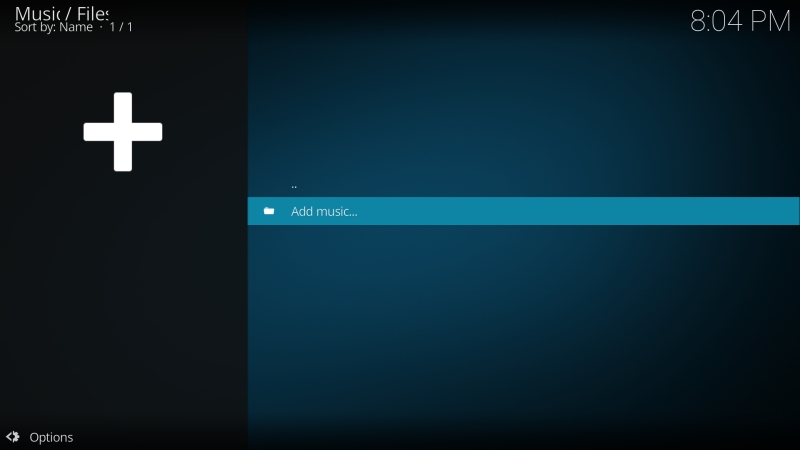
2) Click on Files, then select Add music...
3) Click Browse and navigate to the local folder where your converted Spotify tracks are stored.
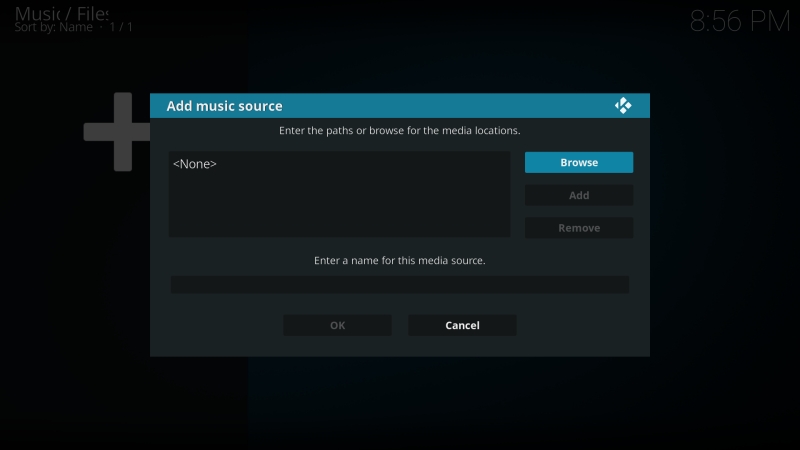
4) Click OK once the path is selected.
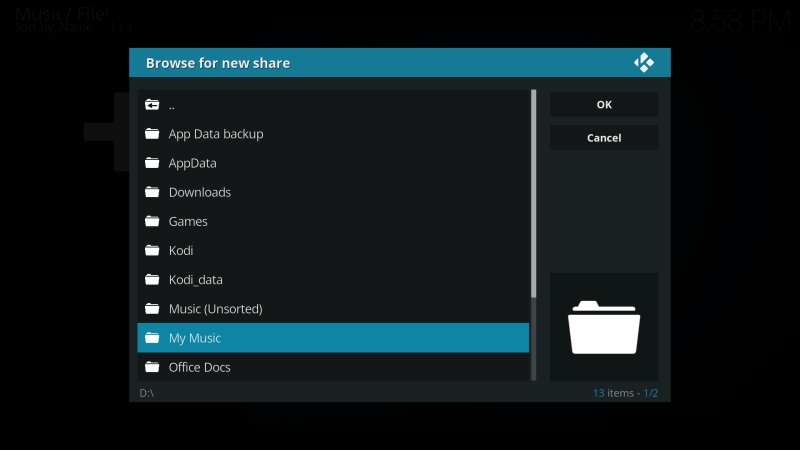
After adding Spotify local music files to your library on Kodi, you can listen to Spotify on Kodi without hassle, even though you don't have an internet connection or a premium account.
Part 3. Which Is the Best Method to Get Spotify for Kodi?
To help you decide which path perfectly fits your lifestyle, here is a quick breakdown of how both methods compare across key performance categories.
| Feature | Kodi Spotify Add-on Streaming | Spotify Local Offline Playback |
|---|---|---|
| Account Required | Spotify Premium Only | Spotify Free or Premium |
| Storage Space | 0 GB | Dependent on playlist size |
| Internet Dependent | Yes, requires constant connection | No, works completely offline |
| UI Experience | Native Spotify layout and daily mixes | Custom Kodi skins, visualizations, and lyrics |
| Maintenance | May require updates if Spotify APIs change | Set-it-and-forget-it stability |
Part 4. Conclusion
Choosing how to get Spotify on Kodi ultimately comes down to convenience versus control. If you have a Premium account and want effortless access to millions of shifting tracks on the fly, installing a Kodi Spotify plugin delivers a modern, cloud-connected streaming hub. If you value complete reliability, want to play music completely offline, or are running a Free account, utilizing a conversion converter like TunesMake Spotify Music Converter provides a rock-solid, permanent alternative. Configure your media center today and elevate your home audio experience!
Related Articles



A senior editor from TunesMake, dedicated to sharing professional tutorials and solutions of software, movies, and music.
- 1
- 2
- 3
- 4
- 5
- 6
- 7
 Leave Your Comment
(0)
Leave Your Comment
(0)

 Download Center

