








 Store
Store


As one of the most popular music streaming apps, Spotify offers its music streaming service to millions of its users. However, though as well-established as its operating system, some unavoidable mistakes or glitches still appear in the process. Spotify not responding is a common issue people often encounter with. It happens occasionally but frequently, so you may need the best solutions to fix this issue.
I’m here writing this article to show you how to fix Spotify not responding issue in several effective methods. Move ahead to check the answers.
Part 1. Why Is Spotify Not Responding?
It’s very disappointing when you want to listen to your favorite songs only to find that Spotify is not responding. Why did this happen? You may eager to know the reasons. Well, the reasons why Spotify is not responding can be various. Any kind of mistake or failure can result in this. Generally, the reasons can be divided into the following three types:
#1 Devices Issues
When you have trouble playing Spotify songs on your PC, Mac, or mobile devices, it’s possible that your device is in bad condition which does not allow you to stream music normally.
#2 Software Mistakes or Bugs
Sometimes, the Spotify app may receive junk information and malfunctions so that you cannot use the app properly. Any small glitches or corrupted files are likely to influence your streaming experience.
#3 Other Unexpected Errors
Aside from the above factors, when your app is out of date or your devices don’t support the Spotify application, you can’t use it, either.
Part 2. How to Solve Spotify Application Is Not Responding
When it comes to solutions, you still have many methods available. Next, I’ll show you several efficient ways to solve this.
Fix 1. Restart Your Device
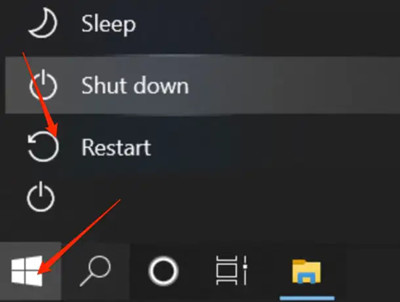
A quick restart can solve 90% of common mistakes or small glitches during the user process. Follow the steps below to restart your devices:
For Android: Press and hold the Power button and then tap the Restart option twice.
For iOS: You can use the volume and side button, the top button, or the side button only to restart the device. The detailed steps depend on your different iOS models.
For Windows PC: Select Start > Power > Restart.
For Mac Computer: Select Apple Menu > Restart.
Fix 2. Check Internet Settings
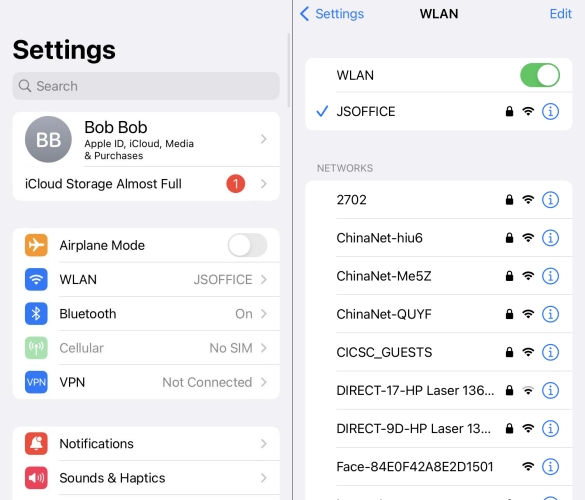
Besides, a good internet connection is also required. As music streaming quality and listening experience highly rely on your network quality. So, make sure you’re using a stable and fast Wi-Fi network. If not, switch to another network or try to use your cellular data.
You can also reset your network to fix it: go to Settings and select General > Reset > Reset Network Settings to set up.
Fix 3. Uninstall & Reinstall Spotify
Delete and reinstalling are also popular ways to solve this issue. In this way, you can get the brand-new latest version of Spotify and fix Spotify not responding immediately. Here’re the steps:
On Windows PC:
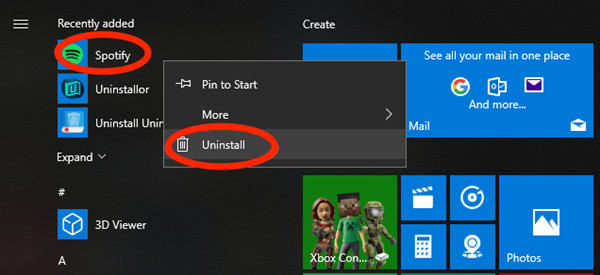
1. Select the Windows key, right-click Spotify and select Uninstall.
2. Select OK if prompted to confirm your action, and then select Windows key + E to open the File Explorer.
3. Navigate to C:\Users\YourUsername\AppData\Roaming\.
4. If you can’t view the AppData under your username, right-click Quick Access > Options.
5. Delete the Spotify folder.
6. Select Show hidden files, folders, and drives under the View tab and then select Apply > OK. Doing this allows you to see the hidden AppData folder.
7. Restart your PC and install the Spotify app again from the Microsoft Store.
On Mac:
To reinstall Spotify on your Mac, you should move it to the trash before reinstalling it from the App Store. Then follow the steps:
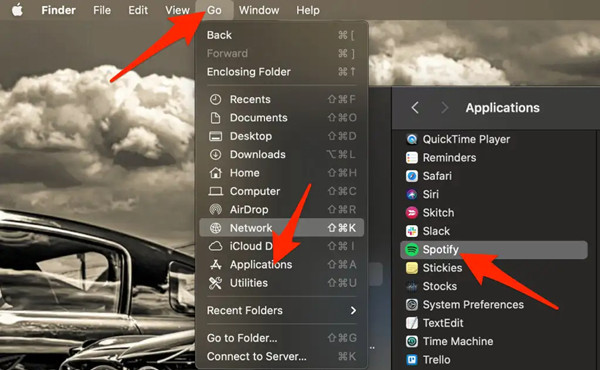
1. Select Go > Applications > Spotify.
2. Right-click on the app and select Move to the bin.
3. Go to the App Store and download the Spotify app again.
On iOS:
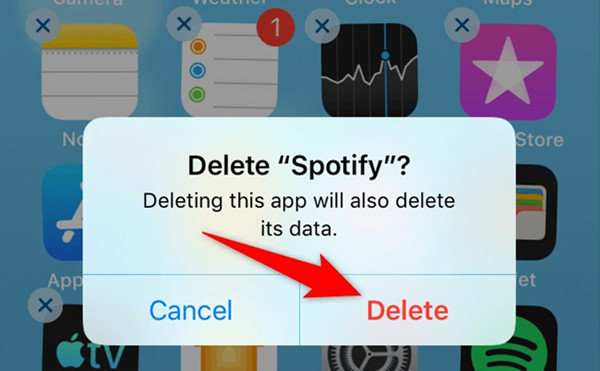
1. Choose the Spotify icon and hold for a few seconds until a quick menu pops up.
2. Select Delete App > Delete.
3. Search for Spotify from the App Store and install it.
On Android:
1. Go to Settings and choose Apps.
2. Search for Spotify and tap Storage > Clear Data.
3. Tap Uninstall to delete the app.
4. Find Spotify in the Google Play Store and install it.
Fix 4. Clear Spotify Cache
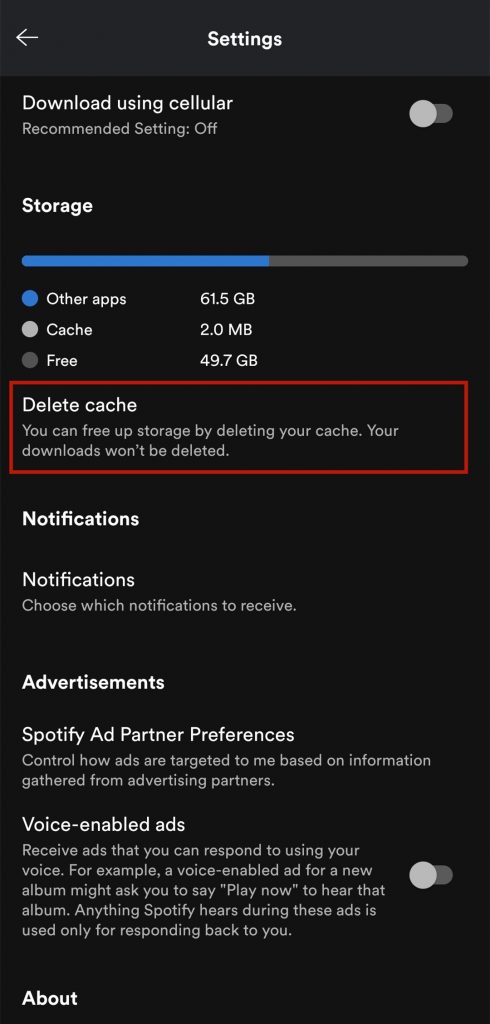
Do you know that Spotify saves data and caches every time you open the app and start streaming? Usually, these caches are unnecessary and some corrupted files may bring you unsolvable questions. Thus, we need to clear Spotify caches to make the Spotify app function better. On your iPhone, tap Home from your Spotify app and tap Settings in the top-right corner of the app. Next, tap Storage > Delete cache.
Fix 5. Check Antivirus Program & Firewall
We often have the Windows Firewall or other antivirus programs on our computers. However, these programs or firewalls may block Spotify. So, please check your Windows Firewall and move Spotify out of the block list if it is in.
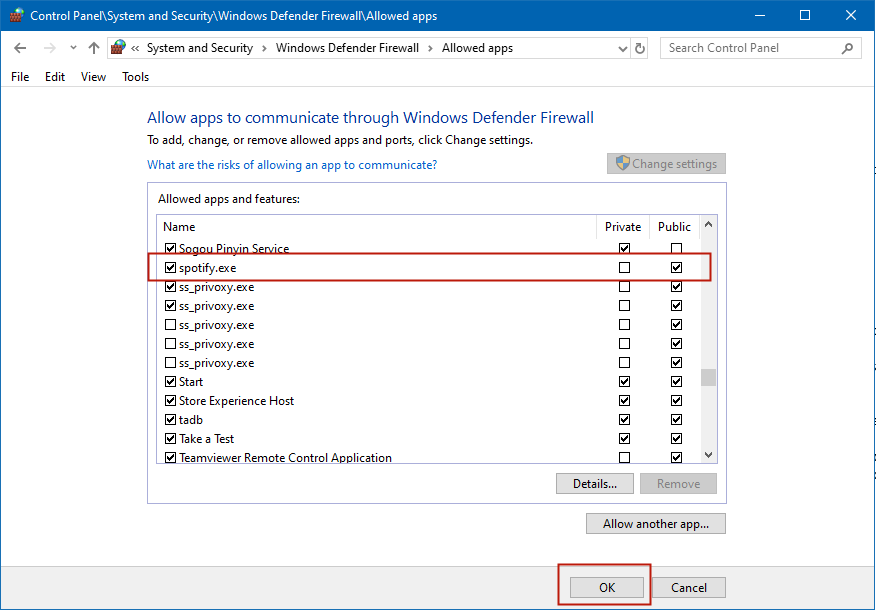
1. In the “Start menu” search “Windows security.”
2. From the left sidebar of Windows security, select firewall, and network protection.
3. From the menu, select Allow an app through the Firewall.
4. It will show up a list of all the applications on your PC.
5. Select Spotify and add it to the list.
Fix 6. End Application via Task Manager
When you find that Spotify not responding on your PC but actually it is running in the background, you can apply this method.
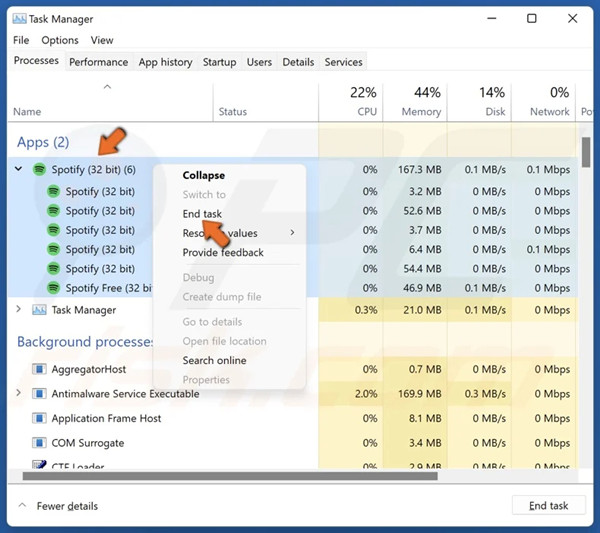
1. Press CTRL+ALT+DEL or CTRL+SHIFT+ESC to open the Task Manager.
2. In processes locate the spotify.exe file.
3. Click on Spotify.exe and stop the application by clicking on End Process.
4. After that, try reopening the Spotify app on your PC.
You may get your problem solved with this method. If still not, please move to the next method.
Fix 7. Disable Hardware Acceleration
Hardware acceleration is a setting on your computer that enables you to stream music better and run apps smoothly. Keeping this feature on may cause the opposite effect on your app use. In this case, disabling hardware acceleration may help you fix the error.
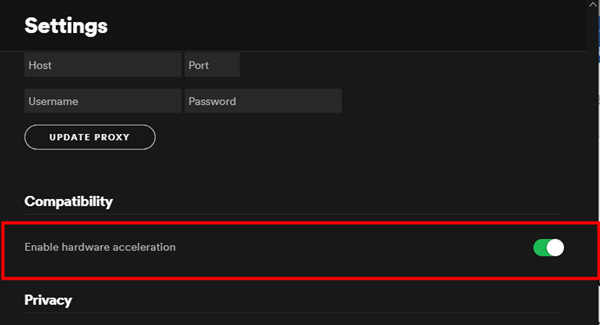
1. Open the Spotify desktop app. In the top-left corner, click the three dots to open the drop-down menu.
2. Select Edit and click Preferences.
3. In the Settings window, scroll to the bottom.
4. In the Compatibility section, toggle off the slider next to Hardware acceleration.
5. Restart Spotify to enable this setup to work.
Part 3. Ultimate Fix for Spotify App Not Responding
Errors like Spotify not responding are annoying, but they cannot be solved forever. Sometimes, it pops up, which will influence your music streaming quality and listening experience. Well, in this part, we will introduce a simple and great method to enjoy Spotify songs without limits or errors. The guide is simple, download Spotify songs offline so that to play them on more devices. Since Spotify music is encrypted with special codes, with strictly followed principles of DRM agreements, it is impossible to stream Spotify music on any other unsupported apps or devices. Luckily, here you only need this simple tool – TunesMake Spotify Music Converter to achieve your target.
TunesMake Spotify Music Converter is an easy-to-use yet efficient Spotify music downloader and converter. It now supports multiple systems and is available on both Windows and Mac. With this Spotify music converter, you can download Spotify songs to MP3, FLAC, AIFF, or other common formats for playback on any device. After the conversion, you can get high-quality Spotify songs in your local folders with ease and listen to them on multiple devices if you want. Don’t miss it!

TunesMake Spotify Music Converter –
Best Downloader to Save Spotify Songs to Local Files
- Unlimitedly download Spotify songs, playlists, and podcasts
- Losslessly convert Spotify music to MP3, FLAC, WAV, AIFF, etc.
- Remove ads from Spotify music tracks even with Free accounts
- Convert Spotify songs at 12X faster speed with ID3 tags kept
Security Verified. 100% Clean & Safe.
Related Articles

A professional writer at TunesMake, crafts in-depth tutorials, practical tips and expert advice focusing on streaming music, technology, and more.
- 1
- 2
- 3
- 4
- 5
- 6
- 7
 Leave Your Comment
(0)
Leave Your Comment
(0)

 Download Center

