








 Store
Store


There is nothing quite like finding a song that hits perfectly and wanting to play it on an endless loop. Whether you need a steady lo-fi beat for studying, an energizing anthem for your workout, or you are simply obsessed with a new track, Spotify makes it easy to repeat your favorite music. However, depending on the device you are using and whether you pay for a subscription, the process can look a little different.
Still, some users don't know how to loop a song on Spotify. If you are also bothered by this question, you will need this guide to clear your woe up. This comprehensive guide will show you exactly how to loop a song or playlist on Spotify across all platforms, troubleshoot common issues, and share clever workarounds if you are using a free account.
Part 1. Can You Loop Songs on Spotify?
Yes, you can absolutely loop songs, albums, or playlists on Spotify. The method depends slightly on whether you are using a mobile phone, a desktop computer, or a free versus premium account. Here is a summary table of looping Spotify on different devices with different accounts.
| Device / Account Type | Loop Playlists | Loop Single Songs | Native Shortcut / Method |
|---|---|---|---|
| Mobile (Premium) | ✅ | ✅ | Double-tap the loop icon |
| Desktop (Free & Premium) | ✅ | ✅ | Click icon or use Ctrl/Cmd + R |
| Smart Speakers | ✅ | ✅ | Voice command or preset via phone |
Part 2. How to Loop Songs on Spotify across Devices
If you are a Spotify Premium subscriber or you are using the Spotify desktop application, the repeat feature is fully available. Here is how to put a song on loop on Spotify correctly, as the button requires a specific sequence to loop a single song rather than a whole playlist.
How to Loop a Song on Spotify Mobile (iOS & Android)
For users with a Spotify Premium subscription, looping music on an iPhone, iPad, or Android device takes just a couple of taps. The secret lies in understanding how the repeat button changes color and icon style.
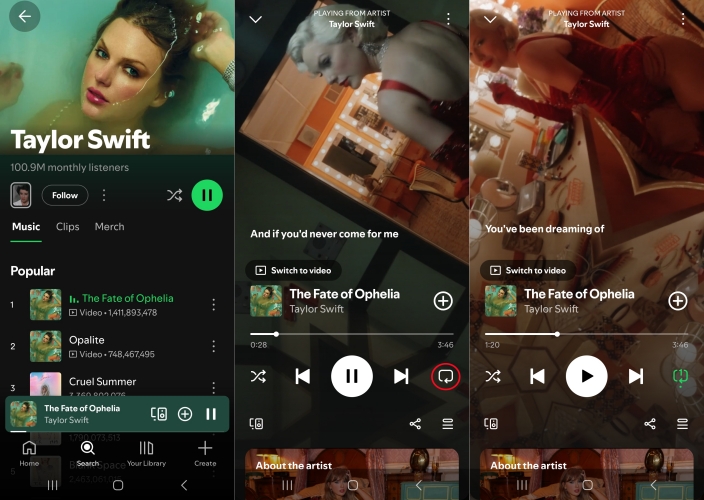
Step 1. Tap on the song currently playing at the bottom of your screen.
Step 2. On the full-screen mode, find the repeat button at the bottom.
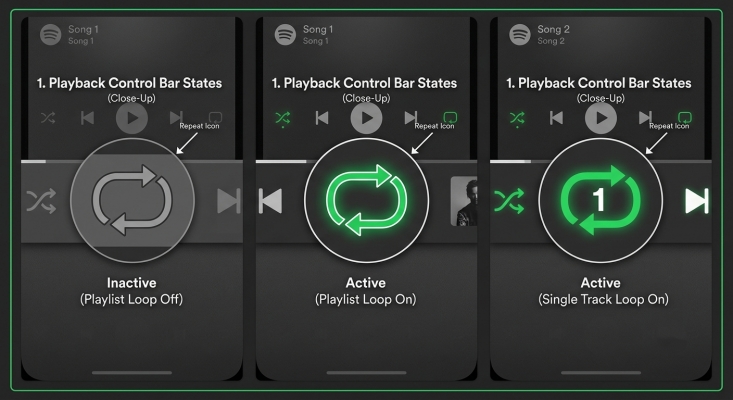
Step 3. Tap the Repeat button a second time to loop a single song.
How to loop a playlist on Spotify:
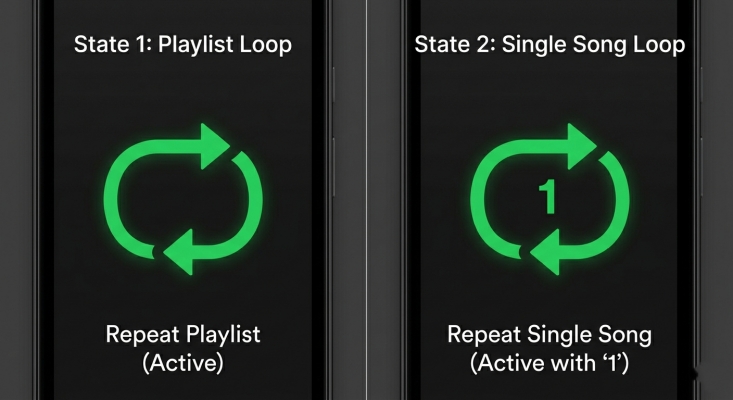
To loop the entire album or playlist, tap the Repeat button once. The icon will turn green, indicating that when your current tracklist finishes, it will start over from the beginning.
How to Loop Songs on Spotify Desktop (Windows & Mac)
If you prefer listening to Spotify on a Mac, Windows PC, or via your web browser, the controls are incredibly straightforward. An added bonus for desktop listeners: the loop feature on Spotify is completely free to use on computers.
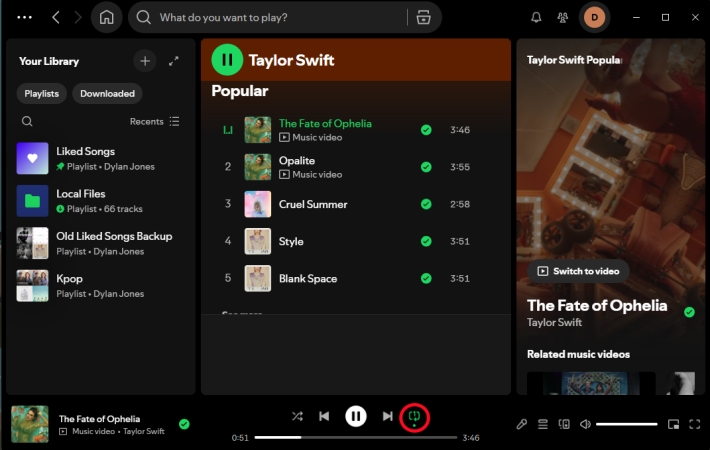
Step 1. Open the Spotify application or visit the web player.
Step 2. Look at the playback bar spanning the bottom of your screen.
Step 3. Tap the Repeat button sitting right next to the fast-forward icon.
Desktop keyboard shortcuts for looping Spotify:
For power users who prefer keeping their hands on the keyboard, you can quickly toggle the repeat function using Ctrl + R on a Windows PC or Cmd + R on a Mac.
How to Loop Spotify on Smart Speakers (Amazon Echo, Google Nest, Sonos)
When you cast music from your phone to an external smart speaker using Spotify Connect, the mobile interface layout occasionally shifts. If the repeat button suddenly disappears or grays out while casting, follow these steps.
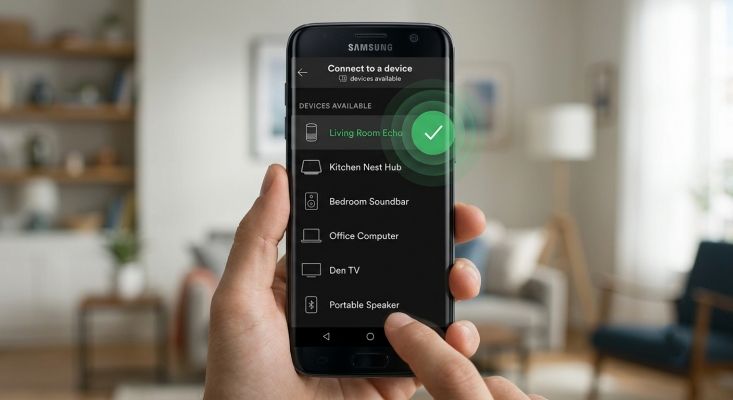
Step 1. Tap the Devices icon in the bottom-left corner of the playback screen.
Step 2. Temporarily switch the audio playback back to This Phone.
Step 3. Activate your desired loop mode.
Step 4. Re-open the Devices menu and select your smart speaker again. The speaker will inherit the loop command you just set.
Loop Spotify on smart speakers using voice commands
If you prefer hands-free control, you can bypass the visual interface entirely by speaking directly to your smart assistant. Try using the following exact phrases:
"Alexa, turn on repeat."
"Hey Google, loop this song."
"Hey Siri, repeat this album on Spotify."
Part 3. How to Repeat a Song on Spotify for Free
If you are using the free version of Spotify on your phone, you don't have to give up on listening to your favorite track back-to-back. Use these clever methods to bypass the interface restrictions.
Single-Song Playlist Hack
While you cannot repeat a song directly inside the player interface, you can work around the shuffle algorithm by creating a dedicated loop playlist.
Step 1. Create a brand new playlist and give it a name like Song Loop.
Step 2. Search for the specific song you want to repeat.
Step 3. Tap the three dots next to the song and select Add to Playlist.
Step 4. Repeat this process to add the exact same song to the playlist 20 to 30 times consecutively.
Step 5. Open your new playlist and press play. Even with shuffle turned on, Spotify has no choice but to play your favorite song over and over.
Bypass App Restrictions
If you want a true, infinite loop experience on your mobile phone without changing playlists, the best solution is to move the music outside of the restricted Spotify app environment altogether.
Using a desktop utility like TunesMake Spotify Music Converter, free tier users can download their preferred tracks, albums, or playlists directly to a Mac or Windows PC. The software converts the protected Spotify streams into universal audio formats such as MP3, FLAC, or WAV while keeping the original sound quality and ID3 metadata tags intact.
Once the file is saved locally onto your computer, you can easily transfer the MP3 track over to your iPhone or Android phone via USB or cloud storage. From there, you can play the song using your smartphone's native default media player, which allows you to loop any track infinitely for free without forced shuffle interventions.

TunesMake Spotify Music Converter –
Download music from Spotify without premium
- Download Spotify songs, albums, playlists, audiobooks, and podcasts
- Losslessly convert Spotify music to MP3, FLAC, WAV, AIFF, and more
- Remove ads from Spotify music tracks even with a Free account
- Convert Spotify music at 15× faster speed in batch with ID3 tags kept
Security Verified. 100% Clean & Safe.
Mobile Browser Desktop Site Trick
Because Spotify naturally allows free users to loop songs on desktop computers, you can also trick the system using your smartphone's web browser like Safari or Google Chrome.
Step 1. Open your mobile browser and navigate to the web player.
Step 2. Log into your free account.
Step 3. Open your browser's settings menu and select Request Desktop Website.
Step 4. The page will reload displaying the computer version of Spotify. Expand the player at the bottom, and you will find the fully functional, clickable repeat button ready to loop your track.
Part 4. Troubleshoot Spotify Repeat Button Missing
If you are a Spotify Premium subscriber or a Spotify desktop user and the repeat button is still missing or unresponsive, use these technical fixes to restore your playback control.
Fix 1. Disconnect from Spotify Connect
Streaming your Spotify music to a smart TV, Amazon Echo, Google Nest, or Sonos speaker can occasionally disable local playback controls.
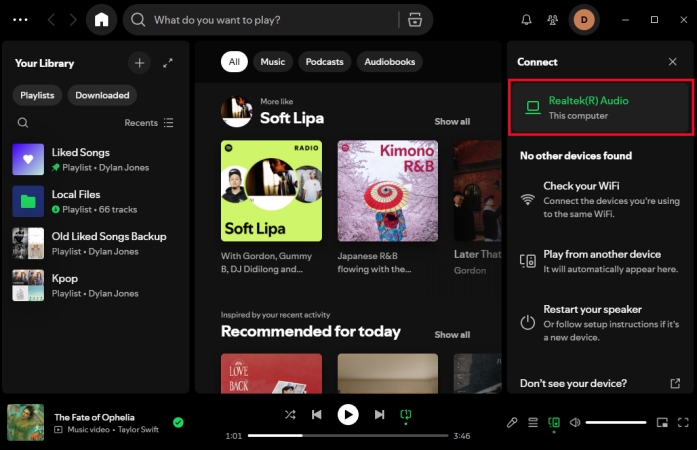
Step 1. Tap the Devices icon in the bottom left corner of your player.
Step 2. Switch the audio back to This Phone or Computer.
Step 3. Activate the song loop, then reconnect to your smart speaker.
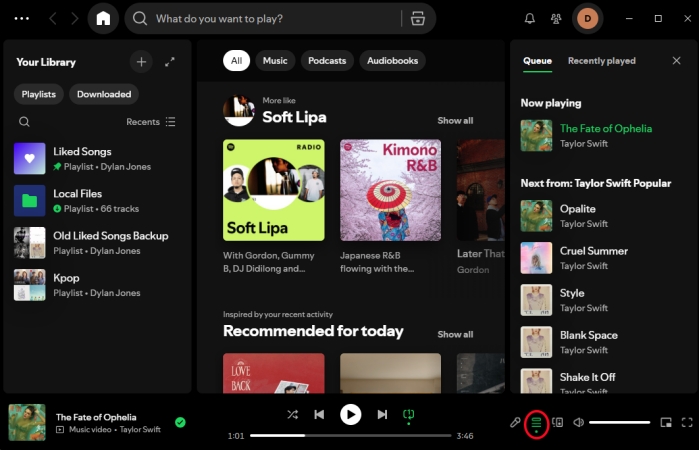
Fix 2. Check the Queue Settings
Sometimes an overloaded playback queue can cause the player interface to freeze up. Tap the Queue icon in the bottom right corner. Clear any pending tracks that might be forcing a strict playback order, then return to the main screen to see if the repeat button responds.
Fix 3. Clear the Spotify App Cache
Corrupted temporary files can cause UI elements to disappear or glitch out. To fix Spotify repeat button missing, clear the Spotify app cache.
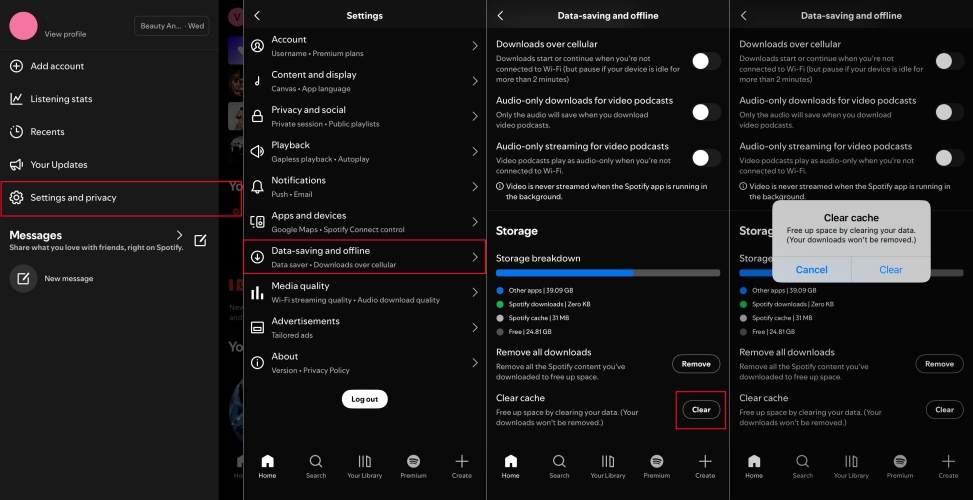
Step 1. Tap your profile image and go to Settings and privacy.
Step 2. Tap Data-saving and offline, then scroll down to Storage.
Step 3. Tap Clear twice. This will safely delete temporary files without deleting your downloaded offline music.
Fix 4. Force Close and Update the App
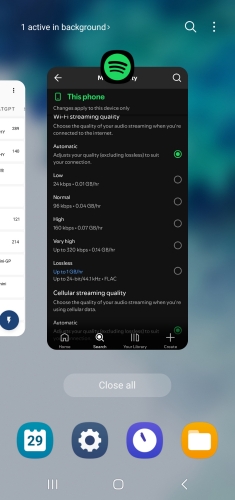
An outdated app version can conflict with Spotify's servers. Force-close the Spotify app from your device's multitasking window, visit the Apple App Store or Google Play Store, and check for any pending updates. A fresh launch often restores missing interface elements.
Part 5. FAQs about Looping Spotify
What does Loop 1 mean on Spotify?
On Spotify, the Loop 1 icon means that the specific song currently playing is set to repeat infinitely. The song will play back-to-back, restarting from the beginning as soon as it finishes, until you manually turn the feature off or press skip.
How to turn off Loop on Spotify?
To turn off loop on Spotify, simply tap the repeat button a third time. The icon will turn gray, meaning standard playback will resume based on your queue or shuffle settings.
Can you loop a podcast or an audiobook on Spotify?
No. Spotify customizes its user interface based on the type of media you are streaming. Because spoken-word content is linear, the app replaces the repeat and shuffle buttons with 15-second skip forward/backward buttons and a sleep timer. If you want to hear a specific podcast segment again, you must manually rewind or restart the episode.
Does looping a song on Spotify count as a stream?
Yes, but within specific parameters. Spotify's algorithm counts a stream when a track is listened to for 30 seconds or longer. If you loop a song and let it play through naturally, each repetition registers as a valid stream. However, streaming platforms employ sophisticated anti-bot filters; constantly looping a single song for days on end without interruption may cause the system to temporarily filter those plays to prevent artificial chart manipulation.
Part 6. Conclusion
Looping your favorite music on Spotify is an excellent way to dive deep into an album or focus on a task. If you are a Spotify Premium subscriber or a Spotify desktop user, a quick double-tap on the arrow loop icon is all it takes. If you are on a free mobile plan, utilizing the single-song playlist hack, using a Spotify converter like TunesMake to bypass the application entirely, or switching to a mobile desktop browser will give you the exact same endless loop experience without forcing an unwanted upgrade.
Related Articles

An experienced freelance writer at TunesMake, specializes in using various streaming services from Spotify, Apple Music, to Amazon Music, and more other platforms.
- 1
- 2
- 3
- 4
- 5
- 6
- 7
 Leave Your Comment
(0)
Leave Your Comment
(0)

 Download Center

