








 Store
Store


Listening to your favorite music, podcasts, and curated playlists on a big screen with home theater speakers elevates the entire audio experience. However, if you are trying to set up Spotify on a Vizio TV, you might notice that finding or installing the app is not always straightforward. Depending on your Vizio TV's model year and operating system, getting Spotify up and running requires either launching the app directly or using built-in wireless casting features. This guide walks you through every proven method to get Spotify on your Vizio TV quickly and easily.
Part 1. Can You Get Spotify on a Vizio TV?
Yes, you can listen to Spotify on a Vizio TV, but the method depends on your TV's platform.
-
Vizio SmartCast TVs (2016–Present): Modern SmartCast TVs utilize a cloud-based app structure. While some models feature a pre-installed Spotify app, the primary way to stream Spotify on SmartCast is via Spotify Connect, Apple AirPlay 2, or Chromecast Built-in.
-
Vizio Internet Apps (VIA / VIA+) Models: Older Vizio models allow you to search for and download the native Spotify app directly from the Vizio App Store.
If your Vizio TV model does not support the Spotify app, wireless casting from your mobile phone, tablet, or computer provides the exact same high-quality playback.
Part 2. How to Download Spotify on Vizio TV
If you own an older Vizio model that uses Vizio Internet Apps or Vizio Internet Apps Plus, you can download the Spotify app directly to the TV's local storage. Here is how to download Spotify on Vizio TV via VIA or VIA Plus.
Install the Spotify App via VIA (2009-2013 Models)

Step 1. Press the V button on the remote.
Step 2. Select CONNECTED TV STORE and choose All Apps.
Step 3. Navigate through the list of Apps and press OK on the Spotify app.
Step 4. Select Install App located in the lower-left corner of the screen.
Install the Spotify App via VIA Plus (2013-2017 Models)
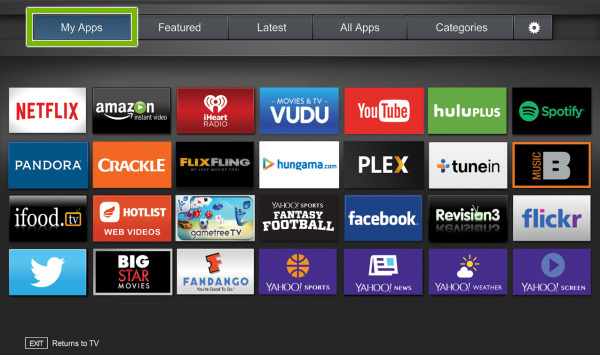
Step 1. Press the V button twice on the remote.
Step 2. Navigate to the My Apps tab and see your installed apps.
Step 3. Browse through the Featured, Latest, All Apps, or Categories tabs
Step 4. Find Spotify, then press and hold the OK button to install it.
Part 3. How to Get Spotify on Supported Vizio TV
If you own a modern Vizio SmartCast TV, you can control playback directly from your smartphone, tablet, or desktop using built-in wireless options.
Method 1. Get Spotify via Vizio SmartCast
For Vizio 4K UHD TVs released between 2016-2017 or all Vizio TVs released in 2018 and later, using SmartCast is the quickest and easiest way to listen to Spotify music with minimum setup.
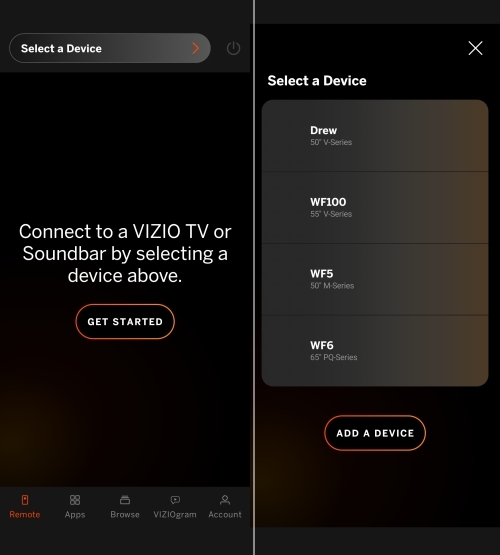
Step 1. Download the Vizio SmartCast app on your phone from the Google Play Store or App Store.
Step 2. Start it and follow the onscreen prompts to create a Vizio account.
Step 3. Tap Get Started and select your Vizio TV from the device list to finish the setup.
Step 4. Enter the PIN at the top of the TV screen.
Step 5. Open Spotify to play your liked songs, albums, or playlists.
Method 2. Play Spotify via Spotify Connect
Spotify Connect is the fastest and most reliable way to stream audio to your Vizio SmartCast TV. It turns your device into a remote control without draining battery life through your TV.
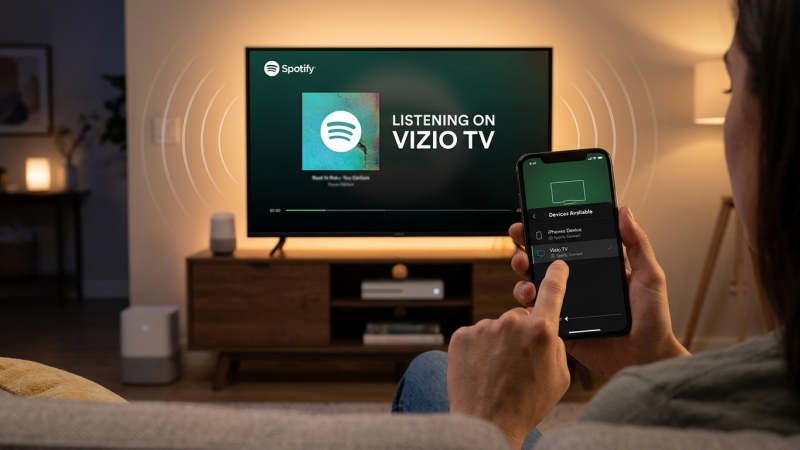
Step 1. Ensure your device and Vizio TV are connected to the same Wi-Fi network.
Step 2. Open the Spotify app on your phone, tablet, or desktop.
Step 3. Start playing any song or podcast.
Step 4. Tap the Devices icon in the bottom corner of the playback screen.
Step 5. Select your Vizio TV from the list of available devices.
Method 3. Stream via Apple AirPlay 2
If you use an Apple device and own a Vizio SmartCast TV released around 2016 or newer, you can stream Spotify audio using built-in AirPlay 2 support.
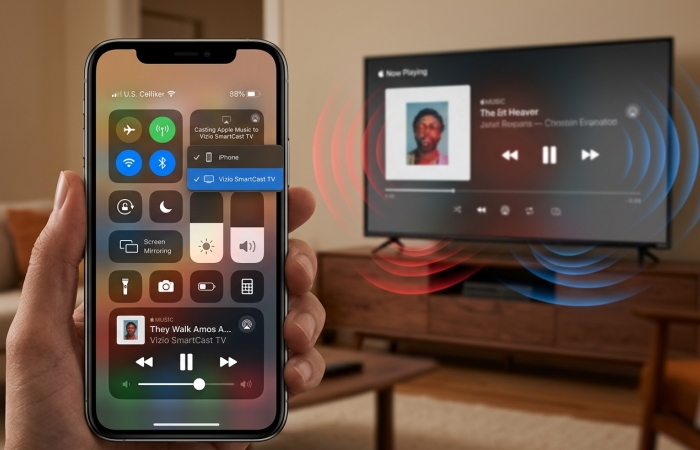
Step 1. Connect your iPhone, iPad, or Mac to the same Wi-Fi network as your Vizio TV.
Step 2. Open Spotify and start playing your desired track.
Step 3. Open the Control Center on your device.
Step 4. Tap the AirPlay audio icon in the upper-right corner of the media control card.
Step 5. Select your Vizio SmartCast TV from the list.
Method 4. Cast via Google Chromecast Built-in
Vizio SmartCast TVs come equipped with Google Chromecast functionality built right into the system. This allows Android users to cast Spotify directly from a mobile device.
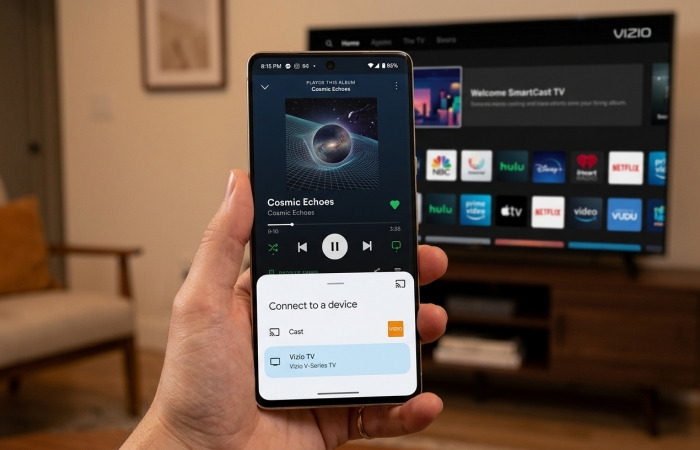
Step 1. Make sure your device and Vizio TV share the same Wi-Fi connection.
Step 2. Open the Spotify app.
Step 3. Tap the Devices icon on the playback screen.
Step 4. Choose Google Cast or Vizio TV from the listed options.
Step 5. Control playback, volume, and track selection directly from your phone or browser.
Part 4. How to Get Spotify on Unsupported Vizio TV
If your Vizio TV system is older, unresponsive, or unsupported, these workarounds ensure you can still enjoy your liked songs, albums, or playlists from Spotify.
Method 1. Use External Streaming Sticks
Connecting an external streaming devices to your Vizio's HDMI port gives you access to a fully standalone Spotify TV app interface.
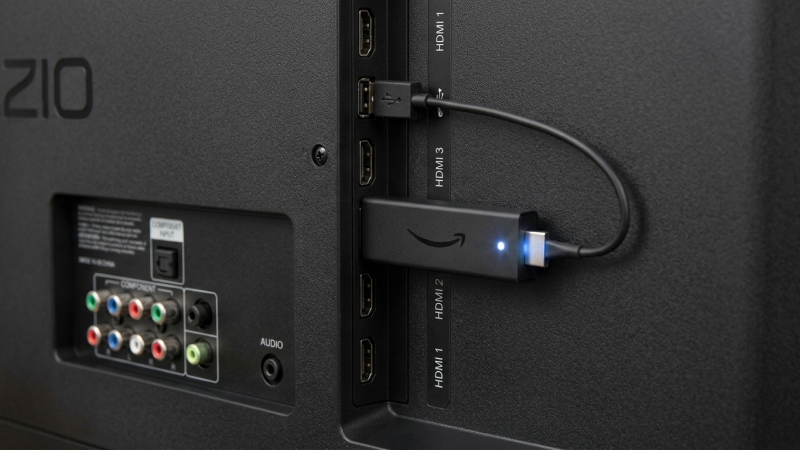
Step 1. Plug a Roku, Amazon Fire TV Stick, Google TV, or Apple TV into your Vizio TV's HDMI port.
Step 2. Download the Spotify app from the streaming device's app store.
Step 3. Log in to control Spotify using the external device's physical remote.
Method 2. Use USB Drive Playback
If your Vizio TV suffers from network buffering, lacks SmartCast support, or you want to play Spotify music offline without ads, using a USB drive is an effective solution. Because Spotify music tracks are DRM-protected, you can use TunesMake Spotify Music Converter to download Spotify songs, albums, playlists, audiobooks, or podcasts into common formats like MP3 or FLAC. After that, you can easily play Spotify music on Vizio TV with a USB drive. Now follow the given steps to download Spotify music for Vizio TV using TunesMake.

TunesMake Spotify Music Converter –
Download music from Spotify without premium
- Download Spotify songs, albums, playlists, audiobooks, and podcasts
- Losslessly convert Spotify music to MP3, FLAC, WAV, AIFF, and more
- Remove ads from Spotify music tracks even with a Free account
- Convert Spotify music at 15× faster speed in batch with ID3 tags kept
Security Verified. 100% Clean & Safe.
Step 1 Select Spotify Songs to Download
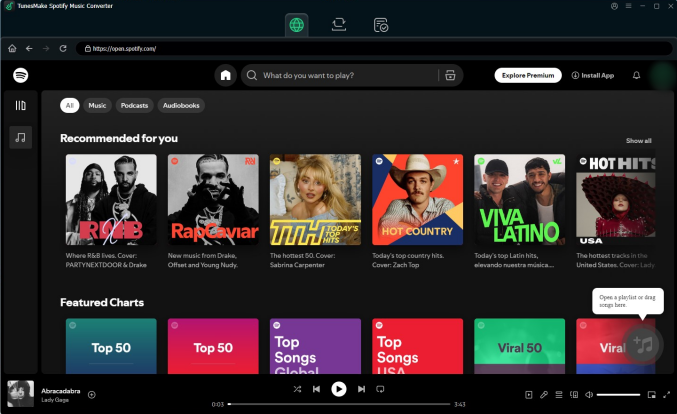
Start by opening TunesMake Spotify Music Converter on your computer, then the built-in Spotify web player will be launched at the same time. At that point, you need to go to browse songs or playlists you want to download. To add your required songs to the converter, you can click the + button to add the target items into the conversion list.
Step 2 Adjust the Audio Parameters
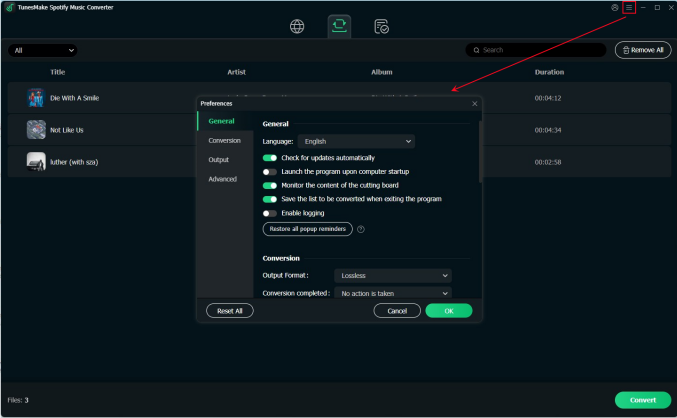
Subsequent to adding Spotify songs to the converter, you need to set the output audio parameters. Go to click the menu bar > Preferences and switch to the Conversion tab. To play Spotift on a Vizio TV, just set the output format as MP3. For better download audio quality, you can change the bit rate, sample rate, and channel.
Step 3 Start to Download Spotify Songs
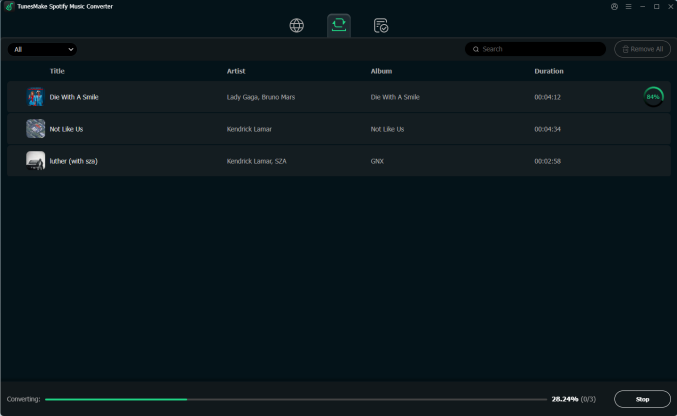
Afterward, you can start the download and conversion of Spotify songs by clicking the Convert button. Then the converter will save your required songs to the destination folder. Once the conversion is complete, you can click the Converted icon and browse the converted music tracks in the conversion history.
Step 4 Play Spotify mUSIC on Vizio TV
Now that you have the converted Spotify music tracks, you can play them on your Vizio smart TV. To do that, prepare a USB flash drive formatted FAT 32 and do as follows.
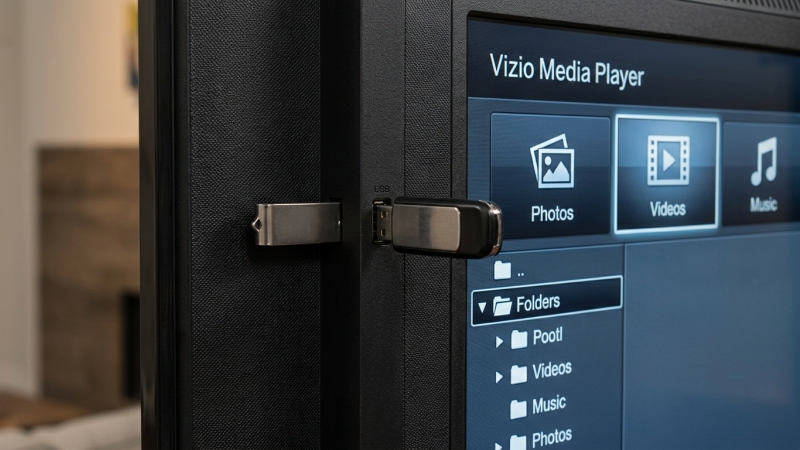
1) Plug your USB flash drive into your computer.
2) Transfer all the converted Spotify music files to the drive.
3) Insert the USB drive into the USB port on your Vizio TV.
4) Open the USB Media Player app from the Vizio home screen.
5) Start to play the converted Spotify music offline.
Part 5. Conclusion
Playing Spotify on your Vizio TV comes down to identifying your television's operating system and choosing the setup that best fits your routine. Owners of modern Vizio SmartCast TVs can instantly cast music using Spotify Connect, Apple AirPlay 2, or Google Chromecast. Meanwhile, users with older Vizio Internet Apps models can download the Spotify app directly to their TV or turn to external streaming sticks like Roku and Fire TV.
For households dealing with spotty Wi-Fi connections, unsupported models, or ad interruptions on free accounts, converting Spotify tracks to MP3 using tools like TunesMake Spotify Music Converter and playing them via a USB drive offers a dependable offline alternative. By picking the right method, you can easily turn your Vizio TV into a complete room-filling sound system.
Related Articles

A senior editor from TunesMake, dedicated to sharing professional tutorials and solutions of software, movies, and music.
- 1
- 2
- 3
- 4
- 5
- 6
- 7
 Leave Your Comment
(0)
Leave Your Comment
(0)

 Download Center

