








 Store
Store


Few things run a smooth listening session like hearing the exact same track twice in a row. Whether you merged two playlists, imported songs from different albums, or accidentally saved remastered releases, duplicate tracks can quickly clutter your music library.
While Spotify alerts you when adding a song that is already present, its built-in detection system isn't foolproof. Spotify lacks a one-click Remove All Duplicates button, leaving many listeners looking for a clear solution. This complete guide walks you through every method to remove duplicates from Spotify playlists quickly whether you prefer a fast, automated tool for large libraries or a manual cleanup for complete control.
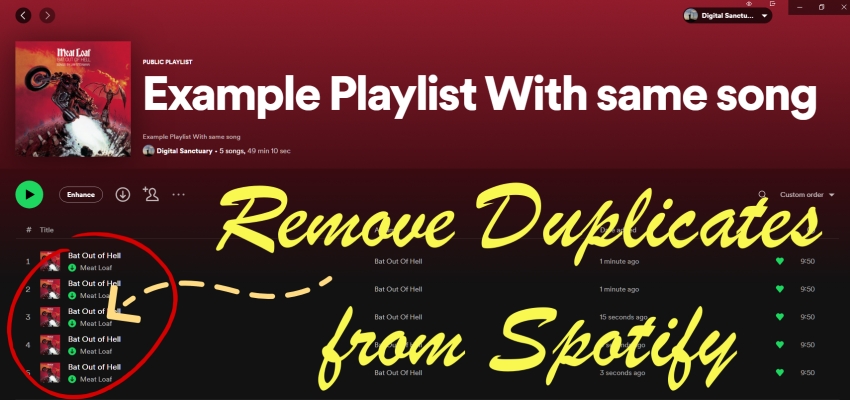
Part 1. How to Remove Duplicates in Spotify Playlist Automatically
If your Spotify playlist contains hundreds or thousands of songs, deleting identical tracks manually can take hours. Using a third-party web tool that connects to Spotify's API is the fastest option. Here is how to remove duplicates in Spotify playlist automatically.
Use Spotify Dedup (Free & Open-Source)
Spotify Dedup is an established, open-source web application designed by a former Spotify engineer. It identifies identical track IDs across your playlists and removes them in a single click.
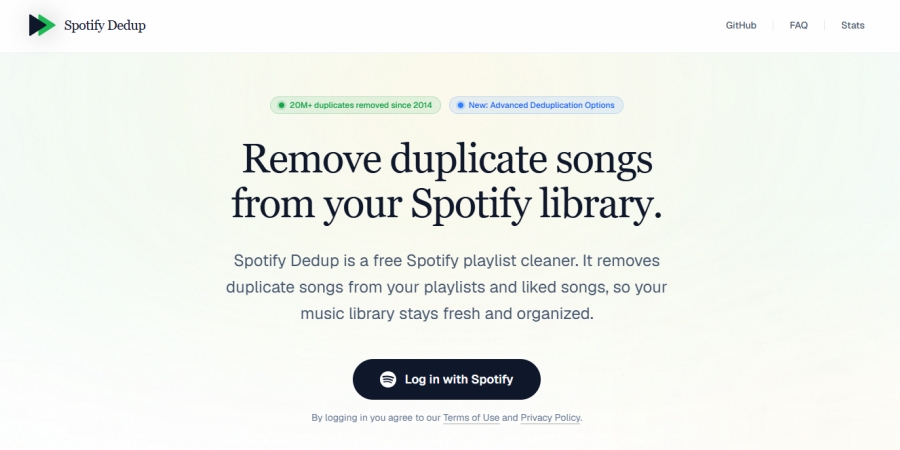
Step 1. Open your web browser and navigate to the official Spotify Dedup website.
Step 2. Click Log in with Spotify and authenticate your account.
Step 3. Once authorized, the tool automatically scans your saved playlists for duplicate tracks.
Step 4. Review all detected duplicates by playlist name.
Step 5. Click Remove duplicates from this playlist to clean an individual playlist.
Use Skiley (Paid & Advanced)
While Spotify Dedup targets exact track matches, tools like Skiley analyze metadata like track titles and artist names. This allows Skiley to catch duplicate songs coming from separate album releases, acoustic versions, or remastered edits.
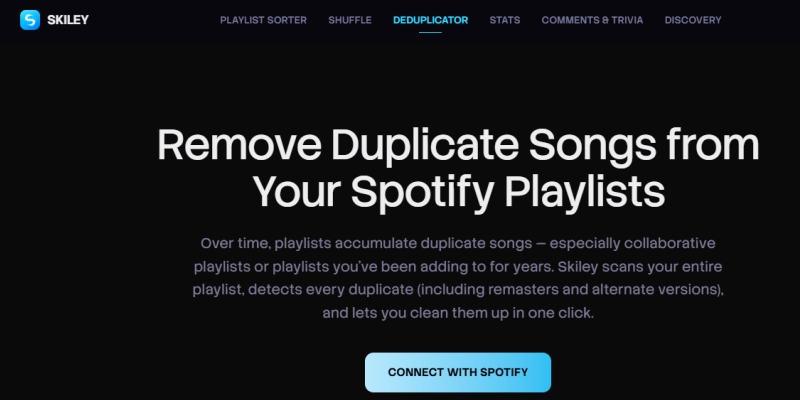
Step 1. Go to the Skiley web app and connect your Spotify account.
Step 2. Go to the Playlist Manager section.
Step 3. Select your target playlist and click Find Duplicates.
Step 4. Wait to detect duplicates, then confirm the deletion.
Revoke Third-Party Permissions After Cleanup
When using automated tools like Spotify Dedup or Skiley, you grant them temporary permission to access and modify your Spotify playlists. Once you finish removing duplicates, revoking these permissions is a great security habit.
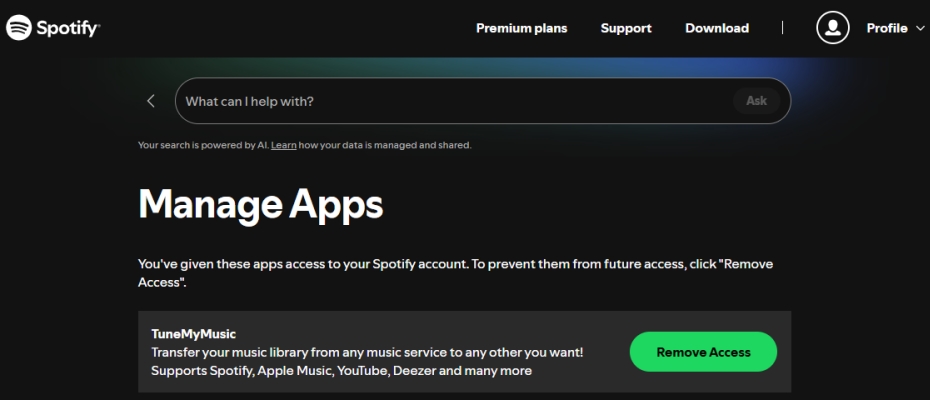
Step 1. Open a browser and go to your Spotify Account Overview page.
Step 2. Log in and navigate to the Manage Apps tab on the left sidebar.
Step 3. Locate the tool you used.
Step 4. Click Remove Access.
Part 2. How to Remove Duplicates from Spotify Playlist Manually
For smaller playlists or if you prefer not to connect third-party apps to your account, you can manually delete duplicate songs in Spotify playlists on your computer or mobile phone. Learn how to remove duplicate songs in Spotify playlists.
Remove Duplicate Songs in Spotify on Mac & Windows PC
The Spotify desktop app provides keyboard shortcuts that make manual bulk cleanup straightforward. Follow the steps below to manually remove duplicates from Spotify.
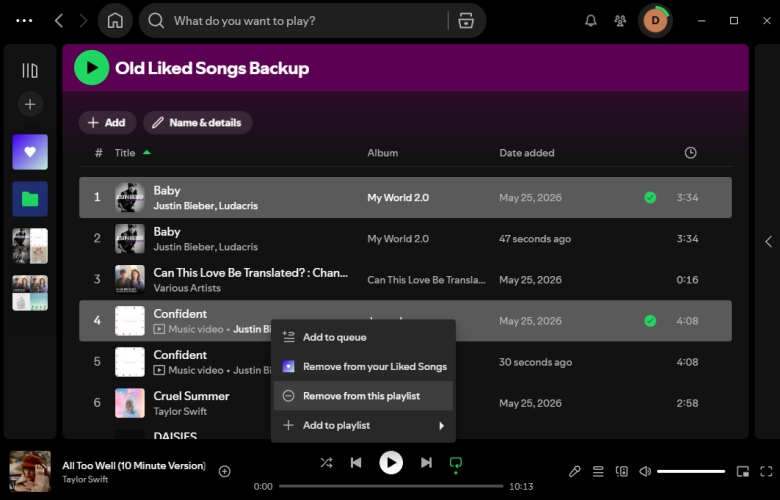
Step 1. Launch the Spotify app on your Windows PC or Mac.
Step 2. Find and open the playlist you want to clean up.
Step 3. Click the Title header at the top of the track list.
Step 4. Hold Ctrl on a Windows PC or Cmd on a Mac.
Step 5. Click each duplicate song you wish to remove.
Step 6. Right-click any highlighted song and select Remove from this playlist.
Remove Duplicate Songs in Spotify on Android & iPhone
The Spotify mobile app doesn't currently support multi-select bulk deletion. But you can still identify and clear duplicates manually on your phone, or use a mobile browser workaround.
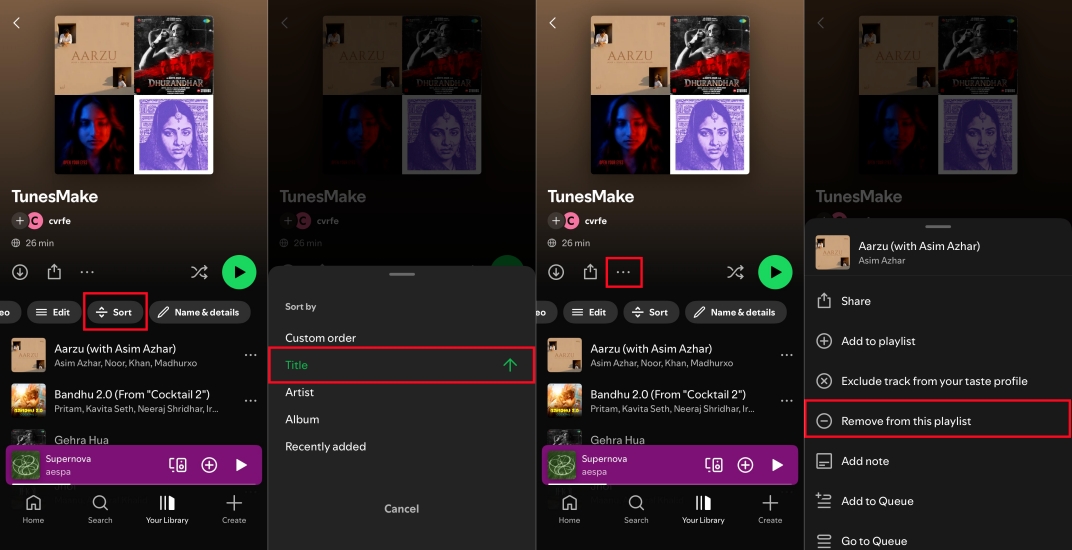
Step 1. Open the Spotify app on your phone and open your playlist.
Step 2. Swipe down slightly to reveal the search and filter bar, then tap Sort.
Step 3. Choose Title to group identical tracks together.
Step 4. Tap the three dots (...) next to the duplicate track you wish to delete.
Step 5. Tap Remove from this playlist.
Part 3. How to Manage Duplicates in Spotify Playlist Offline
If your goal is to download local audio copies of your Spotify playlists for offline playback on a USB drive or a local media player like VLC or iTunes, removing duplicates directly in the Spotify app won't prevent duplicate files on your computer if you convert whole playlists that overlap. In this scenario, a third-party audio converter such as TunesMake Spotify Music Converter provide built-in management options before exporting.
-
Preset Output Folder: Before exporting, you can set the conversion settings to group tracks by Artist, Album, or Artist/Album. This prevents the converter from saving duplicate files into separate unstructured folders.
-
Filter Before Conversion: Import your Spotify playlist into the conversion list. You can sort the track list by Title or Artist within the program to spot and uncheck duplicate tracks before running the conversion batch.
-
Post-Download Cleanup: Once exported as MP3s, you can use local disk deduplication tools such as Duplicate File Finder to scan audio metadata and clear duplicate MP3 files automatically.

TunesMake Spotify Music Converter –
Download music from Spotify without premium
- Download Spotify songs, albums, playlists, audiobooks, and podcasts
- Losslessly convert Spotify music to MP3, FLAC, WAV, AIFF, and more
- Remove ads from Spotify music tracks even with a Free account
- Convert Spotify music at 15× faster speed in batch with ID3 tags kept
Security Verified. 100% Clean & Safe.
Part 4. FAQs about Spotify Duplicates
Will removing duplicates delete the song from my Liked Songs?
No. Deleting a duplicate track from a specific playlist in Spotify only removes that instance from that playlist. It will not remove the song from your Liked Songs library or other playlists.
Can I recover a Spotify track if I accidentally delete it?
If you delete a Spotify track on your computer, pressing Ctrl + Z on a Windows PC or Cmd + Z on a Mac immediately after deletion will undo the action. Additionally, if you delete an entire playlist by mistake, you can restore it in your Spotify Account settings page online.
Why does Spotify let duplicate songs into my playlist?
Spotify identifies tracks using unique URI codes rather than track titles alone. If the same song exists on a single, a studio album, and a greatest hits compilation, Spotify treats each entry as a distinct track, allowing all of them into your playlist.
Part 5. Conclusion
Cleaning up duplicate songs on Spotify restores the seamless listening experience your curated playlists were meant to deliver. Whether you choose the instant bulk-deletion power of Spotify Dedup for large libraries, use keyboard shortcuts on the desktop app for precise manual control, or organize local track files prior to offline conversion with tools like TunesMake, taking a few minutes to declutter your music collection makes everyday playback effortless.
Related Articles



An experienced freelance writer at TunesMake, specializes in using various streaming services from Spotify, Apple Music, to Amazon Music, and more other platforms.
- 1
- 2
- 3
- 4
- 5
- 6
- 7
 Leave Your Comment
(0)
Leave Your Comment
(0)

 Download Center

