








 Store
Store


Spotify is arguably one of the most popular audio streaming services out there to date, and it’s largely due to its massive music catalog and the diverse ways it provides for listeners to discover new music. In 2023, Spotify released the Smart Shuffle feature, designed to help users find more tracks that align with their music taste and keep listening sessions fresh with new recommendations. If you are new to Spotify or unfamiliar with Spotify Smart Shuffle, you are in the right place.
In this guide, we will provide valuable insights into Smart Shuffle, including a detailed review and step-by-step instructions on how to use it across your devices. Plus, you can find useful solutions to help you resolve the problems you may encounter while using Smart Shuffle. By the end, you’ll be able to leverage Smart Shuffle to enhance your Spotify music experience. So, without further ado, let’s dive into this exciting feature together!

Part 1. What Is Smart Shuffle on Spotify?
Smart Shuffle is a new and advanced playback mode introduced by Spotify to enhance the traditional shuffle experience. While a standard shuffle only plays songs already in your playlists in random order, Smart Shuffle injects personalized recommendations into the queue that match what you're currently listening to. Approximately every 3 songs, you will hear a new song that is based on the vibe and genre of your current playlist. Here are the key features of Smart Shuffle in the Spotify app or web player.
Key Features of Spotify Smart Shuffle
- Personalized recommendations based on your music taste and listening habits
- Automatic and seamless song insertion in the current playing playlist
- Dynamic updates about the recommendations as your listening behavior changes
- Easy saving a recommended song to your library if you like it
FAQs about Smart Shuffle Spotify
Did Spotify remove Smart Shuffle?
No, Spotify has not removed Smart Shuffle. But with the full guide below, you can easily disable it on your device temporarily or permanently.
Is Smart Shuffle better than regular shuffle?
It depends on your preferences. If you only want to hear your curated playlist, the regular shuffle feature is better for you. If you prefer discovering similar music without manually searching, Smart Shuffle is a better choice.
Is Spotify Smart Shuffle available to all Spotify users?
Yes, both Spotify Premium and Free users can access Smart Shuffle. But according to Spotify, Free users can only shuffle music except on certain playlists such as Made for You. You will need to upgrade to Premium to have a full-featured Smart Shuffle.
Can you use Spotify Smart Shuffle on its web player?
No. Currently, Spotify Smart Shuffle is a feature of the mobile and desktop apps. It is not fully supported on the Spotify web player.
Part 2. How to Turn On/Off Smart Shuffle on Spotify
Smart Shuffle is an innovative way for you to blend personalization with music discovery. It is easy for all users to access as long as you have the newest version of the Spotify app installed on your device. In this part, we will focus on the exact steps to turn on and turn off this feature. You can follow the guidance below stepwise to access this feature with ease.
How to Turn on Smart Shuffle Spotify
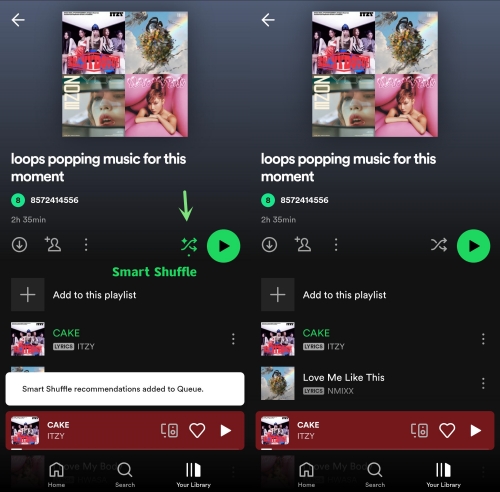
1. Open the Spotify app on your mobile phone or computer and log in to your account.
2. Head to Your Library and pick one playlist. On the detailed page of the playlist, tap the shuffle button.
3. Select Smart Shuffle. When the shuffle icon shows green with sparkles, you have enabled this feature successfully.
4. Or, you can play any song on your playlist and enter the Now Playing screen. Tap the shuffle icon at the bottom twice. For desktop users, you can find the shuffle button in the Now Playing bar at the bottom. Tap the shuffle icon twice.
5. Once done, you can enjoy all your original songs in the playlist and new recommendations as well.
Note
When you tap the shuffle icon once and the icon turns green, it only enables the shuffle mode. The Smart Shuffle is enabled only when the shuffle icon turns green and with the sparkles icon.
How to Turn off Smart Shuffle Spotify
1. Navigate to the playlist that you opened the Smart Shuffle feature.
2. Tap the shuffle icon that is located under the playlist’s name until the icon is greyed out.
3. Alternatively, you can tap the shuffle icon in the Now Playing screen as well.
4. After that, the Smart Shuffle feature is disabled and all recommendations will be removed.
Pro Tip: Play Spotify Music on Demand Without Premium
If you only have a Spotify Free account, you may face limitations like forced shuffle mode and limited skips. In this case, you can utilize a third-party tool to take full control over song order. TunesMake Spotify Music Converter is such a smart music converter and downloader that can help you play Spotify music on demand without a Premium.
All Spotify users, including Free and Premium users, can use it to download any Spotify song, playlist, album, or podcast to local audio files without sound quality loss. As a result, you can easily keep these Spotify files permanently and play them on other platforms or devices offline without hassles. What's better, the TunesMake tool supports customizing the output settings. You can choose an output format from MP3, M4A, M4B, WAV, FLAC, and AIFF. If you need, you can change other parameters like output quality, channel, bit rate, sample rate, and so on.

TunesMake Spotify Music Converter –
Best Tool to Download Spotify Songs to Local Files
- Unlimitedly download Spotify songs, playlists, and podcasts
- Losslessly convert Spotify music to MP3, FLAC, WAV, AIFF, etc.
- Remove ads from Spotify music tracks even with Free accounts
- Convert Spotify songs at 12X faster speed with ID3 tags kept
Security Verified. 100% Clean & Safe.
Part 3. More Tips about Spotify Smart Shuffle
After enabling this Smart Shuffle, you may want to fine-tune what it suggests. Here are some effective tips to help you get better results.
3.1 How to Refresh Spotify Smart Shuffle Recommendations
Sometimes, you may feel that the Smart Shuffle keeps suggesting the same type of songs. You can refresh recommendations by trying these practical tips:
1. Toggle Smart Shuffle Off and then back On to make a refreshment.
2. Disable the Smart Shuffle feature on your current playing playlist. Then, go to another playlist that contains a different genre of music and turn on Smart Shuffle again. This can force the algorithm to re-scan your playlist.
3. When heading the songs you don’t like on Smart Shuffle recommendations, skip tracks frequently.
3.2 How to Remove Smart Shuffle Recommendations
You have direct control over what the Smart Shuffle algorithm learns. When you dislike a recommended track on your queue, simply remove it.
Step 1. Select the three-line Queue icon at the bottom right of the Now Playing screen. Then, you can see all the songs in the queue.
Step 2. Recommended songs by Smart Shuffle will be marked with a sparkle icon.
Step 3. Find the song you don’t like, and then tap the Minus icon next to it. This step tells Spotify you are not interested in this recommendation. Then it will disappear from your current queue.
3.3 How to Disable Smart Shuffle Permanently
If you only want the regular shuffle feature and find tapping the shuffle icon twice every time is a nuisance, you can also disable Smart Shuffle from the Settings section on the Spotify app.
Step 1. Open the Spotify app on your device and tap the Profile icon at the top.
Step 2. Select Settings and Privacy.
Step 3. Then, scroll down to find the Playback section.
Step 4. Tap it and toggle off the Include Smart Shuffle in play mode option.
Tips
If you don’t like the shuffle feature on Spotify, there is another workaround to play your curated playlists in random order. That is to download your Spotify playlists as local files, and then import them to a media player that has the shuffle feature you like. TunesMake Spotify Music Converter can help you reach it.
Part 4. Troubleshooting Common Smart Shuffle Glitches
Like other Spotify features, Smart Shuffle isn’t perfect. Users have encountered diverse problems when using Smart Shuffle on Spotify. If you also find unexpected bugs, check these common fixes.
Problem 1. Spotify Smart Shuffle Playing Same Songs

I turn on smart shuffle to find new stuff. Lately whenever I turn on smart shuffle, after finishing the current song it always plays the last rap song I’ve added and only plays that genre throughout the rest of the session or until I turn off smart shuffle. I would also like to not have to cycle through smart shuffle as when I’m hiking or somewhere without service it takes so long for the phone to attempt to load it and I’m not able to get to the standard play through.
-- User from Spotify CommunityThis problem is usually a cache issue. Here are some practical tips:
1. Clear Spotify cache on your device. Once done, force close and restart the Spotify app.
2. Refresh the Smart Shuffle recommendations by re-enable it.
3. Change to another playlist to use the Smart Shuffle feature.
4. Add more tracks to your playlists, ensuring there are at least 15+ tracks on the playlist.
Problem 2. Spotify Smart Shuffle Not Working
I have a Premium Individual Account but the smart shuffle function doesn't work. Before it did, but now it seems to be disappeared. Any suggestions to fix this problem?
-- User from Spotify CommunitySpotify rolls out Smart Shuffle server-side. So, if you can not use Smart Shuffle on the Spotify app, you should check the following:
1. Make sure your Spotify app is the latest version. Otherwise, you should update it.
2. Make sure you are using the official desktop or mobile app of Spotify instead of its web player.
3. Make sure there is a stable Internet connection, and you are not in the Offline Mode.
4. Make sure you Premium subscription is still active.
5. If Smart Shuffle still doesn’t work, you can try to force close the Spotify app and reboot it.
Problem 3. Spotify Smart Shuffle Won't Turn Off
Smart shuffle won't turn off. How can I stop it? Hi. A day ago I got a new option to use something called Smart Shuffle. It would take my existing playlist, shuffle it, and every 3 or 4 songs it would throw in a new song I might be interested in. I tried it, and decided I didn't like it. But now I cannot turn it off.
-- User from RedditAnother common issue is that you turn Smart Shuffle off, but it keeps turning itself back on. This may be caused by UI confusion or app glitch. Try these methods to resolve it:
1. Go to the Spotify Settings section to remove Smart Shuffle from your play mode completely. You can find detailed steps on Part 3.3.
2. Log out of your Spotify account and log back in again. Or, you can Sign Out Everywhere via the Spotify website to reset your active session.
Part 5. Conclusion
Spotify Smart Shuffle is a powerful feature designed to enhance music discovery. If you enjoy exploring new tracks, you can follow the steps above to enable Smart Shuffle on your mobile or desktop device. But if you prefer a more controlled experience, you can also learn how to switch back to regular playback and how to play Spotify music on demand without Premium via the TunesMake Spotify Music Converter in this post.
Related Articles



An experienced freelance writer at TunesMake, specializes in using various streaming services from Spotify, Apple Music, to Amazon Music, and more other platforms.
- 1
- 2
- 3
- 4
- 5
- 6
- 7
 Leave Your Comment
(0)
Leave Your Comment
(0)

 Download Center

