









 Store
Store


Spotify Local Files is a useful feature that lets you play music stored on your device through the Spotify app. However, many users run into frustrating problems like songs not playing, files not syncing to mobile devices, or tracks appearing greyed out. If you can encounter the issue of Spotify can't play this right now local files, the issue is usually related to file compatibility, syncing problems, permissions, cache corruption, or app settings. Fortunately, most of these problems can be fixed in a few minutes. This guide walks through the most effective solution to fix Spotify not playing local files on desktop and mobile.
Part 1. Why Are My Local Files Not Playing on Spotify?
Before jumping into the fixes, it helps to understand why Spotify local files sometimes fail. Spotify doesn't upload your music to its servers like a cloud storage platform. Instead, it scans approved folders on your device and syncs files between devices under specific conditions. Common reasons Spotify local files are not playing include:

- Unsupported audio formats: Not all file types work properly in Spotify.
- Local Files setting disabled: Spotify may turn Local Files off after updates.
- Devices not on same WiFi: Syncing fails if devices are on different networks.
- Missing storage permissions: Mobile apps may not have file access enabled.
- Corrupted cache or app bugs: Old or broken data can stop playback.
- Files not stored locally: Cloud-only files will not work.
Part 2. How to Play Local Files on Spotify Desktop/Mobile
Sometimes, users encounter the issue of local files not playing on Spotify due to incompatible formats and wrong operation. Spotify is strict about the types of audio files it will read. To make Spotify play local files, make sure your audio files meet's Spotify current playback criteria first.
Account Status and Subscription Constraints
Desktop (Windows & Mac):
Both Free and Premium users can index and play local audio tracks directly from their computer's hard drive.
Mobile (iOS & Android):
An active Spotify Premium subscription is strictly required to access, sync, and stream local files on a mobile device.
Format Specifications and the iTunes Conflict
Spotify does not support all audio codecs. The software is optimized for MP3, M4A, MP4, and M4P using the Local Files feature. It may fail to play DRM-protected files, corrupted files, unsupported codecs, and certain WAV variations.
⚠️ Trap:
Spotify cannot play standard iTunes .m4a files. If your files end in .m4a, you must use an audio converter to change them to .mp3 first, or they will appear grayed out and unplayable.
Setting Up Local Files on Desktop
You must index your audio files on the Spotify desktop app first if you want to eventually sync them to your phone. Following are the steps to set up local files on desktop.
Step 1. Open the Spotify desktop app on your computer.
Step 2. Click your Profile Icon in the top-right corner and select Settings.
Step 3. Scroll down to the Your Library section.
Step 4. Toggle the switch next to Show Local Files to the ON position.
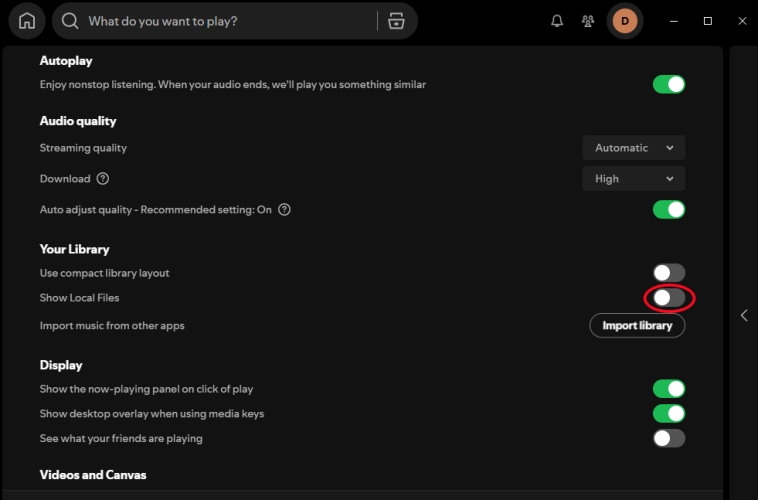
Step 5. Under Show songs from, turn on Downloads and Music Library. Or click Add a source and select that specific folder to add songs stored somewhere else.
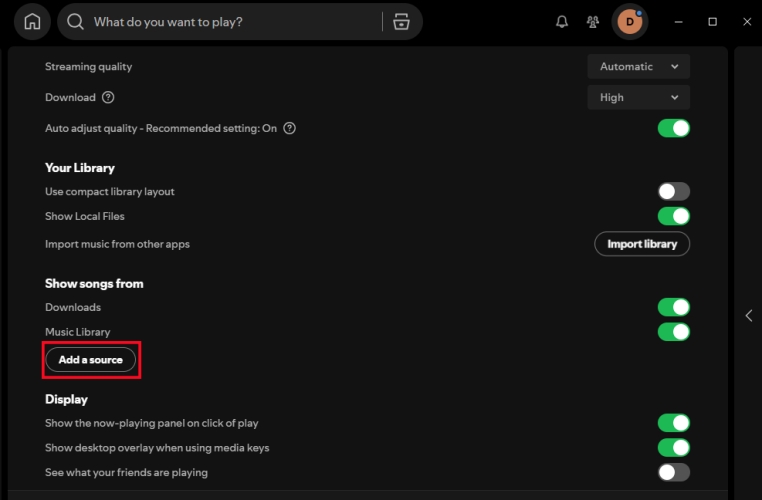
Now, look at your left sidebar. A new Local Files folder will appear in your library. You can listen to these tracks directly on your computer now.
Play Local Files on Mobile
To listen to these local files on your phone, ensure you have a Premium account and your devices are connected to the exact same WiFi network. Then follow the steps below to play local files.
On iPhone and iPad
Step 1. Go to your iPhone's main Settings app > Apps > Spotify.
Step 2. Make sure the toggle for Local Network is turned ON.
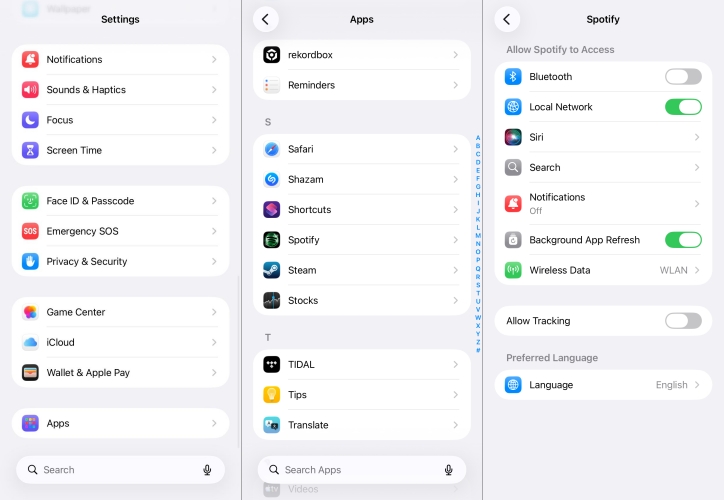
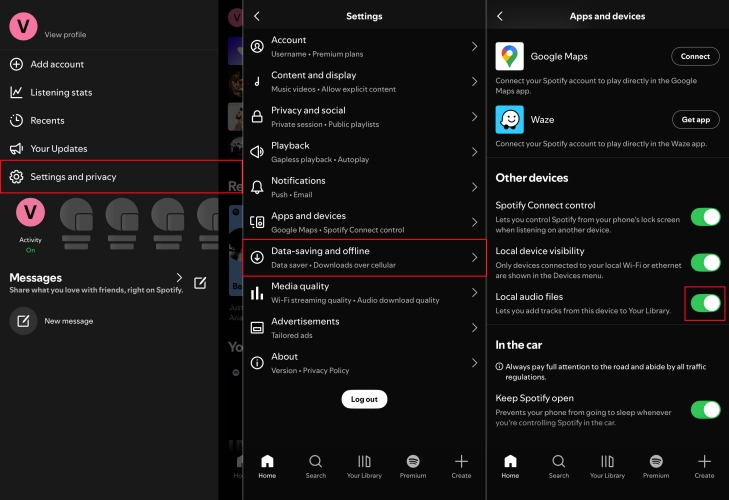
Step 3. Open the Spotify app and tap your profile picture at the top right corner.
Step 4. Tap Settings and privacy > Apps and devices, then enable Local audio files.
Step 5. Open the Files app and navigate to On My iPhone > Spotify.
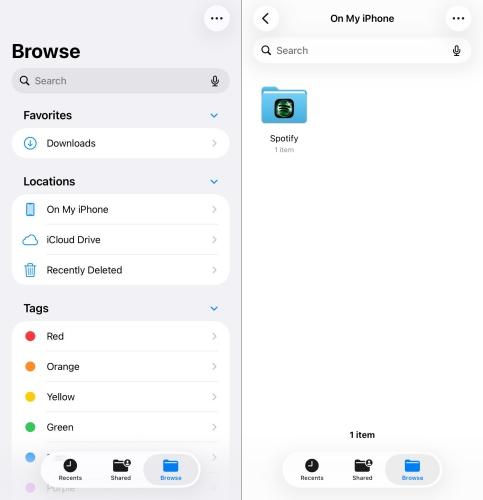
Step 6. Move your actual .mp3 files into this Spotify folder.
Step 7. In the Spotify app, go to your Library and find the Local Files folder.
Step 8. Tap the Download button to save them to your phone for offline playback.
On Android
Step 1. Long-press the Spotify icon on your home screen and tap App Info.
Step 2. Go to Permissions > Music and audio and set it to Allow access to media only.
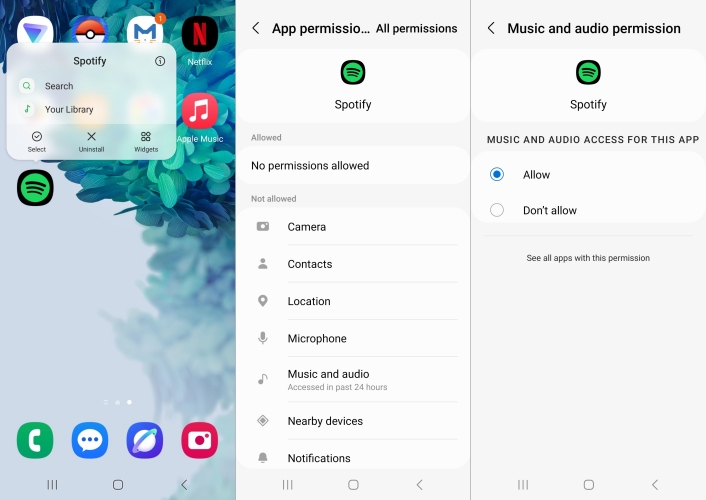
Step 3. Open Spotify and tap your Profile Icon > Settings.
Step 4. Scroll down to Local Files and toggle Show audio files from this device to ON.
Step 5. Make sure your music files are saved in your phone's default internal Music folder.
Step 6. Go to your Spotify Library and open Local Files.
Step 7. Tap Download so they are saved to your device.
Bonus:
If your Library has lots of liked songs, albums, and playlists, utilizing a dedicated utility like TunesMake Spotify Music Converter can help you download and save Spotify music as local files in the format of MP3 or others. Then you can freely upload them to Spotify or other media players for listening anytime.
Part 3. How to Fix Spotify Not Playing Local Files on Desktop
Desktop issues are often caused by indexing errors, permissions, or folder configuration problems. To resolve Spotify not playing local files on desktop, try the following solutions.
Solution 1. Re-add Your Music Folder
Spotify may lose access to your music folder after updates or file changes. Try re-adding your music folder, then restart Spotify and wait for re-scanning to finish.
Step 1. Open Spotify and click your profile image.
Step 2. Click Settings and locate the Your Library section.
Step 3. Select Add a source and re-add the folder containing your music.
Solution 2. Clear Spotify Cache
Corrupted cache files can prevent local songs from loading correctly. After clearing Spotify cache, restart the Spotify app and recheck local files.
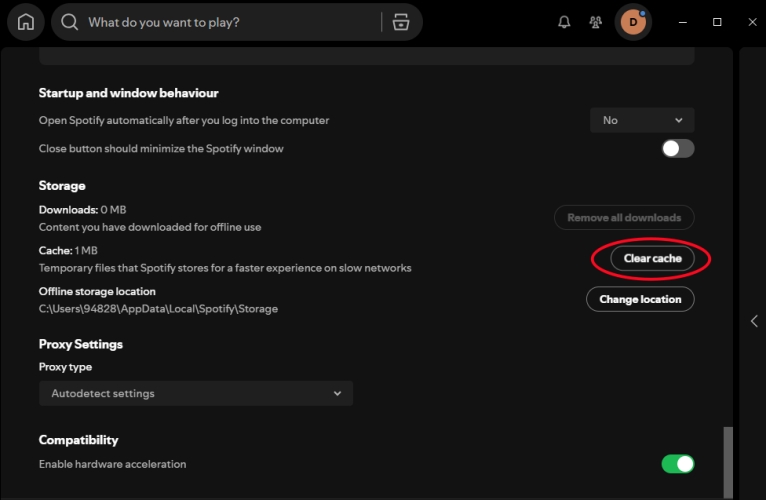
Step 1. In the Spotify app, click your profile image and go to Settings.
Step 2. Scroll to Storage and click Clear Cache.
Solution 3. Disable Firewall or Antivirus Temporarily
Security software can block Spotify from communicating with your network devices. Try temporarily disabling Windows defender firewall, third-party antivirus software, and VPN software. If this fixes the issue, add Spotify to your firewall whitelist.
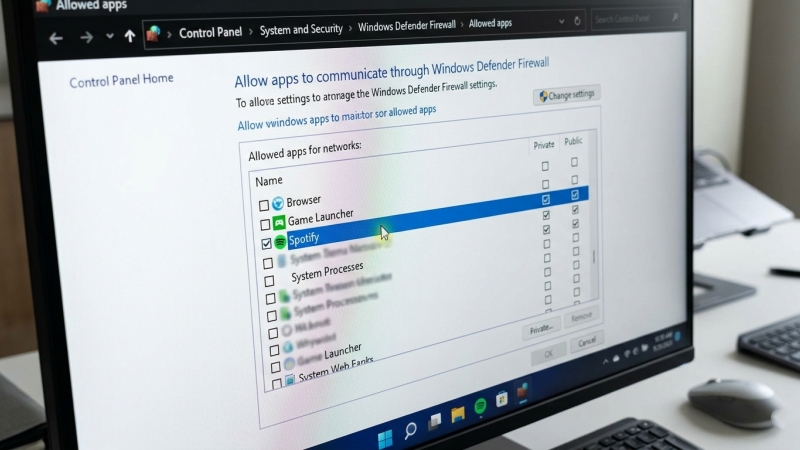
Solution 4. Set Your Network to Private (Windows Only)
Many users report Spotify local files sync better on Private networks. Public networks sometimes block local device discovery. Go to set your network to private on a Windows PC.
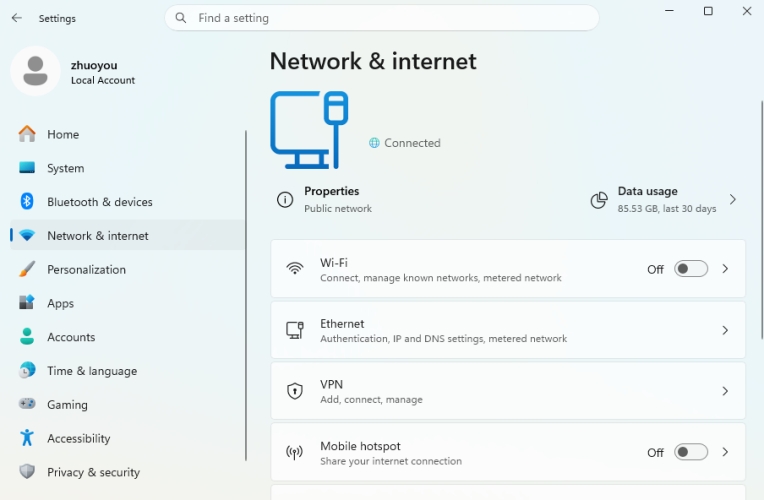
Step 1. Open Windows Settings and go to Network & Internet.
Step 2. Select your WiFi connection and choose Private.
Solution 5. Force a Clean Index Rebuild
Spotify tracks your local library using a hidden database file called index.dat. If this file becomes bloated or corrupted, your local tracks disappear from the app.
Step 1. Close Spotify completely.
Step 2. Navigate to your local AppData folder.
- Windows: Press Windows Key + R, type %localappdata%\Spotify\Storage\, and hit Enter.
- Mac: Open Finder, press Cmd + Shift + G, and go to ~/Library/Application Support/Spotify/PersistentCache/Storage/.
Step 3. Locate the file named index.dat and delete it.
Step 4. Relaunch Spotify. The app will immediately re-index your designated music folders from scratch, restoring your missing files.
Solution 6. Reinstall the Spotify App
If nothing else works, reinstalling Spotify can remove corrupted configuration files. Before reinstalling, backup playlists and note your Local Files folder locations. Then uninstall Spotify, delete leftover Spotify folders, and install the Spotify latest version.
Part 4. How to Fix Spotify Local Files Not Playing on Mobile
Mobile syncing issues are extremely common because Spotify handles local files differently on phones. If you encounter the issue on your phone, follow the steps below to fix it.
Solution 1. Download the Playlist on Both Devices
Many users miss this requirement. For Spotify local files to sync properly, add songs to a playlist, download the playlist on desktop, and then download the same playlist on mobile. Without playlist downloads enabled, songs may appear unavailable.
Solution 2. Grant Storage Permissions
Spotify cannot access local music files without proper permissions. If you don't have enabled storage permissions on iOS or Android devices, try to turn it on for resolving the issue.
On Android
Step 1. Open Settings and go to Apps.
Step 2. Select Spotify and tap Permissions.
Step 3. Allow Music and audio access.
On iPhone
Step 1. Open Settings and navigate to Apps.
Step 2. Scroll to find Spotify and tap it.
Step 3. Enable Local Network and Media permissions.
Solution 3. Disable Battery Optimization (Android Only)
Some Android device aggressively stop background syncing due to battery optimization. To sync Spotify local files, disable battery optimization, which helps Spotify maintain stable syncing.
Step 1. Open Settings and go to Battery.
Step 2. Find Spotify and disable Battery Optimization.
Solution 4. Keep Spotify Open During Syncing
Local file syncing can fail if the phone screen locks, Spotify closes in the background, or WiFi disconnects. In this case, keep both devices awake, connected, and running Spotify during sync.
Solution 5. Remove and Re-download the Playlist
If songs appear greyed out, delete the downloaded playlist. Then restart Spotify and download the playlist again. This often forces Spotify to refresh broken local file links.
Part 5. Conclusion
No need to worry about Spotify local files not playing. It is an easy process to resolve this issue as long as you follow the detailed tutorial stepwise. What's more, a bonus tip to help you download Spotify music as a local file is shared. With TunesMake Spotify Music Converter, you have the ability to get all your favorite songs, albums, and playlists from Spotify to your computer locally. Then you can easily transfer them to other media players or devices for offline playback.
Related Articles



A senior editor from TunesMake, dedicated to sharing professional tutorials and solutions of software, movies, and music.
- 1
- 2
- 3
- 4
- 5
- 6
- 7
 Leave Your Comment
(0)
Leave Your Comment
(0)

 Download Center

