








 Store
Store


Spotify has become the go-to music platform for music lovers around the world. Spotify offers millions of music tracks, thousands of curated playlists, and more original content for listeners. There are two plans for users - Spotify Free and Premium. Since Premium offers a personalized listening experience and boasts more features, more and more users choose it. However, not everything moves as smoothly as you want. The feedback of “I bought Spotify Premium but its not working” prevails. Issues like Spotify Premium not working or Premium downloaded songs won’t play are frustrating. To enable your smooth experience on Spotify, here we bring you definitely workable solutions to solve them. Let’s get down to the business.
Part 1. Why Is My Spotify Premium Not Working?
There are several possible reasons should be responsible for Spotify Premium not working offline. Let’s examine each reason in detail and understand why they might cause this error.
1. No Active Spotify Premium Plan
Spotify Premium is a subscription-based service. Once your subscription isn’t renewed in time, you are not allowed to access all benefits from Spotify Premium, such as ad-free listening, offline mode, and more. Or if the admin removed you from the Spotify Premium Family or Duo, Spotify Premium not working occurs.
2. Incomplete Payment
Sometimes, the main thing for Spotify Premium not working you have to check is your payment. Is it has been confirmed completely without failure? If your Spotify payment is marked as ‘pending’ on your bank statement, it might not have gone through successfully.

3. Corrupted Spotify Downloaded Content
To have a smooth offline experience on Spotify, first, ensure all your wanted songs have been downloaded under a strong network. Occasionally, you deleted Spotify storage or downloads inadvertently. In this case, you cannot access them when you enable the offline mode.
4. Download Limit Reached
Although Spotify allows Premium users to download songs from the big library for offline listening, you have to be aware that Spotify designs the limit for songs that can be downloaded on a device. And with a Premium account, only 10,000 songs can be downloaded. If you’ve reached this limit, Spotify stops you from downloading which lets you think it is caused by Spotify Premium not working.
5. Outdated Spotify App
The outdated version of an app often produces a series of bugs and issues. In contrast, the updated version aims to resolve most known issues and delivers better performance. So to fix most issues in Spotify, keeping the auto-update on is necessary.
Part 2. Official Solutions of Spotify Premium Not Working
If you are experiencing the Spotify Premium not working issue, you are not alone. Many users have complained about it. So, Spotify offers some official solutions to help you get everything back to normal. When you encounter this issue, here are the first steps you should take:
Solution 1. Check Your Login Details
To begin with, you should make sure you are using the right login details since it is possible that you signed up for Premium with a different account. To check your login details, you can head to the Edit login methods page on Spotify.
Solution 2. Check Your Payment Status
When you submit a payment for the Premium plan, your bank puts the funds aside as ‘pending’. If the payment fails, the pending status will expire, and the funds will be returned to your bank account. So, you should verify that your payment method is valid with enough money. If there is something wrong, try a new payment option or contact your bank to fix any payment issues and reach a successful transaction.
Solution 3. Log out and Log Back in
Spotify needs time to sync and confirm your account. Now try to sign out of your Spotify account to refresh it and fix your paid Spotify Premium not working on phone.
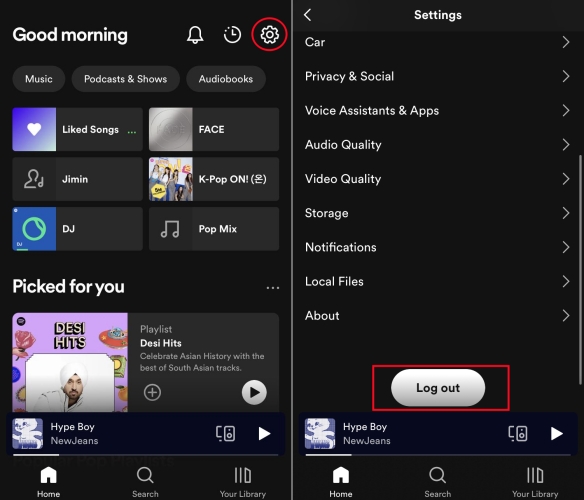
Step 1. Navigate to Spotify Settings and scroll down to the bottom.
Step 2. Tap the Log Out button.
Step 3. Then Spotify will prompt you to sign in.
Part 3. Advanced Fixes to Resolve Spotify Premium Not Working
The above official fixes are to ensure your Spotify Premium account is active so your Premium features work properly. If the basic solutions didn’t solve the issue, it’s time to dive deeper to some advanced fixes. This section have collected more technical fixes to resolve stubborn Premium errors.
Fix 1. Check the Network Connection
As a streaming platform, Spotify requires a stable Internet connection to function properly. When your Wi-Fi is slow or lagging, Spotify may fail to recognize your Premium account. Therefore, you should test your Internet speed with a third-party speed test tool. If it’s slower than normal, you can switch to another Wi-Fi network or use your mobile data directly. If possible, you can restart your router to have a better Internet connection.
Fix 2. Check Your Premium Subscription
For users who just upgraded to Spotify Premium, it’s necessary to ensure that your subscription plan was activated correctly. Sometimes, you may experience delays in receiving Premium benefits after upgrading. Here’s how to check:
Step 1. After your payment process for Spotify Premium is finished, you should go to the Settings section on Spotify.
Step 2. Select Account to check if your Premium type is shown as Premium or Premium Duo, instead of Free.
Step 3. Also, you can go to your email inbox where you should have a confirmation email. Ensure it is linked to the account you are currently using.
Step 4. If you subscribed to Spotify via Apple, you should check your subscription status by going to Settings > Your Apple ID > Subscriptions on your iOS device.
Fix 3. Reopen the Spotify App
Force-stopping the opening Spotify app can sometimes cure bugs temporarily and remove the glitches within the app.
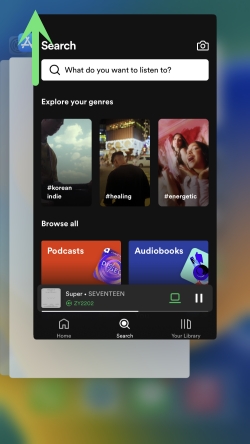
Step 1. Swipe up from the bottom of the Home screen of your smartphone to open the App Launcher.
Step 2. Locate the Spotify app preview and swipe upwards on it to close it.
Step 3. Tap the Spotify app icon to reopen it.
Then, see if the Spotify offline mode works well with your Premium account.
Fix 4. Clear Spotify Cache
Even though Spotify caches can store your frequently played songs, passwords, search terms, downloaded music, and more, it also has the ability to lag your device’s speed and cause conflict. Here’s how to empty Spotify caches on Android and iOS devices.
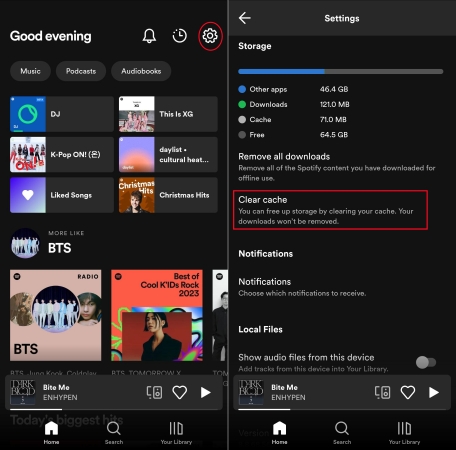
Step 1. On the Spotify app, tap the cog button to go to Settings.
Step 2. Scroll down to the Storage section.
Step 3. Hit the Clear cache button. This won’t remove your Spotify downloads.
Fix 5. Delete and Re-download Spotify Songs
Make sure your Spotify downloads are completely downloaded for offline listening. If not, try the following steps to download them. Or delete problematic downloads that caused Spotify Premium offline not working and then re-download them under a stable WiFi network.
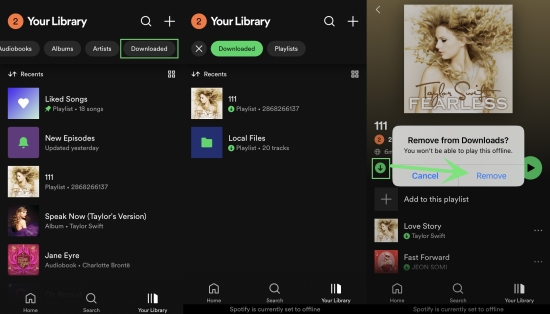
Step 1. Launch the Spotify app and go to Your Library.
Step 2. Slide right to tap the Downloaded filter button.
Step 3. Select a selection you want to delete and tap the green download icon > Remove.
Step 4. Back to Your Library to find the selection you deleted.
Step 5. Hit on the Download icon to download it without Spotify offline not working issue.
Fix 6. Re-enable Offline Mode Correctly
Once you have the downloads on your current device, you’d better enable the Spotify offline mode correctly.
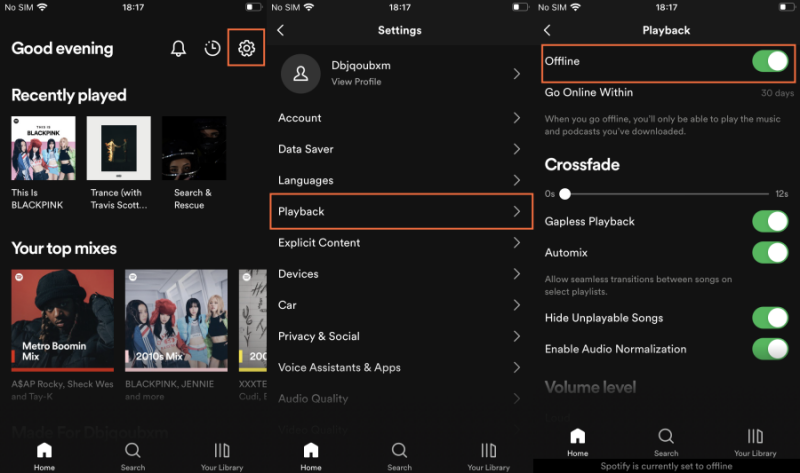
Step 1. Navigate to Spotify Settings by tapping your Profile or the gear button.
Step 2. Navigate to Spotify Settings by tapping your Profile or the gear button.
Fix 7. Check the Spotify Download Limit
Another possible reason why your Premium won’t download music for offline playback is that you have hit the download limit. Spotify allows Premium users to download up to 10,000 songs per account. What’s more, you can only download music on up to 5 devices. If you’ve exceeded this limit, you should delete some downloads before downloading new tracks.
Fix 8. Check Your Device Storage
Except for the Spotify download limit, you should also pay attention to the free space of your device. Spotify won’t be able to download songs on a device that doesn’t have enough space to store content. If your device has extremely low storage space, Spotify may not function properly. To avoid playback errors on your Spotify app, you’d better delete old media or unused apps to make more room on your device.
Fix 9. Update Spotify and Your Device Software
Outdated software can often cause issues related to Premium features failing. Luckily, this can be fixed by updating the app to the latest version. Since there may be compatibility issues with the new Spotify app, it’s necessary to update your device operating system at the same time.
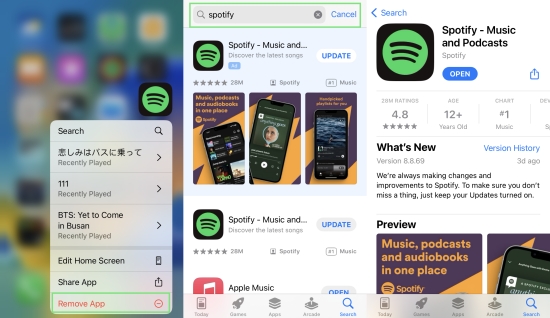
Step 1. Go to the App Store or Google Play Store on your device. Then, search for the Spotify app.
Step 2. When there is a new version, tap the UPDATE button next to it.
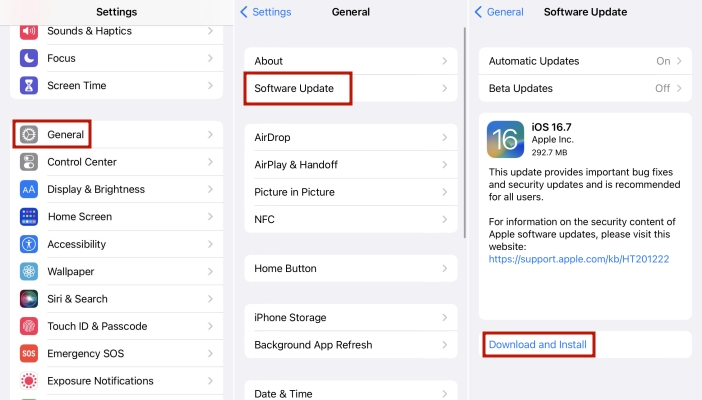
Step 3. To update your iOS system, just go to Settings > General > Software Update. If you are using an Android device, you can find the new system version on Settings > System & Updates > Software Update.
Fix 10. Perform a Clear Reinstall
If you already have the newest version of the Spotify app installed on your device but still can’t access your Premium features, there may be deep-seated issues within the application. In this case, a full, clean reinstall is the most reliable solution.
Step 1. Uninstall and delete Spotify completely from your device.
Step 2. Then, restart your device.
Step 3. Reinstall the newest Spotify app from the official application store on your device or the Spotify website.
Part 4. The Ultimate Fix: Play Spotify Music Offline Without Premium
Have you tried all the solutions above, but Spotify Premium is still not working or Spotify offline is not working? Maybe you can try this silver bullet – play Spotify offline on other players after downloading with TunesMake Spotify Music Converter. In this way, you can get away from all the issues within Spotify and listen to Spotify without Premium.
TunesMake Spotify Music Converter works for all Spotify users, including Spotify Free. That is to say, even though you’re experiencing Spotify Premium not working, you can use it to download and convert Spotify Music to DRM-free MP3, WAV, FLAC, AIFF, M4A, and M4B. Therefore, you can freely listen to Spotify songs offline on different players without Spotify simultaneously without Spotify issues. Furthermore, it ensures 100% lossless quality and retains full ID3 tags.

TunesMake Spotify Music Converter –
Download Spotify Music Without Premium
- Unlimitedly download Spotify songs, playlists, and podcasts
- Losslessly convert Spotify music to MP3, FLAC, WAV, AIFF, etc.
- Remove ads from Spotify music tracks even with Free accounts
- Convert Spotify songs at 12X faster speed with ID3 tags kept
Security Verified. 100% Clean & Safe.
Try TunesMake Spotify Music Converter and then you won’t be held back by Spotify Premium not working or Spotify offline not working. Now, let’s see how to download Spotify songs to your computer for offline listening without Spotify Premium.
Step 1
Add Spotify Songs to TunesMake

Open TunesMake Spotify Music Converter, and it will run the Spotify web player spontaneously. Now, you can find the songs you want to download. Then, drag and drop it to the Add icon to load it to the TunesMake software. If you need to download multiple songs at once, just select any playlist or album you like. Then, click the Add icon > Add to List to load as many songs as you want.
Step 2
Adjust the Output Parameters

TunesMake allows you to customize the output audio format and adjust audio parameters like the output format, sample rate, bit rate, and channel. You can get Spotify music according to your personal demands by clicking the menu > Preferences > Conversion. It is suggested to keep the default MP3 format to play Spotify offline.
Step 3
Download and Play Spotify Songs without Premium

Click the Convert button and the converter will be conducted with a 12x conversion speed. When the downloading finishes locate them from the bottom Converted panel. Then use the file icon next to each converted song to access them in your local folder on your computer. Double-click it and it will be opened and played with the built-in media player. You can also transfer them to your mobile phone for listening offline using a USB cable.
Conclusion
Hope the above troubleshooting tips are informative and helpful to fix Spotify Premium not working offline. To solve this issue once for all, TunesMake Spotify Music Converter is absolutely a panacea. With it, you can download songs from Spotify even without Spotify Premium. Then you are free to listen to downloaded Spotify songs offline without being disturbed by any issues.
Related Articles


An experienced freelance writer at TunesMake, specializes in using various streaming services from Spotify, Apple Music, to Amazon Music, and more other platforms.
- 1
- 2
- 3
- 4
- 5
- 6
- 7
 Leave Your Comment
(0)
Leave Your Comment
(0)

 Download Center

