








 Store
Store


I just finished installing Mac OS Catalina, and each time I try to open Spotify, the icon jumps like normal as if it’s about to open, and then it just doesn’t open. I’ve uninstalled and reinstalled Spotify several times as well as clearing the cache, but the problem still persists. Is there any way to fix it?”
-From Spotify Community.As the most popular music streaming service, Spotify is feature-rich. However, sometimes the experience is not as developed as you expected. Recently, quite a few users complained that they have to grapple with Spotify not working on Mac. They open Spotify on Mac as usual, but only to find Spotify won’t open on Mac. Does your Spotify Mac app refuse to open? Or, do you have the above issue? Either way, you can find workable solutions here.
Part 1. Why Is My Spotify Not Working on My Mac?
Why is spotify not working on my Mac? Why won’t Spotify open on Mac? Many users have these problems. Well, there are many possible reasons that trigger this issue on your Mac computer. Here are some of them:
- The Internet connection is not stable or solid.
- Your Mac might be not compatible with Spotify. (Spotify supports MacOS X 10.13 or above.)
- The Firewall doesn’t allow Spotify.
- The Spotify app crashes with glitches.
- The Spotify app needs to be updated.
Part 2. Common Solutions to Solve Spotify Now Working on Mac
According to the possible culprits above, you may know why your Spotify is not working on your Mac computer. At this time, you can try some common solutions to fix this issue quickly. If you want to fix this issue once and for all, we recommend the ultimate fix in Part 4, which prevents Spotify from working improperly and ensures your Spotify listening experience.
Solution 1. Check Your Internet Connection
Since Spotify is a streaming music platform, a stable and fast network connection is indispensable. So, if your Internet connection is weak or unstable, the Spotify app may fail to work on Mac. Even a brief connection drop can cause loading issues and playback errors.
You can test your Wi-Fi connection in System Settings > Network. Or, you can open a browser to load a few websites. If pages load slowly, consider switching to another Wi-Fi or restarting your router to make a refreshment.
Solution 2. See If Spotify Is Down
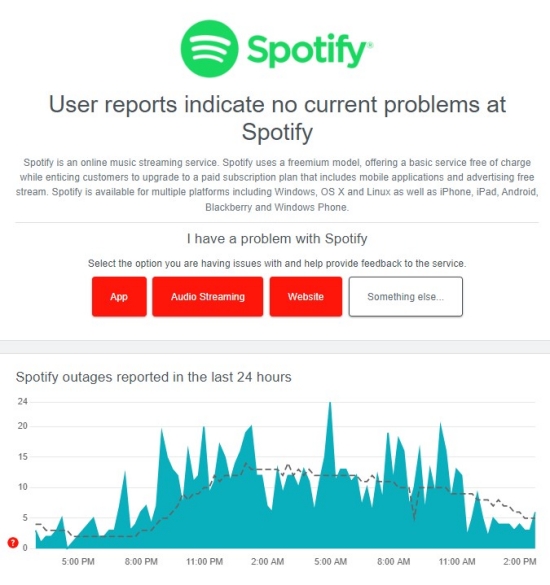
Before diving into more solutions, it’s important to check whether the issue is actually on Spotify’s end. If Spotify is down, you have no choice but to wait for Spotify to resolve the issue. Outrages are usually fixed within hours. To see if Spotify is down, you can visit Spotify’s official social media or utilize third-party tools like Downdetector. It gives you real-time problems and status for Spotify. From here, it is self-explanatory to see if Spotify is wrong or works properly.
Solution 3. Check Your Spotify Account Settings
One situation is that you can open the Spotify app on your Mac, but it won’t play music. This issue may be related to your account rather than the app itself. You can do the following things to check:
1. Make sure you are logged in to the correct account, especially when you have multiple Spotify accounts.
2. Check your Premium subscription status, ensuring it is still valid. Expired or canceled subscriptions may fail to play your downloaded music.
3. Check your account settings. If you spend more than 14 days abroad, you won’t be able to play anything on the Spotify app installed on your Mac. Change your country on the Spotify account page if necessary.
Solution 4. Force Close and Restart Spotify
If your account and device all work fine, then the Spotify not working on Mac issue might be the app itself. Spotify malfunctions periodically so there is something wrong. Hence, force closing Spotify and restarting it is a quick and helpful method.
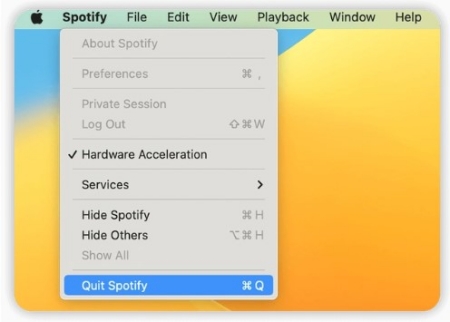
Step 1. From the Apple Menu, find Spotify and click it.
Step 2. On the dropdown menu, choose Quit Spotify.
Step 3. Then open Spotify again to check if Spotify not working on Mac persists.
Solution 5. Update Spotify and macOS
An outdated version of an app often triggers many problems inevitably. In contrast, the latest version provides new and improved functionality while addressing existing issues, such as bugs and crashes. Hence, updating the Spotify app can be useful to fix Spotify not working. Besides, you should also make sure that your macOS version meets the requirements of using Spotify properly. So, update your macOS system as well, which will not only remove minor glitches but also prevent compatibility issues.
How to Update Spotify
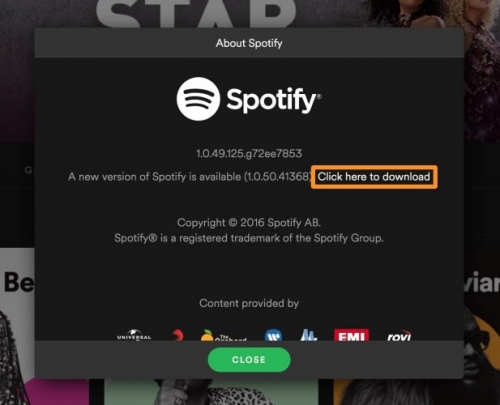
Step 1. Open Spotify and click Spotify in the Menu bar.
Step 2. Select About Spotify from the dropdown menu.
Step 3. If the newer version is available, you will see the “Click here to download” option.
Step 4. After hitting it, the Spotify app will start downloading the update.
Note
You can also find the newest version of the Spotify app on your App Store or the official Spotify website.
How to Update Mac System
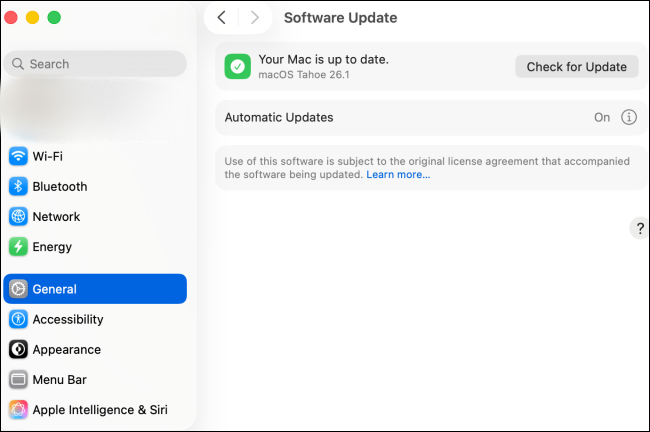
Step 1. Choose System Settings from the top Apple Menu.
Step 2. Then, select General in the sidebar.
Step 3. Click Software Update > Check for Update. You can also turn on the Automatic Updates feature.
Solution 6. Reboot Your Mac
Sometimes, Spotify won’t open on Mac due to the Mac system. You can launch other applications on Mac to check if they can work well on Mac. If yes, rebooting your Mac to avoid such an issue is necessary.
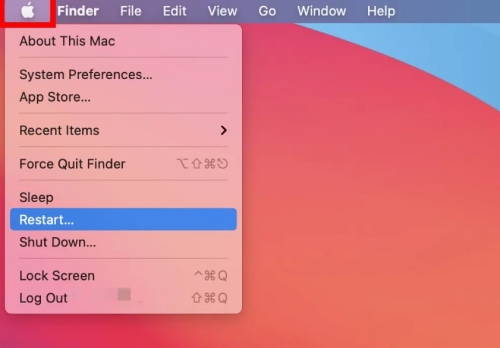
Step 1. Click the Apple logo on the Apple Menu.
Step 2. Select the Restart option. Then boot your Macbook and launch Spotify. Maybe this tie, Spotify works well for you.
Solution 7. Clear Spotify Cache
Overloaded caches have the ability to make conflict with your applications by slowing down the operation speed or leading to malfunctions like Spotify not working/opening on Mac. That is why you need to clear cache files regularly.
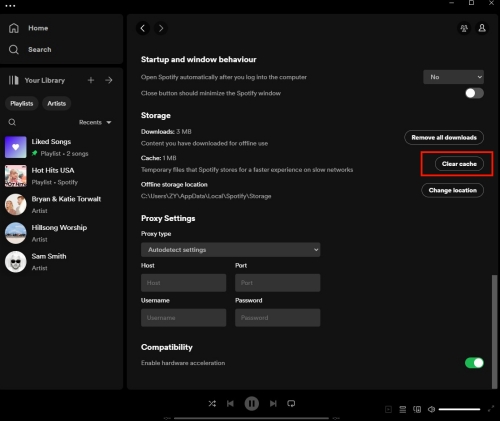
Step 1. On Spotify, go to Settings and scroll down to the Storage section.
Step 2. Click Clear cache to delete unnecessary cache files. This won’t remove your downloads.
If your Spotify won’t open on Mac at all, you can clear Spotify junk files by using the Finder app:
Step 1. Go to Finder and click on Go to select Computer.
Step 2. Enter this path: /Library/Application Support/Spotify/PersistentCache/Storage
Step 3. Delete the folder to remove Spotify caches.
Solution 8. Perform a Clean Uninstall of Spotify
According to users who successfully solved Spotify not opening on Mac, reinstalling the Spotify app is the most helpful method. To clean and uninstall Spotify, check the steps below.
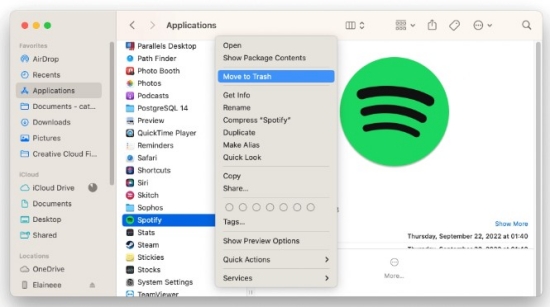
Step 1. Head to Finder and select Applications in the left sidebar.
Step 2. Locate Spotify on the apps list and right-click it to hit Move to Trash.
Step 3. Then, on Finder, select Empty Trash to delete Spotify from Mac completely.
Step 4. After uninstalling, open the Spotify Mac download page to reinstall Spotify on Mac and start listening.
Part 3. Advanced Fixes to Solve Spotify Now Working on Mac
Common solutions above can solve 90% issues. But if they didn’t resolve your Spotify not working on Mac issue, it’s time to move on to more deep solutions. In this part, we will show you some advanced fixes focusing on system-level settings and files that can interfere with Spotify’s performance on Mac.
Fix 1. Check Spotify's Permissions
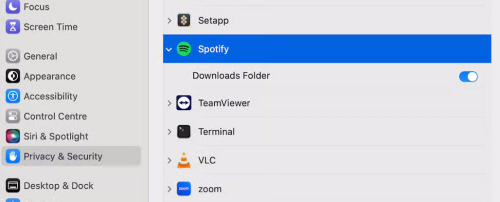
To ensure Spotify’s smooth performance on your Mac, you need to make sure that the app is granted with sufficient permissions. Otherwise, Mac privacy and security settings can block Spotify from accessing system resources, which directly affects how the app functions.
Step 1. Click the top Apple Menu option and head to System Settings.
Step 2. Select Privacy & Security > Files and Folders.
Step 3. Scroll down to find Spotify. Then, click the drop-down arrow next to it. Make sure Spotify is allowed to access your Documents and Downloads Folder.
Fix 2. Check the Firewall Setting
Blocking an app’s access through the firewall could interfere with or affect the performance of the app or other software that may depend on it. Spotify won’t open on Mac over and over again probably because a firewall may be blocking Spotify Mac.
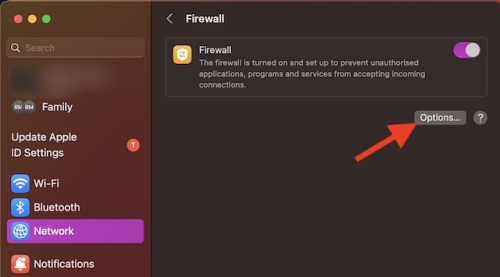
Step 1. On your Mac, choose Apple menu > System Settings.
Step 2. Click Network in the sidebar, then scroll down to Firewall.
Step 3. Click Options. If the Options button is disabled, first turn on Firewall.
Step 4. Click the Add button under the list of services, then select the services or apps you want to add. 5. After an app is added, click its up and down arrows and choose whether to allow or block connections through the firewall.
If this not works, turn off the Firewall on your Mac by repeating the first 2 steps.
Fix 3. Close Hardware Acceleration
The hardware acceleration feature is designed to make the Spotify app run more smoothly by using your Mac’s GPU, but it can sometimes cause issues such as Spotify freezing, crashing, or showing a black screen. Disabling this option is a proven fix for many playback and performance problems.
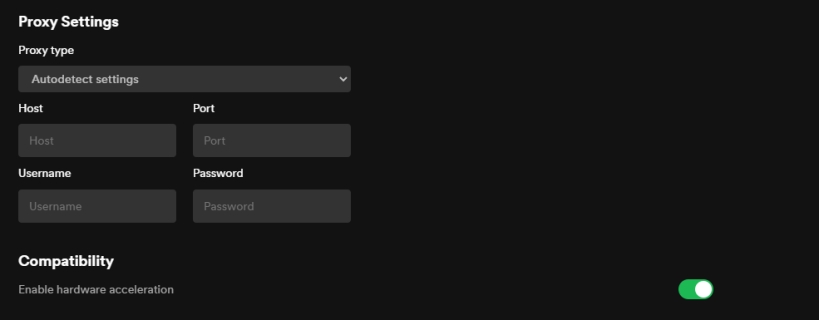
Step 1. Go to the Settings section on the Spotify app installed on your Mac.
Step 2. Scroll down to find Compatibility and turn off the Enable hardware acceleration option.
Step 3. Once done, reopen Spotify to check if the issue is fixed.
Fix 4. Clear Spotify Hosts Files
The hosts file controls how your Mac connects to websites and devices. If your Spotify app doesn’t work on Mac, deleting these files restores normal access.
Step 1. Launch Finder on your Mac, and then select Go > Go to Folder.
Step 2. Search for this location: /private/etc/hosts and press Return.
Step 3. When a new window pops up, you can see the hosts file is selected. You n4ed to drag and drop it to your desktop.
Step 4. Next, double-click it to display the contents in TextEdit. Find any lines with spotify and remove them.
Step 5. When it is finished, save your changes and reboot Spotify.
Part 4. Ultimate Fix: Play Spotify on Mac Without Its App
If Spotify not working on Mac don’t go away after trying the above fixes, this part will share the ultimate solution. This fix offers more choices for you. Since Spotify applies DRM to protect all songs, you cannot listen to them with other players. But when Spotify won’t open on Mac meanwhile the Spotify web player not working, what should you do to access Spotify songs? Easy! Just download Spotify tracks as local files and then you can put them on any player for listening.
This is the perfect solution to avoid Spotify not working on Macbook thoroughly. Once you download Spotify songs without Ogg Vorbis, you can still listen to Spotify music even if Spotify won’t open on Mac.
With the help of TunesMake Spotify Music Converter, you can easily achieve that goal and avoid Spotify not working issues. TunesMake Spotify Music Converter is a wonderful downloading as well as converting tool for Spotify Free and Premium users. Using this brilliant Spotify downloader, all songs from Spotify can be saved to your Mac in MP3, M4A, M4B, WAV, FLAC, and AIFF files. With top-leading decryption technology, TunesMake ensures lossless quality and original ID3 tags. Besides, TunesMake Spotify Music Converter allows you to customize the audio settings for better quality.

TunesMake Spotify Music Converter –
Best Spotify to MP3 Downloader for Mac Users
- Unlimitedly download Spotify songs, playlists, and podcasts
- Download Spotify music to MP3, FLAC, WAV, etc. without quality loss
- Remove ads from Spotify music tracks even with Free accounts
- Convert Spotify songs at 12X faster speed with ID3 tags kept
Security Verified. 100% Clean & Safe.
Step 1
Select Spotify Songs to Download

Click the Free download button above to install the TunesMake Spotify Music Converter, ensuring you choose the Mac version. Then, launch it to visit the Spotify web player. So, you can browse the music library and select any playlists or album you want to download. Next, click the Add icon at the lower right corner > Add to List. After that, you can successfully load all songs to the conversion list.
Step 2
Set Output Format and Parameters

TunesMake offers options to personalize your preferences. By default, the output format is MP3. If you pursue the highest quality, FLAC is another great choice. To make adjustments, just go to the menu bar in the upper-right corner, and then choose the Preference button. From the new window, turn to the Convert tab to change the output format, channel, sample rate, bit rate, and more. After that, don’t forget to click OK.
Step 3
Download Spotify Songs Locally

Lastly, hit the Convert button from the bottom-left corner, and TunesMake will start downloading. When TunesMake gets all the downloads done, go to the converted page by clicking the top Converted icon. Also, you can use the file icon to locate them in the Finder.
Now, double-click any converted Spotify track to play it without the Spotify player. In this way, Spotify not working on MacBook or Spotify not opening on Mac won’t trouble you anymore.
Conclusion
Which fix worked for you? Hopefully, you can find what you need to fix Spotify not working/opening on Mac. If common troubleshooting tips can’t work to solve the issue you encountered, remember that TunesMake Spotify Music Converter is capable of downloading Spotify songs locally. In this way, you can get rid of most issues caused by Spotify.
Related Articles




A senior editor from TunesMake, dedicated to sharing professional tutorials and solutions of software, movies, and music.
- 1
- 2
- 3
- 4
- 5
- 6
- 7
 Leave Your Comment
(0)
Leave Your Comment
(0)

 Download Center

