








 Store
Store


With the rise of music streaming services, many people can find their favorite streaming from those platforms such as Spotify. Spotify has an extensive library with over 80 million songs available for users. However, most people prefer listening to songs on those programs preinstalled on their devices, like the Samsung Music app. So, is it possible to connect Spotify to Samsung Music for listening? To find the answer, you should not miss this post. In this complete guide, you can learn everything you want to know about Samsung Music Spotify integration, from how to add Spotify to Samsung Music to how to link and access Spotify on Samsung Music. Without further ado, let’s explore them together.
Part 1. Can I Add Spotify to Samsung Music?
Samsung Music is a native media player application specially designed for Samsung devices. It can play the local audio files on your Samsung phone. If you like clean and efficient listening, Samsung Music is the go-to app. However, in the age of streaming, the question is: Can you play Spotify on Samsung Music? Luckily, the answer is yes.
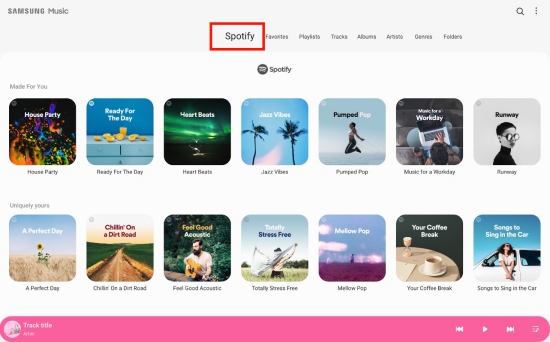
There are two ways you can utilize to access Spotify on Samsung Music. Since 2018, Samsung Music and Spotify have built a deep partnership. You can find a dedicated Spotify tab in the Samsung Music application, where you can directly browse and play Spotify streaming music with ease. If you want to get the detailed steps to do so, we have listed them in Part 4 for you to check.
If your goal is to have your favorite Spotify tracks and playlists inside the Samsung Music application, just like your local MP3s, it can be a little tricky. Due to the Digital Rights Management encryption on Spotify Music, all the songs can only be played within the Spotify app, even if you downloaded them. To achieve a truly unified music library, you must convert the Spotify streaming songs into local files that Samsung Music can play independently. In the next part, we will explore this method in detail.
Part 2. How to Download Spotify Songs to Local Audio Files
Samsung Music app is the perfect place to store and organize your music, with support for various sound formats, such as MP3, WMA, AAC, FLAC, and so on. Since all songs from Spotify are encoded in the format of OGG Vorbis, you need to convert Spotify songs to these normal audio formats before transferring them to Samsung Music. The best tool you can utilize to download and convert Spotify content is TunesMake Spotify Music Converter.
TunesMake Spotify Music Converter is a professional music converting program that helps you convert Spotify content to MP3, M4A, M4B, WAV, FLAC, and AIFF. It supports converting songs, playlists, albums, and podcasts. Once downloaded, you can save Spotify songs as local music files and play them on Samsung Music without limits. What’s more, it ensures lossless quality and keeps original ID3 tags so you can have the same listening experience as online. The best thing about this tool is that it works well with both Spotify Free and Premium accounts. Now, follow the steps below to get your favorite Spotify songs as local files.

TunesMake Spotify Music Converter –
Best Spotify to Samsung Music Downloader
- Unlimitedly download Spotify songs, playlists, and podcasts
- Losslessly convert Spotify music to MP3, FLAC, WAV, AIFF, etc.
- Remove ads from Spotify music tracks even with Free accounts
- Convert Spotify songs at 12X faster speed with ID3 tags kept
Security Verified. 100% Clean & Safe.
Step 1
Add Spotify songs to the converter
Install the TunesMake Spotify Music Converter on your Windows or Mac computer via the Free Download button above. Then, launch it and head to the Spotify web player on its interface. You can browse and find the songs you want to listen to on Samsung Music. Just select the playlist or album you like, and then click the right-corner Add icon > Add to List. So, you can load all the included songs to the conversion list.

Step 2
Select the output audio settings
After adding your tracks, go to the top Menu bar and click the Preferences button. Then, proceed to click the Conversion tab, and you will see a window pop up. From the window, you can choose the output format that is compatible with Samsung Music, such as MP3, FLAC, or WAV. There are other audio parameters, such as sample rate, channel, and bit rate, that you can tweak.

Step 3
Download Spotify to Samsung Music-Supported Format
When you finish setting up, you can click the Convert button and let TunesMake Spotify Music Converter start downloading and converting Spotify songs. After a few minutes, all the Spotify music you selected will be downloaded and converted to the format you choose for Samsung Music. Go to the Converted list and then use the file icon to locate them in the local folder.

Part 3. How to Add Spotify Files to Samsung Music
After the conversion, it would be easy for you to transfer Spotify songs to Samsung Music from your computer. Now, prepare your Samsung device and a USB cable to perform the following guide on how to add Spotify songs to Samsung Music.
Step 1
Sync Downloaded Spotify Songs to Your Samsung Phone
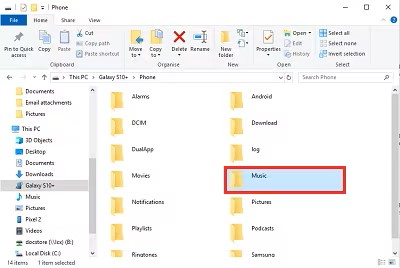
1. Connect your Samsung device to your computer with a USB cable.
2. Swipe down from the top of the screen, and tap on the notification saying USB for file transfer.
3. Then toggle the Transferring files option for USB.
4. Open the folder where Spotify songs are stored and drag them to the Music folder within the Samsung device.
Step 2
Add Spotify Songs to Samsung Music for Playing
Every time you open the Samsung Music app, it will search through the files saved to your Samsung device and will automatically add any music that it finds.
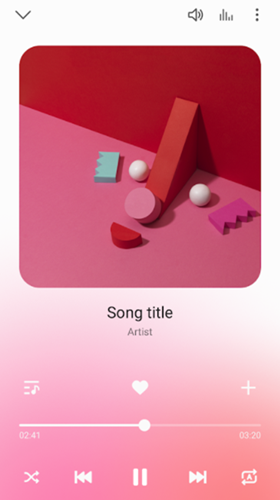
1. Open the Samsung Music app and go to the Tracks tab from the top.
2. Pick and tap on your favorite Spotify songs to start playing.
3. Basic playback controls will appear at the bottom of the screen. Tap it to open the full music player.
4. Here, you can pause or fast forward the Now Playing track, skip to the next track, go back to the previous track, favorite the track, and more.
In addition, since the Samsung device allows the player to read data from SD cards, you can also download Spotify songs to SD cards using TunesMake software and then use Samsung Music to play Spotify songs on your Samsung device.
Part 4. Other Tips about Samsung Music Spotify
Downloading Spotify songs to local files provides the most control over what you like. However, there are only other ways to enjoy the Samsung Music Spotify partnership. If you want to keep things official and don’t mind switching between apps, here are some useful tips.
4.1 How to Link Spotify to Your Samsung Account
Linking Spotify to your Samsung account ensures that your music can be played easily across all your Samsung devices. If you are a big fan of the Samsung ecosystem, this step is worth trying.
1. First of all, make sure you have logged in to your Samsung account on your device.
2. Then, you can open the Spotify app and sign in to your Spotify account.
3. Once done, you will be prompted to link your Samsung account. Just follow the on-screen instructions to finish the connection process.
Note
This prompt will show 3 times over a few weeks if your accounts aren’t linked.
4.2 How to Access Spotify on Samsung Music Directly
Note
The Spotify tab is only available in countries where Spotify is on service. Meanwhile, you cannot access the playlist you created on Spotify through Samsung Music.
1. Launch Samsung Music on your Samsung device.
2. Find Spotify recommendations by tapping the Spotify tab.
3. Use the search feature to find Spotify music you’ll love.
4. Select the song you like, and then Samsung Music will open the Spotify app.
Bottomline
With the help of TunesMake Spotify Music Converter, it would be easy to connect Spotify to Samsung Music for playing and managing. Besides, you will have the option to transfer your Spotify tracks to other Samsung devices for offline listening.
Related Articles

A senior editor from TunesMake, dedicated to sharing professional tutorials and solutions of software, movies, and music.
- 1
- 2
- 3
- 4
- 5
- 6
- 7
 Leave Your Comment
(0)
Leave Your Comment
(0)

 Download Center

