









 Store
Store


Switching to a new Spotify account can feel like moving into a new home. You look forward to a fresh start, but the though of leaving behind your carefully curated music library built over months or years is daunting. Fortunately, you do not have to rebuild your music collection from scratch. While Spotify does not feature a simple "migrate library" button, there are several highly effective ways to transfer a Spotify playlist to another account securely.
In this comprehensive guide, we will break down several methods to move your music. Move importantly, we will cover a critical trap most users fall into that causes them to lose their music permanently, and how you can avoid it.
Part 1. Can I Transfer Spotify Data to Another Account?
Before diving into the step-by-step instructions, use this matrix to determine the best migration strategy for your specific needs. From the comparison table below, you can find a suitable strategy to help you move Spotify playlist to another account.
| Method | Best For | Time Required | Requires Computer |
|---|---|---|---|
| Liked Songs Extraction | Migrate your private, unshareable "Liked Songs" collection | 5 minutes | ✅ |
| Spotify Support Chat | Move an entire library including playlists, Liked Songs, and algorithm data | 10-15 minutes | ❎ |
| Permanent Carbon Copy | Move a few select playlists with 100% permanent ownership | 5 minutes | ✅ |
| Collaborative Link Trick | Transfer Spotify playlists to another account on a mobile device | 5 minutes | ❎ |
| Playlist Transferring Tools | Users with dozens of playlists to transfer | 5 minutes | ✅ |
| Local Backup Tools | Users with the need of physical audio backup | 10-15 minutes | ✅ |
Part 2. How to Transfer Liked Songs from Spotify to Another Account
Your "Liked Songs" collection is treated as a private system folder by Spotify. Because it is not a standard playlist, it does not have a "Share" button, meaning you cannot send it to your new account via a link. To bypass this restriction, you must temporarily covert your Liked Songs into a regular playlist using a computer. Then you can transfer Liked Songs from Spotify to another account. Follow the steps below to move your entire "Library Songs" library to another account.
Step 1. Open the Spotify app on your computer and log into your old account.
Step 2. Navigate to the Liked Songs tab in the left sidebar and click on any song in the list.
Step 3. Press Ctrl + A (Windows) or Cmd + A (Mac) to select all liked tracks.
Step 4. Right-click the highlighted tracks and select Add to Playlist > Create new playlist.
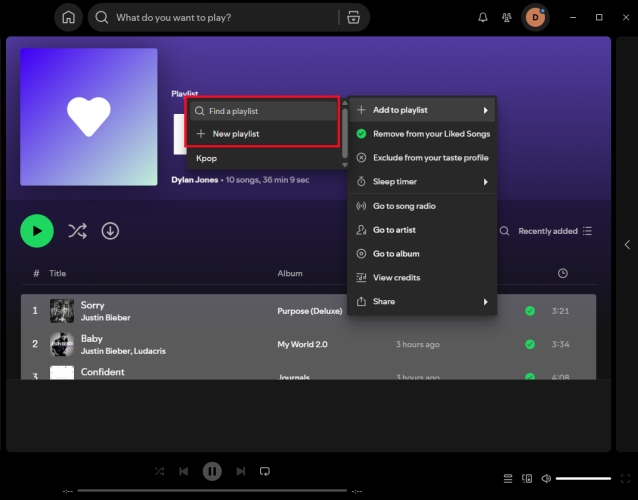
Step 5. Name this temporary playlist something recognizable, like "Old Liked Songs Backup".
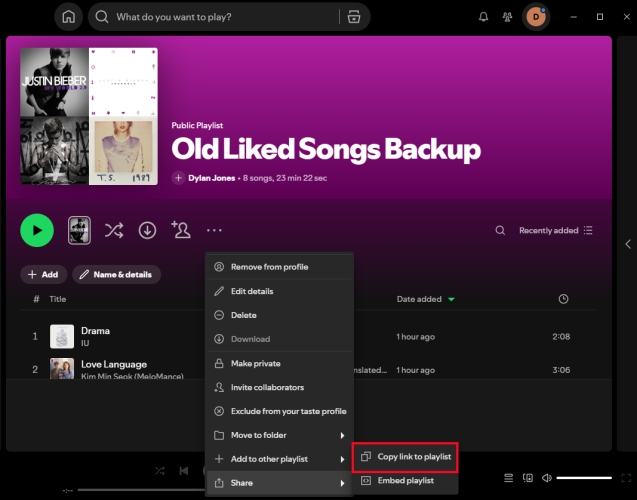
Step 6. Right-click your newly created backup playlist, select Share, and click Copy link to playlist.
Step 7. Log out your old account, then log into your new account.
Step 8. Paste the link into the search bar and open the playlist.
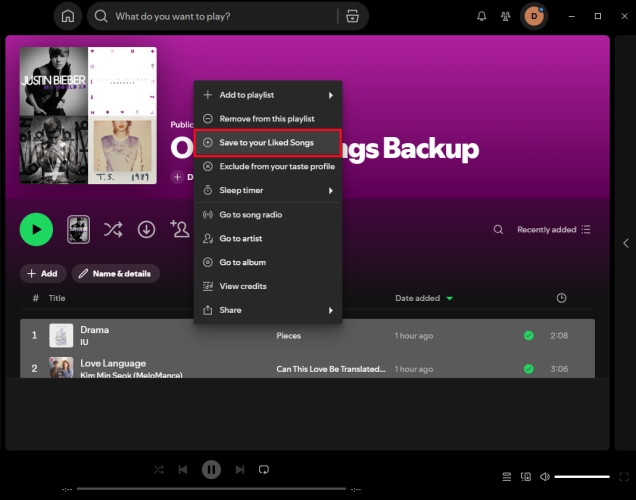
Step 9. Press the shortcut keys to select all tracks and right-click to choose Save to your Liked Songs.
Part 3. How to Transfer Spotify Playlist to Another Spotify Account
Whether to transfer Spotify playlist to another account on a computer or a mobile device, there are several method available for you. Here you can choose to use keyboard shortcuts to quickly copy entire tracklists or utilize third-party tools to process the quick transferring.
Method 1. Contact Spotify Support (Computer & Mobile)
Many users are unaware that Spotify's customer support team can perform a full account migration for you behind the scenes. If you are moving to a completely new account and plan to close your old one, this is the cleanest option.
What Will Transfer:
-
Your saved playlists
-
Your "Liked Songs" library
-
Your followed artists and albums
-
Your historical algorithmic data
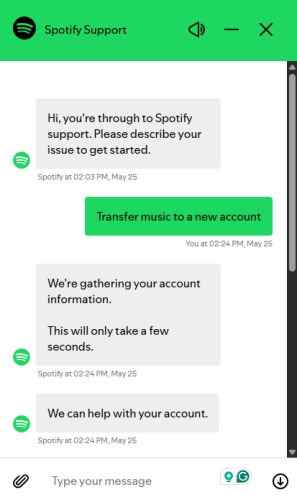
Step 1. Log out of your old account and log into your new Spotify account to ensure it is active.
Step 2. Navigate to the official Spotify Contact Page or Support Help Center.
Step 3. Open the Live Chat feature and type "Transfer music to a new account" to connect with an agent.
Step 4. Provide the support agent with the username or email address for both your old account and your new account.
Step 5. Keep both accounts open. The agent will verify ownership and manually migrate your data within minutes.
Method 2. Use Carbon Copy (Computer)
The Spotify desktop application or web player provides the most robust control over your music library. It allows you to use keyboard shortcuts to quickly copy entire tracklists, ensuring your new profile gains full ownership of the music.
⚠️ Warning:
Simply following a playlist link from your old account is a temporary fix. If your old profile is ever deleted, those followed playlists will vanish. To secure your music permanently, you must make a localized copy so your new account becomes the true owner.
Step 1. Open Spotify on your computer and log into your old account.
Step 2. Find the playlist you want to move and click the three dots > Share > Copy link to playlist.
Step 3. Log out of your old account and log into your new account.
Step 4. Paste the copied link directly into the Spotify Search bar and press Enter.
Step 5. Click inside the playlist tracklist, then press Ctrl + A (Windows) or Cmd + A (Mac) to highlight every single song in the playlist.
Step 6. Right-click the highlighted tracks and select Add to Playlist > Create new playlist.
Method 3. Collaborative Link Trick (Computer & Mobile)
A collaborative link method makes your old playlists editable by your new profile, allowing you to access them instantly from your mobile app interface. If you want to migrate music strictly on a phone, you can also use this method.
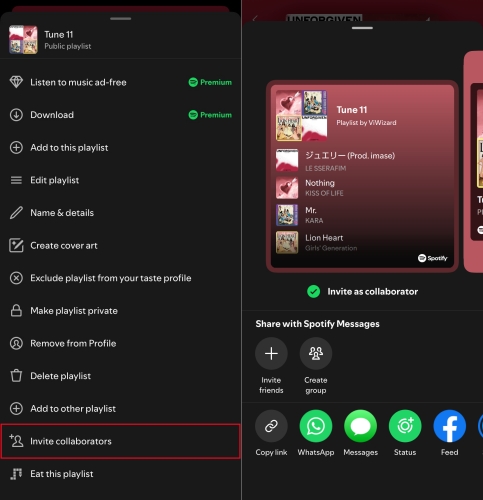
Step 1. Run the Spotify app on your phone and log into your old account.
Step 2. Open the playlist you want to move and tap the three dots.
Step 3. Select Invite collaborators and tap Copy Link.
Step 4. Send it to yourself via a messaging app, note app, or email.
Step 5. Log out of the app and log into your new account.
Step 6. Tap the collaborative link you saved.
Step 7. Tap the Plus (+) at the top of the playlist to add it directly to your new account's library.
Method 4. Use Transferring Tools (Computer)
When you have dozens of playlists that would take too long to copy manually, playlist transferring tools like ViWizard Music Playlist Transfer can safely analyze the metadata of your old library and automatically recreate those exact matching tracks inside your new account.
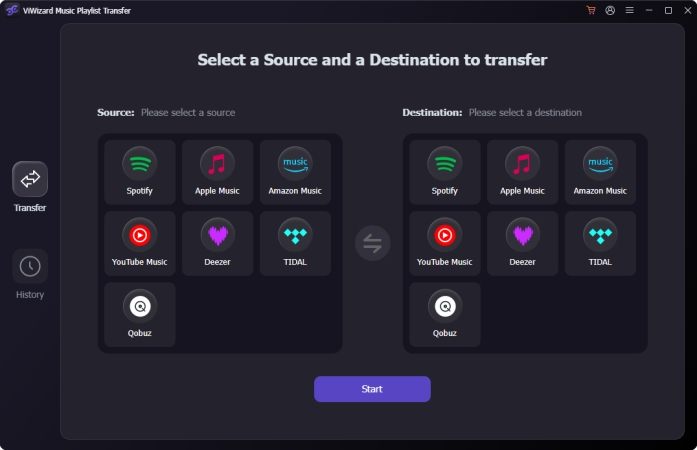
Step 1. Download and install ViWizard Music Playlist Transfer, then launch it.
Step 2. Select Spotify as your source platform and log into your old account.
Step 3. Select the specific playlists and library files you wish to migrate.
Step 4. Select Spotify as your destination platform and log into your new account.
Step 5. Click Start Transfer to transfer playlists to your new account.
Method 5. Make Local Backup (Computer)
If you prefer a local backup or wish to manage your collection manually outside of the cloud, third-party tools like TunesMake Spotify Music Converter can assist. While it doesn't transfer data directly between Spotify servers online, it serves a distinct purpose by allowing you to download and convert your old Spotify playlists into standard audio formats like MP3 or FLAC.

Step 1. Open TunesMake Spotify Music Converter on your computer.
Step 2. Log into your old account and browse your music library.
Step 3. Select the playlists to download and add the tracks into the conversion list.
Step 4. Navigate to Settings > Preferences > Conversion and set the output settings.
Step 5. Click the Convert button to download all the tracks in the playlists.
Once saved locally, you can easily drag these files into your new account's Local Files section within the Settings in the Spotify app. Ensure you have local access to your legacy music without relying on the cloud.
Part 4. FAQs about Moving Spotify Playlist to Another Account
Will my playlist followers transfer over to my new account?
No. When you copy songs to a new playlist or use a third-party migration tool like ViWizard Music Playlist Transfer, you are creating a fresh copy of the tracklist. The original playlist ID remains with the old Spotify account, meaning any followers will stay attached to the old profile.
Can I transfer local audio files stored on my device?
No. Local files are stored physically on your hard drive or phone storage, not on Spotify's cloud servers. To see them on your new account, you simply need to enable the Show local files toggle in the Settings menu of your new Spotify application and point it to the same local folder.
What happens to my transferred playlists if I delete my old account?
If you only followed the old playlist link without copying the songs over, the playlist will permanently disappear when the old account is deactivated. But if you used the methods introduced above, your playlists are completely safe because your new account owns them natively. And the safest way is to download Spotify playlists with a Spotify playlist downloader like TunesMake Spotify Music Converter.
Part 5. Conclusion
Transferring your music library to a new Spotify account doesn't have to be a tedious chore. If you have a large library and want to preserve your tailored algorithmic recommendations, reaching out to Spotify Support via Live Chat is your absolute best option. For quick and safe, utilizing desktop keyboard shortcuts, trusted playlist transferring tools, or local backup tools like TunesMake will ensure your favorite tracks follow you to your new profile permanently.
Related Articles


A senior editor from TunesMake, dedicated to sharing professional tutorials and solutions of software, movies, and music.
- 1
- 2
- 3
- 4
- 5
- 6
- 7
 Leave Your Comment
(0)
Leave Your Comment
(0)

 Download Center

