








 Store
Store


As a subscription-based service, Spotify has long provided its users with different plans, including Free or Premium accounts. Free account allows you to access a huge million music catalogs with ads. Premium account users, on the other hand, can experience more advanced features, such as unlimited skips, offline listening, and so on. As many people would like to save their wallets, they may not subscribe to Spotify for the whole year or monthly. In order to keep the downloads playable even after canceling a subscription, a kind of tool comes out. That is a Spotify Music Converter, or we can also call it a Spotify downloader. Today this article is about a popular tool, if you’re searching for the TuneFab Spotify Music Converter review, this post can help you out!
Part 1. TuneFab Spotify Music Converter: Complete Review
1.1 Overview of TuneFab Spotify Music Converter
TuneFab Spotify Music Converter is a popular music converter for Spotify users. It allows Spotify users to download and convert Spotify internal audio resources to output more devices without installing a Spotify app. With this tool, you can download music from Spotify and listen to them when there is no network. Now Let’s check out the main features of this software and see the pros and cons.
Main Features:
- Friendly UI and Easy Operation
- 5X Faster Conversion Speed
- Remove DRM Protection
- Convert Spotify Music to Multiple Formats (MP3/M4A/FLAC/WAV)
- Keep Metadata Info & Save ID3 Tags
Next, let’s check out how to use this Spotify converter.
1.2 How to Use TuneFab Spotify Music Converter
With a built-in web player, you can log into your account and start the conversion of Spotify music to MP3 within the TuneFab app without installing the Spotify app on your device. Here’s how to use it.
Step 1. Download and install the TuneFab Spotify Music Converter on your Windows or Mac PC. On the Welcome page of this converter, click on the “Open the Spotify web player” option and then log into your Spotify account to use the web player within the app.
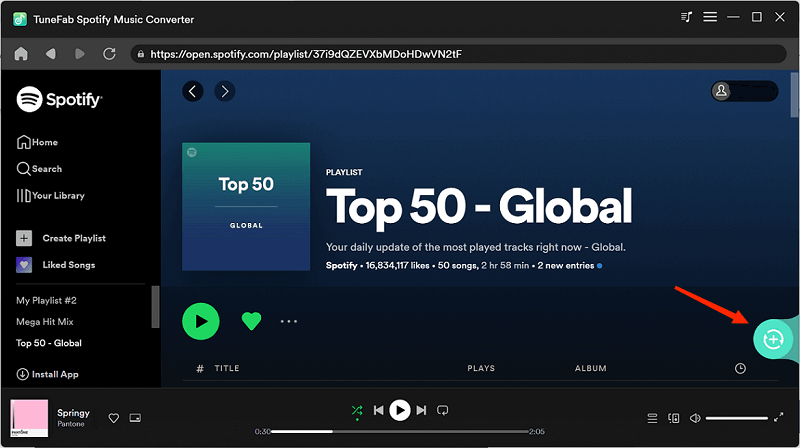
Step 2. Now you need to select what you’d like to download and convert. Please open it and click on the green bubble icon on the screen’s right side. Then TuneFab Spotify converter will automatically read and analyze the playlist for you. Simply select the songs you need to convert.
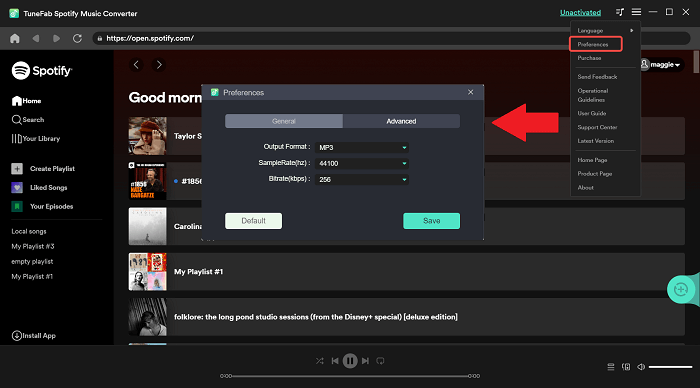
Step 3. After importing, you can select the output format on demand. Just navigate to the drop-down format selection menu in the top-right corner and select the one you need.
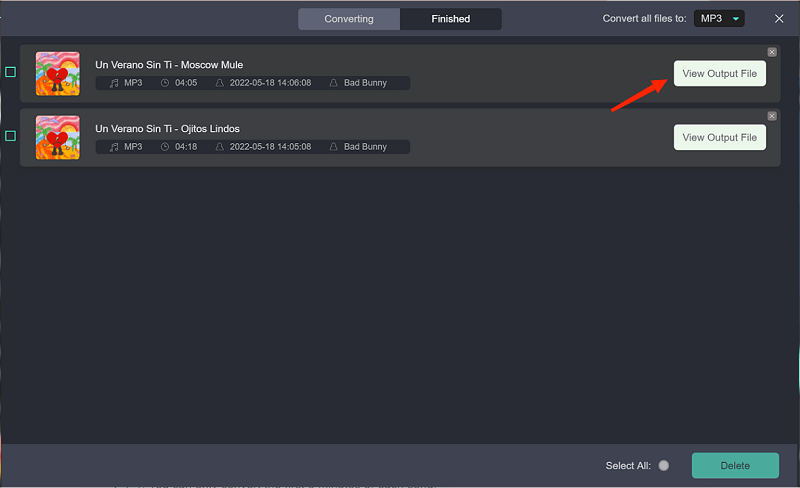
Step 4. Finally, click on the Convert All button to start the downloading process. Once done, go to the Finished window and you will see all converted songs here. Click the View Output File button to locate where they are.
1.3 Pros and Cons of TuneFab Spotify Music Converter
-
😀 Pros
- Rip music audio from Spotify and download them offline.
- Download and convert Spotify music from Ogg Vorbis to common formats like MP3, M4A, FLAC, etc.
- Listen to Spotify Music on any portable MP3 player or compatible devices.
- Keep Spotify Music downloads offline playable forever without Premium.
- Convert Spotify Music in batches with a 5x fast conversion speed.
- Embedded with Spotify Web Player, no need to install the Spotify app.
-
☹️ Cons
- The downloaded songs are not in original quality but in a lossy format.
- The output audio format available is limited, not including other formats like AAC and M4B.
- Prices for buying a year-plan subscription and a lifetime subscription are not that cheap.
- Adding the whole playlist to TuneFab and selecting one by one to import a single track is so inconvenient.
- Not always stable, issues like crashing, not uploading, not working, etc are easier to come out.
- Not available or compatible with some computers which are running older operating systems.
1.4 FAQs about TuneFab Spotify Music Converter
About TuneFab, here are some questions people have curious about, you can check out the answers below to learn more.
Is TuneFab Safe and Legit?
Yes, it is. You can use TuneFab to convert and download Spotify Music Offline without hassle but please always do that for personal needs. It is illegal to use it for commercial needs.
What Subscription Plans Does TuneFab Have?
There are three subscription plans TuneFab Spotify Music Converter offers, including the monthly plan, the plan for a whole year, and the lifetime plan.
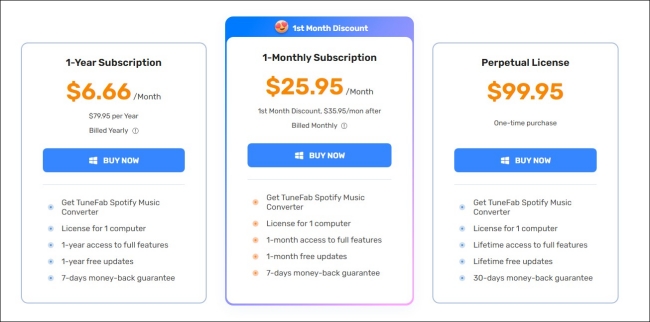
Monthly plan – $35.95
Yearly plan – $79.95
Lifetime plan – $99.95
How to Cancel TuneFab Subscription?
If you don’t want to use the TuneFab Spotify Music Converter, you can choose to end the subscription at any time. Open the TuneFab and go to the ‘Profile’ of TuneFab > ‘Account ‘ > ‘Subscription’ to open payment details. Then tap on the ‘Cancel Subscription’ > ‘Yes’.
Part 2. Best TuneFab Alternative: TunesMake Spotify Music Converter
With the assistance of TuneFab Spotify Music Converter, you’re able to download and convert Spotify Music to popular audio formats like MP3. The songs are forever available and can be played on multiple players or compatible devices. But the audio quality is not lossless protected as well as other shortcomings. Looking for the best music converter for Spotify? TunesMake Spotify Music Converter will certainly win out with the cutting-edge features it has owned, which performs much better than TuneFab Spotify Music Converter. Let’s see the main features TunesMake has:
- Powerful Function: No matter what subscription plan you have on Spotify, it can help you download music, podcasts, playlists, artists, etc. from Spotify. The downloads will be kept offline forever and you can listen to them on multiple devices without a subscription.
- Fast Conversion Speed: TunesMake software adopts advanced technology. You can download songs in batches with a 12 times faster conversion speed.
- Privacy and Account Safety: As professional software, we protect your data safety. You’ll be free of errors or virus attacks when using the TunesMake program.
- Original Quality & ID3 Tags Retained: You’re able to get lossless high-quality tracks after conversion and the original info metadata like ID3 tags won’t be destroyed.
- Multiple Audio Formats to Convert to: In cater to the public’s demands, TunesMake supports 6 popular audio formats to convert to, including MP3, M4A, M4B, WAV, FLAC, and AIFF

TunesMake Spotify Music Converter –
Best TuneFab Spotify Music Converter Alternative
- Unlimitedly download Spotify songs, playlists, and podcasts
- Losslessly convert Spotify music to MP3, FLAC, WAV, AIFF, etc.
- Remove ads from Spotify music tracks even with Free accounts
- Convert Spotify songs at 12X faster speed with ID3 tags kept
Security Verified. 100% Clean & Safe.
You’ll only need three simple steps to download and convert Spotify songs to your target audio format. Follow the simple tutorial below.
Step 1
Select Spotify Music to Import

Click the Free Download button to install the TunesMake Spotify Music Converter on your computer. Then, you can launch it and visit the Spotify web player on its web player. After ogging in, feel free to select the playlist or album you like. After that, click the lower Add icon > Add to List so that all the songs in this playlist/album you select can be loaded to the conversion list.
Step 2
Set the Output Audio Parameters

Once the files are loaded, you can select the output format and set other audio parameters as you want. You should click the top Menu icon, and then choose Preferences. When the new window pops up, you can switch to the Conversion tab. Here, you can set sample rate, bit rate, channel, and more. When you finish, click the OK button to save your changes.
Step 3
Convert Spotify Music to Your Target Format

After setting the formats, you can click the Convert button to start the conversion. It’s no problem to convert a batch of music files. You only need to wait for a short time till it is finished. When the conversion is over, you can access the converted music files easily in your local folder by clicking the Converted icon.
Part 3. Free Alternative to TuneFab: Recording Tools
In addition to TunesMake software, there are other tools available to use. If you are looking for free solutions, here are two popular recording tools that can help you record and download Spotify songs to MP3 easily. Let’s check out their pros and cons then!
Audacity
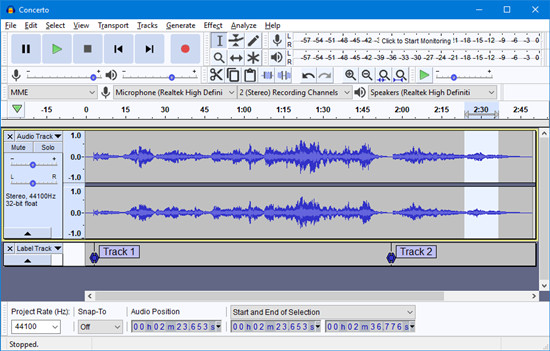
Audacity is a popular and free digital audio editor and recording application software. It is available for Windows, Mac, and Linux, and you can download and install it on your computer for free. By using it, you can record music from Spotify one by one. After recording, you can edit the recorded Spotify songs if you want to do that. But you’ll need the help of audio effect plug-ins while recording as Audacity lacks dynamic equalizer controls and real-time effects.
-
😀 Pros
- Record Spotify music to MP3 for free.
- Offer several functions including recording and editing.
- Compatible with lots of operating systems.
-
☹️ Cons
- Not easy for beginners to operate.
- Save the recording audios with the loss of quality.
- Need to install an extra plugin for recording.
- Not support downloading music in batch.
Apowersoft Audio Recorder
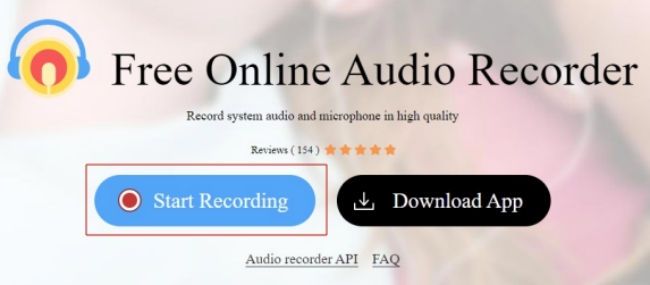
Apowersoft Audio Recorder is a free recording tool that is available on most browsers. It can help you record any audio on your computers and then download the recording to an MP3 file. Whether you are using the Spotify app or web player on your computer, you can easily save your favorite songs. However, you should notice that this tool records music in real time, which may cost a lot of time. Moreover, when you only have a Spotify Free account, it will record ads as well.
-
😀 Pros
- Easy to access.
- Totally free.
- User-friendly interface.
-
☹️ Cons
- Only support MP3 format.
- Consume too much time.
- Save music with quality loss.
- Don’t keep the ID3 tags.
Part 4. Comparison and Conclusion
After meeting with so many tools available for your choice, probably you can’t make up your mind to select which one to use. Don’t worry, let us do it for you. We’ve gathered the main points here and compared them below. Check the table out!
| TuneFab Spotify Music Converter | TunesMake Spotify Music Converter | Recorder Tools | |
| Operating System | 1. Requires 7-bit Windows 64 or higher. 2. Mac OS X 10.12 or later |
Windows 11, 10, 8, 7 (32-bit & 64-bit) Mac OSX 10.8, 10.9, 10.10, 10.11, 10.12, 10.13, 10.14, 10.15, 11 Big Sur, 12 Monterey, 13 Ventura, and macOS 26 |
Audacity: Windows, macOS, GNU/Linux Apowersoft: Any browser |
| Output Audio Format | MP3,M4A,FLAC,WAV, MP3,M4A,FLAC | MP3, M4A, M4B, WAV, FLAC, AIFF | Audacity: WAV, AIFF, Ogg Vorbis, FLAC, MP3, AAC, and so on Apowersoft: MP3 |
| Audio Quality | High-Quality | Lossless High-quality | Lossy quality |
| Bit Rate | 128kbps; 256kbps; 320kbps | 8kbps; 16kbps; 24kbps; 32kbps; 40kbps; 48kbps; 56kbps; 64kbps; 96kbps; 128kbps; 160kbps; 192kbps; 256kbps; 320kbps | Less than 320kbps |
| Sample Rate | 22050hz; 44100hz; 48000hz | 8000hz; 11025hz; 22050hz; 32000hz; 44100hz; 48000hz | / |
| Audio Channels | 1 | 2 | 1 |
| Conversion speed | 1x or 5x | 1x or 12x | 1× |
| ID3 Tags Remained | √ | √ | × |
| No Ads | √ | √ | × |
| Price | From $39.95 | From $14.95 | Free |
Final Words
The purpose of using a tool like TuneFab Spotify Music Converter is plain to see: listen to music without costing lots of money. If you’re not sure whether to buy this tool, this TuneFab Spotify Music Converter review can help you out and shares the best alternative option for you to try. And obviously, from the above comparison, we got to know that TunesMake software harbors more functionality than TuneFab as well as other similar tools, why not give it a try?
Related Articles

A senior editor from TunesMake, dedicated to sharing professional tutorials and solutions of software, movies, and music.
- 1
- 2
- 3
- 4
- 5
- 6
- 7
 Leave Your Comment
(0)
Leave Your Comment
(0)

 Download Center

