








 Store
Store


Tidal music streaming service has been working on a way to provide its users with the best services for listening to music. In recent years, it pays more attention to Tidal integrations with many more smart devices. If you’re a Tidal Music user and want to stream Tidal on LG TV, no worries. We have your back! Now Tidal is available on LG smart TV, you can easily access beautiful tunes on it.
This blog post will give you a guide on how to play Tidal Music on LG TV and offer you the best tool to enjoy Tidal songs without limits.
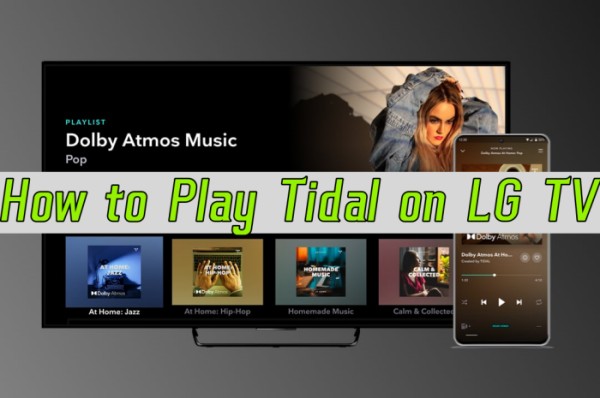
Part 1. Official Method to Use Tidal on LG Smart TV
Tidal is rolling out integrations to many more smart devices. Integrations to Larger screens like Smart TVs are one of the featured products. Years ago, Tidal has introduced the Tidal app for LG TV. Now you can follow these steps to link Tidal to your Smart TV.
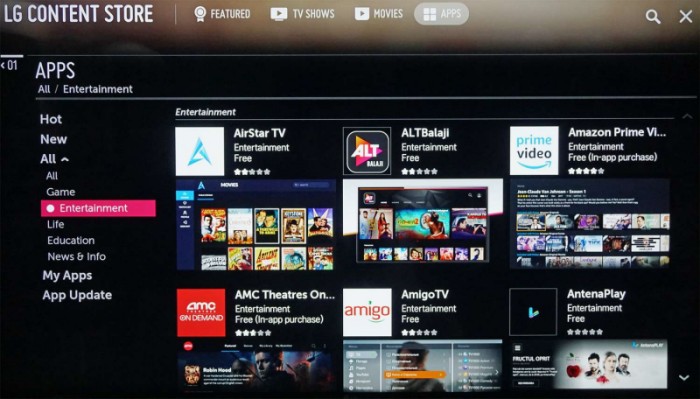
Step 1. Power on your LG Smart TV and go to LG Content Store from your TV’s home screen.
Step 2. Type in TIDAL to search for the app, then download and install the TIDAL app on your TV. It may show up a code that asks you to connect your Tidal account to the app on the TV.
Step 3. Visit link.TIDAL.com on your iPhone, Android, computer, or other smart devices.
Step 4. Log into your existing membership account or sign up if you’re new to Tidal.
Step 5. Enter the code displayed on your LG Smart TV to connect your Tidal account to your TV.
Now the connection is successfully done, you can select your favorite songs on Tidal and start streaming them through your smart TV.
Part 2. Best Way to Play Tidal on LG Smart TV Without Limits
Well, some people may discover that the Tidal app is not working on their LG Smart TVs. This is due to older TV models. Tidal is now only compatible with LG TV models 2018 and newer which run the webOS versions 4.0 and above. What about the older LG TV set? Unfortunately, it is now not available for them to access Tidal. So, with limited TV sets that support Tidal, there must be some people who own an older version of LG TV and are unable to stream Tidal. If you’re in this case, don’t worry, next I’m going to share a great alternative method to help you reach your target.
Before that, please keep in mind that Tidal tracks are not local files and will not allow you to use in for other purposes. Do you know DRM? An encryption technology to protect digital content. Its main principle is to cut access to the local audio via a specially encoded format. This technology has been largely applied to music streaming services, Tidal is no exception. Therefore, to remove the limit, you’ll need to download a tool first: TunesMake Tidal Music Converter is the software you want.
Why Choose TunesMake Tidal Music Converter
TunesMake Tidal Music Converter is a reliable music downloader and converter for all Tidal users. It can help you remove the Tidal DRM-protection format and download your favorite songs offline in different formats, such as MP3, M4A, M4B, WAV, FLAC, and AIFF. Once downloaded, you can save your Tidal songs as local audio files and move them to your LG smart TV for unlimited offline playback. Plus, the tool keeps the original sound quality and ID3 tags to ensure your listening experience.

TunesMake Tidal Music Converter –
Best Tidal Music to LG TV Downloader
- Download any Tidal content, including songs, albums, playlists, and artists
- Convert Tidal music to FLAC, MP3, WAV supported by LG TV
- Preserve a whole set of ID3 tag information in the downloaded Tidal songs
- Handle the conversion of Tidal music up to 22X faster speed and in batch
Security Verified. 100% Clean & Safe.
Part 3 How to Play Tidal on LG Smart TV via TunesMake Software
Here is a simple tutorial on how to use TunesMake Tidal Music Converter to download your Tidal songs locally, and then import thenm to your LG TV.
Step 1
Select Tidal Songs to Download
Now, launch TunesMake Tidal Music Converter on your computer and the Tidal Music web player will be opened as well. In the Tidal web player, go to My Collection and select any playlist or album you like. Then, click the Add icon at the bottom right. The TunesMake tool will analyze all the songs in this playlist/album. You can then load the songs to the conversion list by clicking the Add to List option.

Step 2
Customize the Output Audio Format
After importing, you can set the output audio parameters on demand. Click the menu bar at the top right corner and select the Preferences option. There are some audio parameters, such as the output format, bit rate, sample rate, and channel you can personalize on the Conversion tab. LG TV supports MP3, WAV, OGG, WMA, and FLAC. TunesMake program supports 6 output formats including FLAC, AIFF, MP3, M4A, M4B, and WAV. Please choose the audio format the LG TV has supported.

Step 3
Download Tidal Music for LG TV
Once confirmed your output settings, you can click the Convert button to start your conversion. The converted Tidal music will be saved to the default folder or the folder you’ve set as above. Finally, you can click the Converted icon to open the history list where you can browse the converted Tidal music.

Step 4
Play Tidal on LG Smart TV
Now that you have got the DRM-free Tidal music in your local folder, all you need is a USB drive to transfer the converted music files to LG TV for streaming. Follow the instructions below.
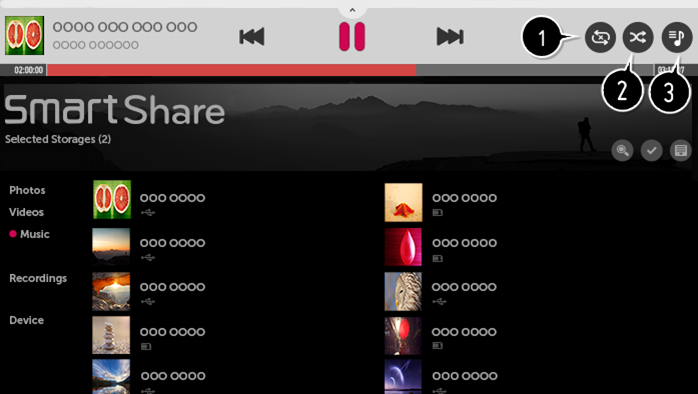
1. Plug in a USB drive to your computer and copy and paste the converted Tidal songs to the USB drive. You can create a music folder to store them.
2. After transfer, insert the USB drive into your LG Smart TV to import.
3. Launch the Music player on LG TV and find the folder where you stored Tidal music to enjoy.
Part 4. FQAs about LG TV Tidal
After reading the above, you may still have some questions. Here is the question list I selected on the internet and summarized the answers to each question below. You may take them as references to your puzzles.
Is Tidal Available on LG Smart TV?
Yes, it is. Now Tidal is available on LG Smart TVs. You can download and install the Tidal app from the LG Content Store of your smart TV.
What LG TVs Are Compatible with Tidal?
All LG TV models 2018 & newer which run WebOS versions 4.0 and above are compatible with TIDAL. For the full list, you can check this page offered by LG Smart TV.
What Are the Tidal LG TV App Quality?
You can listen to Tidal music on LG TV with high-fidelity lossless sound quality (Hi-Fi or MQA) and Dolby Atmos through the Hi-Fi tiers as well as stunning, high-definition music videos, films, documentaries, and more.
What Streaming Apps Are on LG TVs?
On your smart TV, you can access a bunch of entertainment apps with LG Smart TV webOS apps. Outstanding content from Netflix, Amazon Video, Hulu, VUDU, Google Play Movies & TV, and Channel Plus is right at your fingertips.
Summary
Tidal is paying more attention to its audiences. To provide a better listening experience and better convenience for us, Tidal for LG TV is introduced. You’ll only need a few steps to get Tidal on LG TV for listening. However, this integration is only launched on limited TV models. For a wide range of LG TV users, especially the older versions, the best alternative way is to download them offline via professional tools. TunesMake Tidal Music Converter is the popular one and is reliable by people worldwide.
Related Articles

A senior editor from TunesMake, dedicated to sharing professional tutorials and solutions of software, movies, and music.
- 1
- 2
- 3
- 4
- 5
- 6
- 7
 Leave Your Comment
(0)
Leave Your Comment
(0)

 Download Center

