








 Store
Store


There is nothing quite like having the perfect soundtrack for the open road. Whether you are embarking on a cross-country road trip or just surviving your daily commute, having your favorite playlists ready makes all the difference. If you are trying to figure out how to play Spotify in your car, you have likely realized that there isn't just one single way to do it.
The right method of playing Spotify in the car depends heavily on your vehicle's dashboard technology and your phone. This comprehensive guide breaks down every connection method from modern smart screens to older analog dashboards, ensuring you get crystal-clear audio safely and easily.
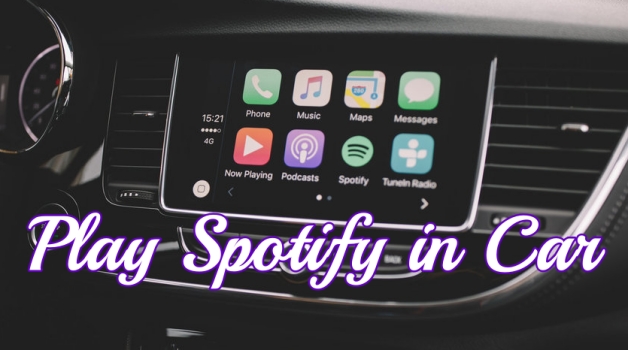
Part 1. How Can I Play Spotify in My Car?
Whether you want to play Spotify in your car with advanced infotainment systems, or you drive an older vehicle that lacks modern wireless features, there are a method available for you. Here is a comprehensive comparison of all the major methods available to play Spotify in the car.
| Method | Audio Fidelity | Setup Difficulty | Internet Needs | Best Suited For |
|---|---|---|---|---|
| USB Drive | Excellent | Very Low | No | Drivers traveling long distances through severe cellular dead zones, or those wishing to conserve phone battery and data. |
| Built-In Car Apps | Excellent | Medium | Yes | High-tech or premium vehicle owners who prefer to stream completely phone-free. |
| CarPlay/Android Auto | Excellent | Medium | Yes | Owners of modern vehicles who want a safe, fully integrated smartphone-mirroring interface. |
| Bluetooth Audio | Good | Medium | Yes | Drivers with mid-era vehicles that support wireless audio but lack smart touchscreens. |
| Auxiliary Cable | High | Very Low | Yes | Older vehicles with traditional audio decks that value pure audio fidelity and a stable, budget-friendly setup. |
| Direct USB Cable | Excellent | Very Low | Yes | Drivers seeking top-tier audio resolution and phone charging capabilities without using wireless systems. |
| FM Transmitter | Moderate | Medium | Yes | Legacy, vintage, or older used cars that completely lack built-in Bluetooth, USB, or AUX inputs. |
⚠️ Crucial Update:
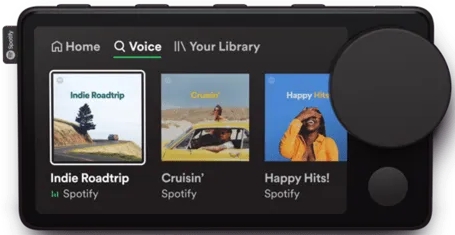
Spotify completely retired its older, visual-heavy Car Thing feature. It has been replaced by a voice-forward layout known simply as Car Mode.
Part 2. Best Way to Play Spotify in Car (All Cars)
Many modern cars come equipped with advanced infotainment systems that seamlessly integrate with Spotify. Whether it's through Bluetooth connectivity, USB ports, or built-in apps like Apple CarPlay and Android Auto, playing Spotify in your car is easier than ever. This integration allows you to control your music directly from the car's dashboard, minimizing distractions and keeping your focus on the road.
However, sometimes, your car doesn't allow you to connect your phone to play Spotify music whether you use Bluetooth, USB cable, or Apple CarPlay and Android Auto integration. In addition, you don't have a stable internet network while driving to out-of-the-way places. In this case, you are suggested to save Spotify songs to a USB drive for playing in the car. To get it done, you need a Spotify downloader called TunesMake Spotify Music Converter.
With the help of TunesMake Spotify Music Converter, you can download music from Spotify to a USB drive freely. As a professional music downloader, TunesMake Spotify Music Converter helps both Premium subscribers and free users save Spotify music to six popular audio formats like MP3. Then you can insert a USB drive that has downloaded Spotify songs into your car for listening even though you are in offline mode.

TunesMake Spotify Music Converter –
Download music from Spotify without premium
- Download Spotify songs, albums, playlists, audiobooks, and podcasts
- Losslessly convert Spotify music to MP3, FLAC, WAV, AIFF, and more
- Remove ads from Spotify music tracks even with a Free account
- Convert Spotify music at 15× faster speed in batch with ID3 tags kept
Security Verified. 100% Clean & Safe.
Step 1 Add Spotify Music to the Conversion List

Start by opening TunesMake Spotify Music Converter on your computer, then wait to load the built-in Spotify web player. In your Library, find some individual songs or any playlist to download. Directly click the + button to browse all the songs you want to download, then choose to add them into the conversion list.
Step 2 Set the Output Parameters for Spotify

Now you can set the output audio format and other parameters like bit rate. Here you need to click the menu bar at the top right corner and select the Preferences option to open the settings window. In the Settings window, you can select MP3 or other format as the output format. You can personalize the value of the bit rate, sample rate, and channel.
Step 3 Download Spotify Music as Local Files

Once the output audio settings are set well, click the Convert button to initiate the download and conversion of Spotify music. TunesMake Spotify Music Converter will download and save Spotify music to your computer as soon as possible. After completing the conversion, you can click the Converted icon to browse all the converted Spotify music.
Step 4 Start to Play Spotify Music in the Car
Now you can freely manage all the downloaded Spotify music files. If you want to play Spotify music through a USB drive in the car, you can directly transfer those music files to your USB drive. Then you can insert your USB drive into the port of your car and use the media player on your car's display to play your music stored in the USB drive.
Part 3. Wireless Ways to Play Spotify in Car (Modern Types)
Downloading Spotify music to a USB drive with TunesMake Spotify Music Converter is an ideal option to play Spotify in the car, especially when you're in the offline environment. But if your car has the latest ecosystem and look for a direct way to listen to Spotify, there are some wireless ways available for you to choose.
Method 1. Play Spotify in Car via In-Car Spotify
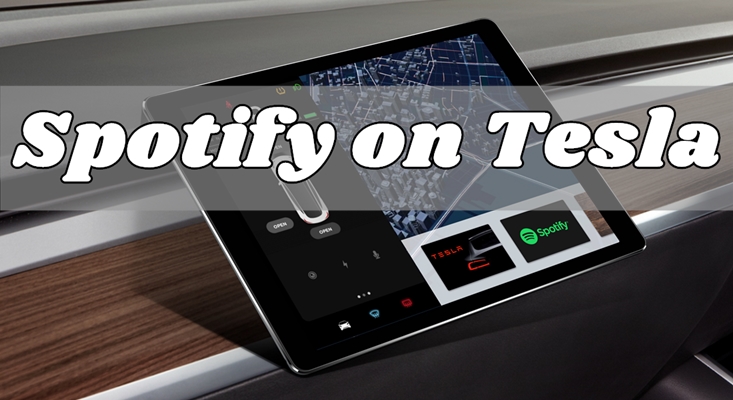
Some newer vehicles bypass the phone entirely. Cars equipped with Google Built-in or custom connected ecosystems like Tesla and Volvo feature a native Spotify app built directly into the car's computer. To get Spotify playing in the car, simply set up a native Spotify app for the car.
Vehicles with Spotify:
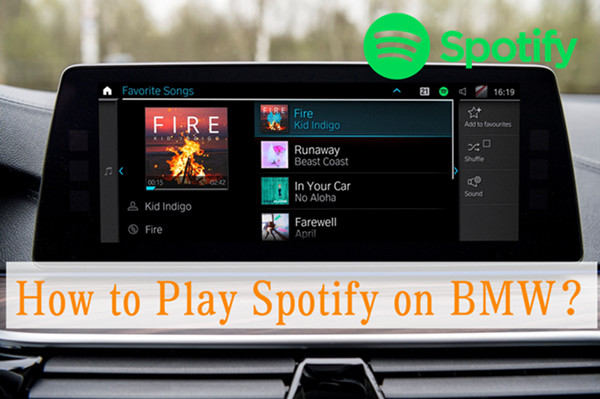
Spotify doesn't offer its services to all vehicles. Only those vehicles, including Tesla, Geely, Mercedes Benz, Volvo, VW, Polestar, Mini, GMC, Chevrolet, Cadillac, Buick, and BMW host a standalone Spotify app directly in the dashboard.
Step 1. On your car's display, tap Menu > Google Play Store > Search.
Step 2. Search for Spotify, then tap Get to download and install it in the car.
Step 3. Go to the app drawer on the central screen and open Spotify.
Step 4. A QR code or activation pin will appear on the dashboard screen.
Step 5. Scan the QR code with your phone or go to spotify.com/pair on your device to log into your Spotify account.
Note:
While a Spotify Free account works on some systems, many native vehicle apps require a Spotify Premium subscription and an active vehicle data plan or mobile hotspot connection to stream.
You can also link Spotify directly inside navigation apps like Google Maps or Waze. This lets you skip tracks from a small overplay without ever leaving your map navigation screen. To link Spotify to Google Maps or Waze, just follow the steps below.
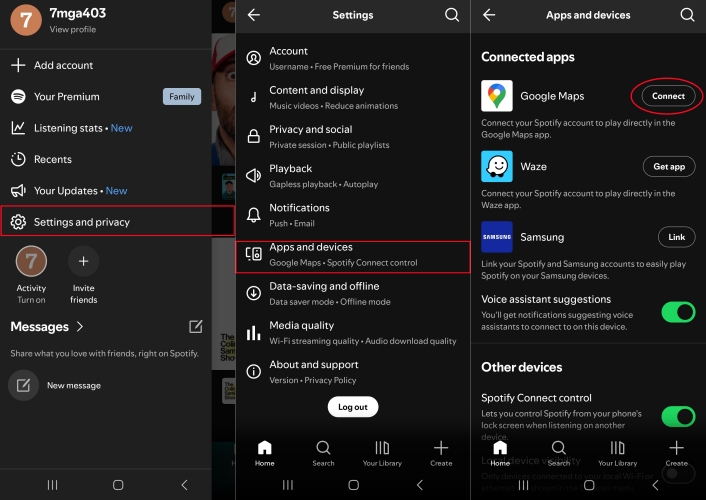
Step 1. In the Spotify app, tap your profile image at the top right corner.
Step 2. Tap Settings > Apps and devices.
Step 3. Tap Connect next to Google Maps or Waze.
Step 4. Tap Agree to link Spotify to Google Maps or Waze.
Method 2. Play Spotify in Car via CarPlay or Android Auto
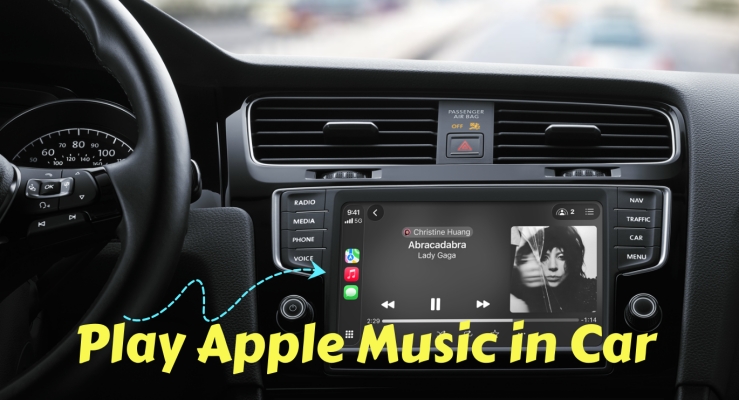
If your car features a modern touchscreen infotainment system, you most likely have access to CarPlay for iOS devices or Android Auto for Android device. These platforms mirror a driving-optimized version of Spotify directly onto your car's dashboard screen via a USB data cable or a local WiFi connection.
Set up Apple CarPlay for Playing Spotify in the Car
Before heading to your vehicle, ensure your iPhone and settings are properly configured.
-
Turn on Siri: Go to your iPhone's Settings > Siri > Talk to Siri and toggle on "Siri" or "Het Siri". CarPlay will not activate if Siri is completely disabled.
-
Check Screen Time Limits: Ensure CarPlay isn't accidentally blocked. Go to Settings > Screen Time > Content & Privacy Restrictions. If restrictions are active, tap Allowed Apps & Features and make sure CarPlay is toggled green.
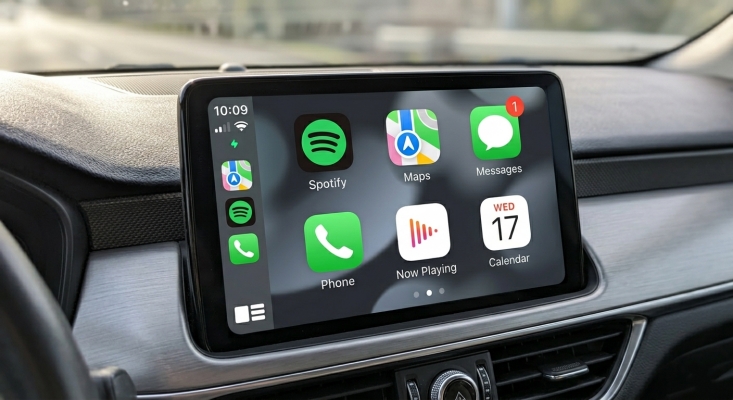
Step 1. Turn on your vehicle's engine and make sure that Bluetooth or Wireless is enabled.
Step 2. Press and hold the voice control button on your vehicle's steering wheel until the dashboard system prompts a handshake.
Step 3. On your iPhone, open Settings > WiFi and ensure WiFi is active.
Step 4. Go to Settings > Bluetooth and keep the menu screen open.
Step 5. Go to Settings > General > CarPlay > Available Cars.
Step 6. Tap on your vehicle's name when it registers in the list.
Step 7. Swipe through your vehicle's dashboard icon grid to locate Spotify.
Step 8. Tap the icon to reveal the driving-optimized playback menu.
Step 9. Select your library in Spotify and shuffle your liked songs.
Set up Android Auto for Playing Spotify in the Car
Before heading out to your vehicle, verify that your apps are updated and permissions are enabled to ensure a smooth handshake.
-
Update Your Apps: Open the Google Play Store and ensure both Android Auto and Spotify are updated to their latest versions.
-
Turn on Google Assistant: Android Auto heavily relies on voice interaction for safety. Make sure Google Assistant is enabled on your smartphone under Settings > Google > Settings for Google apps > Search, Assistant & Voice.
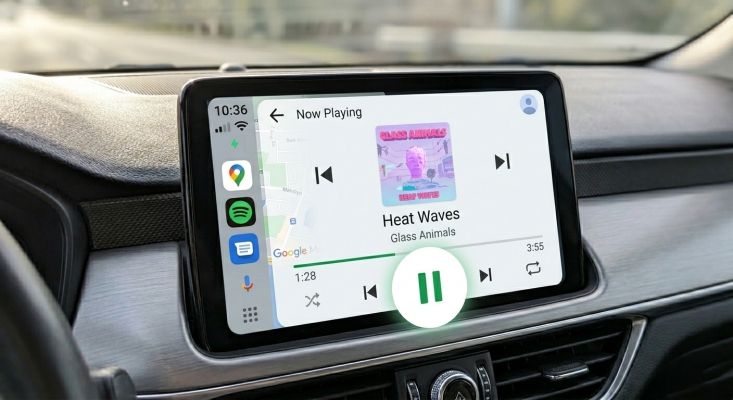
Step 1. Open your phone's general Settings and type Android Auto into the search bar.
Step 2. Tap on the Android Auto settings menu and select Customize launcher.
Step 3. Scroll through the grid list of installed apps and locate Spotify to choose.
Step 4. Turn on your car's engine and make sure your infotainment system is set to wireless pairing mode.
Step 5. Activate both Bluetooth and Wi-Fi on your smartphone.
Step 6. Go to your phone's Bluetooth settings and select your vehicle's audio system name.
Ask Siri or Google Assistant to Play Spotify in the Car
Interacting with a screen while driving is a major safety risk. To keep your eyes on the road, use voice integration to play your liked music from Spotify in the car.
| For iPhone Users | For Android Users |
|---|---|
| "Hey Siri, play my Discover Weekly on Spotify." | "Hey Google, shuffle my road trip playlist." |
| "Hey Siri, skip this song." | "Hey Google, shuffle this playlist." |
| "Hey Siri, play more songs like this one." | "Hey Google, let's hear the Acoustic playlist." |
| "Hey Siri, repeat this song." | "Hey Google, resume." |
| "Hey Siri, play the rest of this album." | "Hey Google, pause." |
Method 3. Play Spotify in Car via Bluetooth Connection
If your car doesn't have a smart touchscreen but does have digital wireless capabilities, standard Bluetooth is your best option. It streams high-quality audio and passes basic control functions like track skipping to your steering wheel buttons.
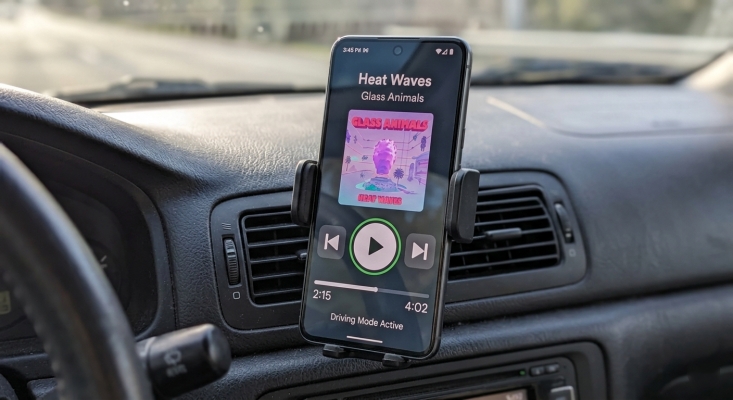
Step 1. Turn on your car's Bluetooth via its dashboard menu.
Step 2. Open your phone's Settings > Bluetooth.
Step 3. Select your car's name from the list of available devices.
Step 4. Confirm the pairing PIN code displayed on both your phone and the car's screen.
Step 5. Open Spotify on your phone and press play.
Part 4. Wired Ways to Play Spotify in Car (Older Types)
Just because your vehicle doesn't have wireless smart features doesn't mean you are stuck listening to AM or FM radio. In this case, you can save Spotify music to a USB drive for playing in the car. Or you can easily get premium sound out of older car models using physical hardware. Here are some wired ways to help you play Spotify music in an older car.
Method 1. Play Spotify in Car via Auxiliary Cable
The standard 3.5mm AUX jack is a time-tested, analog solution found on nearly every car dashboard manufactured between 2005 and 2015. It handles pure audio playback without needing to sync menus or deal with software bugs.
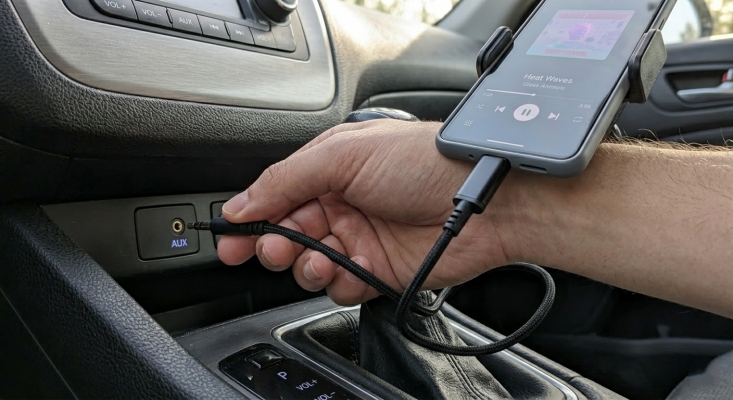
Step 1. Plug one end of a standard auxiliary cable into your car's AUX-In port.
Step 2. Plug the other end into your phone's headphone jack.
Step 3. Switch your car's stereo input source to AUX.
Step 4. Open Spotify and turn your smartphone's physical volume up to roughly 80–90%.
Step 5. Control the overall cabin volume using your car's stereo knob.
Method 2. Play Spotify in Car via Direct USB Cable
Connecting your smartphone straight to your vehicle via a standard USB data cable is the gold standard for high-fidelity audio. In modern vehicles, this connection pathways into Apple CarPlay or Android Auto. In mid-era vehicles, it connects directly as an iPod or Media source.
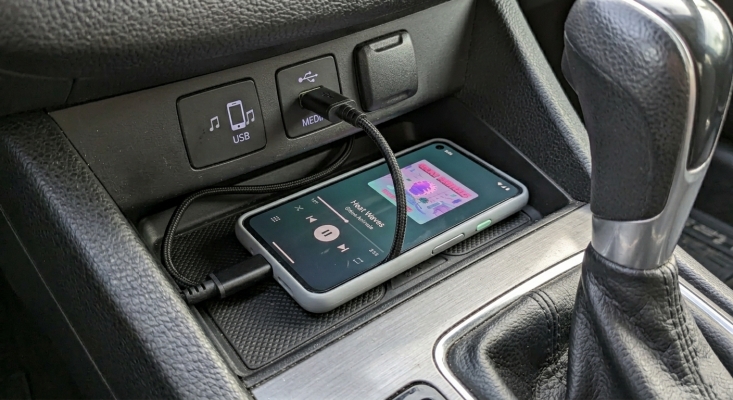
Step 1. Locate your vehicle's primary media USB port.
Step 2. Connect your smartphone using a high-quality, certified USB data cable.
Step 3. Open Spotify on your phone, and press play.
Method 3. Play Spotify in Car via FM Transmitter
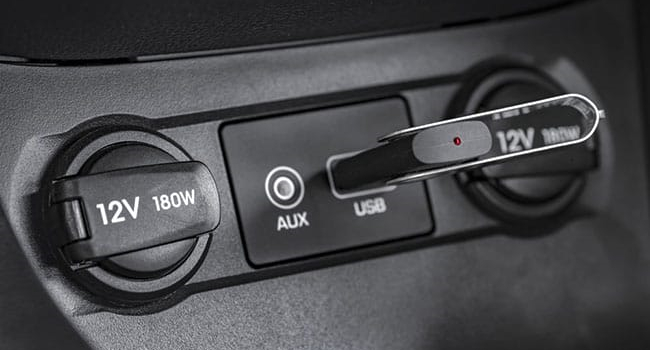
If you drive an older or vintage car that lacks both a modern USB media port and a standard AUX jack, a hardwired FM transmitter is your bridge to Spotify. These devices plug directly into your car's 12V power accessory outlet.
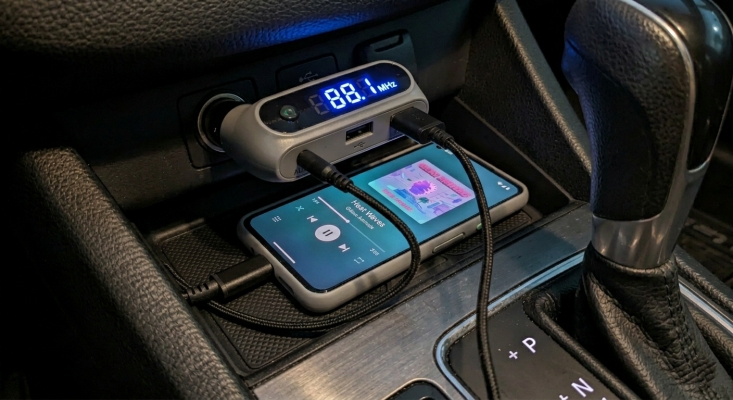
Step 1. Plug the FM transmitter into your car's 12V cigarette lighter socket.
Step 2. Connect an AUX cable from your smartphone directly into the the FM transmitter unit.
Step 3. Select an empty, static-only radio frequency at the digital screen on the transmitter.
Step 4. Tune your physical car radio dial to match the exact frequency displayed on the transmitter.
Step 5. Press play on Spotify. The transmitter will pick up the analog audio signal from your wire and broadcast it seamlessly through your car's radio antennas.
Part 5. FAQs about Playing Spotify in Car
How to turn on Car Mode on Spotify?
If your Spotify music plays but the interface feels clumsy or difficult to read while driving, you can turn on Car Mode on Spotify to ensure it correctly optimized for the road.
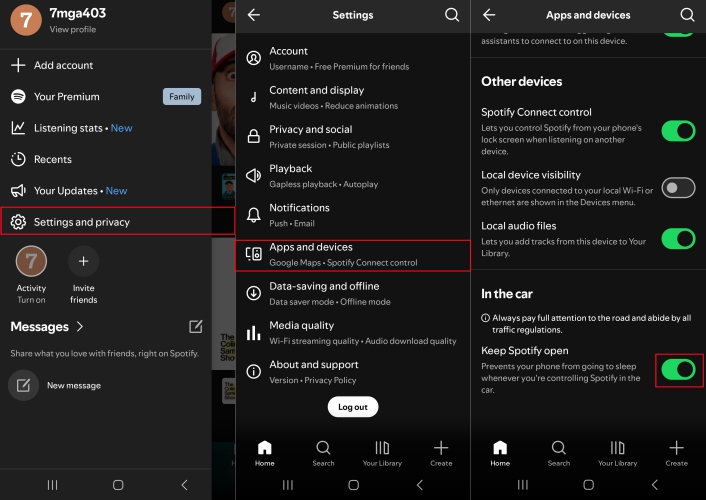
Step 1. Open the Spotify app on your phone while parked.
Step 2. Tap your profile image in the top left corner.
Step 3. Select Settings and privacy and tap Apps and devices.
Step 4. Scroll down to the In the Car section, then toggle Keep Spotify Open.
How to stop Spotify from automatically playing in car?
Once enabling Car Mode, Spotify will automatically play in the car when you connect your phone to your car's Bluetooth. To prevent Spotify from automatically playing in your car, you can turn off Bluetooth or switch Car Mode off.
How to fix Spotify skipping in car?
If Spotify is skipping, stuttering, or randomly pausing while you are driving, the issue is usually caused by cellular data drops, corrupted cache files, or a glitch in the wireless connection. To fix the issue, you can download Spotify music for listening in Offline Mode, clear the Spotify app cache, check phone optimization settings, or resolve wireless connection conflicts.
How to set best Spotify equalizer settings for car?
Even the best car stereo system will sound subpar if the Spotify app is sending a low-quality, heavily compressed audio stream. You can set best Spotify equalizer settings for car to unlock maximum fidelity.
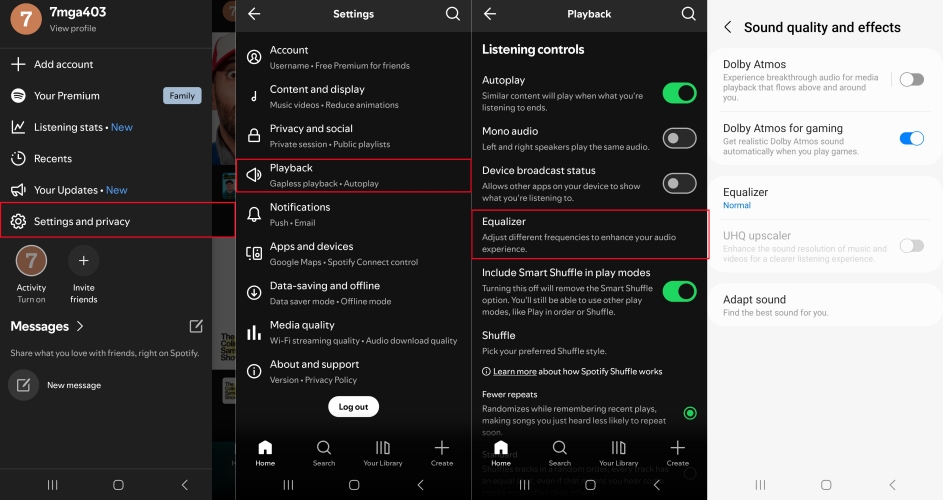
Step 1. In the Spotify app, go to Settings and privacy > Playback > Equalizer.
Step 2. Subtly adjust the frequency sliders to complement your car's natural cabin acoustics.
Part 6. Conclusion
Playing Spotify in the car opens up a world of musical possibilities, allowing you to enjoy your favorite music and audiobooks wherever you go. Whether you prefer wireless streaming or a wired connection, there are plenty of options to suit your needs. By following the methods outlined above, you can listen to Spotify music in your car with ease. For offline listening in the car, you can upgrade to Spotify Premium or use TunesMake Spotify Music Converter.
Related Articles


A senior editor from TunesMake, dedicated to sharing professional tutorials and solutions of software, movies, and music.
- 1
- 2
- 3
- 4
- 5
- 6
- 7
 Leave Your Comment
(0)
Leave Your Comment
(0)

 Download Center

