








 Store
Store


Migrating your music library used to feel like moving to a new house—you risked losing half your belongings along the way. If you are planning a move from Spotify to Apple's music ecosystem, you might be wondering how to take years of carefully curated playlists with you without starting completely from scratch. Fortunately, this guide breaks down the absolute best ways to transfer music from Spotify to iTunes based on your specific use case.

Part 1. Can I Transfer Music from Spotify to iTunes?
Strictly speaking, you cannot transfer music directly from Spotify to iTunes. On the one hand, Spotify's music is protected by DRM, so it cannot be downloaded as local files and dropped into iTunes. On the other hand, unlike Apple Music, iTunes isn't a standalone music application and doesn't offer a native music transfer feature.
Although both platforms operate as closed ecosystems, there are ways to help you transfer Spotify music to your library in iTunes. One method is to download Spotify music with a Spotify downloader and upload them into iTunes. Another approach is to export Spotify playlist to TXT or CSV with a music transfer tool and then rematch the tracks.
Part 2. How to Transfer Music from Spotify to iTunes
If you are using a Windows PC and want to populate iTunes rather than a cloud-based Apple Music subscription, Apple's native transfer integration won't apply. Instead, you can use TuneMyMusic, a highly trusted, web-based API conversion tool. It can export Spotify music into TXT or CSV, which can be read by iTunes and then rematch the tracks in iTunes.
Step 1. Go to the TuneMyMusic website on your Windows PC.
Step 2. Select Spotify as your source platform.
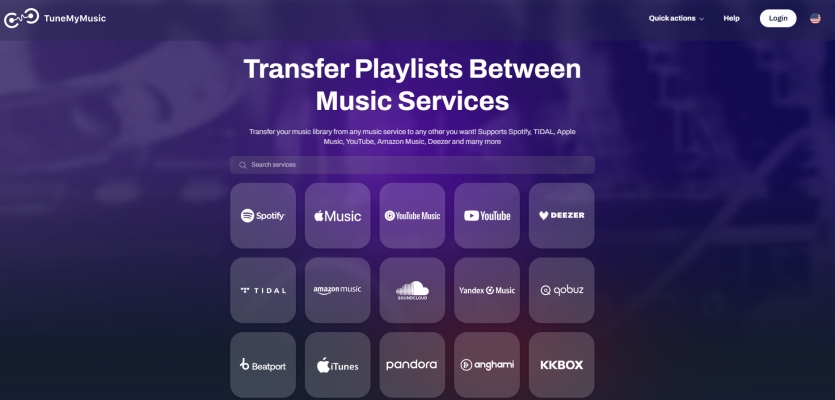
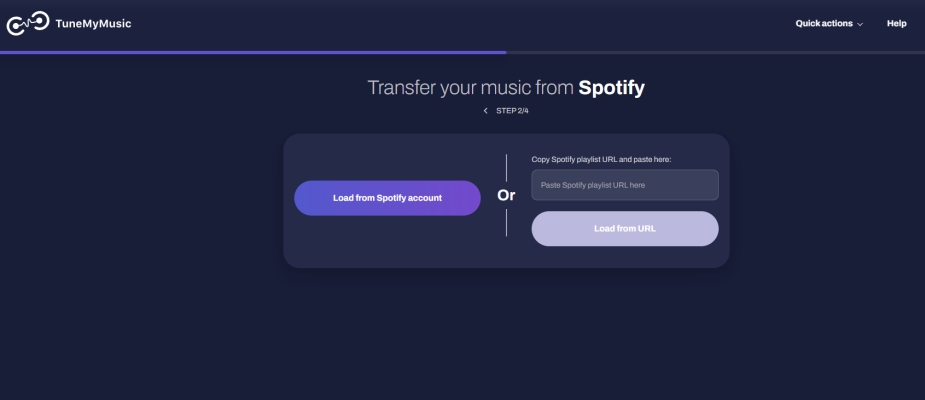
Step 3. Log in to authorize TuneMyMusic to view your playlists.
Step 4. Click Load from Spotify account to load your music library.
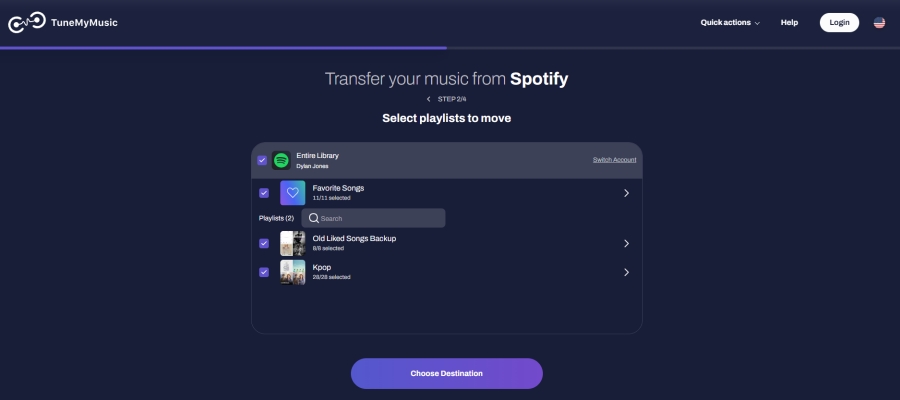
Step 5. Browse your created playlist and select the playlists to move.
Step 6. Choose TXT or CSV as your destination instead of a streaming platform.
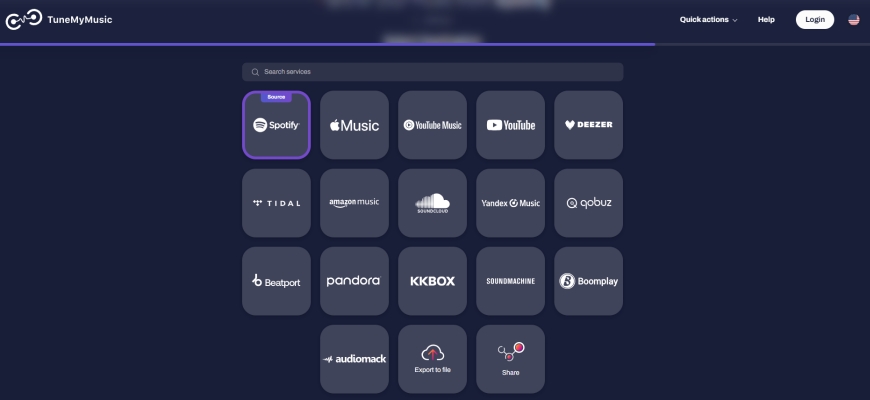
Step 7. Download the generated file to your Windows PC.
Step 8. Open iTunes and click File > Library > Import Playlist.
Step 9. Select the downloaded text file. iTunes will automatically search its local database and match the tracks.
Part 3. How to Download Music from Spotify to iTunes
If you don't use an Apple Music cloud subscription and prefer playing localized audio files directly inside the iTunes app on your Windows PC, standard metadata transfer tools won't work. Instead, a Spotify to iTunes playlist converter like TunesMake Spotify Music Converter can resolve this issue without requiring an Apple Music subscription.
This professional Spotify to iTunes playlist converter allows you to download and save your Spotify songs locally onto your computer. It process the tracks by stripping the encryption and re-encoding them into standard audio formats like MP3, FLAC, or M4A while retaining original ID3 metadata tags like album artwork, artists, and titles.

TunesMake Spotify Music Converter –
Download music from Spotify without premium
- Download Spotify songs, albums, playlists, audiobooks, and podcasts
- Losslessly convert Spotify music to MP3, FLAC, WAV, AIFF, and more
- Remove ads from Spotify music tracks even with a Free account
- Convert Spotify music at 15× faster speed in batch with ID3 tags kept
Security Verified. 100% Clean & Safe.
How to Download and Convert Spotify Music
Follow the steps below to download and convert music from Spotify to iTunes supported formats like MP3, WAV, AIFF, and AAC by using TunesMake Spotify Music Converter.
Step 1 Add Spotify Music to the Conversion List
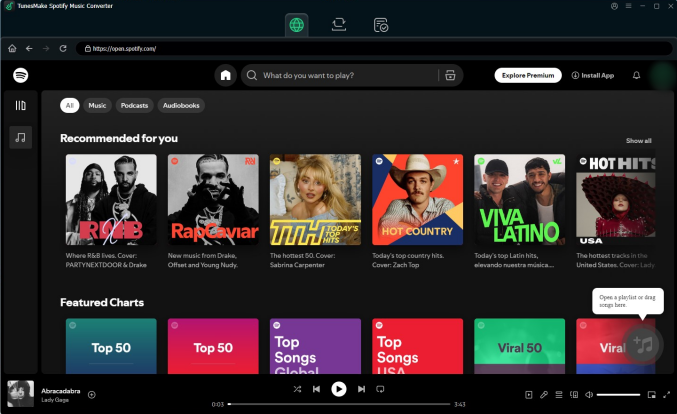
Immediately you open TunesMake Spotify Music Converter on your computer, it will automatically load the built-in Spotify web player. You then need to go to your Spotify music library and start selecting your favorite tunes and playlists. You can move your songs from Spotify to the conversion list by clicking the + button.
Step 2 Set the Audio Parameters for Spotify
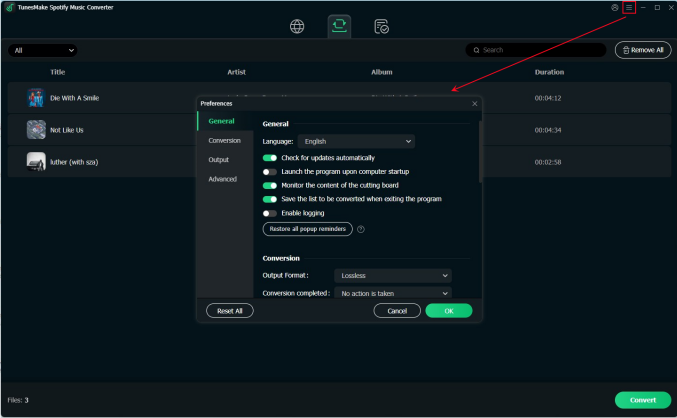
At this point, you already have your favorite songs in the main interface of the converter. What then follows is the customization of the parameters to your taste. Then click the menu at the top right corner and choose the Preferences option. From the Conversion part, change the output format. As iTunes only supportsMP3, WAV, AIFF, and AAC, you can set MP3 as the output format. You can also change the channel, sample rate, and bit rate to desirable options.
Step 3 Convert Spotify Music to MP3 or WAV
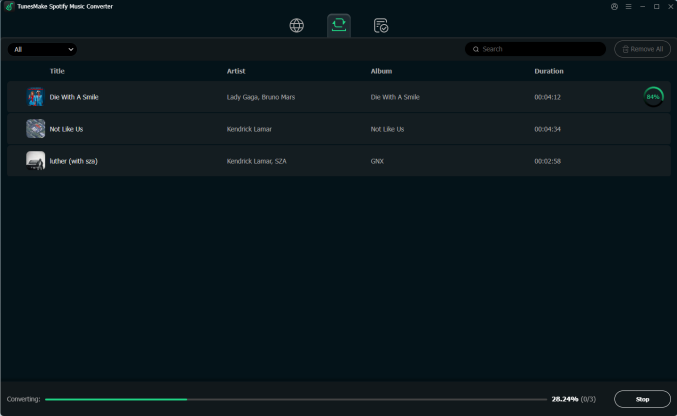
You are just one step away from accomplishing your mission of downloading music from Spotify to iTunes. With your customized settings, you can click the Convert button at the bottom right corner. TunesMake Spotify Music Converter will start the download and conversion of your songs to MP3 format. Give it time to finish the process, then you can click the Converted icon and look for the converted Spotify music files in the converted list.
How to Transfer Playlist from Spotify to iTunes
Well, you now have your converted Spotify songs. But remember you need to import them from the local folder to your iTunes library. There are two ways to transfer Spotify playlists to the iTunes library. If you are using Apple Music instead of iTunes on your Mac, you can also import Spotify music to Apple Music, and then sync it to your iTunes library.
Steps to Move Spotify Music to iTunes on Windows
=Step 1. Launch iTunes on your Windows computer, then click the File button from the top bar.
Step 2. From the drop-down menu, click the New button and select Playlist or Smart Playlist.
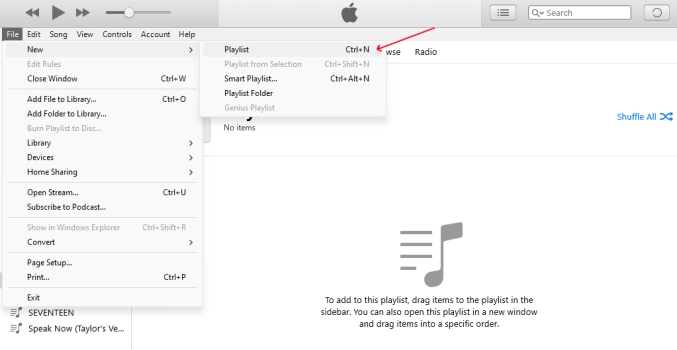
Step 3. Click the File button again and select Add File to Library to open the file browser.
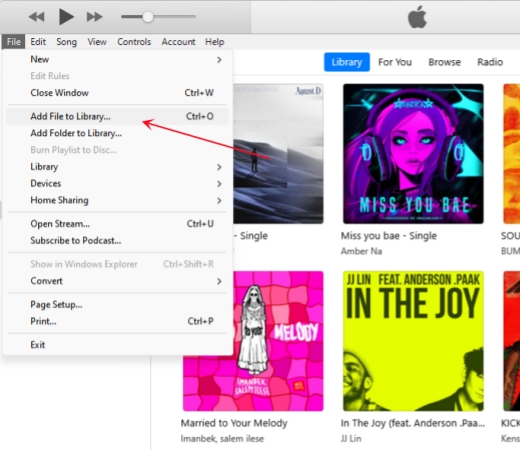
Step 4. Find Spotify music files stored on your computer and add the selected files to iTunes by clicking Open.
Step 5. Go to the Library tab and find your newly added Spotify songs in the Recently Added tab.
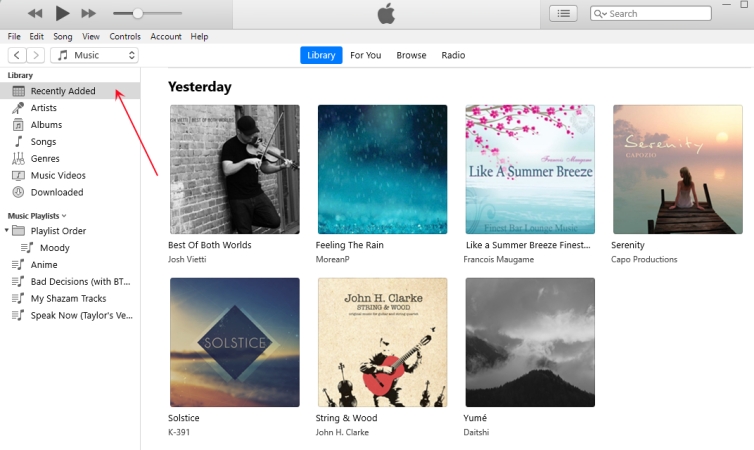
Step 6. Select all the items and right-click them, then click Add to Playlist and choose to add them to your created playlist.
Alternatively, you can directly drag your Spotify music files to the playlist you’ve created in the sidebar. Then you can find your Spotify songs in your iTunes library.
Steps to Upload Spotify Music to iTunes on Mac
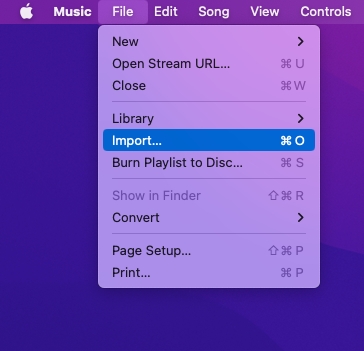
Step 1. Run Apple Music on your Mac, then click File > Import from the top bar.
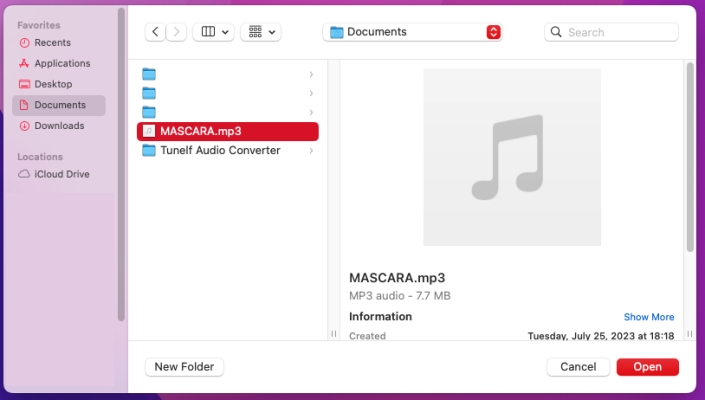
Step 2. There will pop up the Add To Library window and locate the folder containing the converted Spotify music files.
Step 3. Select all the music files you want to upload and click the Open button to add them.
Step 4. Click File > New and select Playlist or Smart Playlist to create a new playlist for saving Spotify music.
Step 5. Head to the Recently Added tab and choose to add your uploaded music files to the newly-created playlist.
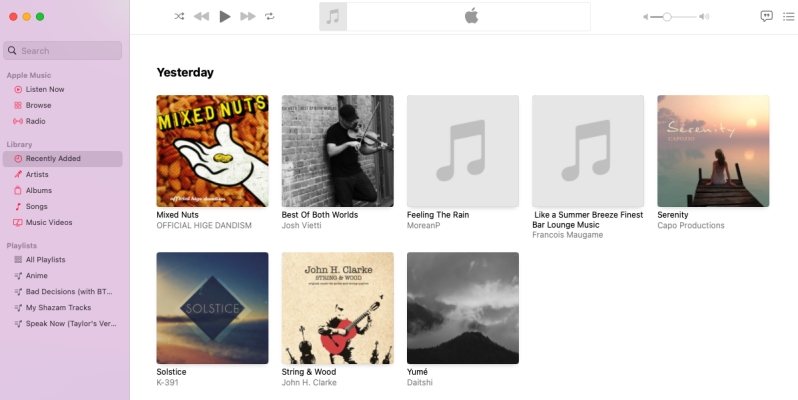
Step 6. To sync Spotify music to iTunes, click Music > Settings and select General.
Step 7. In the General window, check the Sync Library box option to make Spotify music sync to iTunes.
Part 4. How to Back up Spotify Music in iTunes Library
You probably understand the pain of acquiring a large volume of music over the years because you cannot rebuild the overnight. To make the point home, it is important to have a safe copy somewhere after transferring Spotify music to your iTunes library. You can back up your iTunes library via iCloud, or choose to sync Spotify music from iTunes to your Apple devices. Now perform the simple steps below for backing up your iTunes library.
Steps to Make a Backup Spotify Music in iTunes
Step 1. Download a local copy of your Spotify music, then launch iTunes on your computer.
Step 2. From the menu bar at the top of your computer or at the top of the iTunes window, click Files > Library > Organize Library.
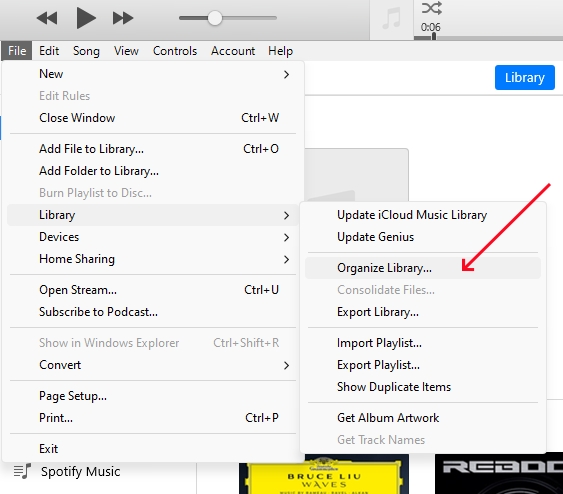
Step 3. Once the Organize Library window appears, tick the Consolidate Files box.
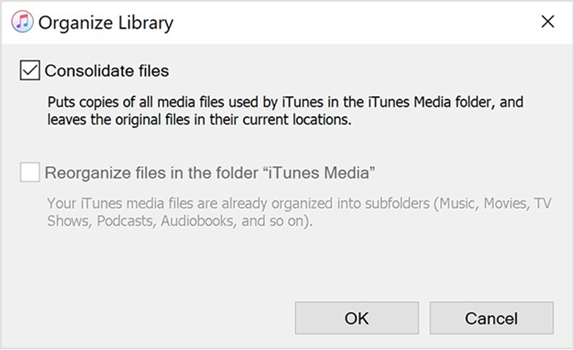
Step 4. Click OK to create a copy of Spotify music files to your iTunes Media Folder while leaving the original files in the location.
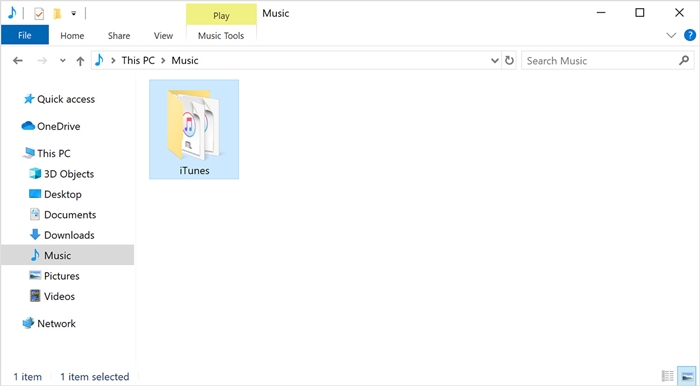
Step 5. Find your iTunes folder and right-click on your iTunes folder, then choose Copy.
Step 6. Go to your external hard drive, then right-click and choose Paste to back up your library.
Steps to Sync Spotify Music from iTunes to iPhone
Step 1. Connect your iPhone to your computer via a USB cable and wait for it to be detected by the computer.
Step 2. In iTunes, select your iPhone at the top of the sidebar and click Music at the left sidebar.
Step 3. Check the Sync Music option and choose Entire Music Library or Selected playlists, artists, albums, and genres.
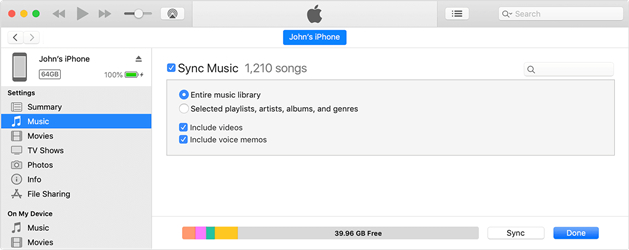
Step 4. After selecting Spotify music files to sync, click the Apply button to start. Once done, click the Done button.
Part 5. Conclusion
You would agree that Spotify is among the largest streaming music services to look up to. Besides its free plan is another icing on the cake. With over 100 million songs to keep you locked, you surely have devised ways to keep Spotify close to your heart. What may come in between is only DRM protection. But that is a thing of the past now. We have shown how to break the restriction and continue enjoying Spotify music on any device. Likewise, you can transfer playlist from Spotify to iTunes library and be on the go from any of your synced devices.
Related Articles

A senior editor from TunesMake, dedicated to sharing professional tutorials and solutions of software, movies, and music.
- 1
- 2
- 3
- 4
- 5
- 6
- 7
 Leave Your Comment
(0)
Leave Your Comment
(0)

 Download Center

