








 Store


Accidentally deleting a carefully curated Spotify playlist can feel like losing years of memories. Whether you misclicked on your phone or purged a playlist on your computer by mistake, don't worry, and your music isn't gone forever. Spotify provides a built-in restoration feature that keeps deleted playlists on its servers for 90 days. In this guide, you will learn how to recover deleted playlists on Spotify and set up automated backups so you never lose your music again.
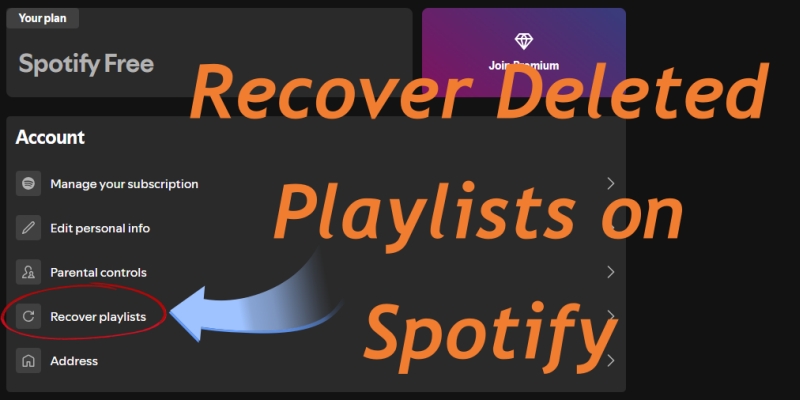
Part 1. How to Recover a Deleted Playlist on Spotify
Because the Spotify mobile and desktop apps do not contain a direct "Trash" or "Recycle Bin" tab, restoring deleted playlists requires accessing your Spotify account settings page through a web browser. Whether you are using an iPhone, Android device, PC, or Mac, open any web browser like Chrome, Safari, Firefox, or Edge and follow these exact steps.
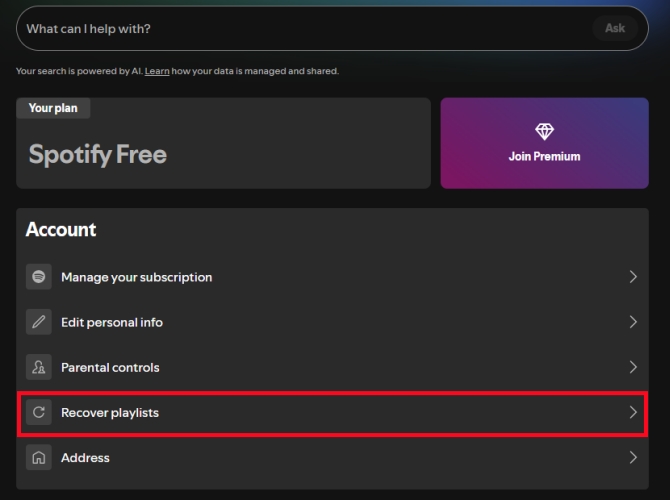
Step 1. Open your web browser and navigate to spotify.com/account.
Step 2. Enter your Spotify credentials to log in.
Step 3. Tap the Account Overview menu at the top of the screen.
Step 4. Click or tap the Recover playlists option from the list.
Step 5. Locate the playlist you wish to recover and click the green RESTORE button next to it.
Where to Find Restored Spotify Playlists?
Once you click RESTORE, the button status changes to "Restored." The restored playlist does not always jump back to its original sorted spot. Instead, Spotify places recovered playlists at the very bottom of your library list. Scroll down to the end of your sidebar or collection in the app to find it, then drag and drop it back to your preferred position.
How to Get Deleted Playlist Back on Spotify Instantly
If you just deleted a playlist seconds ago while using the Spotify desktop application or web player, you can instantly reverse the action before navigating away.
Step 1. Keep the Spotify application or web player open on your device.
Step 2. Press Ctrl + Z on a Windows PC or Cmd + Z on a Mac.
Step 3. Your deleted playlist will immediately reappear in the left sidebar menu.
Note:
This shortcut only works if performed immediately after deletion within the active desktop session. If you closed the app, deleted the playlist on mobile, or performed other actions afterward, proceed to the official recovery method above.
Part 2. How to Recover Playlists Lost for More Than 90 Days
If more than 90 days have passed since deletion, Spotify automatically purges the playlist data from the standard account recovery tool. However, you still have options.
Method 1. Contact Spotify Customer Support
While not guaranteed, Spotify's automated chat support and customer care team can occasionally perform server-side account rollbacks for long-lost data.
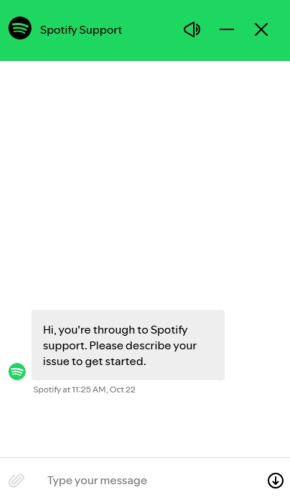
Step 1. Visit the Spotify Contact Support Page.
Step 2. Navigate to Account > Data and privacy.
Step 3. Start a chat session with the support bot.
Step 4. Type "Recover playlist deleted over 90 days ago."
Step 5. Request escalation to a human agent.
Step 6. Provide the exact title of the missing playlist.
Method 2. Recover via Shared Links or Friends
If you previously shared the playlist link with a friend, posted it on social media, or sent it in a messaging app, you can recover a deleted playlist via shared links or friends.
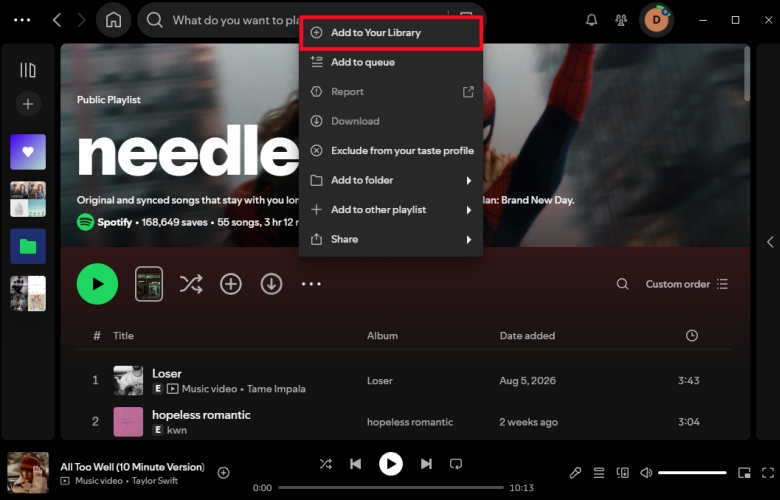
Step 1. Locate the original link and click it to open the playlist in Spotify.
Step 2. Even if deleted from your account, the track listing often remains visible via direct link.
Step 3. Click the three dots icon on the playlist page.
Step 4. Select Add to library or copy the tracks into a newly created playlist.
Part 3. How to Prevent Losing Your Spotify Playlists Again
Taking a few proactive seconds to back up your favorite music collections protects your library from accidental deletion or account sync errors. Start with the following steps.
Method 1. Duplicate Critical Playlists
On the Spotify desktop app, open any essential playlist, select all tracks using Ctrl + A on Windows or Cmd + A on Mac, right-click the highlighted selection, and select Add to playlist > New playlist. This creates an independent secondary copy within your account.
Method 2. Export Metadata to CSV Spreadsheets
Use open-source web tools like Exportify to log in with your Spotify account and export your entire library data. Exportify generates clean CSV files containing song titles, artist names, album titles, track durations, and unique Spotify URIs for every playlist you own.
Method 3. Sync to Secondary Platforms
Third-party services such as Soundiiz or TuneMyMusic allow you to mirror your Spotify playlists to alternative platforms such as Apple Music, YouTube Music, Tidal, or Amazon Music or save local text files as off-site backups.
Method 4. Back up Playlists as Local Files
Relying strictly on cloud services means your music is vulnerable if a playlist is permanently deleted past 90 days or if your account runs into access issues. Maintaining an offline backup on your local drive provides a permanent layer of protection. Using TunesMake Spotify Music Converter, you can download and convert your Spotify playlists into common audio formats like MP3, FLAC, or WAV. By saving local copies of your curated songs and preserving ID3 metadata, you preserve your exact playlist catalog on your computer or an external hard drive.

TunesMake Spotify Music Converter –
Download music from Spotify without premium
- Download Spotify songs, albums, playlists, audiobooks, and podcasts
- Losslessly convert Spotify music to MP3, FLAC, WAV, AIFF, and more
- Remove ads from Spotify music tracks even with a Free account
- Convert Spotify music at 15× faster speed in batch with ID3 tags kept
Security Verified. 100% Clean & Safe.
Part 4. FAQs about Recovering a Deleted Spotify Playlist
Can I recover a deleted Spotify playlist after 90 days?
Not through the official web recovery tool. After 90 days, data is removed from account tables. However, if you have the original share URL, you may still be able to open the track list and copy the songs manually.
Does playlist recovery restore follower count and likes?
Yes. When you restore a deleted playlist within the 90-day window using the web recovery tool, all original tracks, cover art, follower counts, and shared link URIs are fully restored.
Can I recover individual deleted songs from a playlist?
If you accidentally deleted specific songs from an active playlist, use Ctrl + Z on a Windows PC or Cmd + Z on a Mac immediately. If that window has passed, you can view your Recently Played history or listen to your Liked Songs to identify and re-add missing tracks.
Part 5. Conclusion
Losing a curated Spotify playlist can be frustrating, but getting your music back is usually straightforward if you act quickly. To avoid future headaches altogether, taking control of your library with offline backups, such as exporting audio files with TunesMake Spotify Music Converter, duplicating master copies, or saving CSV spreadsheets, ensures your favorite collections remain permanently accessible, no matter what happens on the platform.
Related Articles


An experienced freelance writer at TunesMake, specializes in using various streaming services from Spotify, Apple Music, to Amazon Music, and more other platforms.
- 1
- 2
- 3
- 4
- 5
- 6
- 7
 Leave Your Comment
(0)

 Download Center


